
Let families pay by installments
Offer discounted course payments in registration and family cart checkout, with a choice of before-start or after-start timing.
- 1
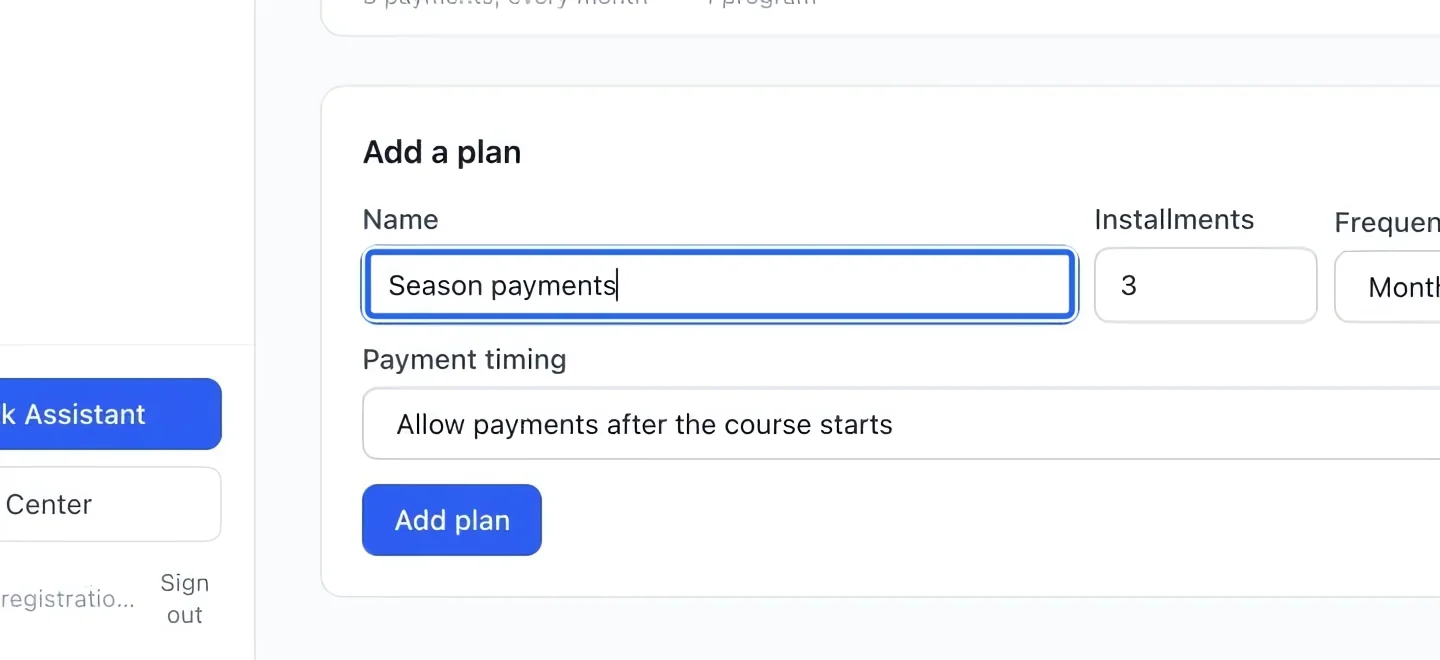
Name a payment plan
Open Money → Installment plans. Enter a name families will understand, such as “Three monthly payments”.
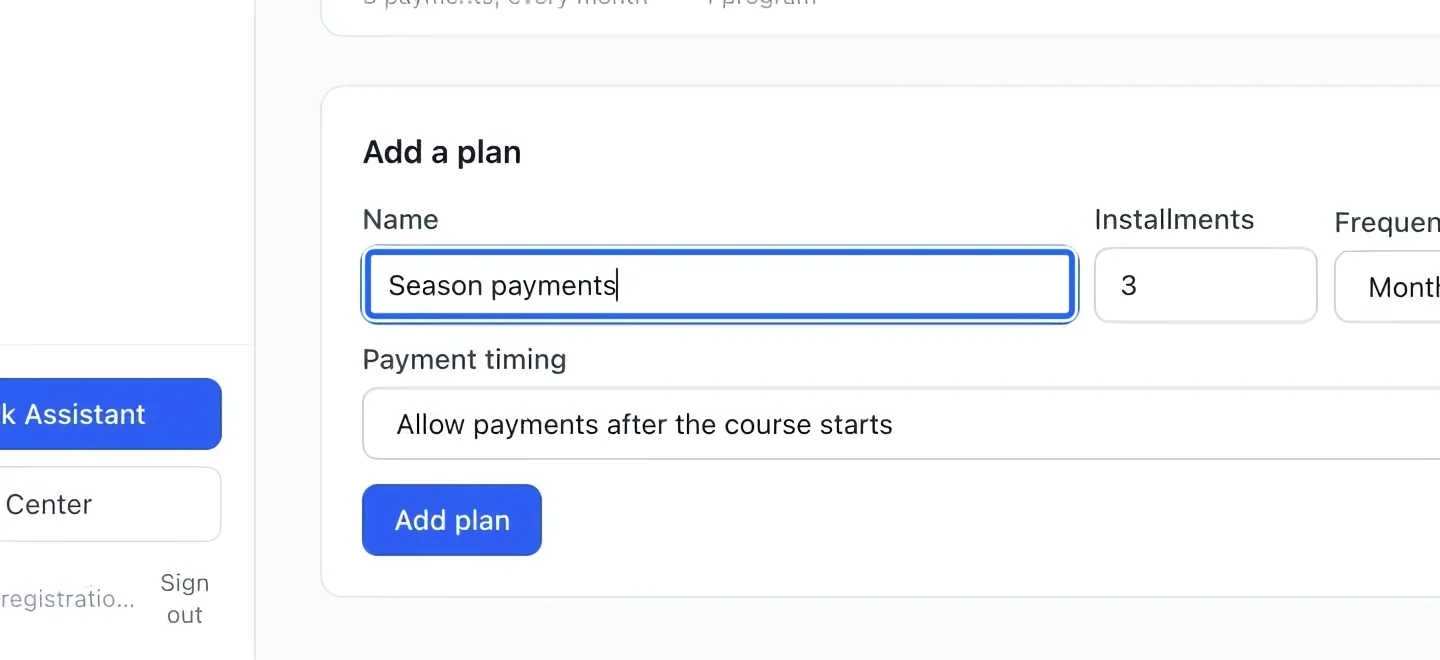
Select the screenshot to enlarge it. The blue outline marks the control to use.
- 2
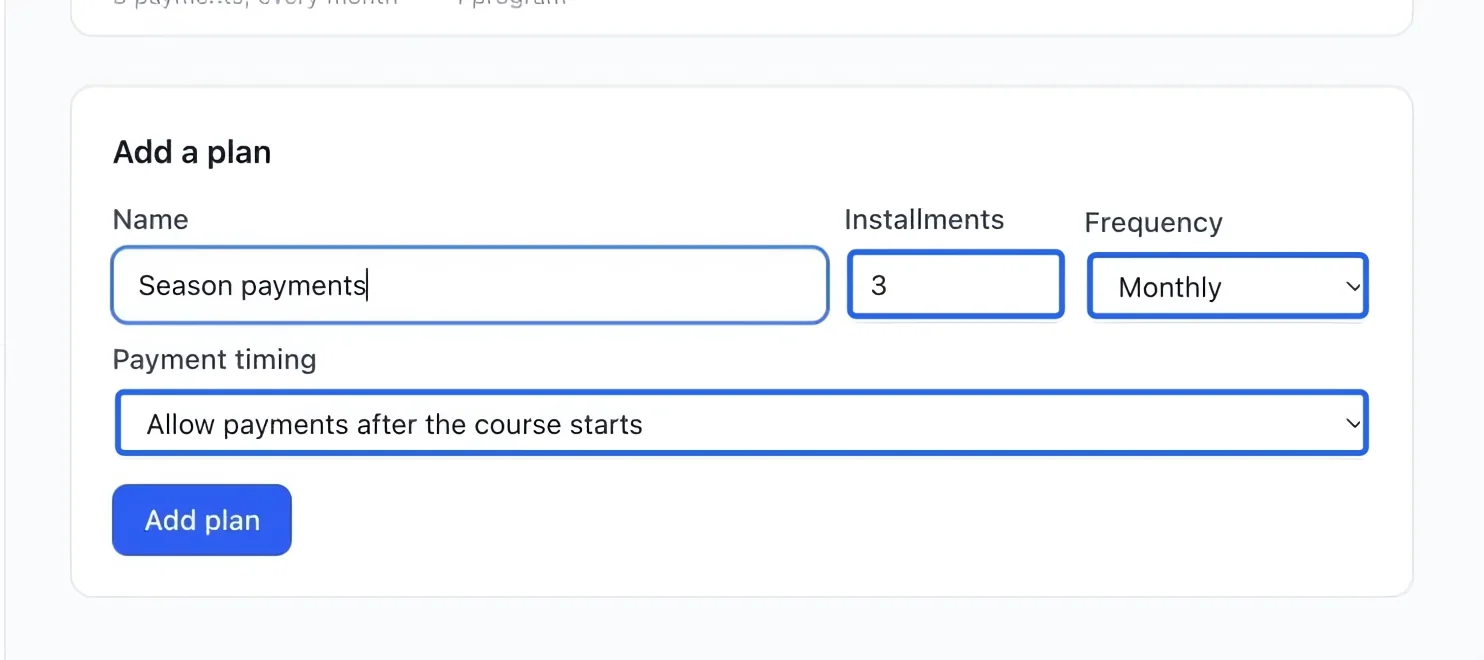
Set the payment schedule
Choose the number of installments, frequency and Payment timing. Finish before the course starts keeps the existing rule: the count shrinks when fewer payments fit, and started courses are payable in full. Allow payments after the course starts keeps the full count and frequency, including for a course already underway. The first payment is always due at checkout; later dates follow the frequency from that payment. Existing plans default to before-start. Changes apply to new registrations; existing registrations keep their agreed schedule.
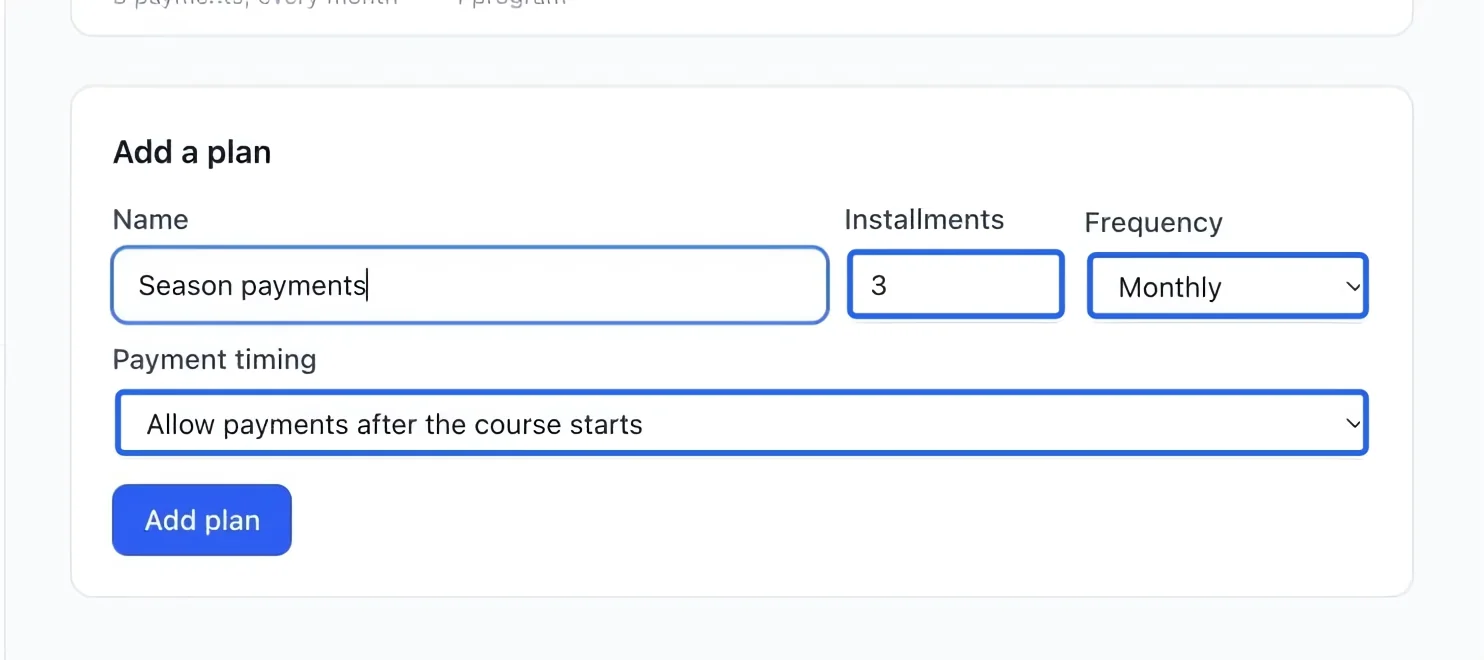
Select the screenshot to enlarge it. The blue outline marks the control to use.
- 3
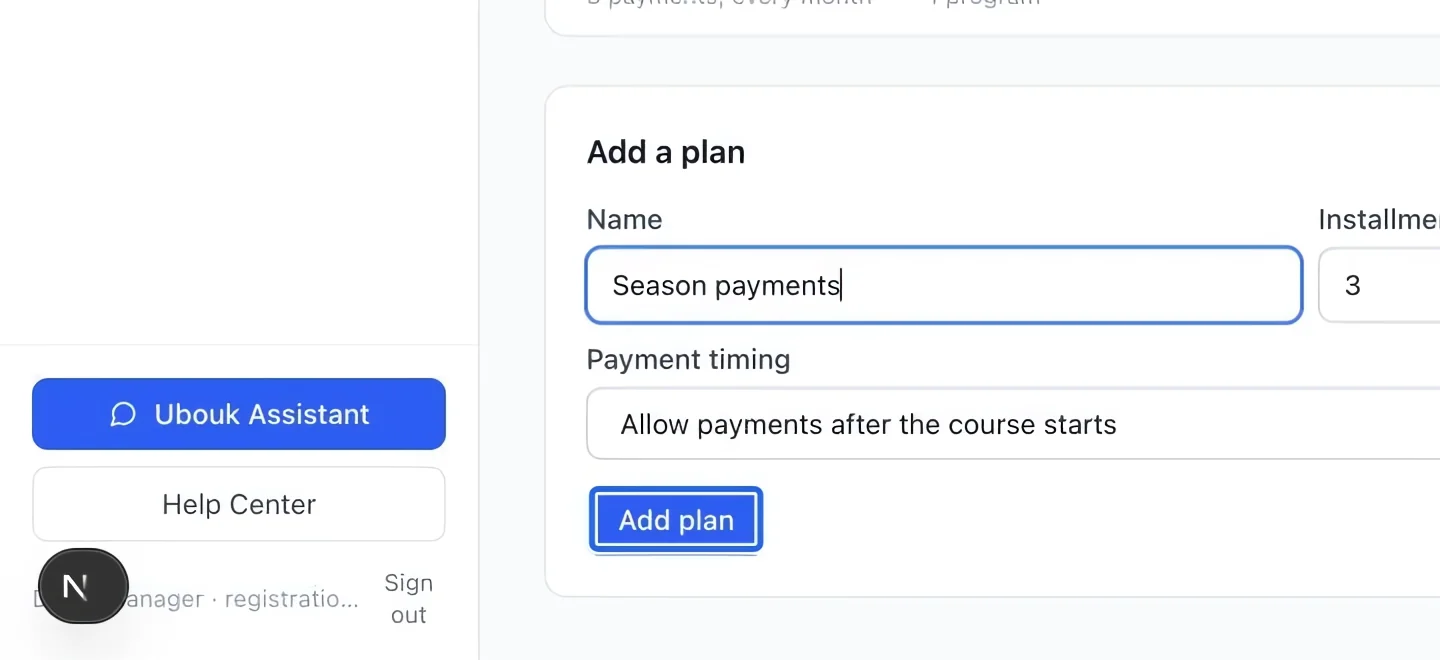
Save the instalment plan
Click Add plan and check the saved name, count and frequency in the list. You can reuse this plan on more than one program.
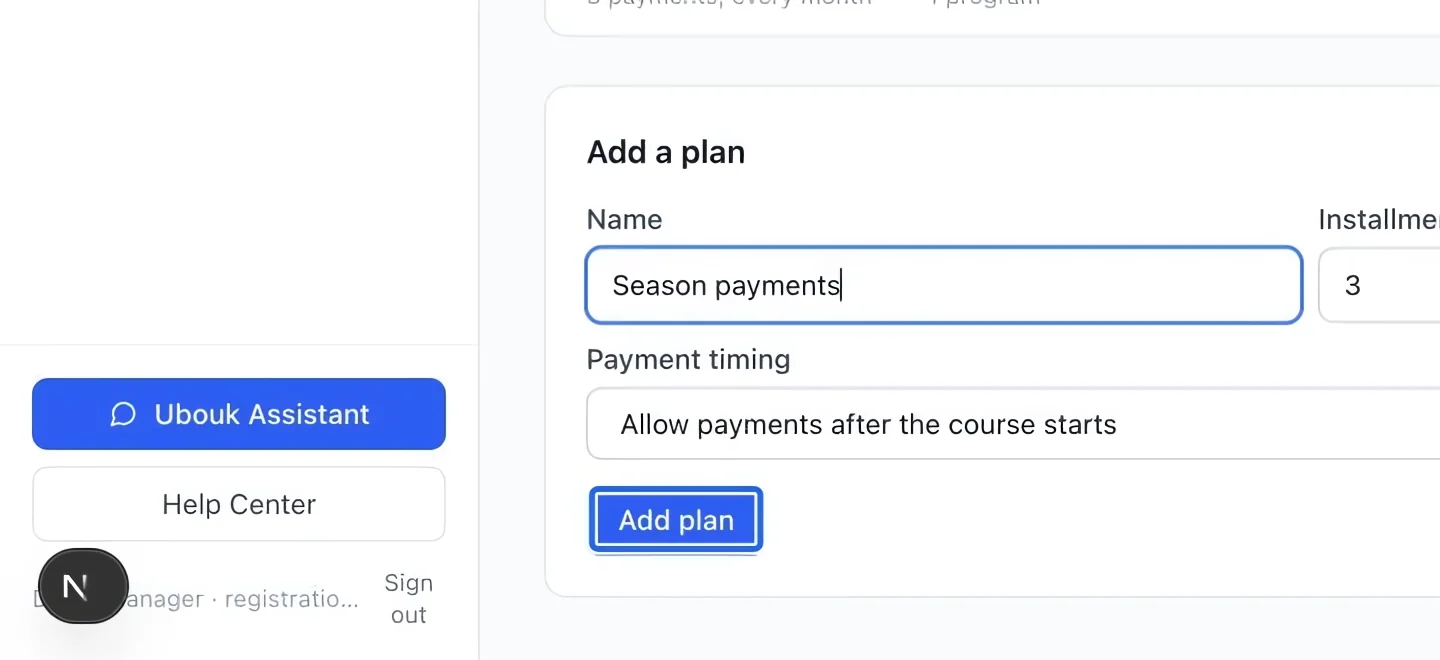
Select the screenshot to enlarge it. The blue outline marks the control to use.
- 4
Attach it to the program
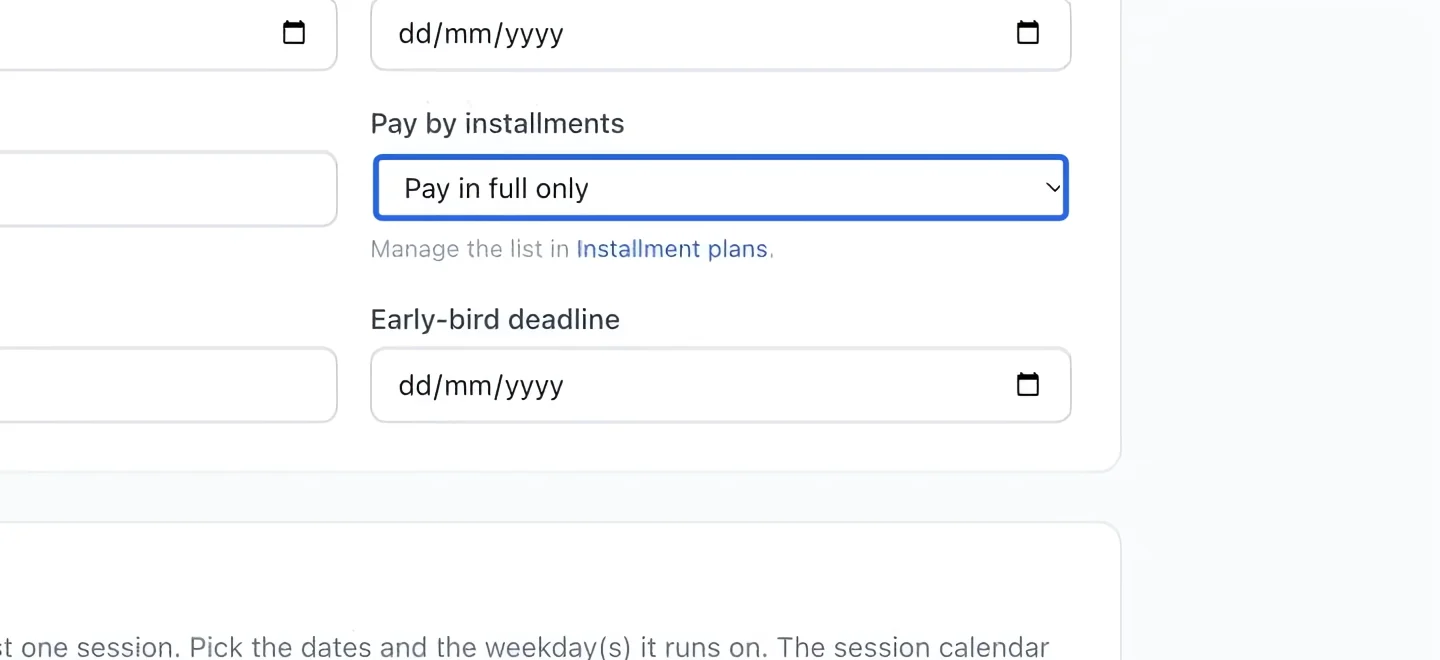
Open the program’s Pricing section and choose the plan under Pay by installments. Save the new program or wait for the existing editor to save. Make sure Stripe is connected before offering online installments. This plan is also available in the cart according to its Payment timing setting. A before-start plan needs at least two payments that fit; an after-start plan keeps all configured payments. Eligible multi-course savings are calculated across the purchase before splitting course balances, including when registering several people in the same program. Follow the family checkout guide.
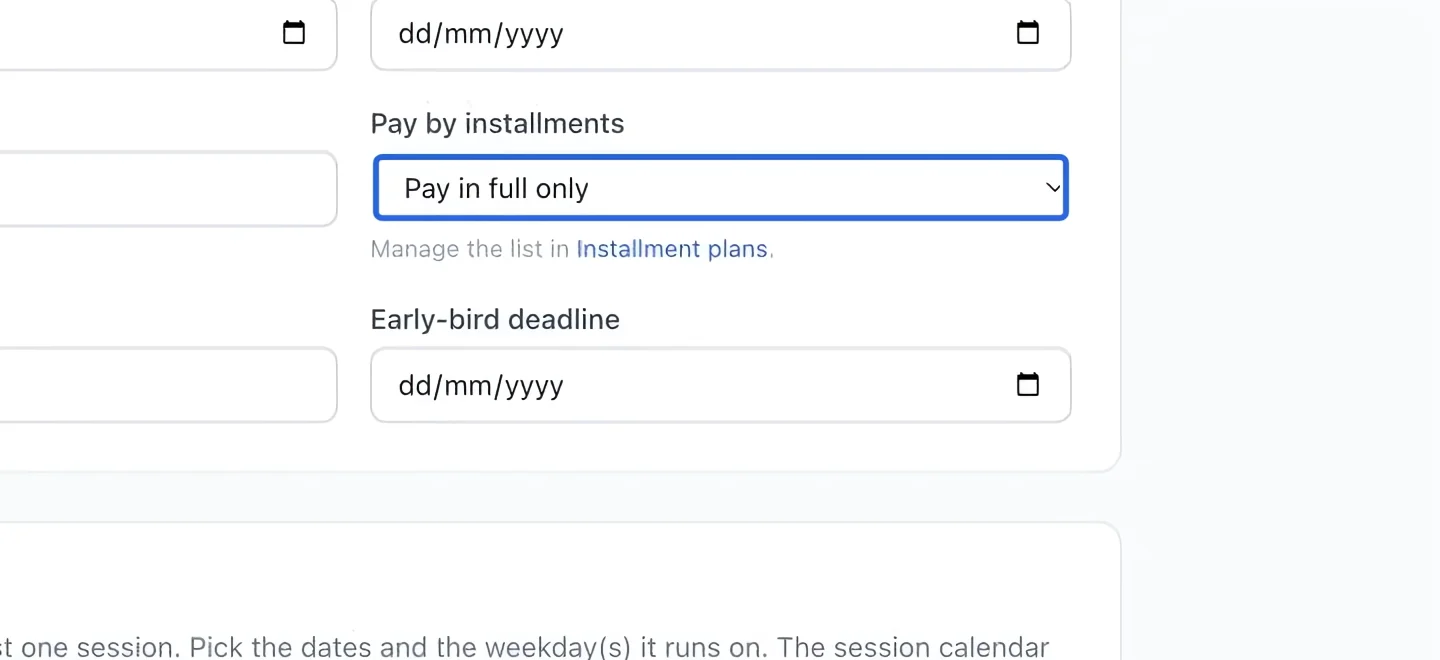
Select the screenshot to enlarge it. The blue outline marks the control to use.
- 5
Monitor the remaining instalments
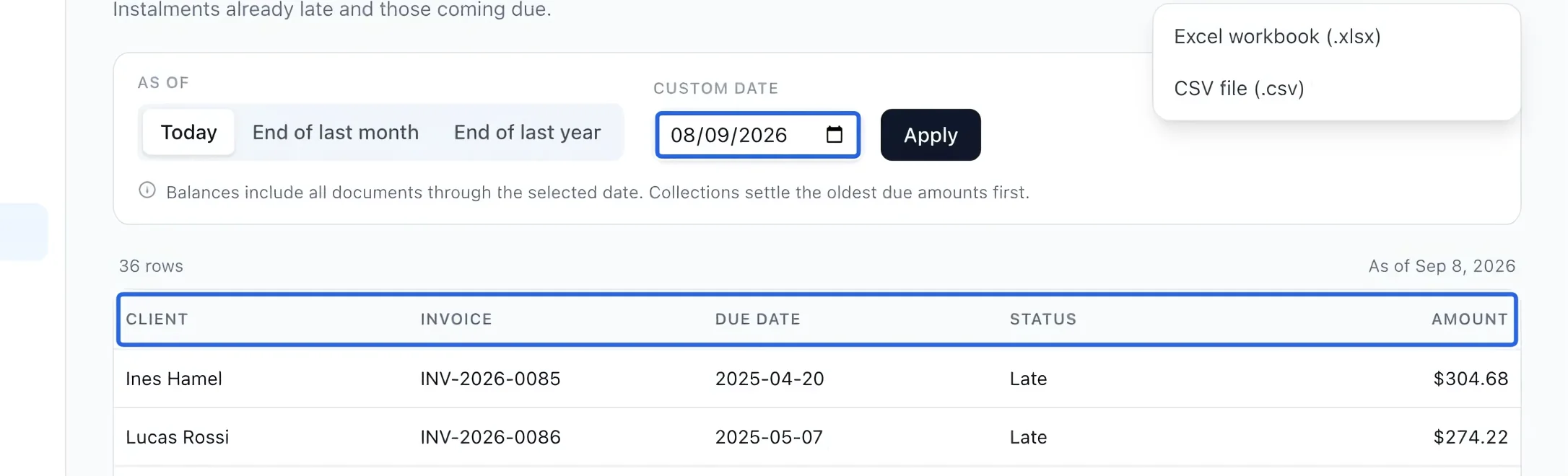
Use Late and upcoming instalments to check outstanding amounts as of a date. Partial payments settle the oldest due amounts first. For aged payment reminders, configure overdue-balance automations; changing a report date does not change the payment schedule.
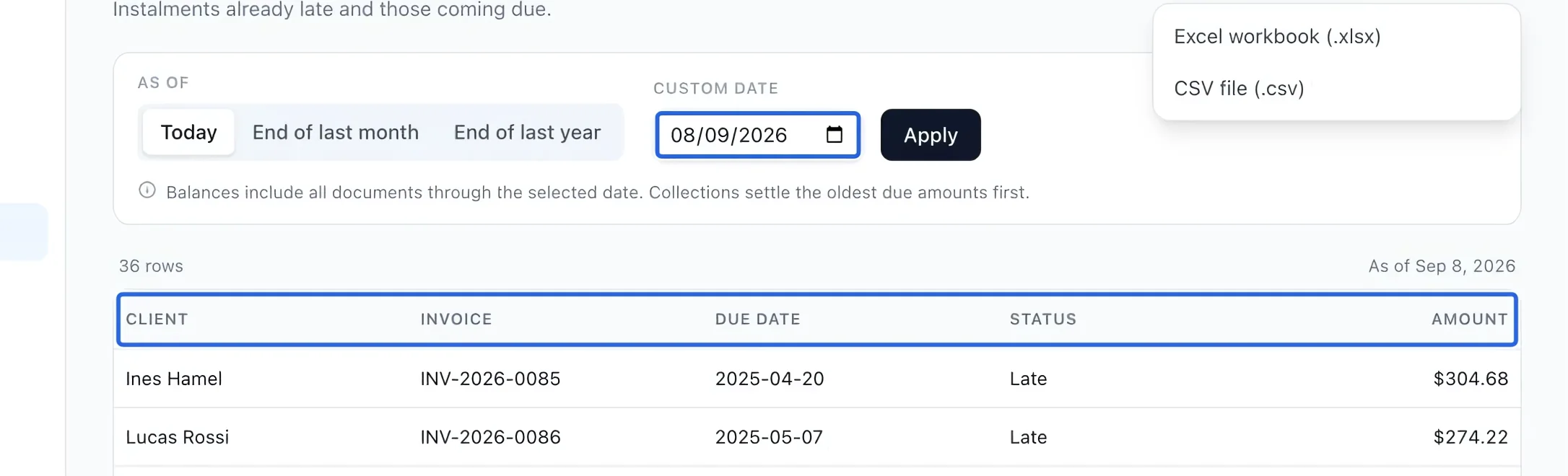
Select the screenshot to enlarge it. The blue outline marks the control to use.
- 6
Verify the plan in a family cart
Add the courses to the public portal’s cart and select the participants. Under Payment schedule, choose Pay in installments, then review Order total, Due now and Upcoming payments after any discounts and taxes. Each course keeps its own schedule. Courses without an available plan, memberships and store items remain payable today. If the installment choice is missing, check the course’s assigned plan, its timing setting, start date and remaining balance. Only before-start plans require every payment to precede the course start.
- 7
Follow the shared bill and saved-card payments
A cart order keeps one invoice for the full amount, with separate balances for each registration. Payments for the same invoice, buyer, saved card and due date are collected together and allocated to those registrations. A family can pay one registration early from Orders & invoices; other balances remain due. Account credit covers only the course payment due today. If it covers the entire initial payment, no card is saved and the family pays later installments from their account with reminders. For a failed automatic payment, review the error and the family’s remaining balance before taking another payment. Loyalty points become available only after the program ends, even if paid in full or by installments beforehand. Per-dollar rewards use eligible program payments minus refunds; each program in a mixed purchase waits for its own final date.
Keep going
Register multiple courses and participants together, then choose full payment or eligible installments after discounts.
Accounting & financial reportsSee which scheduled amounts remain unpaid and when they are due.
Money & invoicingRecord cash, cheque, e-transfer or organization payments and verify the remaining invoice balance.
Accounting & financial reportsRelease earned program revenue, or schedule recognition from the program’s sessions.