
Use aged balances for payment reminders
Connect existing unpaid-balance automations to overdue buckets and stop reminders after payment.
- 1
Prepare the unpaid-balance automation
Create an Unpaid balance automation in Marketing → Automations with the message, delay and follow-ups you need. Configure its paid stop condition. Return to Escalation by overdue bucket in Optional accounting automation; existing unpaid-balance automations are listed here.
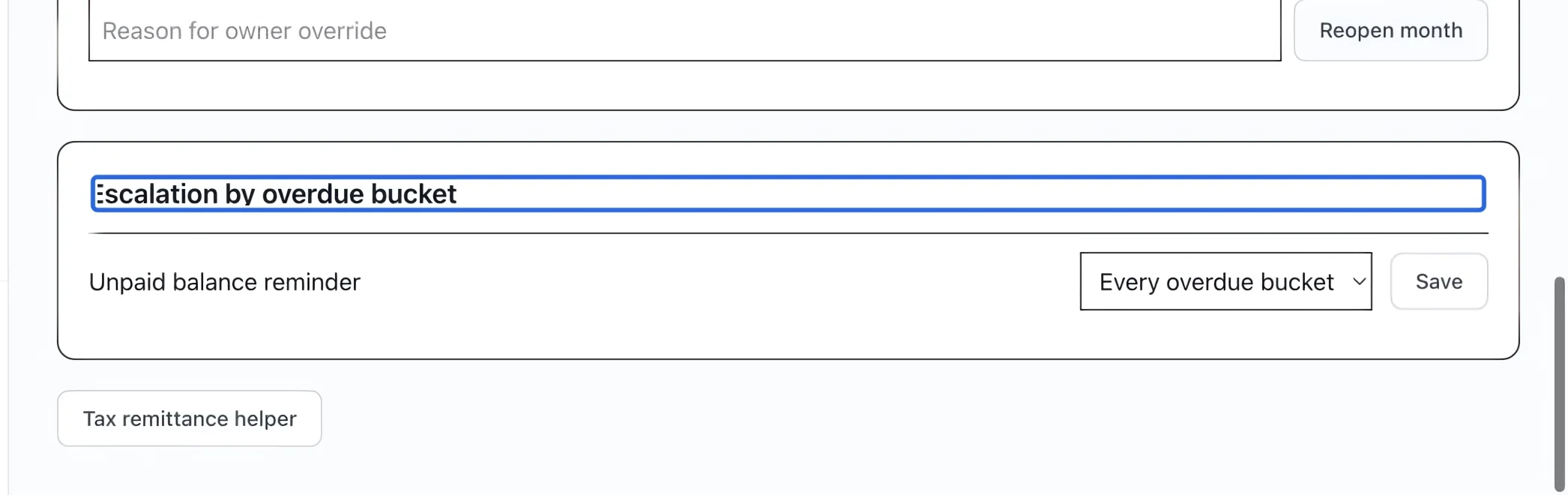
Select the screenshot to enlarge it. The blue outline marks the control to use.
- 2
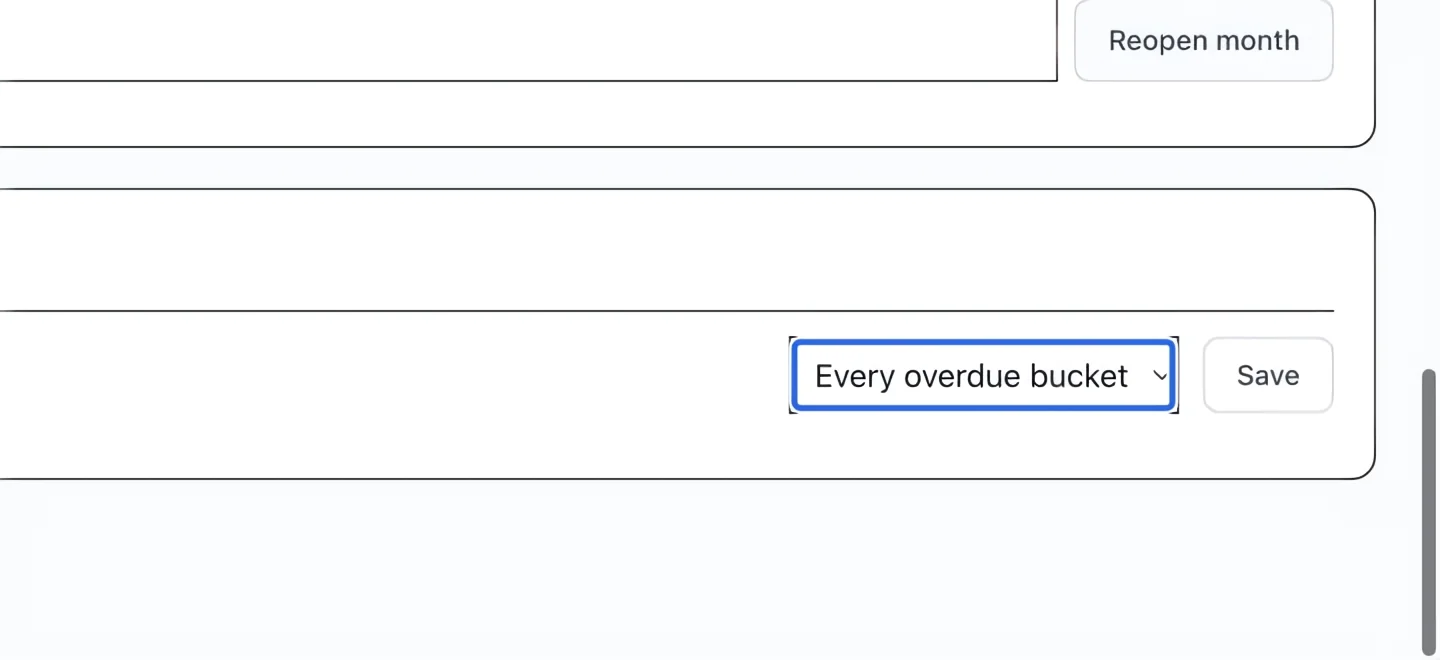
Assign a reminder to an overdue bucket
Choose Every overdue bucket, 0-30, 31-60, 61-90 or 90+ beside the automation, then save that row. Use separate automations and templates for different stages. The oldest unpaid overdue instalment determines the invoice’s bucket; the automation delay also affects when a reminder becomes eligible.
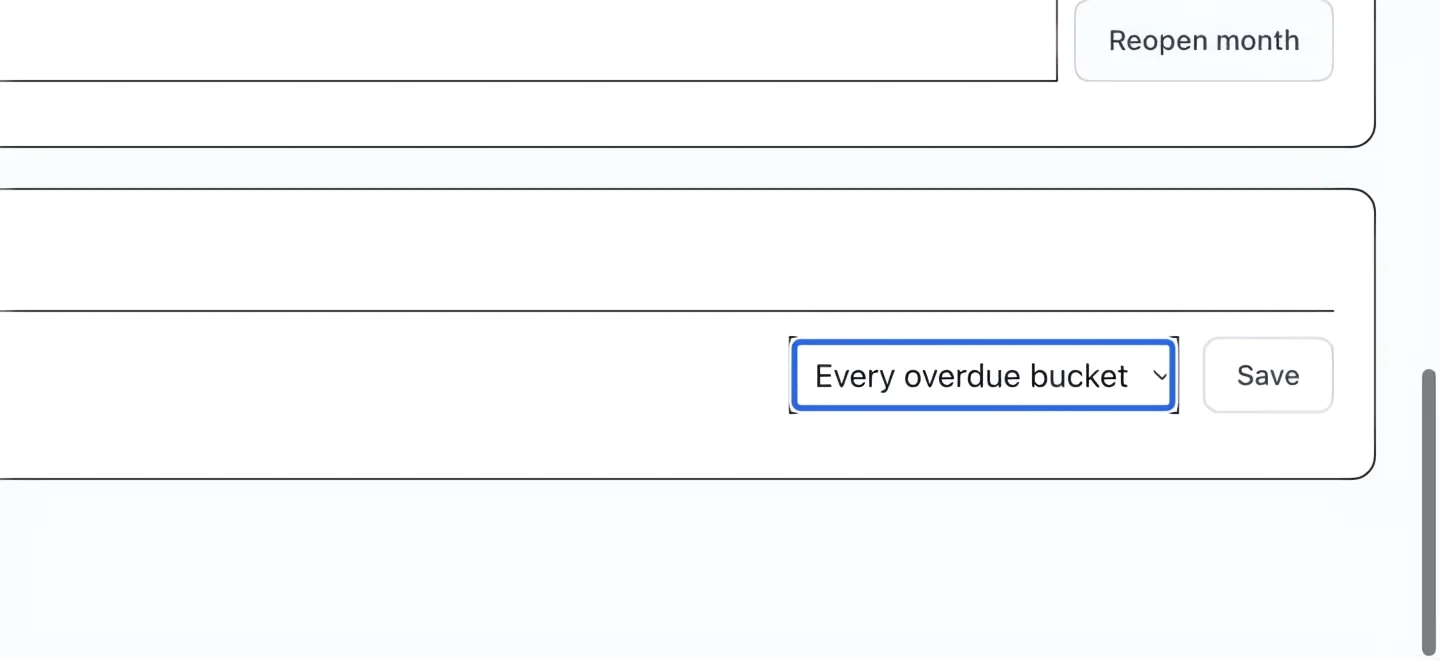
Select the screenshot to enlarge it. The blue outline marks the control to use.
- 3
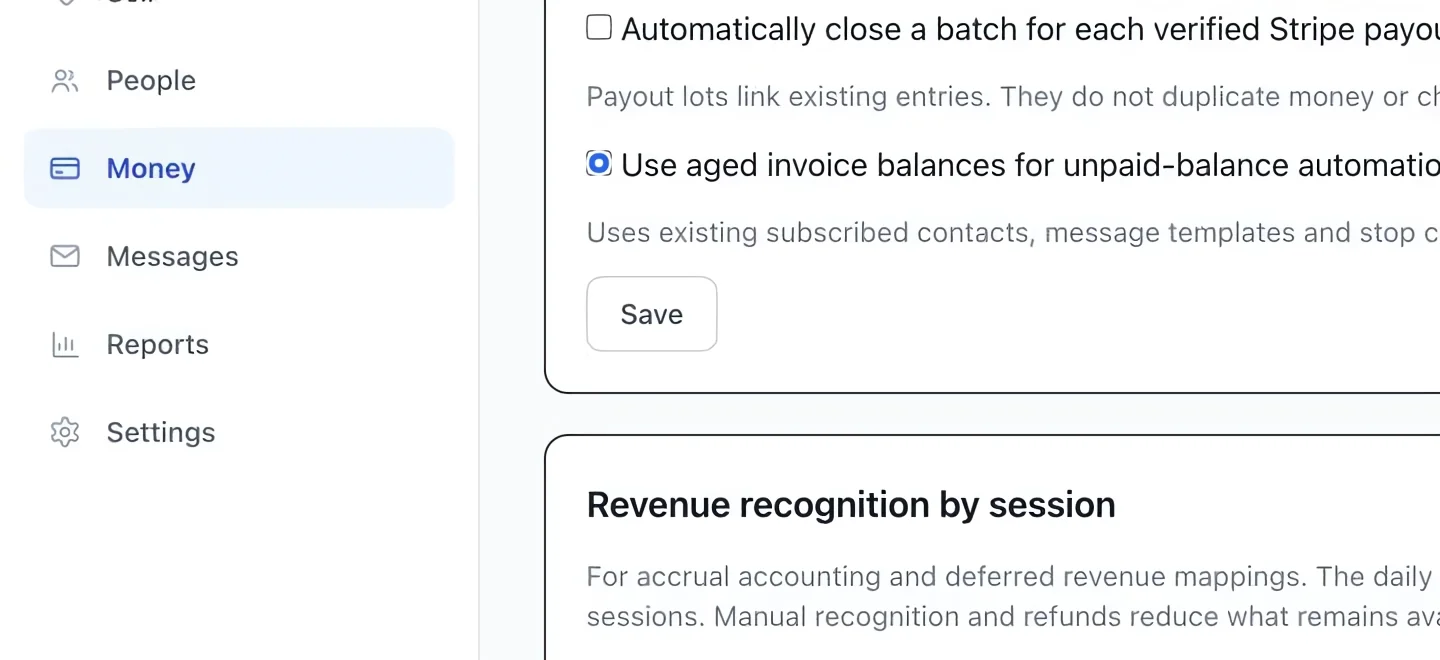
Enable aged-balance reminders
Check Use aged invoice balances for unpaid-balance automations and save the options form. Delivery uses existing subscribed contacts, templates, channels and stop conditions. Each invoice enters each overdue bucket once per automation. Check Aged receivables and the marketing automation before enabling; this checkbox alone does not create a message campaign.
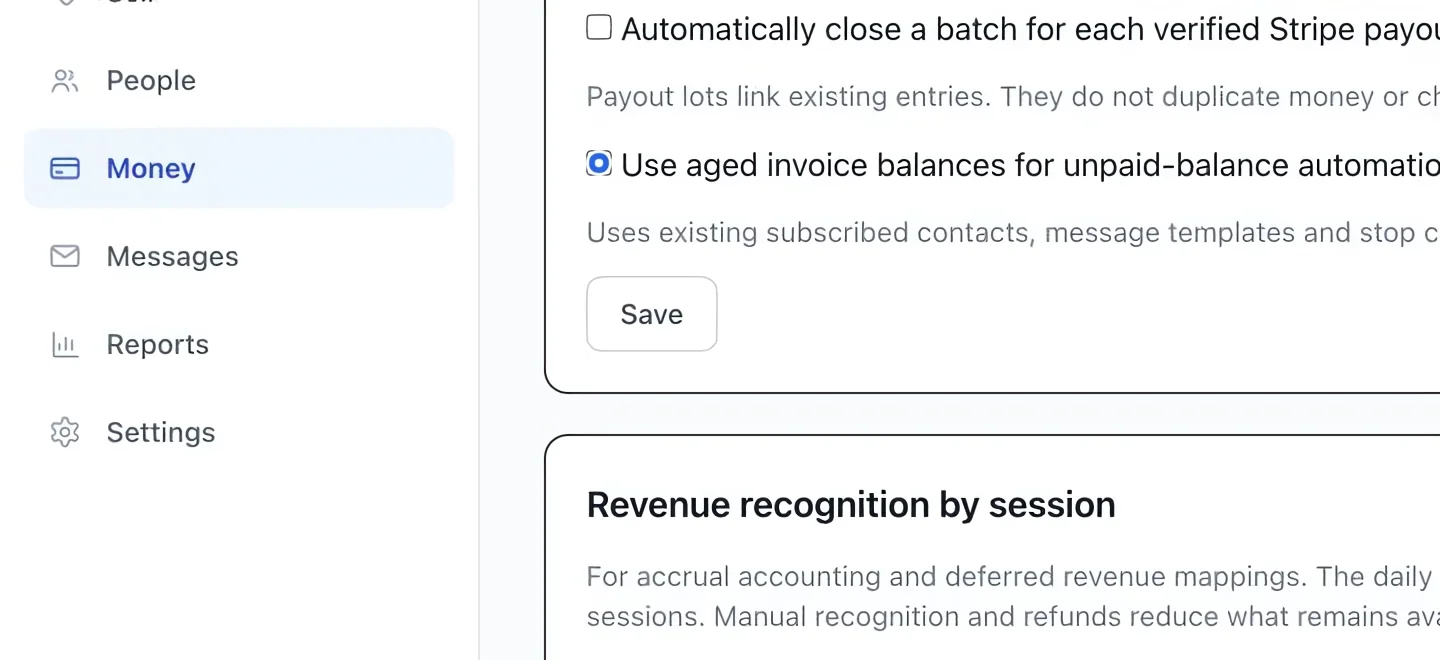
Select the screenshot to enlarge it. The blue outline marks the control to use.
Keep going
Emails that send themselves: welcome after registration, payment reminders, abandoned carts, birthdays, win-backs.
Accounting & financial reportsIdentify outstanding balances by due date and overdue bucket.
Accounting & financial reportsSee which scheduled amounts remain unpaid and when they are due.