
Manage sessions and the calendar
See every session across programs in one month view, and fix individual dates, times and venues.
- 1
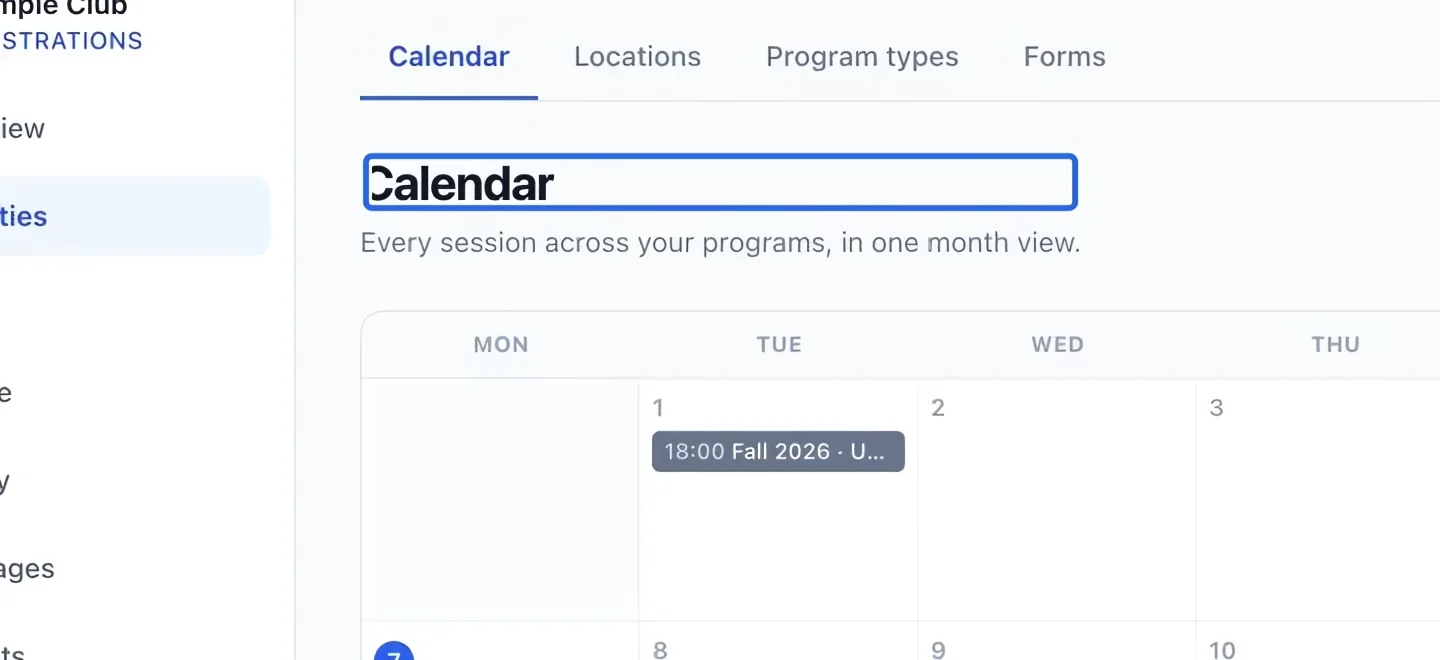
Open the calendar
Open Planning → Calendar. Use the month navigation to reach the date you want. Each entry represents a program session; select the relevant activity before changing its schedule.
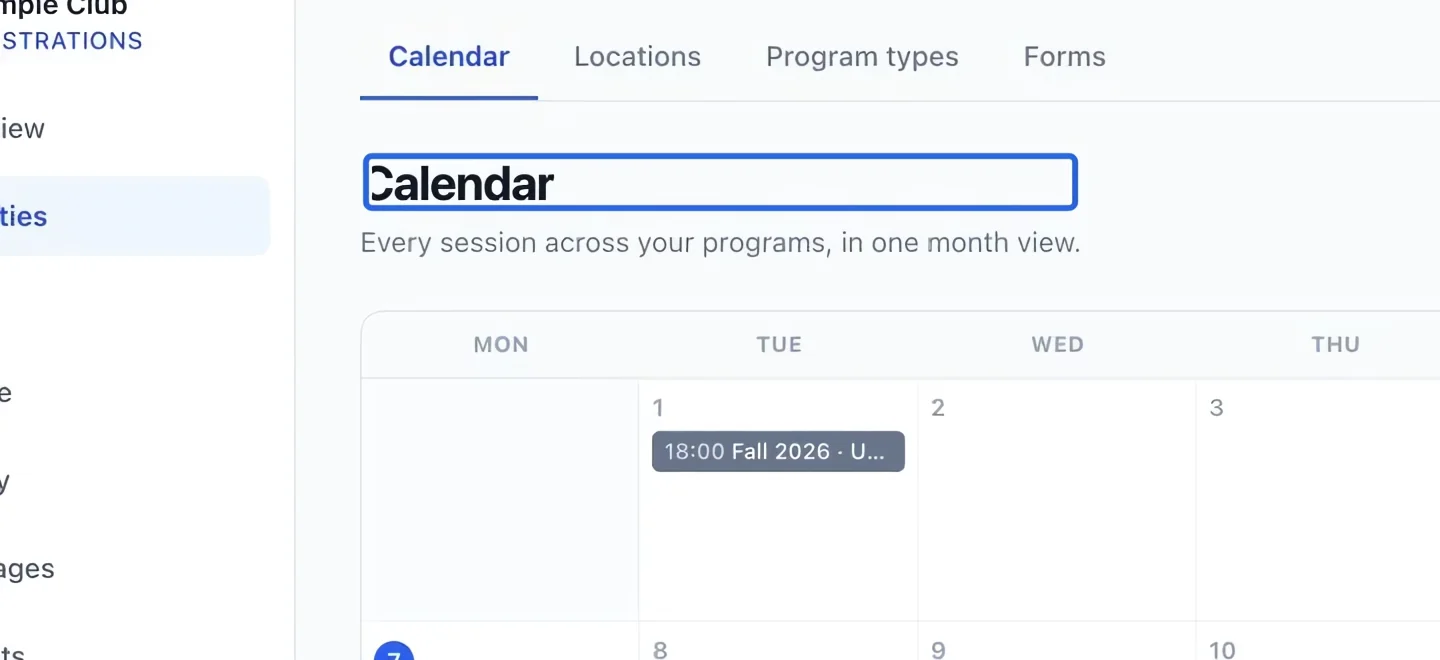
Select the screenshot to enlarge it. The blue outline marks the control to use.
- 2
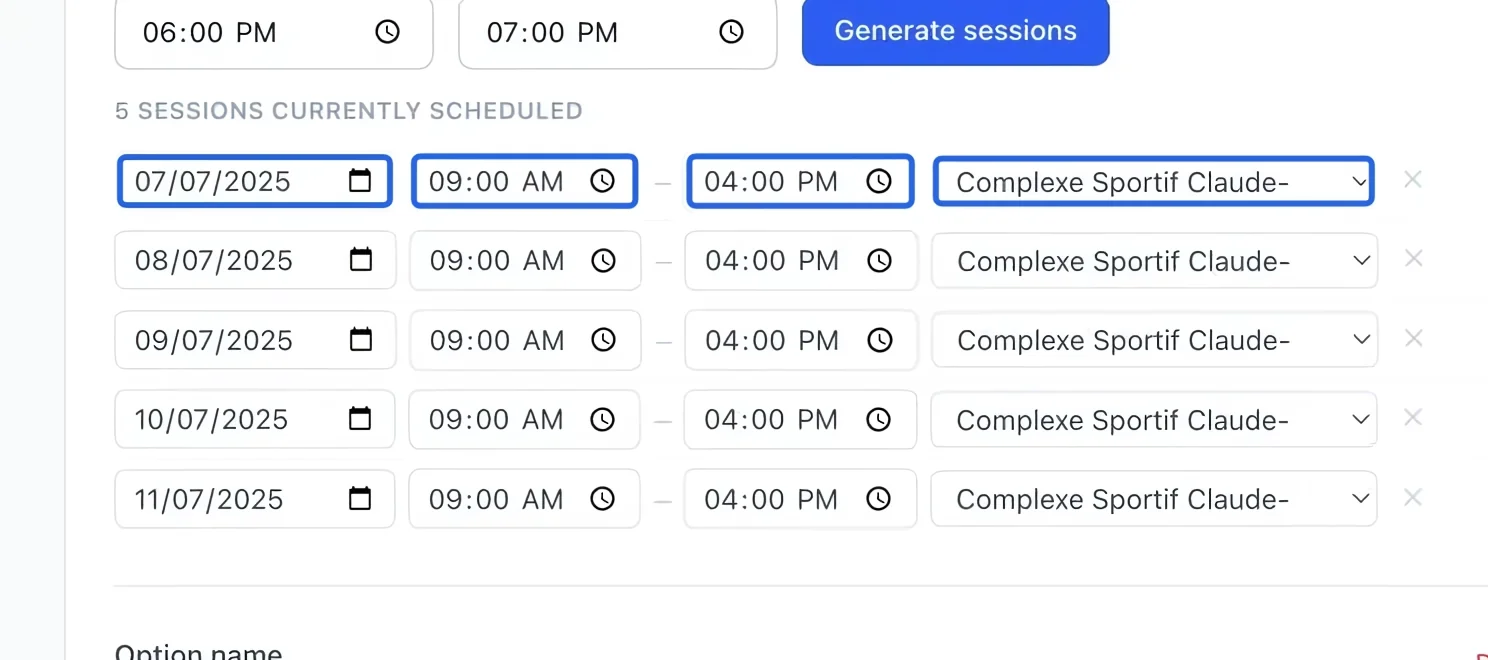
Correct a single session
Open the program’s Sessions section. In the correct session row, change its date, start time, end time or location. Wait for the save confirmation and recheck the row. If recognition by session is enabled, also review its saved accounting schedule: changing program sessions does not move saved revenue allocations.
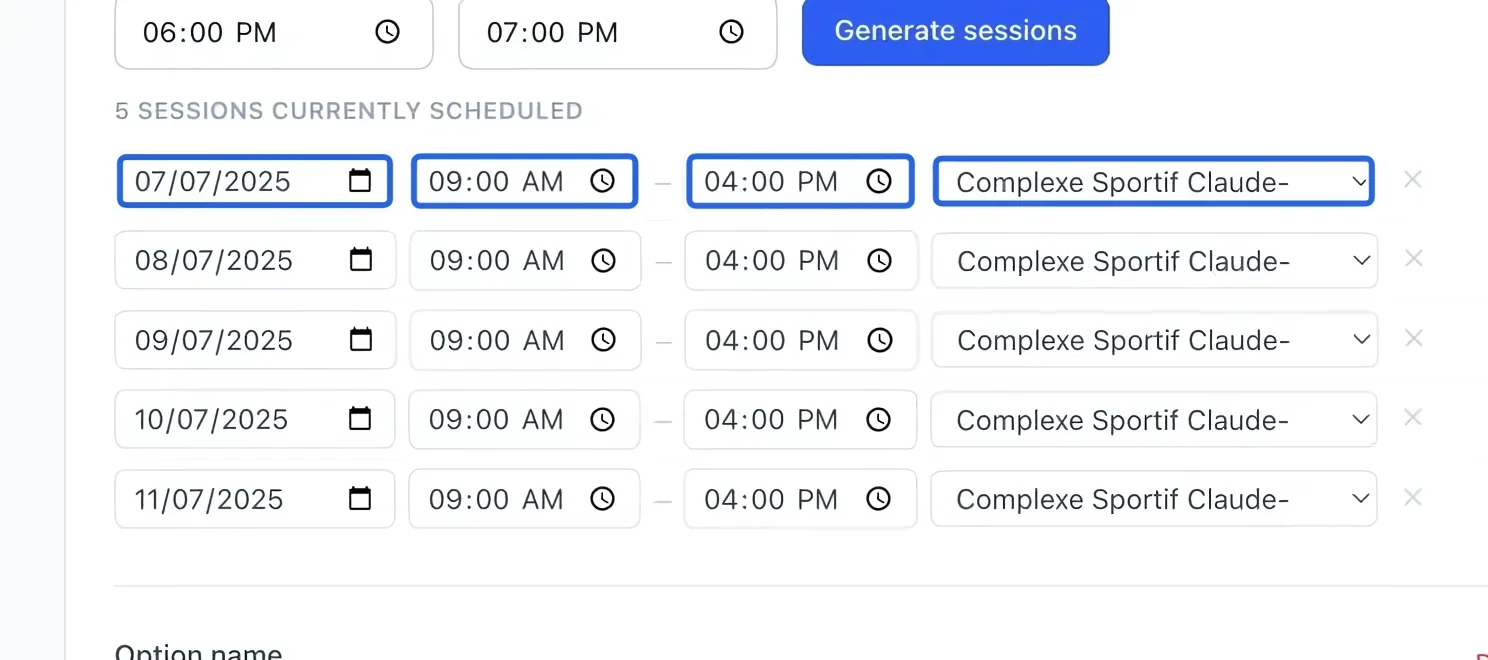
Select the screenshot to enlarge it. The blue outline marks the control to use.
- 3
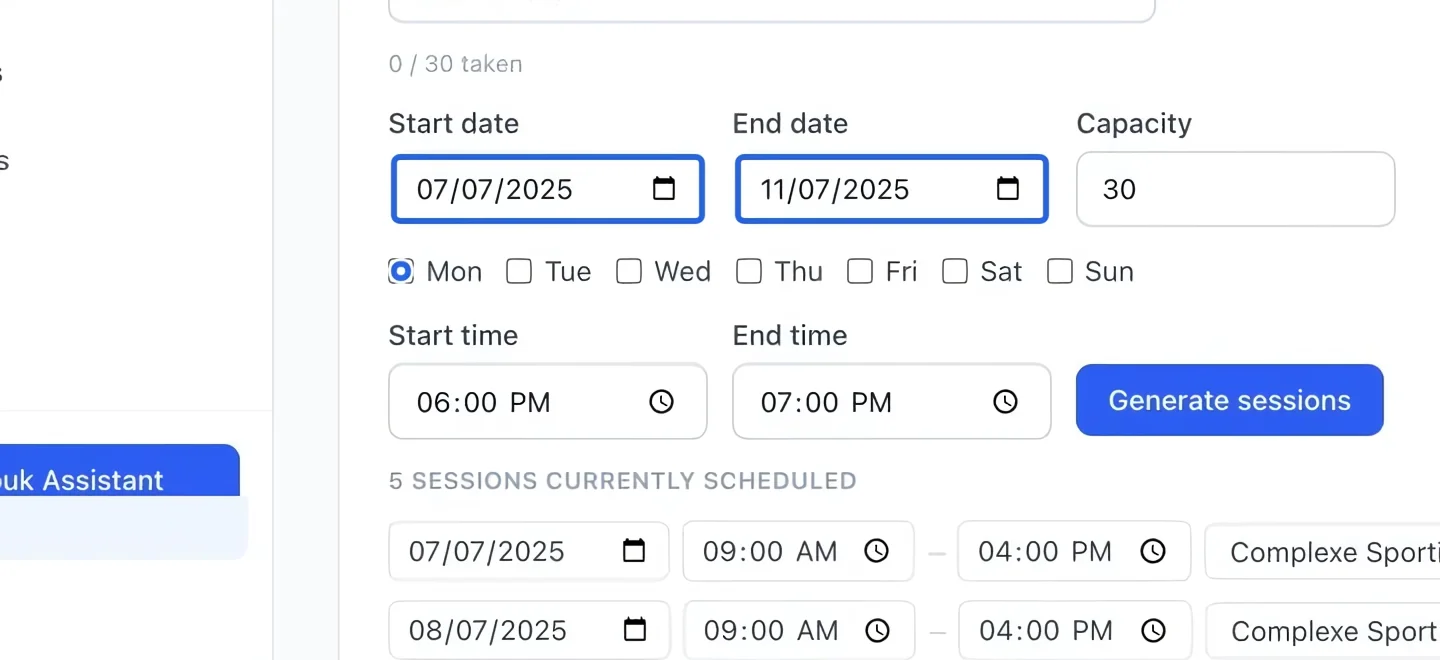
Prepare a replacement schedule
To rebuild an entire schedule, set the option’s date range and weekdays first. Regeneration replaces existing sessions for that schedule; record any one-off changes you need to keep before continuing.
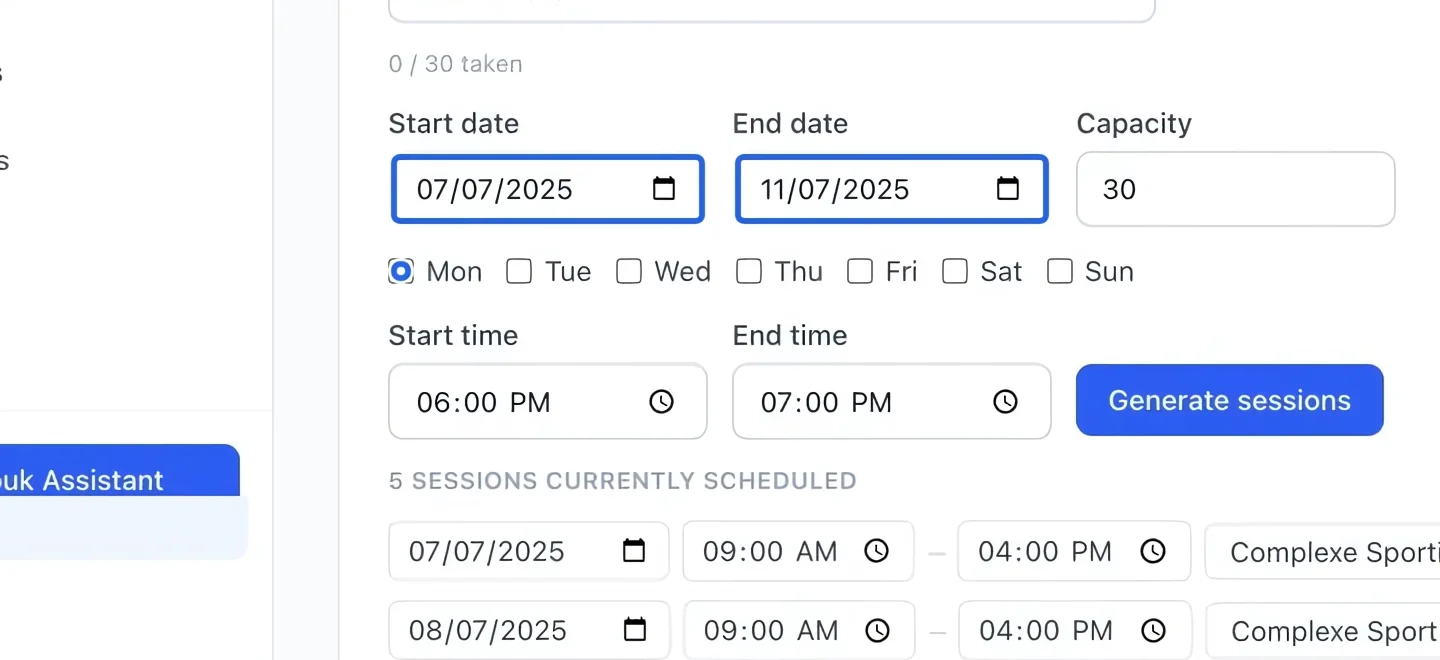
Select the screenshot to enlarge it. The blue outline marks the control to use.
- 4
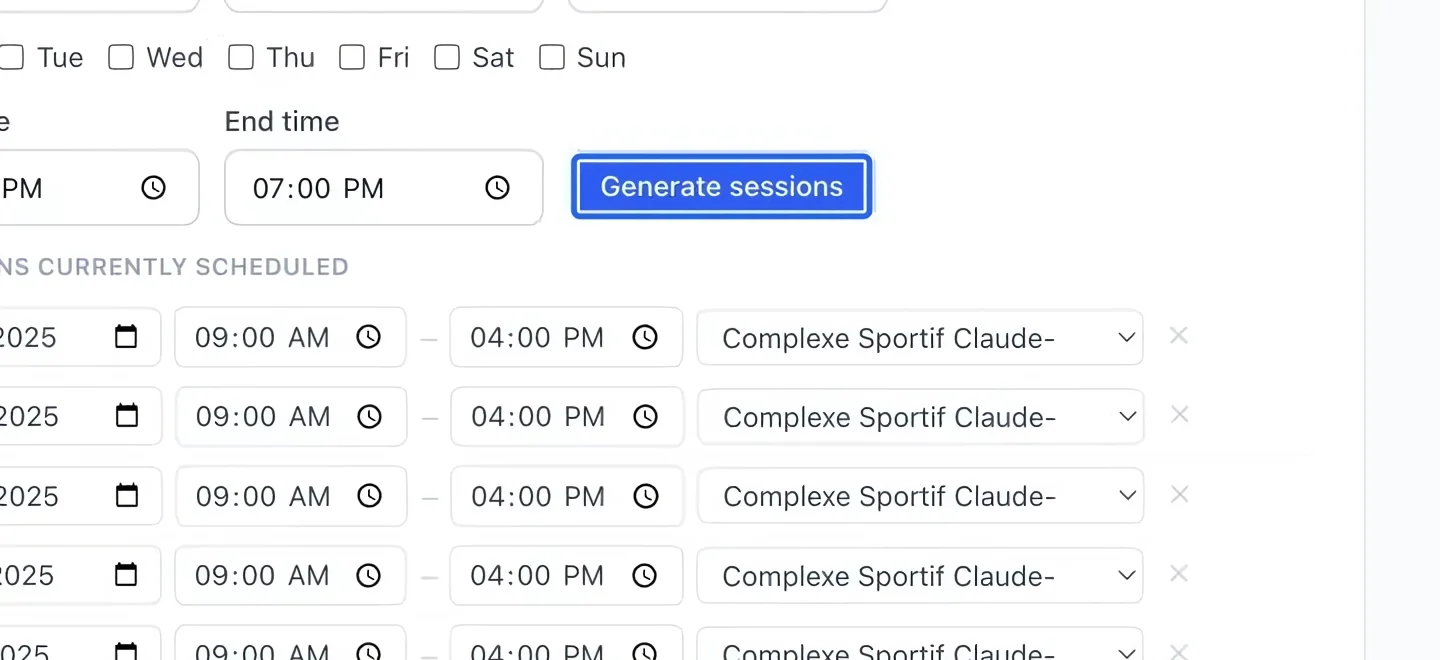
Generate and review
Click Generate sessions for that schedule. Check the resulting dates and times, then revisit the calendar. For a single rain-out, edit the existing session instead of rebuilding every date. Adding or moving a session beyond the program’s end date also delays loyalty points until the day after that later session, in the organization’s timezone.
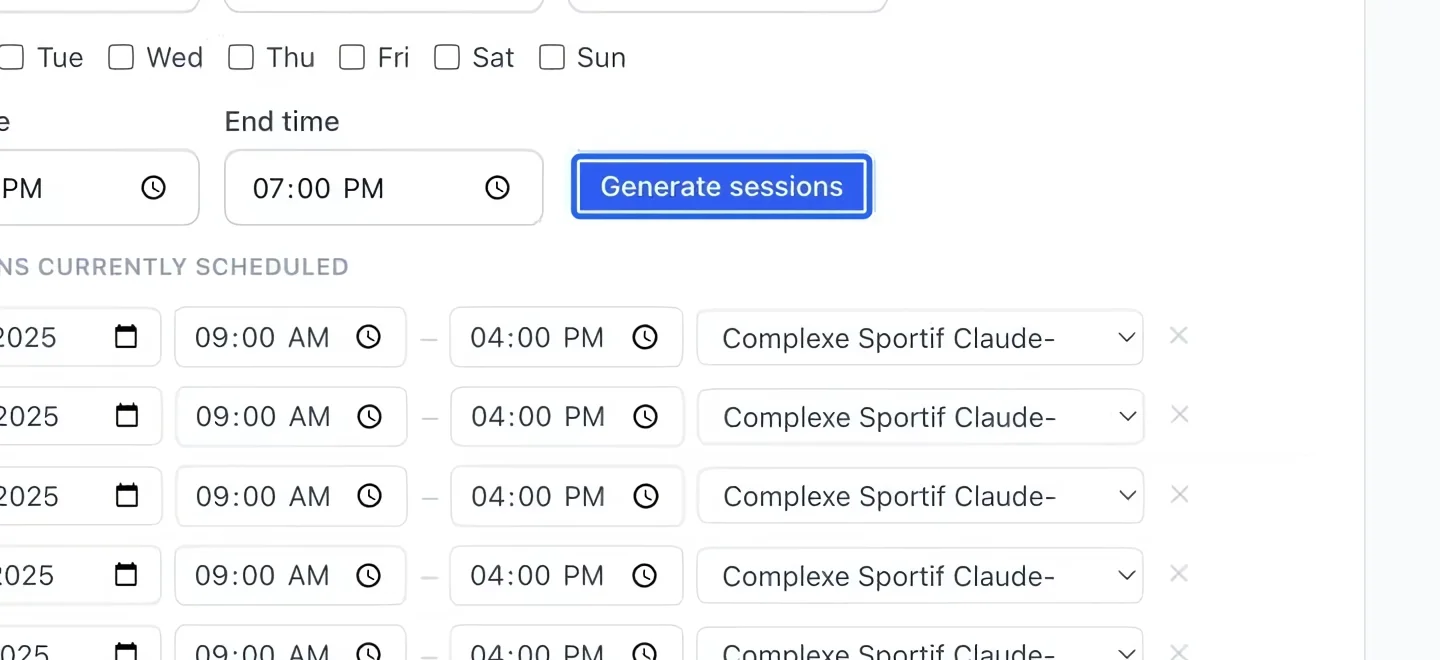
Select the screenshot to enlarge it. The blue outline marks the control to use.
- 5
Check local dates before sharing
Program sessions and deadlines use the organization’s timezone. Review options and the final program date after changes, then check the public calendar in the intended language. A cancelled or moved session should be communicated to affected families.
Keep going
Camp weeks, time slots or divisions: one program, several options families choose between.
Clients & attendanceSession-by-session check-ins per program: who's present, late or absent.
Accounting & financial reportsRelease earned program revenue, or schedule recognition from the program’s sessions.