
Track attendance
Session-by-session check-ins per program: who's present, late or absent.
- 1
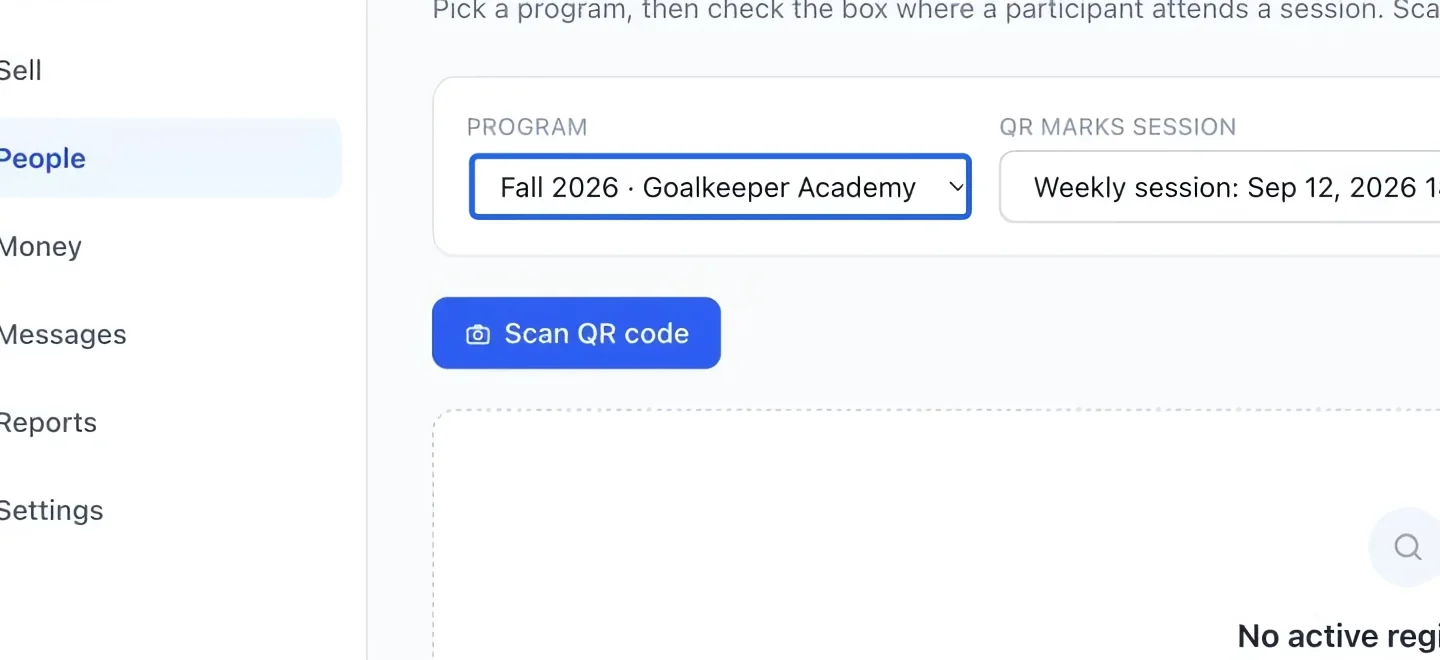
Choose the activity
Open People → Attendance. Select the Program, then the option if the program has several schedules. Confirm that the expected participants and session dates appear.
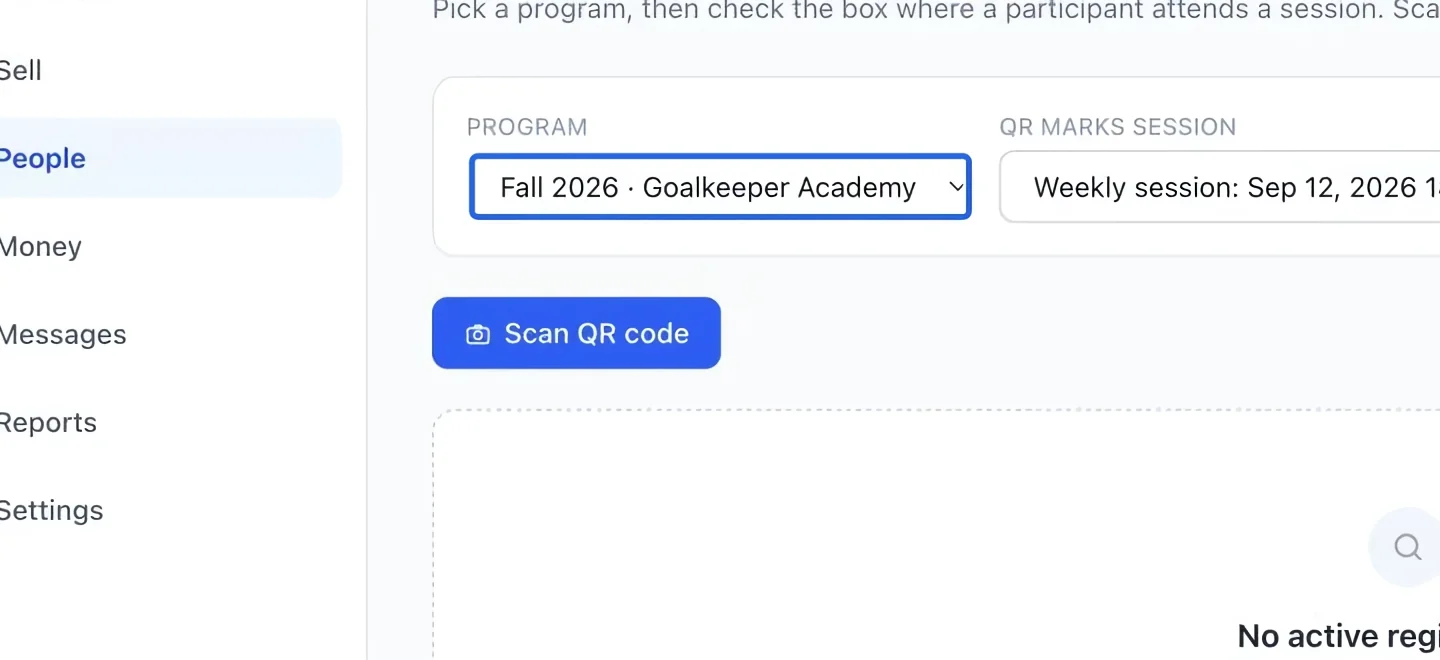
Select the screenshot to enlarge it. The blue outline marks the control to use.
- 2
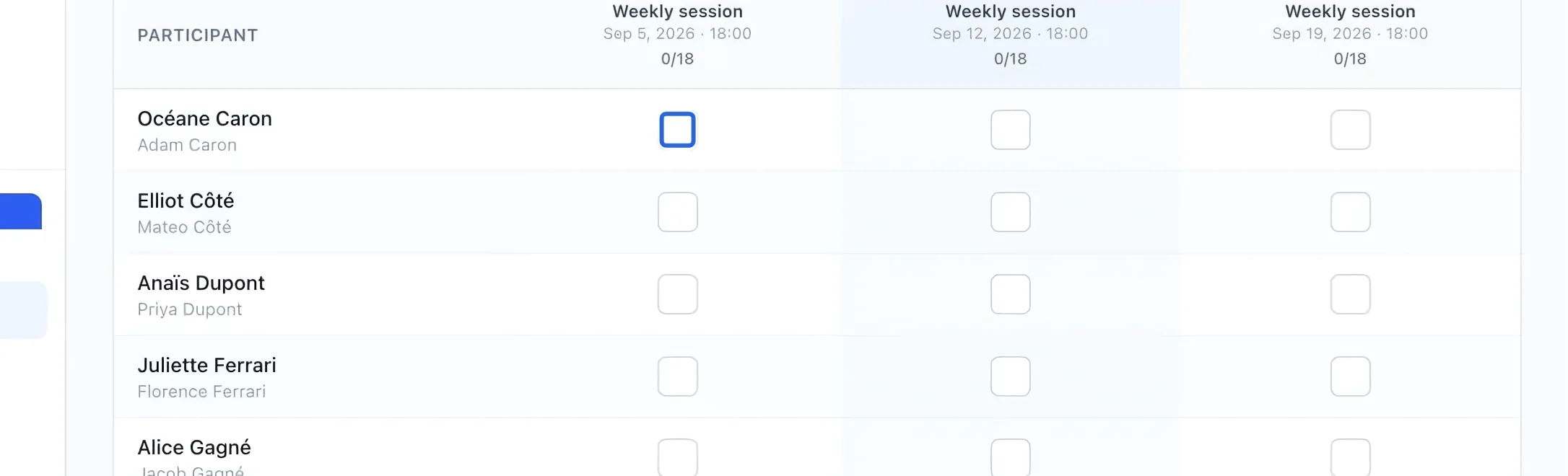
Mark the correct session
Find the participant’s row and the date’s column. Use the attendance cell to change the status, then check the displayed result. Changes save as you work; be careful to use the right session.
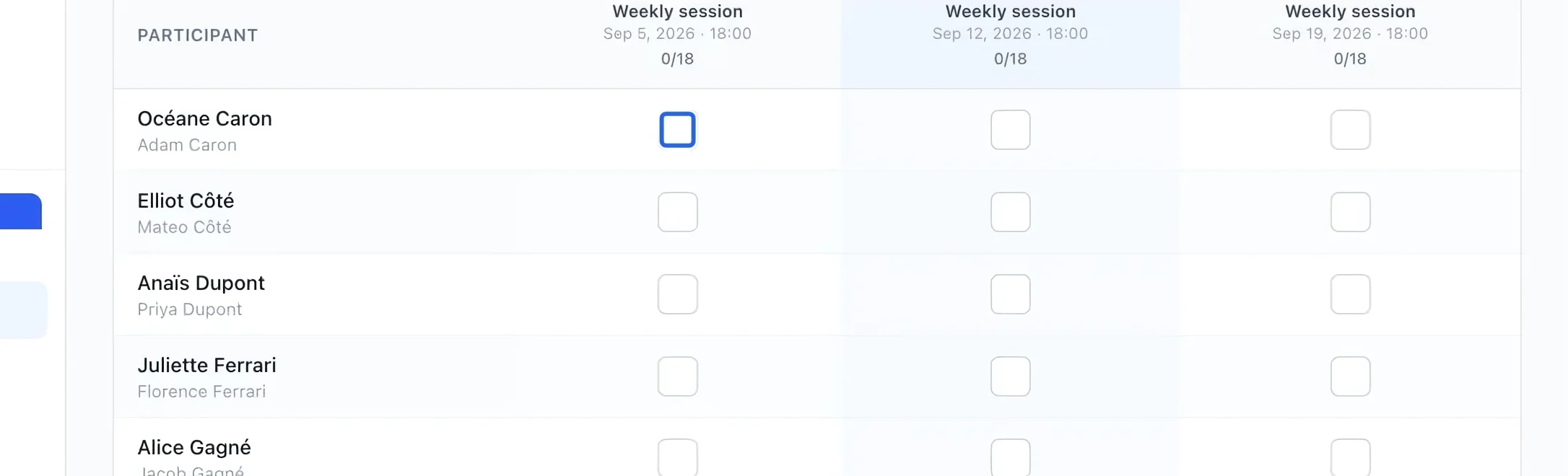
Select the screenshot to enlarge it. The blue outline marks the control to use.
- 3
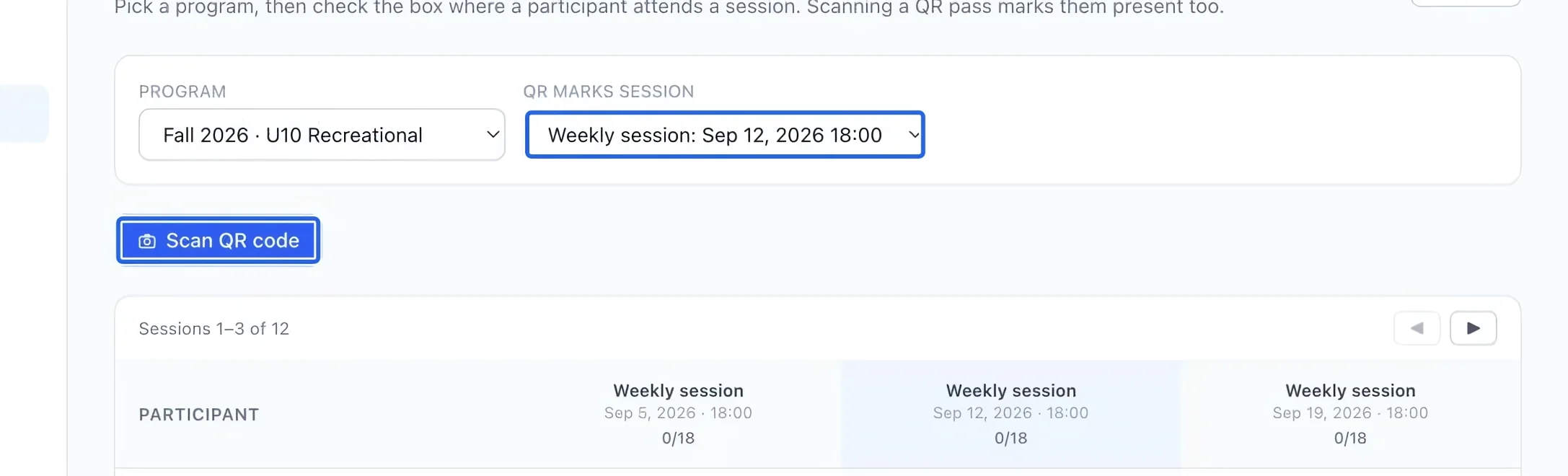
Use QR check-in if needed
Choose the session under QR marks session before clicking Scan QR code. Allow camera access if prompted, then scan the participant’s pass and verify the check-in result.
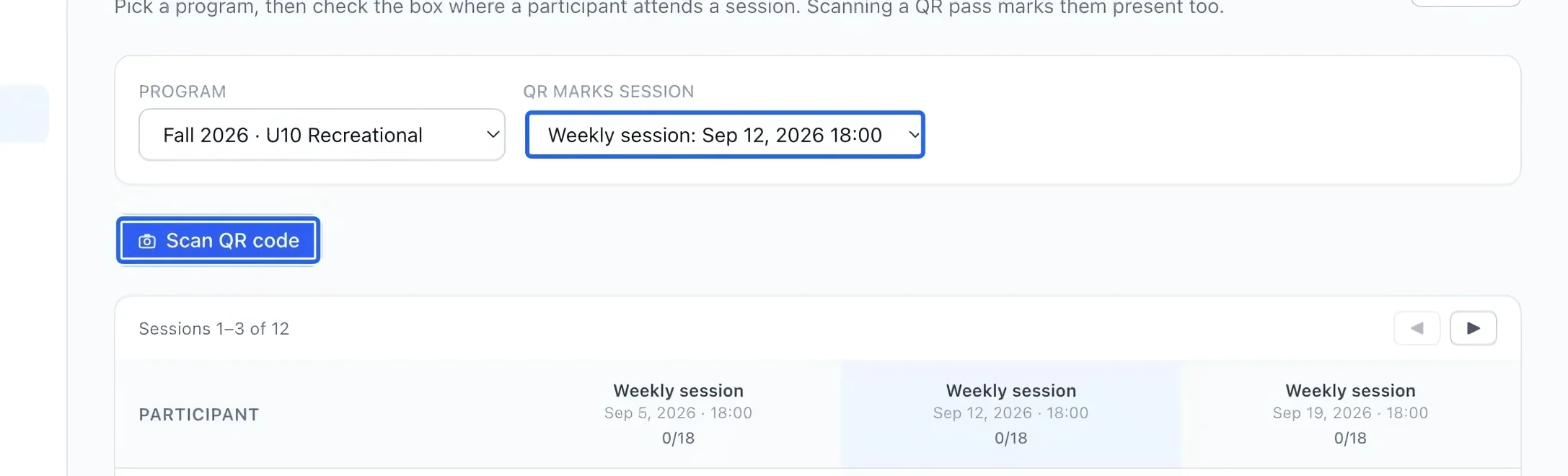
Select the screenshot to enlarge it. The blue outline marks the control to use.
- 4
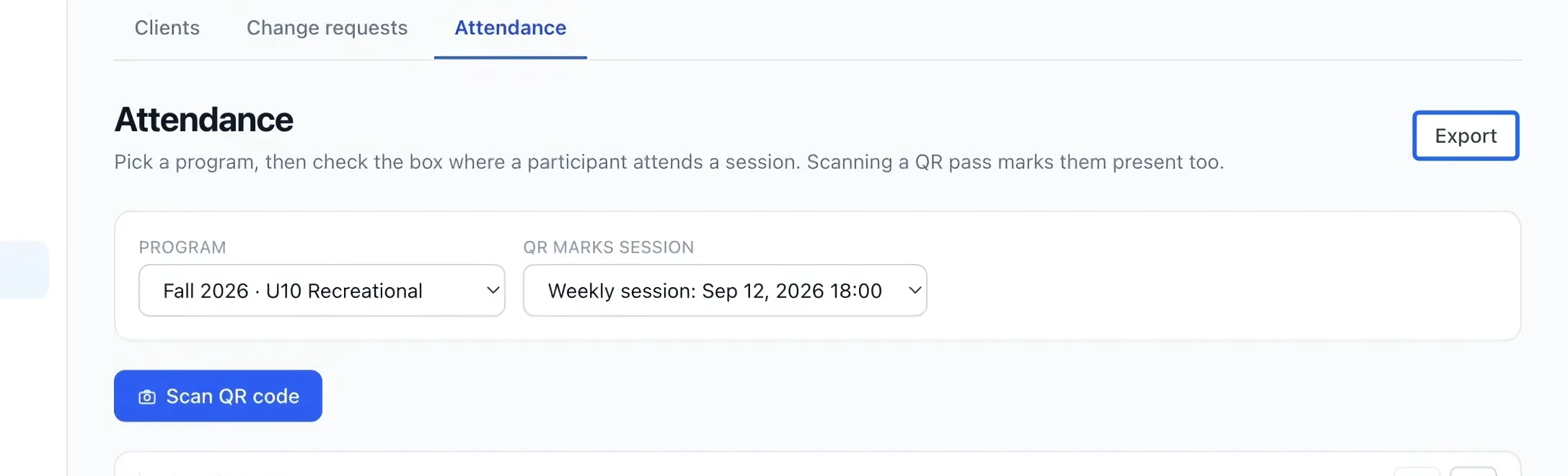
Export or review attendance
Click Export for the selected program’s attendance. You can also review a family’s history under Attendance & check-ins in the client profile.
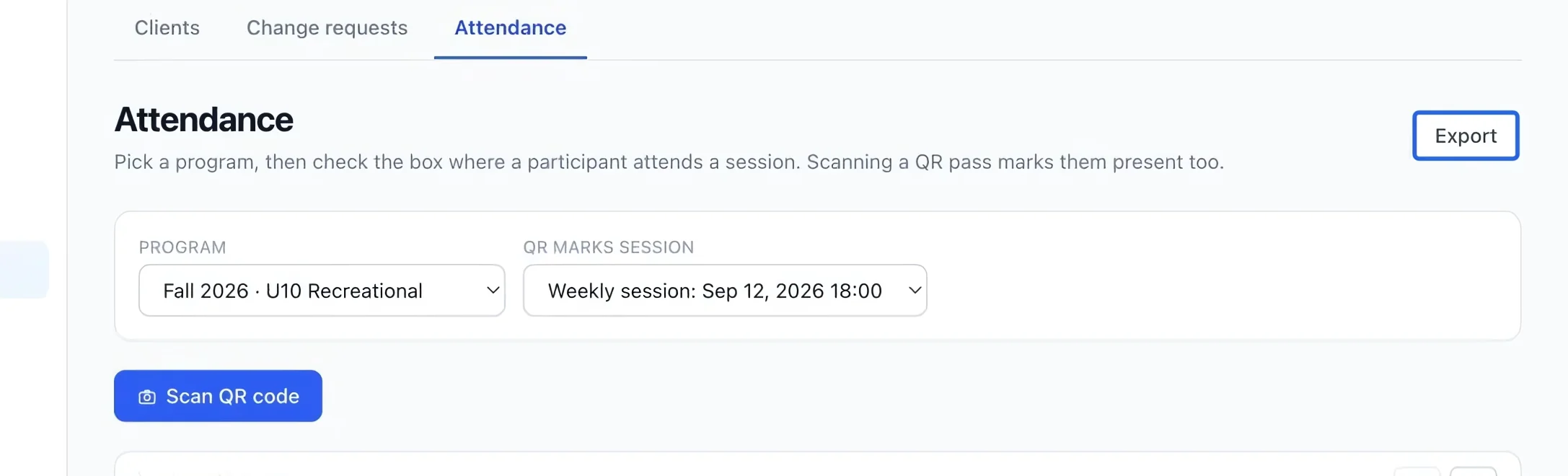
Select the screenshot to enlarge it. The blue outline marks the control to use.
Keep going
See every session across programs in one month view, and fix individual dates, times and venues.
Clients & attendanceEvery family in one place: registrations, invoices, memberships, documents, notes and history.
Getting startedAdd coaches, managers and volunteers with a role that matches what they should see.