
Offer options inside one program
Camp weeks, time slots or divisions: one program, several options families choose between.
- 1
Open the activity to configure
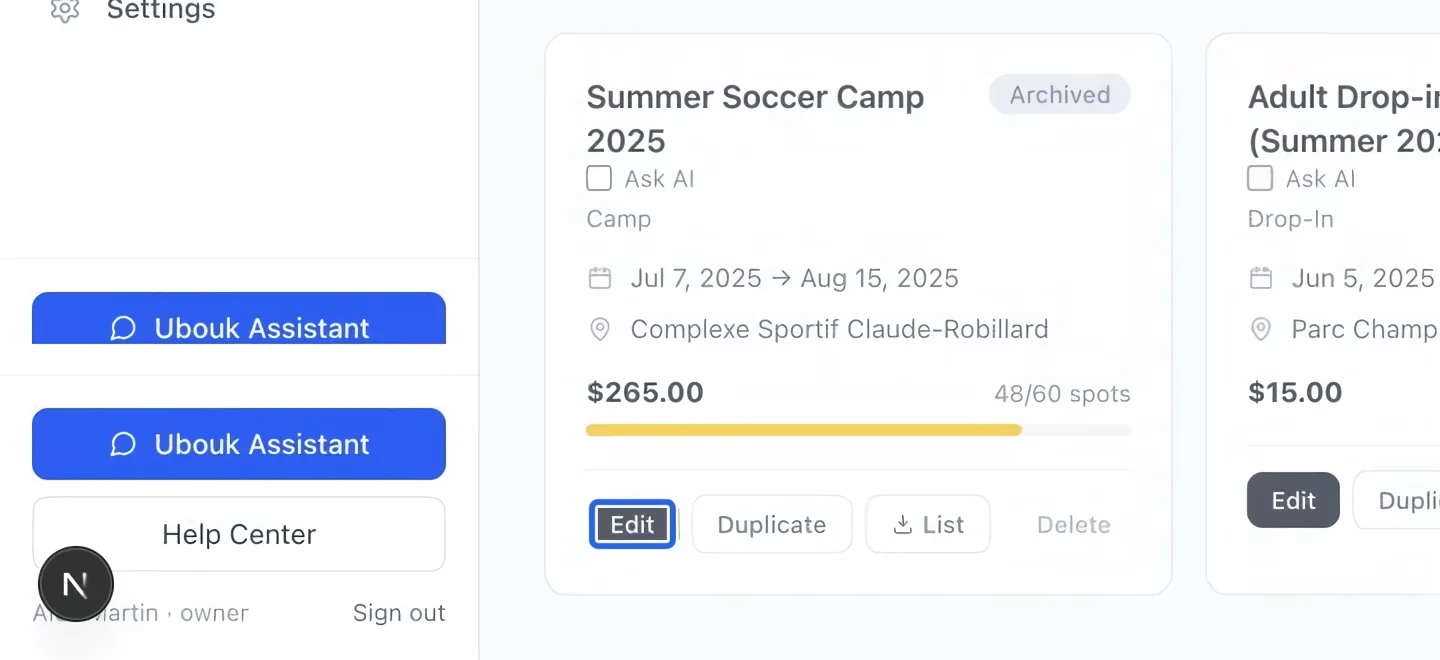
Open Programs, then Edit on your program. Use options for separate camp weeks or divisions that belong to the same activity. Create the program and its first schedule before adding options.
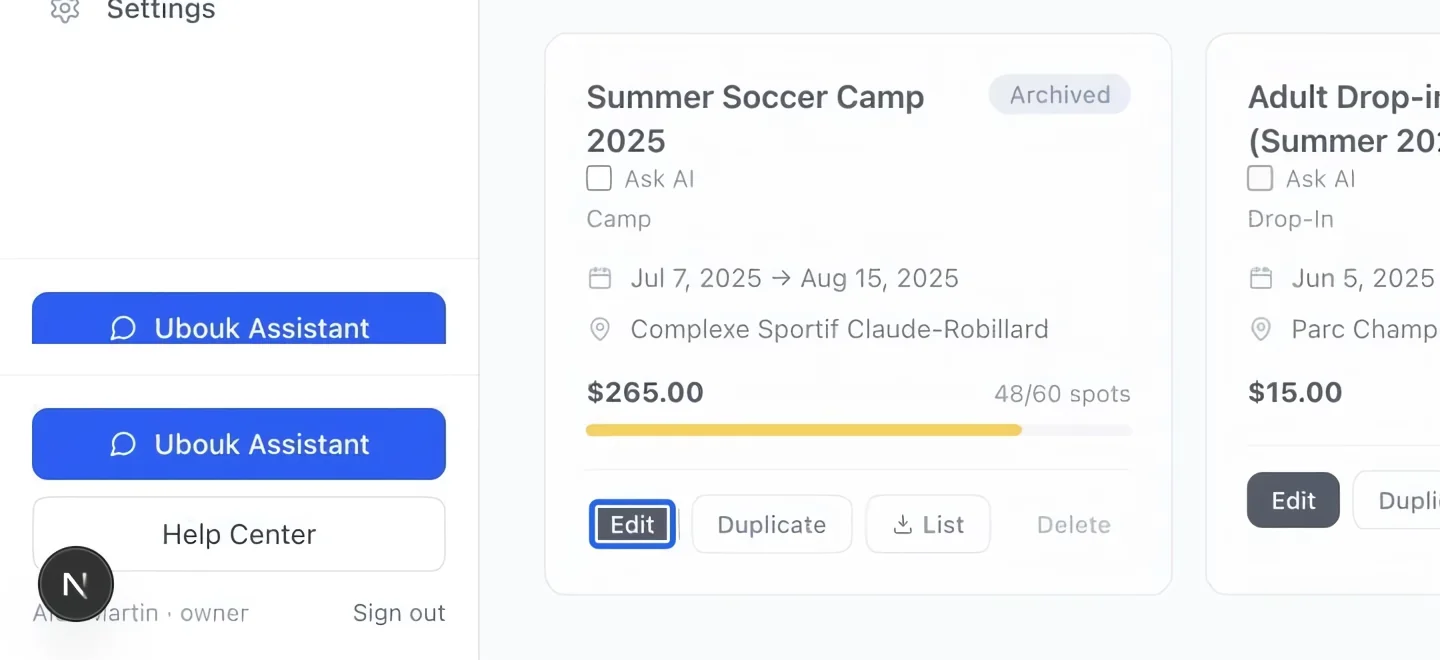
Select the screenshot to enlarge it. The blue outline marks the control to use.
- 2
Add another option
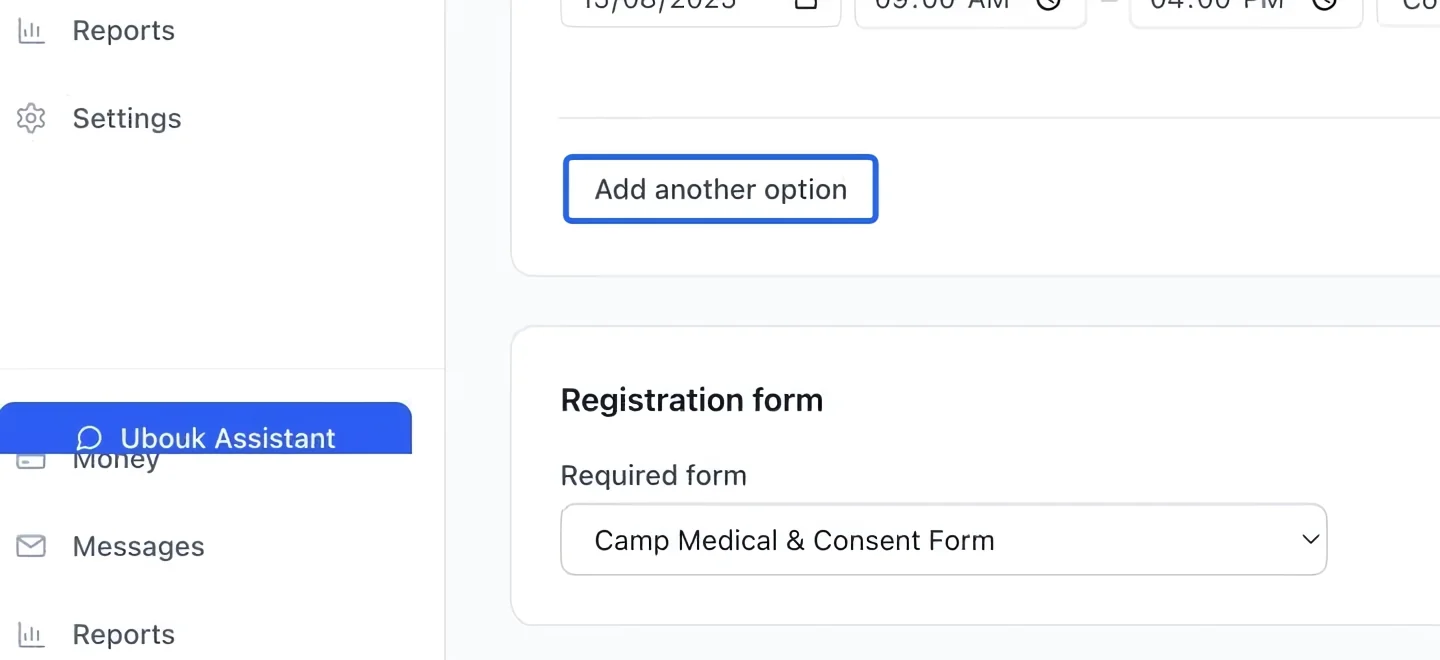
Scroll to the bottom of Sessions and click Add another option. The existing schedule is retained as one option; you can configure the new option separately.
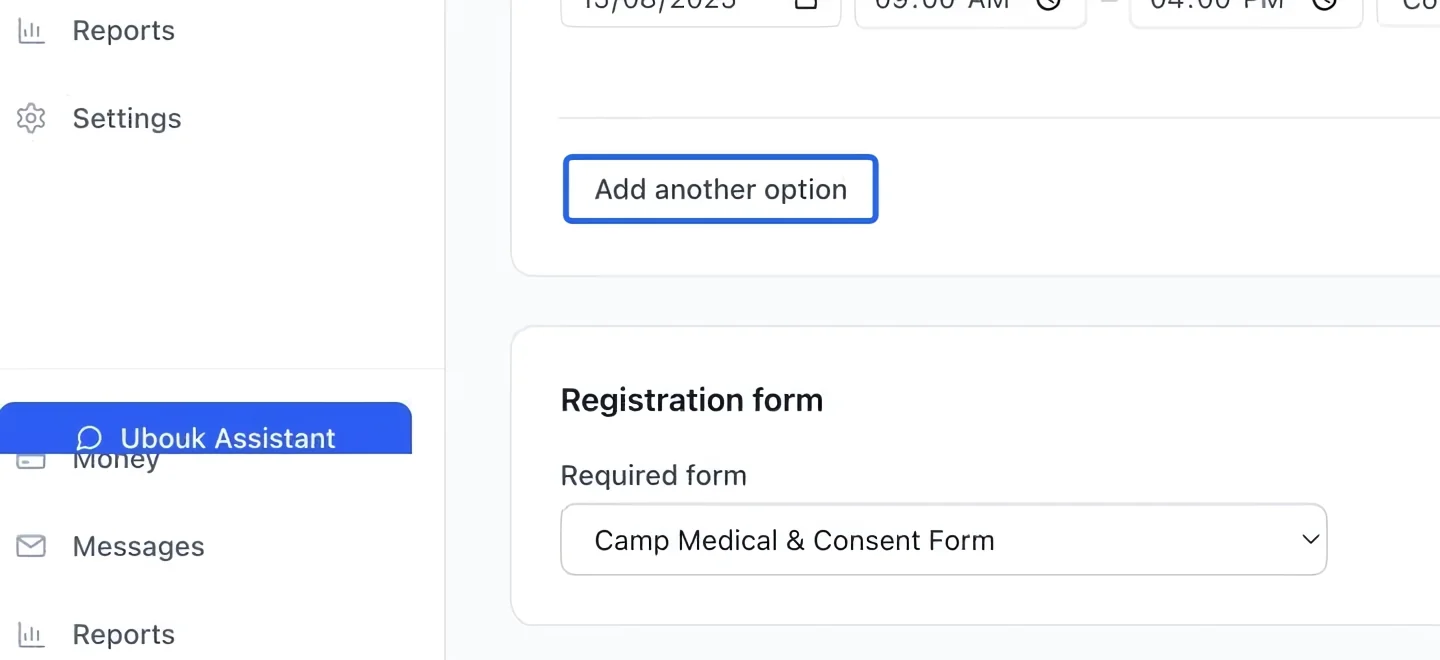
Select the screenshot to enlarge it. The blue outline marks the control to use.
- 3
Name the option and set its capacity
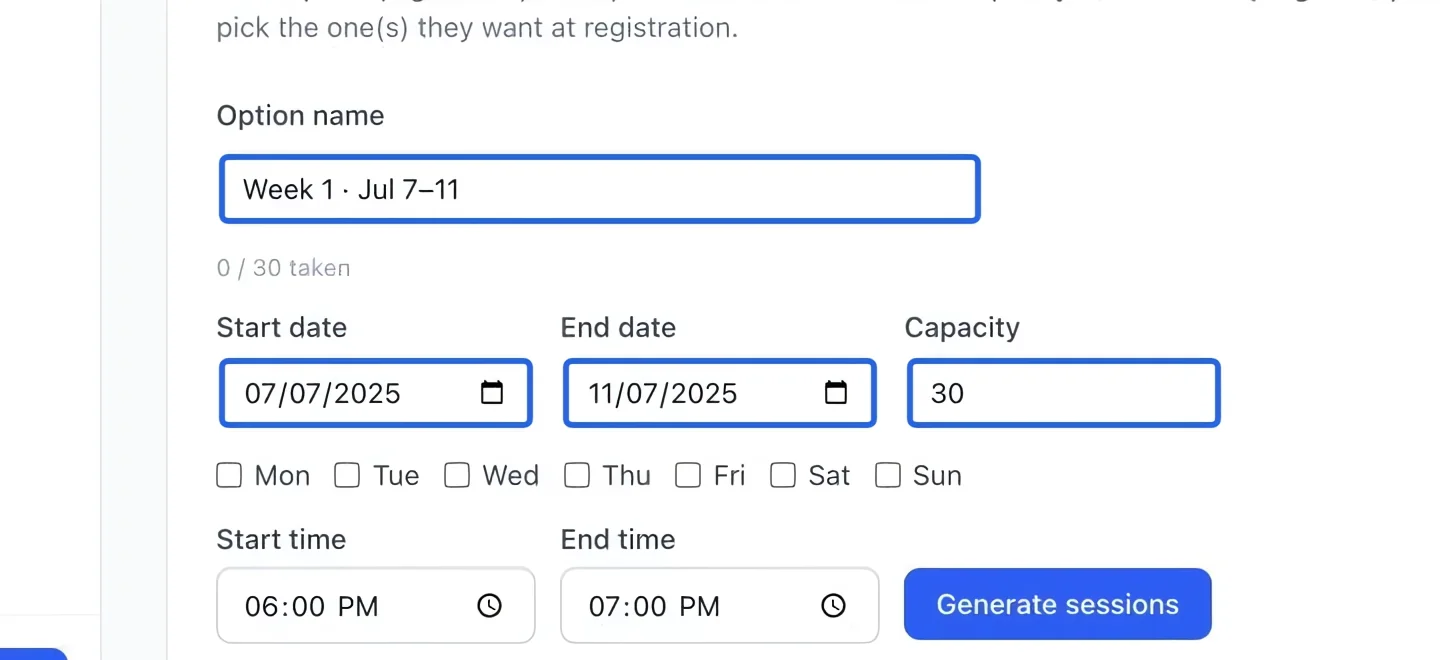
Enter a clear option name, such as “Week of July 5”, then its start date, end date and capacity. Leave capacity empty for unlimited places. Repeat for each option; check that families can distinguish the names. Several schedule options in one program count as one course per participant for multi-course discounts. For loyalty rewards, the latest end date across the program and all its options or sessions determines when points become available. Finishing an earlier option does not release points while the program still has later dates.
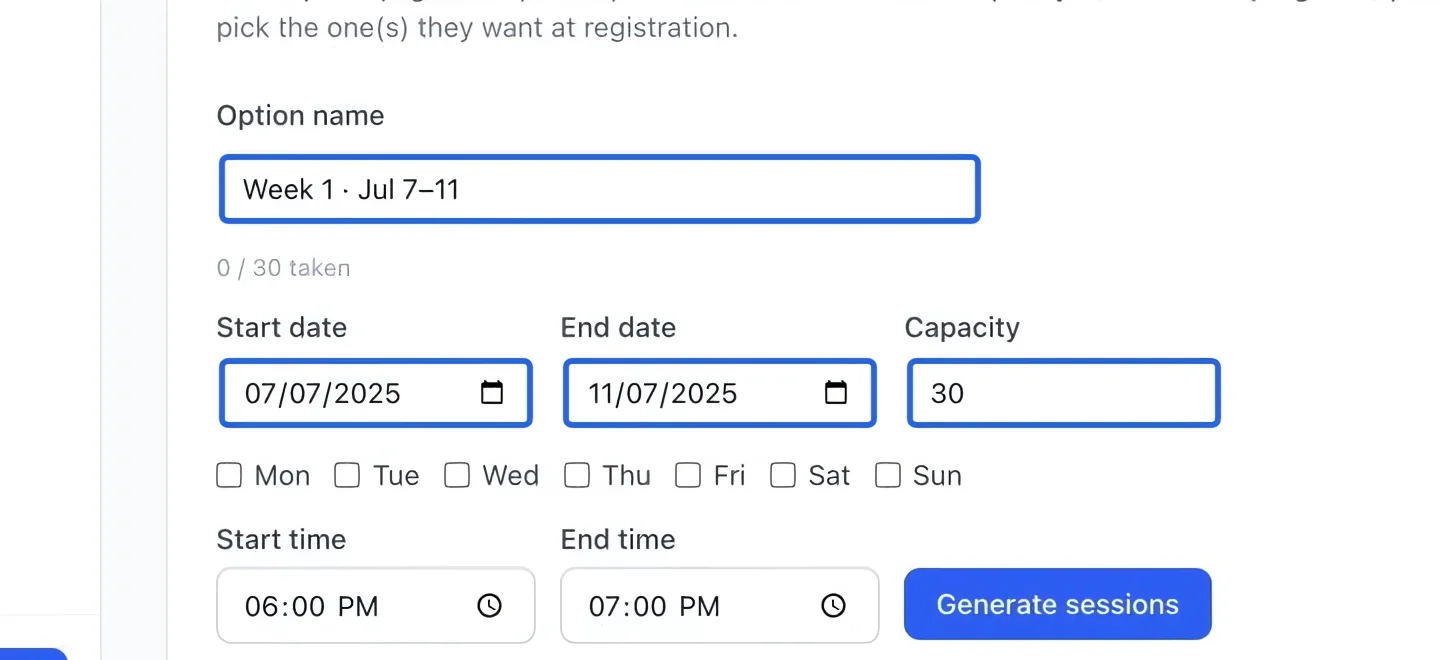
Select the screenshot to enlarge it. The blue outline marks the control to use.
- 4
Generate that option’s sessions
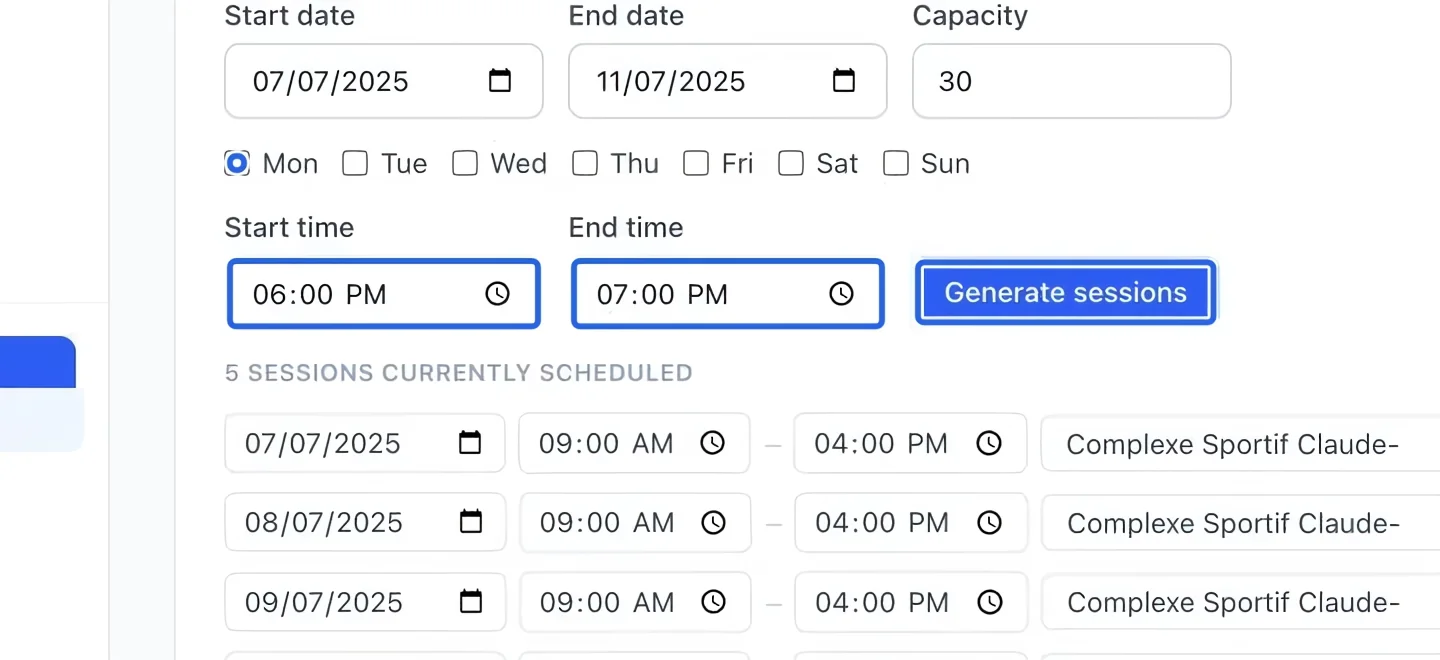
Within the same option, select weekdays and times, then click its Generate sessions button. Review the generated dates. This replaces that option’s schedule, so check before regenerating an option you already adjusted. If recognition by session is enabled, also review its saved accounting schedule: changing program sessions does not move saved revenue allocations.
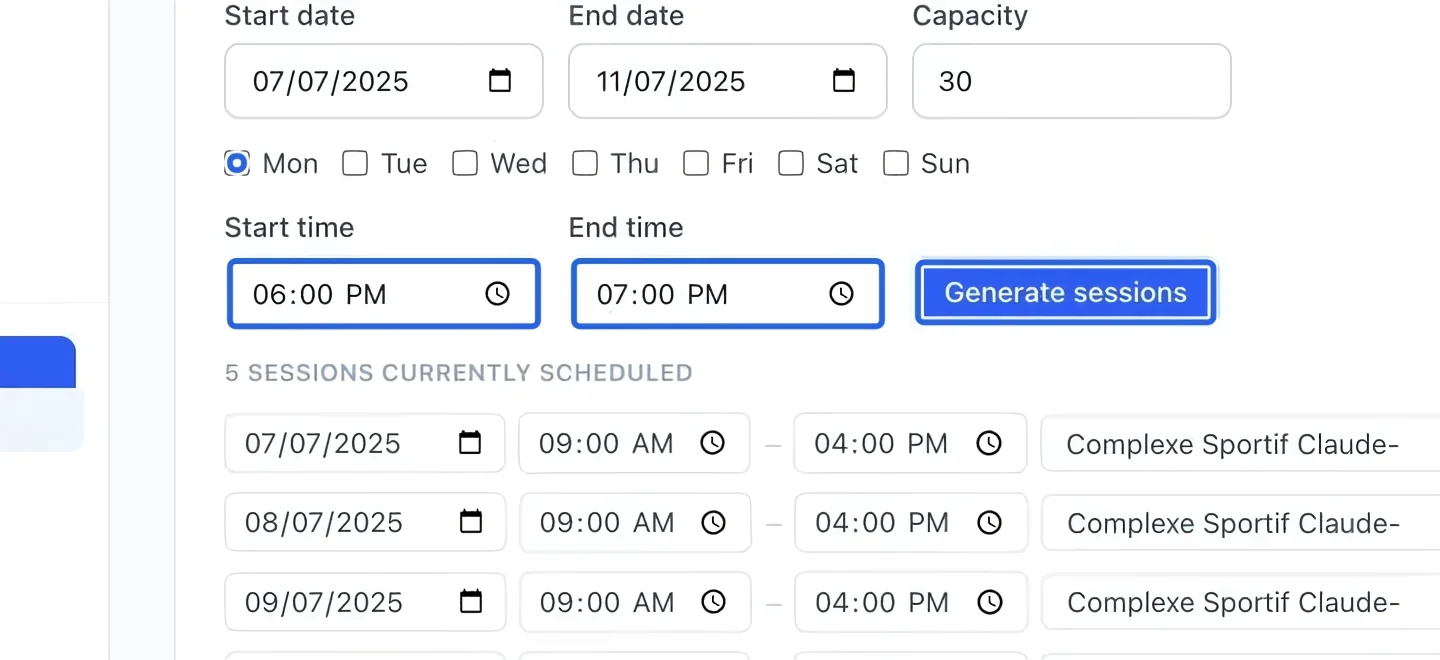
Select the screenshot to enlarge it. The blue outline marks the control to use.
Keep going
Publish a season, camp, league or clinic that families can register for on your portal.
Programs & activitiesSee every session across programs in one month view, and fix individual dates, times and venues.
Accounting & financial reportsRelease earned program revenue, or schedule recognition from the program’s sessions.