
Investigate payments, refunds and failed attempts
Read transaction status, method, refunded amounts and failure reasons.
- 1
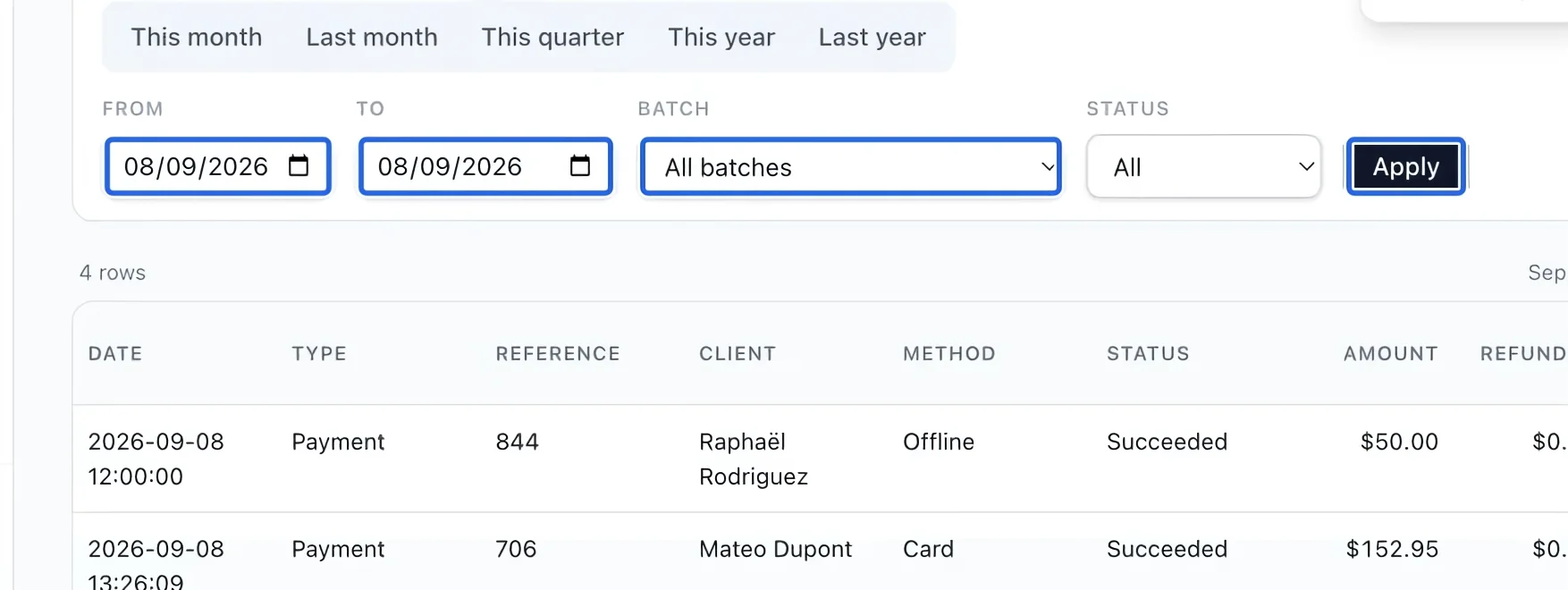
Choose the report period
Open Investigate payments, refunds and failed attempts from Reports. Choose a period preset or enter From and To. Optionally select a Batch, then Apply. Dates and batch work together, so widen the period if a batch appears incomplete. Financial reports require owner, administrator or finance manager access.
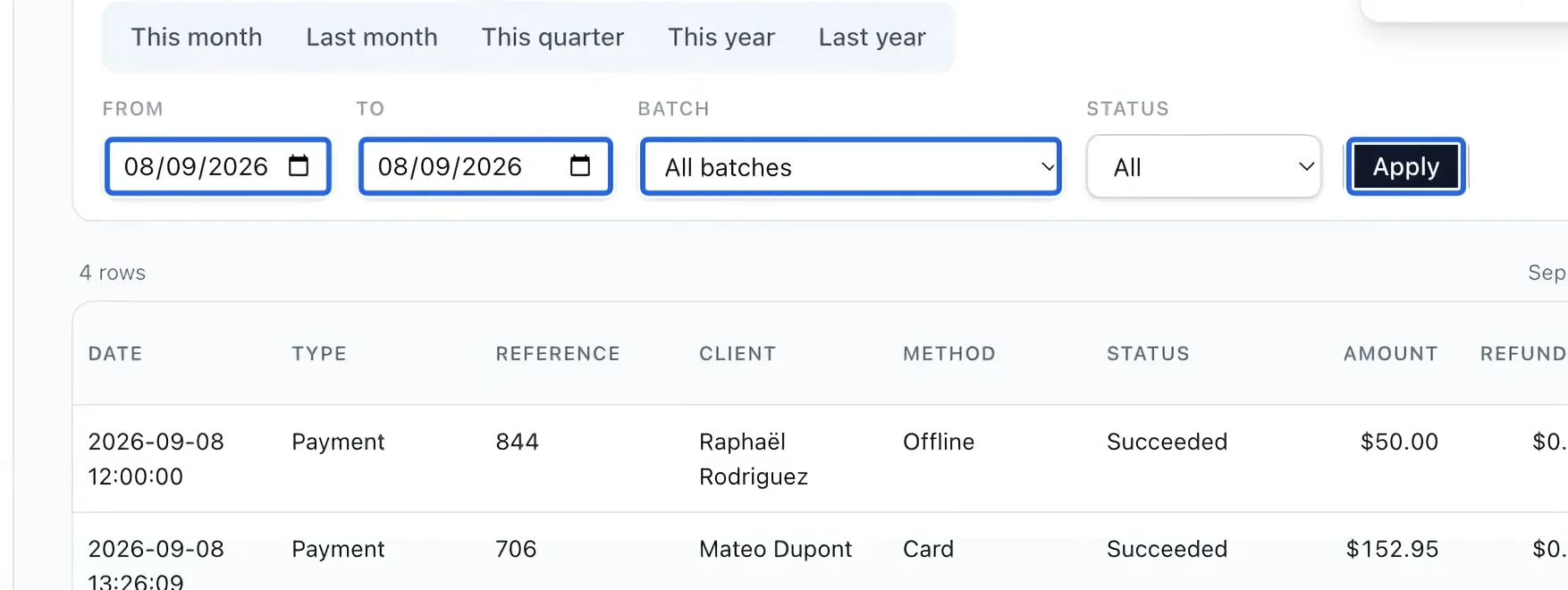
Select the screenshot to enlarge it. The blue outline marks the control to use.
- 2
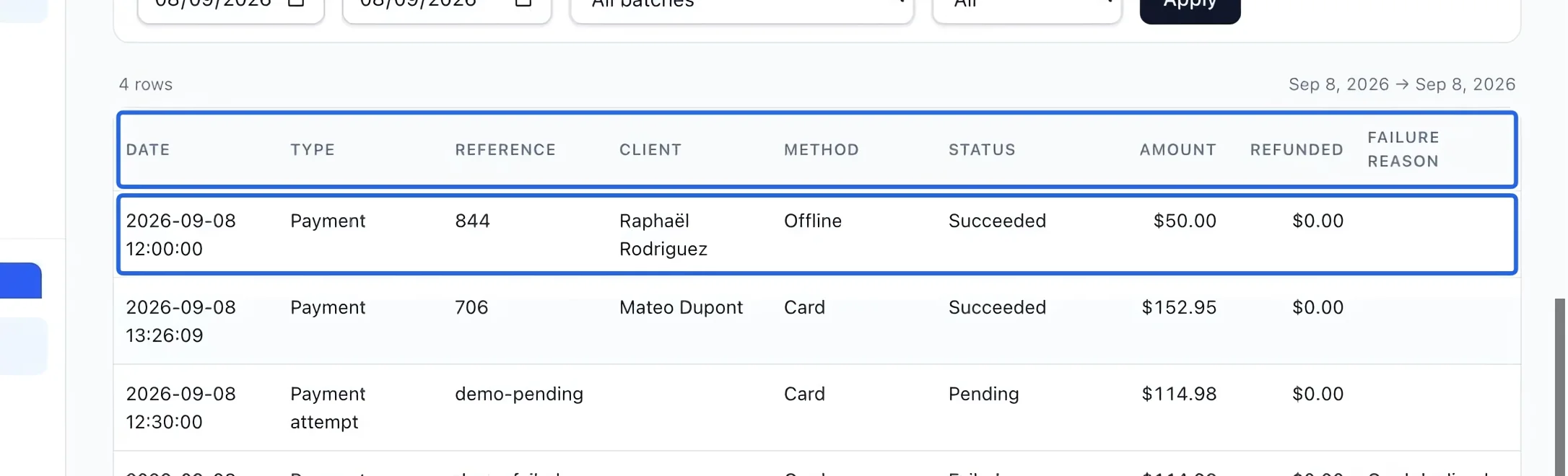
Distinguish a payment from an attempt
Check Type, Reference, Method, Status, Amount, Refunded and Failure reason. A failed or pending attempt is not money collected; do not treat the sum of every Amount row as revenue. A grouped cart installment can be one card charge allocated across several registrations on the same invoice. Compare the payment references and allocated amounts before treating several entries as duplicate charges; do not add the collection attempt to its recorded payments. Older attempts may show that historical failure details are unavailable. See how cart installments work.
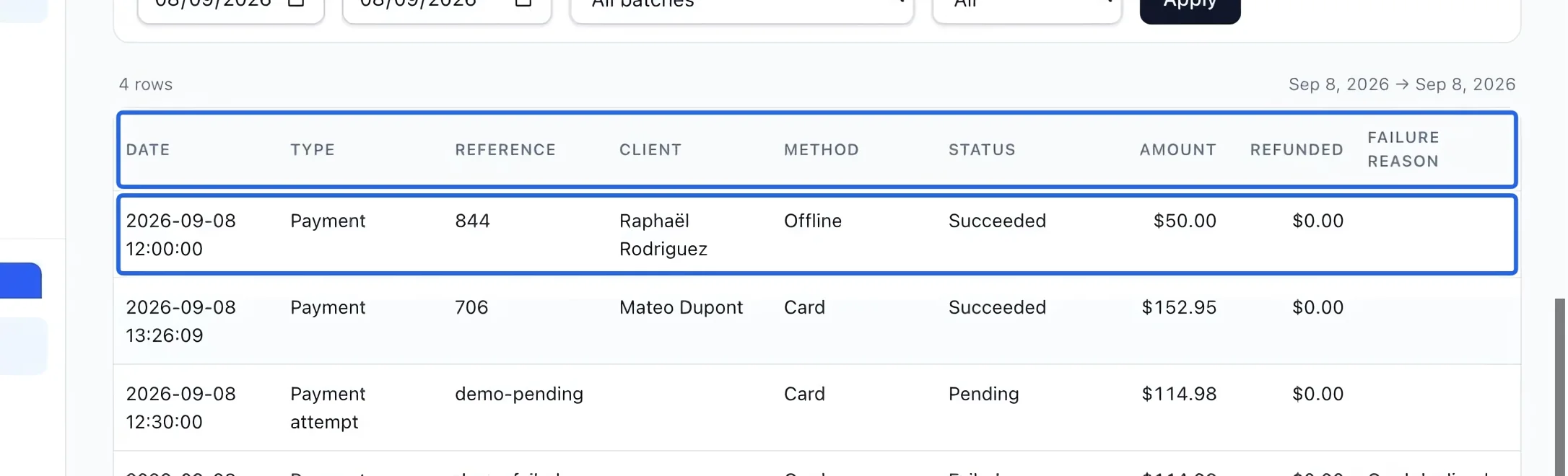
Select the screenshot to enlarge it. The blue outline marks the control to use.
- 3
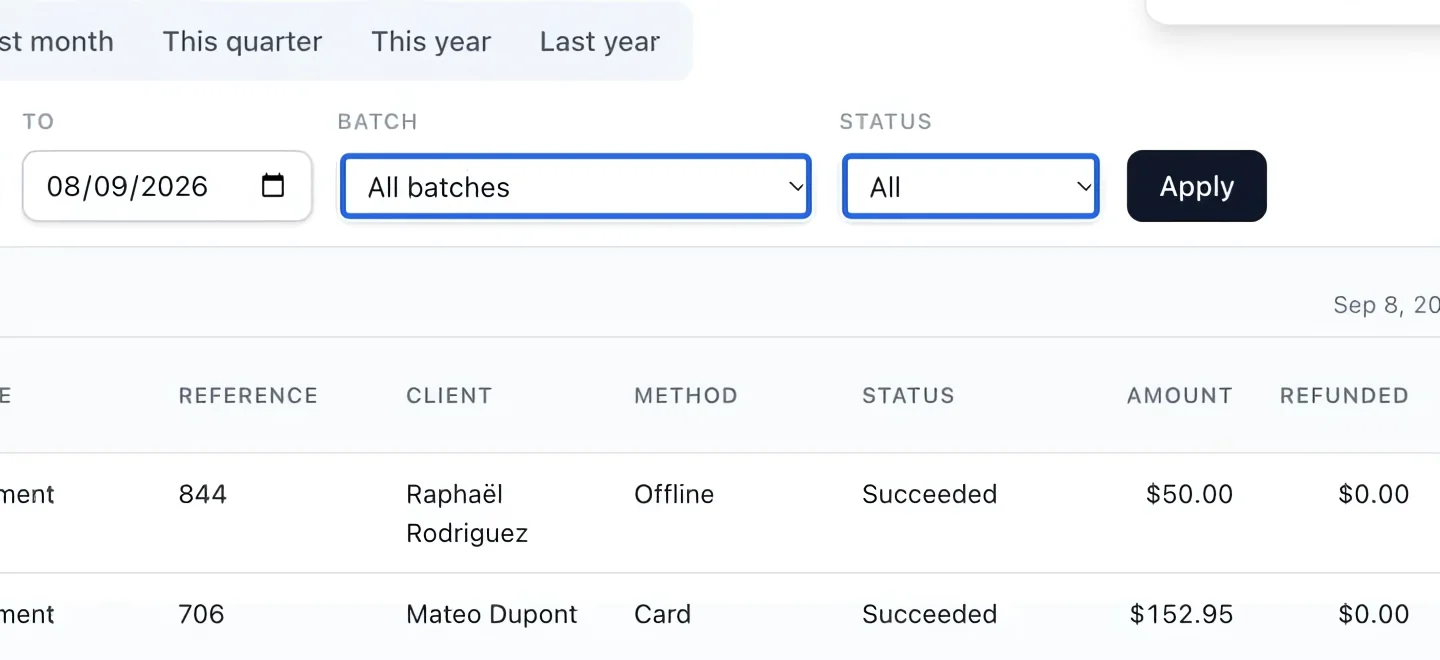
Find failed and pending attempts
Choose a Status, such as Failed or Pending, and Apply. Keep All batches when investigating attempts: a batch filter includes posted payments, while attempts without journal entries are excluded. Clear the status filter before reviewing the complete payment history.
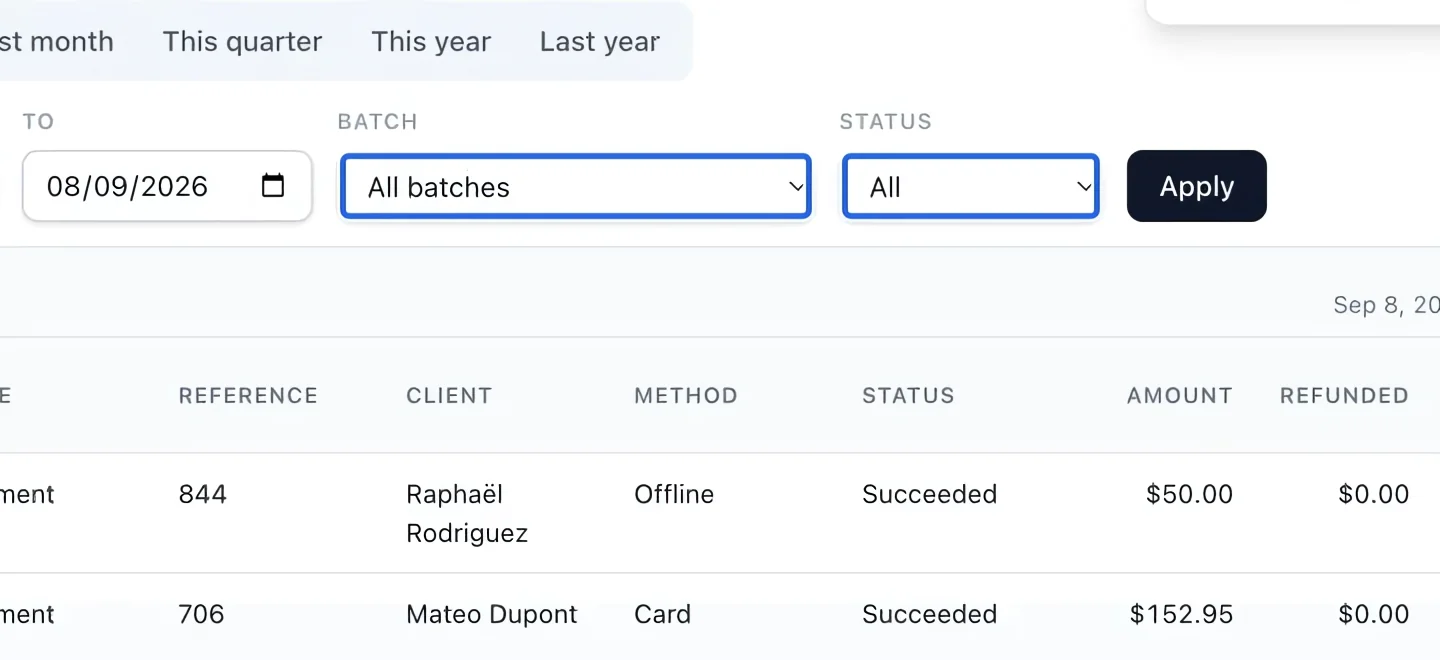
Select the screenshot to enlarge it. The blue outline marks the control to use.
- 4
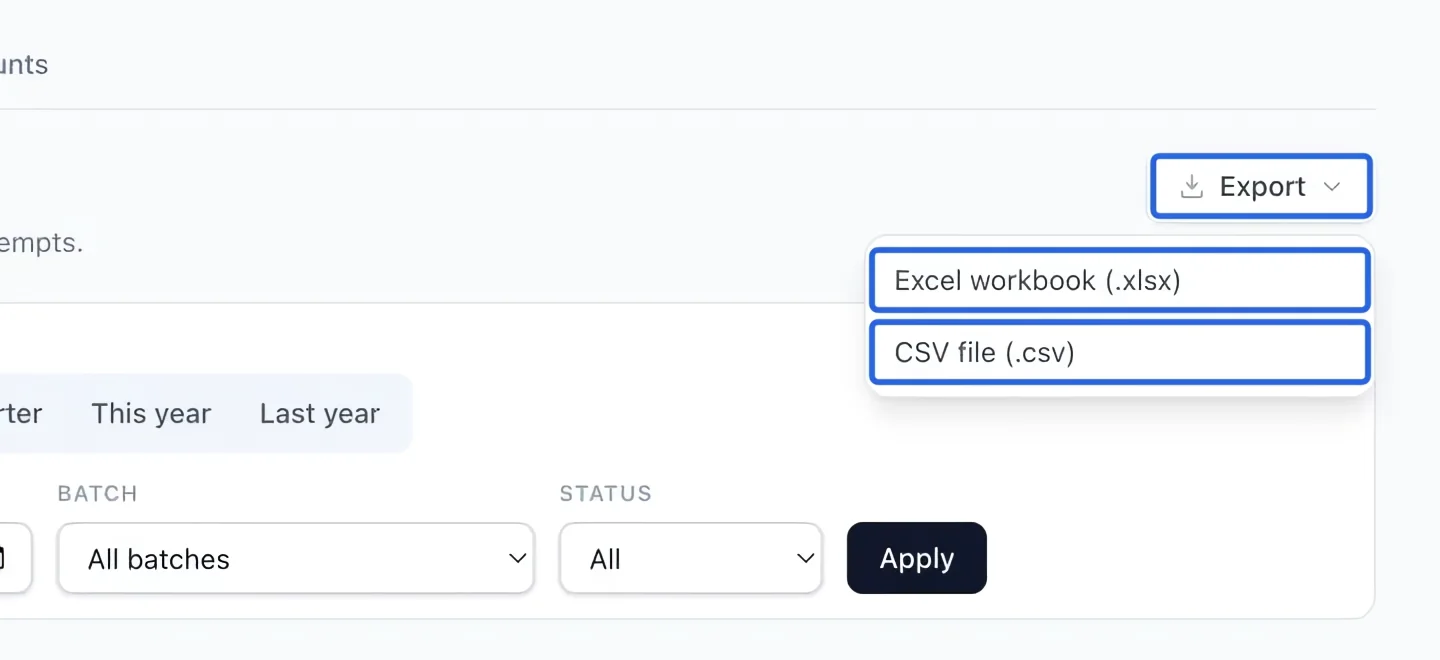
Export the filtered report
Open Export and choose Excel workbook (.xlsx) or CSV file (.csv). The file uses the active filters and current language. The screen shows at most 500 rows; exports include every matching row. If there are no results, check the date and clear restrictive filters. If a historical journal backfill warning appears, have the missing history completed before treating totals as complete.
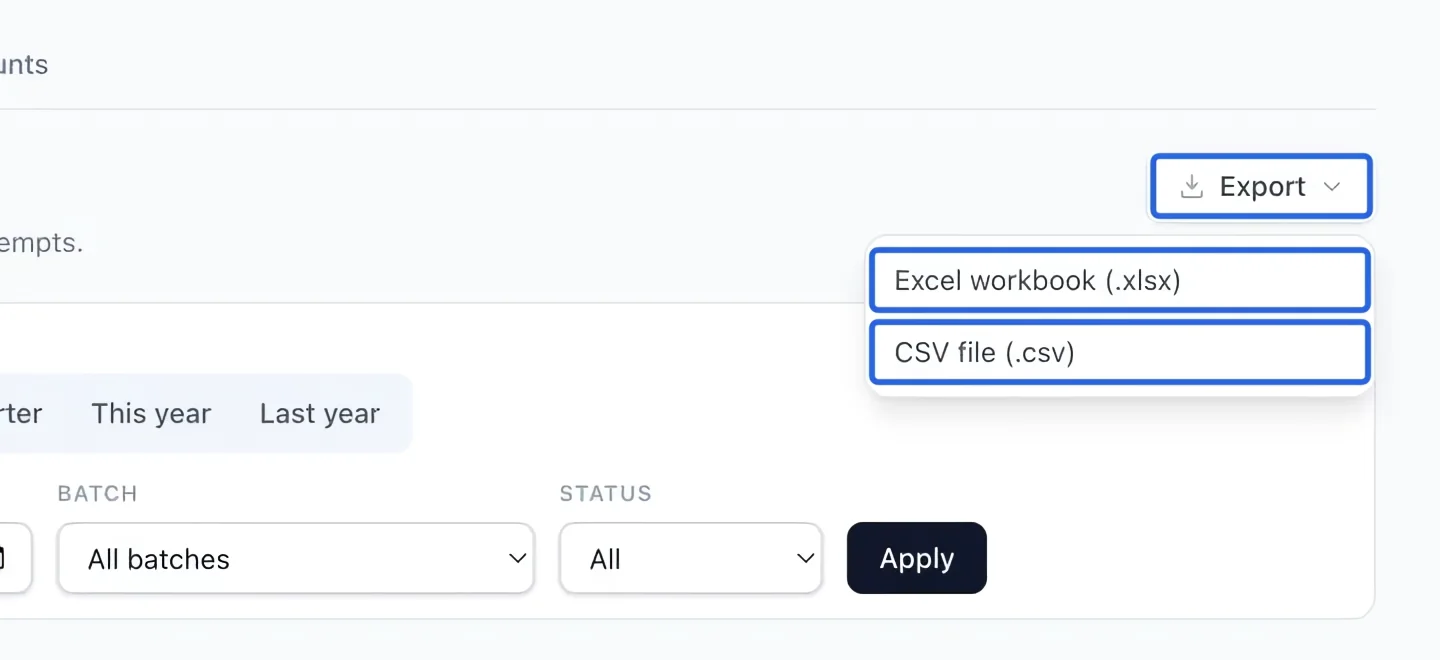
Select the screenshot to enlarge it. The blue outline marks the control to use.
Keep going
Record cash, cheque, e-transfer or organization payments and verify the remaining invoice balance.
Money & invoicingReverse part or all of an invoice (as account credit or a real card refund) with clean books.
Accounting & financial reportsTrace settled sales, allocated tax, refunds and processing fees by invoice line.