
Review adjustments and discounts
Trace write-offs, credit notes, cancellations, fees and discounts included in prices.
- 1
Choose the report period
Open Review adjustments and discounts from Reports. Choose a period preset or enter From and To. Optionally select a Batch, then Apply. Dates and batch work together, so widen the period if a batch appears incomplete. Financial reports require owner, administrator or finance manager access.
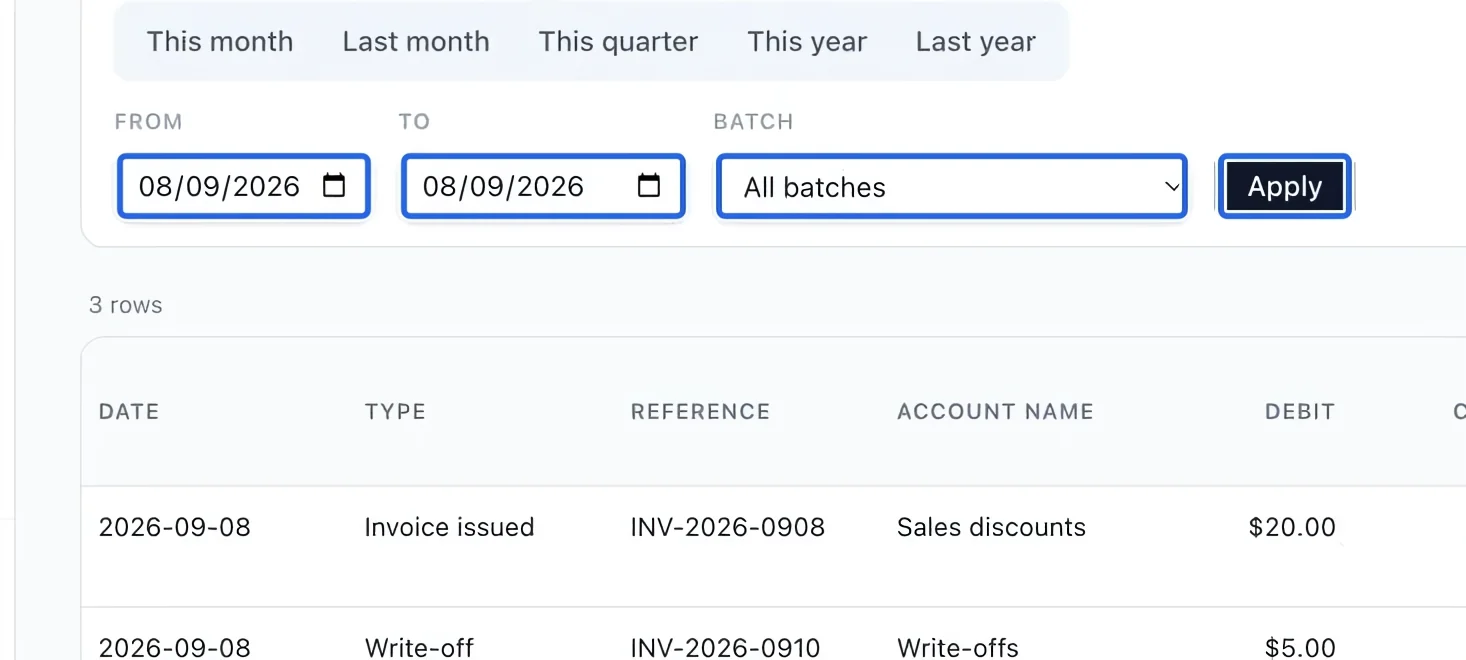
Select the screenshot to enlarge it. The blue outline marks the control to use.
- 2
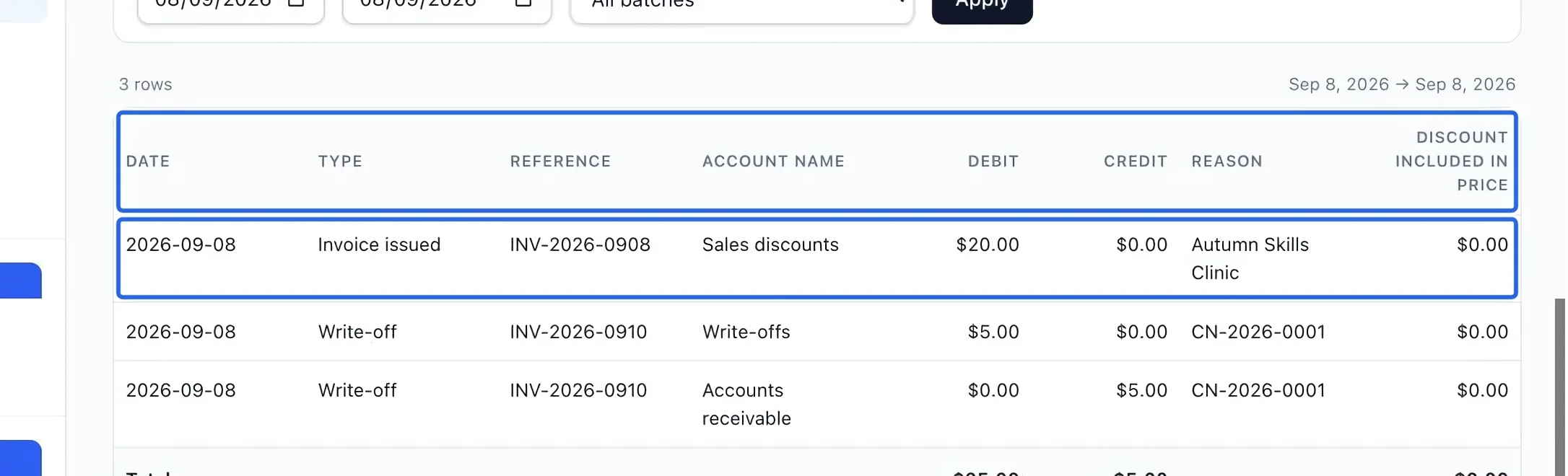
Read the adjustment evidence
Use Type, Reference, Account name, Debit, Credit and Reason to trace the adjustment. A write-off reduces debt without a refund; a cancellation reverses an issued sale. Discount included in price identifies recorded registration discounts already built into prices. Do not subtract these again from net sales or treat each journal line as a separate refund. Recorded multi-course savings are already included in the billed amounts; do not subtract them again. Changing a promotion does not rewrite earlier invoices.
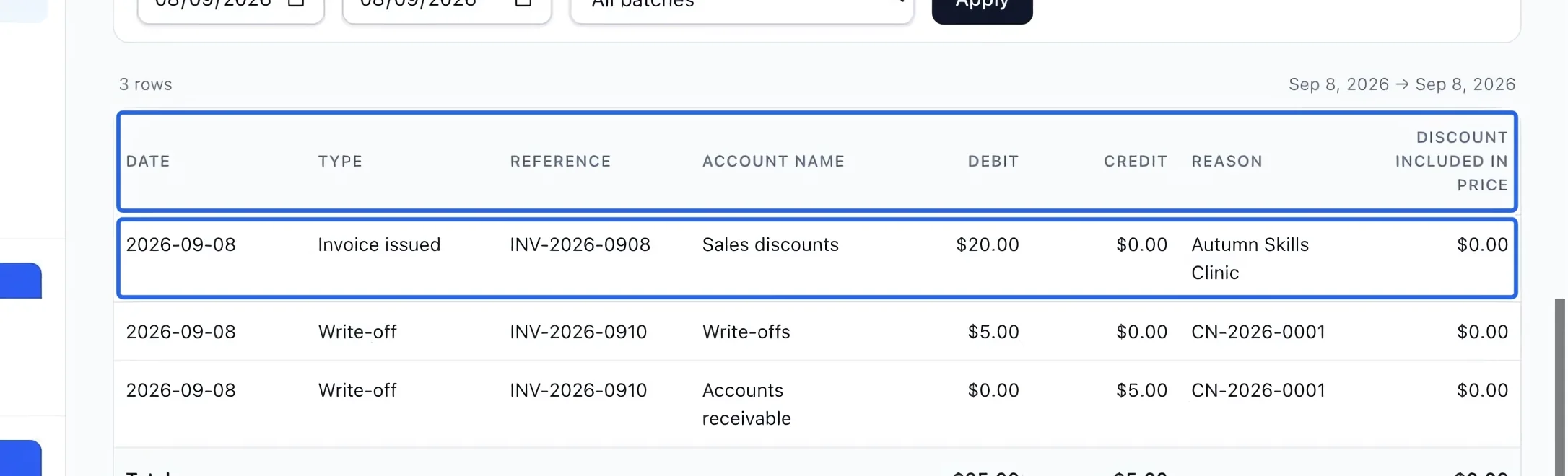
Select the screenshot to enlarge it. The blue outline marks the control to use.
- 3
Export the filtered report
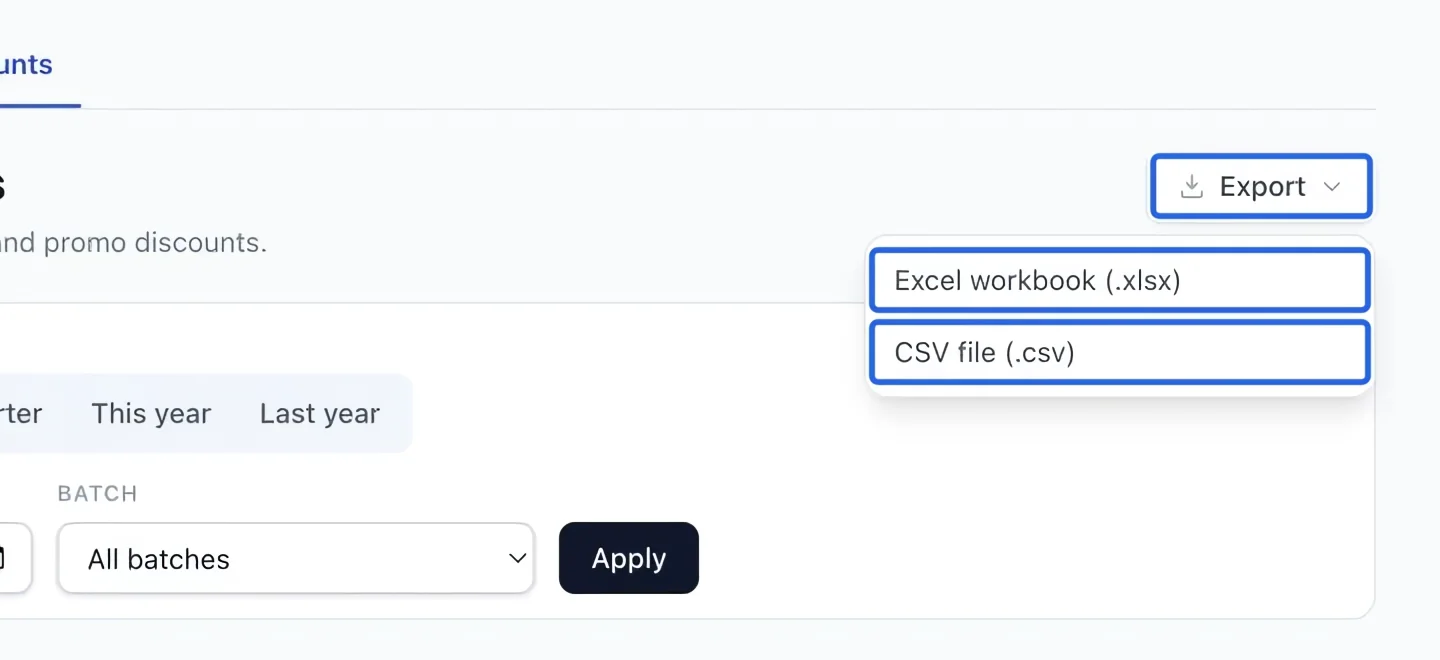
Open Export and choose Excel workbook (.xlsx) or CSV file (.csv). The file uses the active filters and current language. The screen shows at most 500 rows; exports include every matching row. If there are no results, check the date and clear restrictive filters. If a historical journal backfill warning appears, have the missing history completed before treating totals as complete.
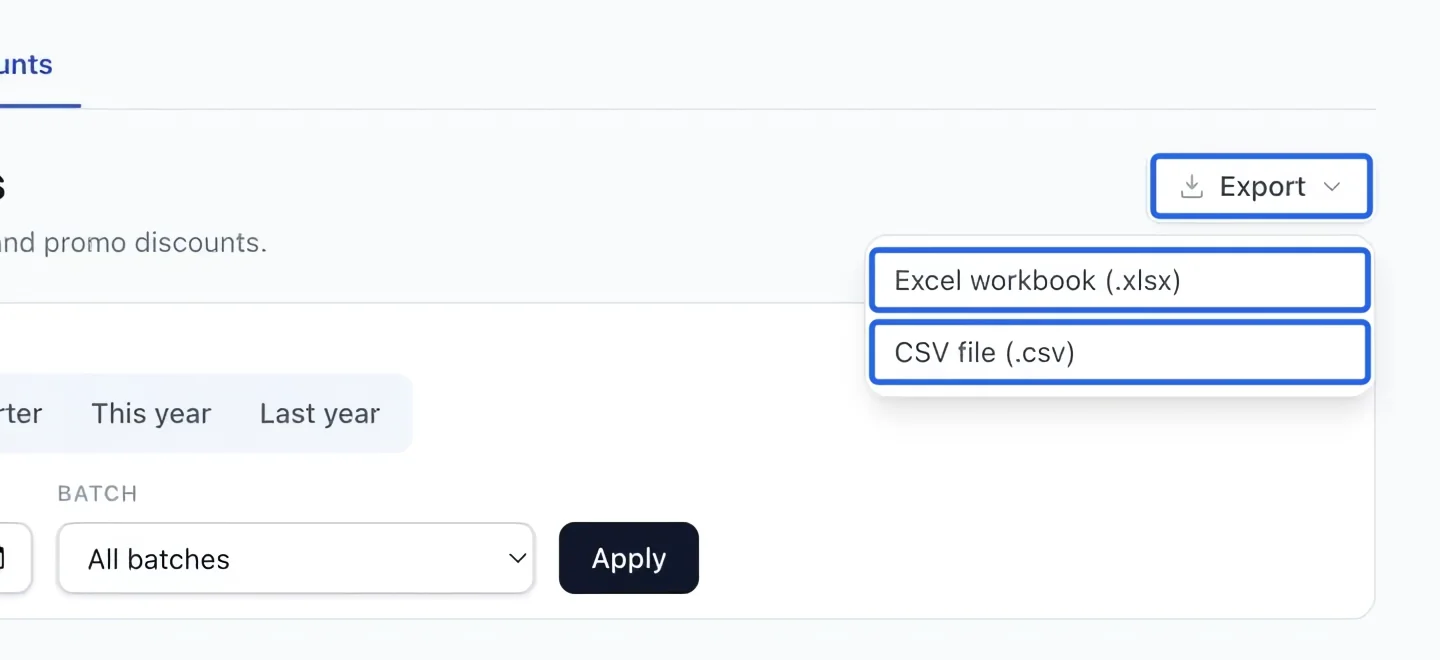
Select the screenshot to enlarge it. The blue outline marks the control to use.
Keep going
Reduce an outstanding issued invoice with an expense account, date and audited reason.
Money & invoicingReverse part or all of an invoice (as account credit or a real card refund) with clean books.
Accounting & financial reportsUnderstand gross sales, discounts, credits, refunds and net sales by account.