
Read the accounts receivable journal
Trace sealed entries affecting receivables using accounts, references, debits and credits.
- 1
Choose the report period
Open Read the accounts receivable journal from Reports. Choose a period preset or enter From and To. Optionally select a Batch, then Apply. Dates and batch work together, so widen the period if a batch appears incomplete. Financial reports require owner, administrator or finance manager access.
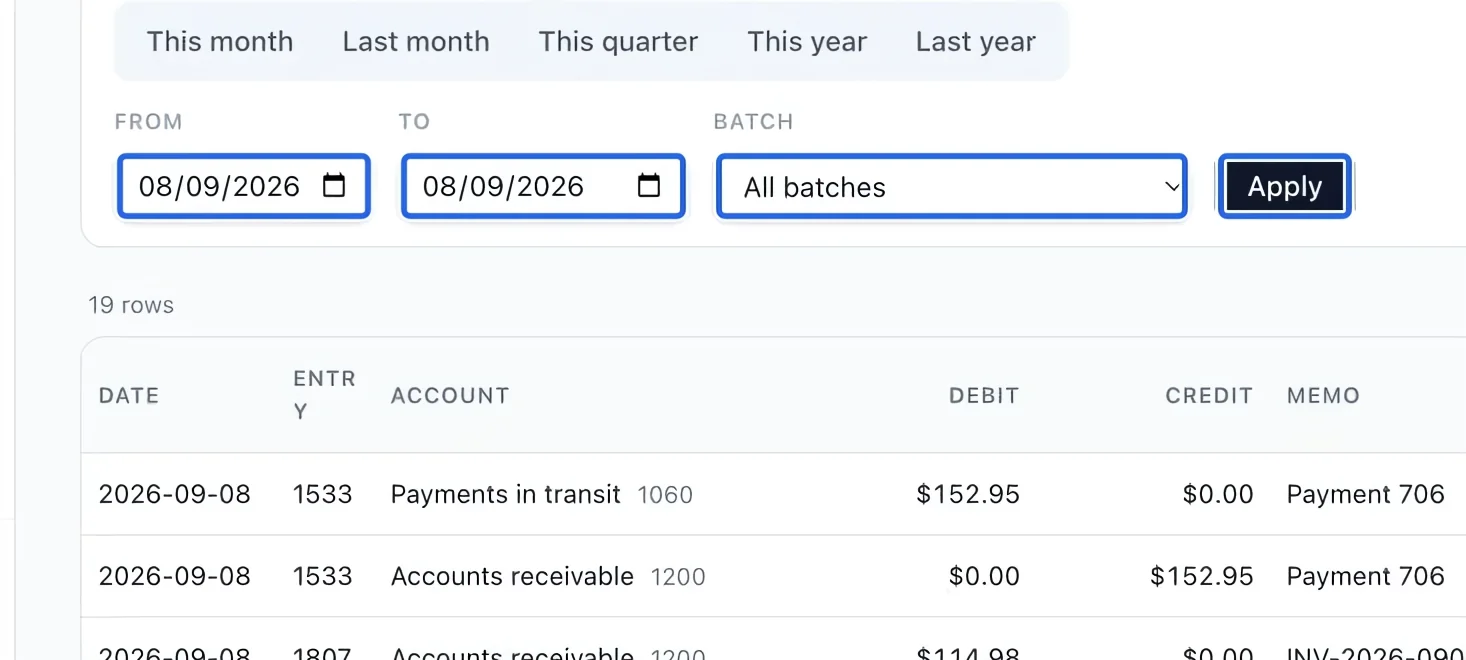
Select the screenshot to enlarge it. The blue outline marks the control to use.
- 2
Follow the entry and reference
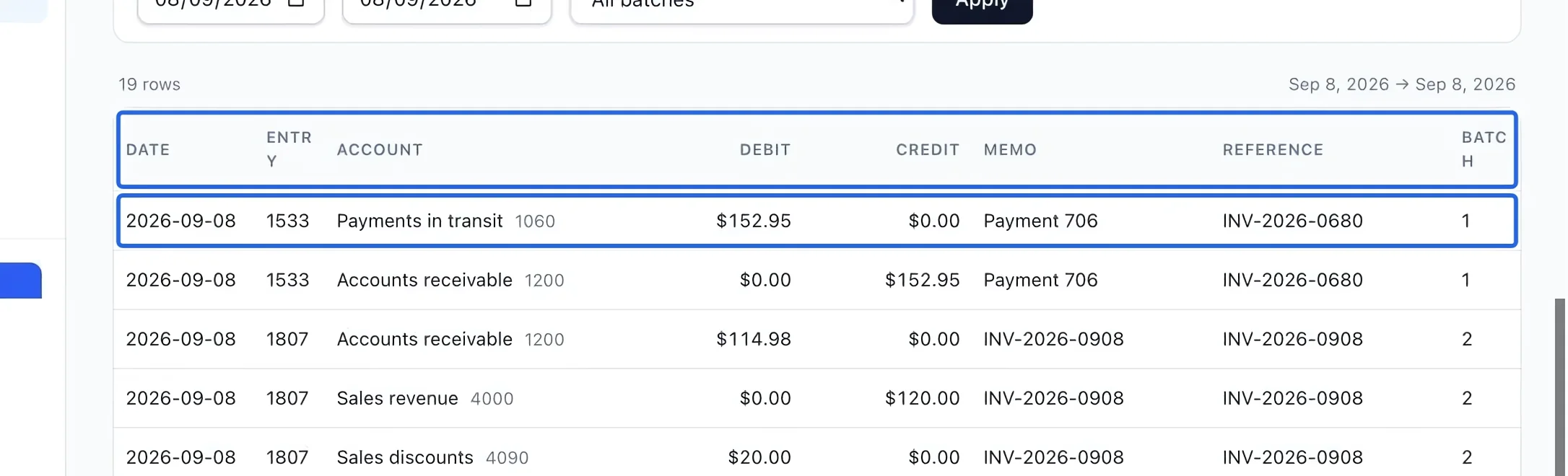
Group rows by Entry and read Account, Debit, Credit, Memo, Reference and Batch. This report includes all lines of entries that touch accounts receivable, so a balanced entry may occupy several rows. Posted entries are sealed; corrections use new adjustment entries. Use Accounting exports when you need the full journal, including entries that do not touch receivables.
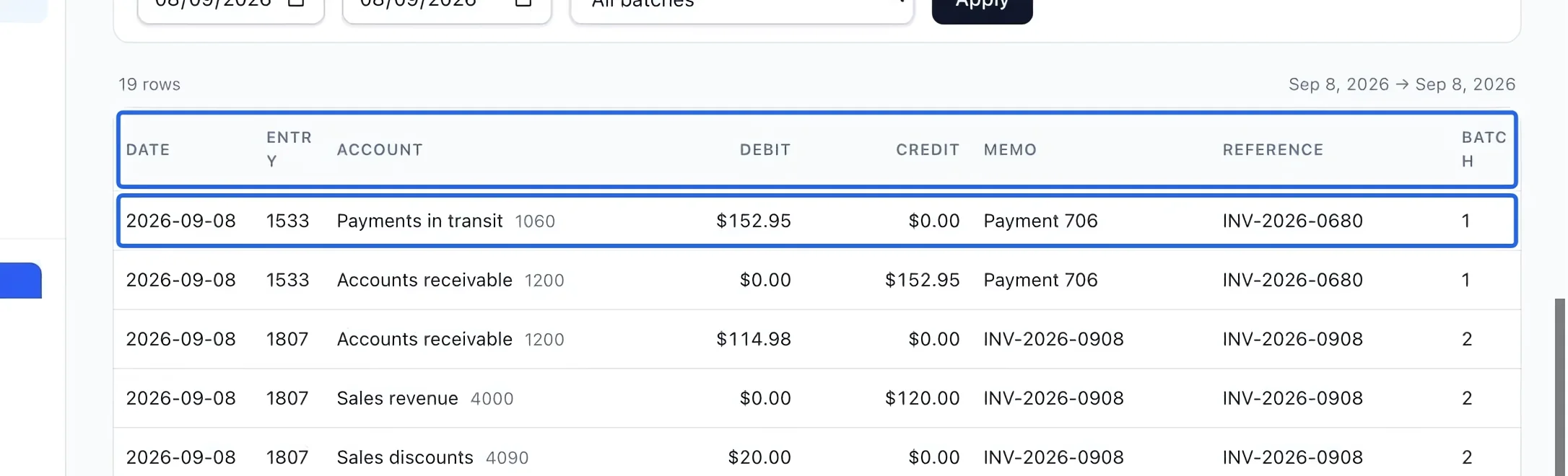
Select the screenshot to enlarge it. The blue outline marks the control to use.
- 3
Export the filtered report
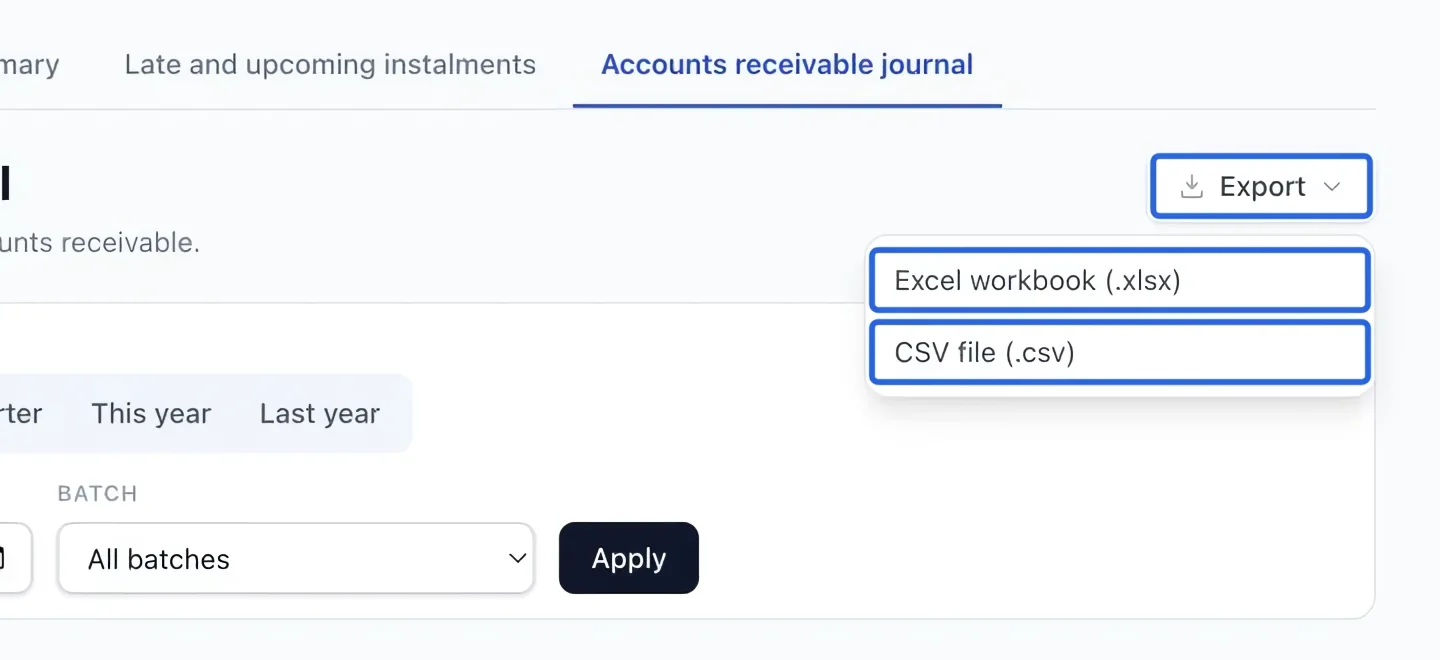
Open Export and choose Excel workbook (.xlsx) or CSV file (.csv). The file uses the active filters and current language. The screen shows at most 500 rows; exports include every matching row. If there are no results, check the date and clear restrictive filters. If a historical journal backfill warning appears, have the missing history completed before treating totals as complete.
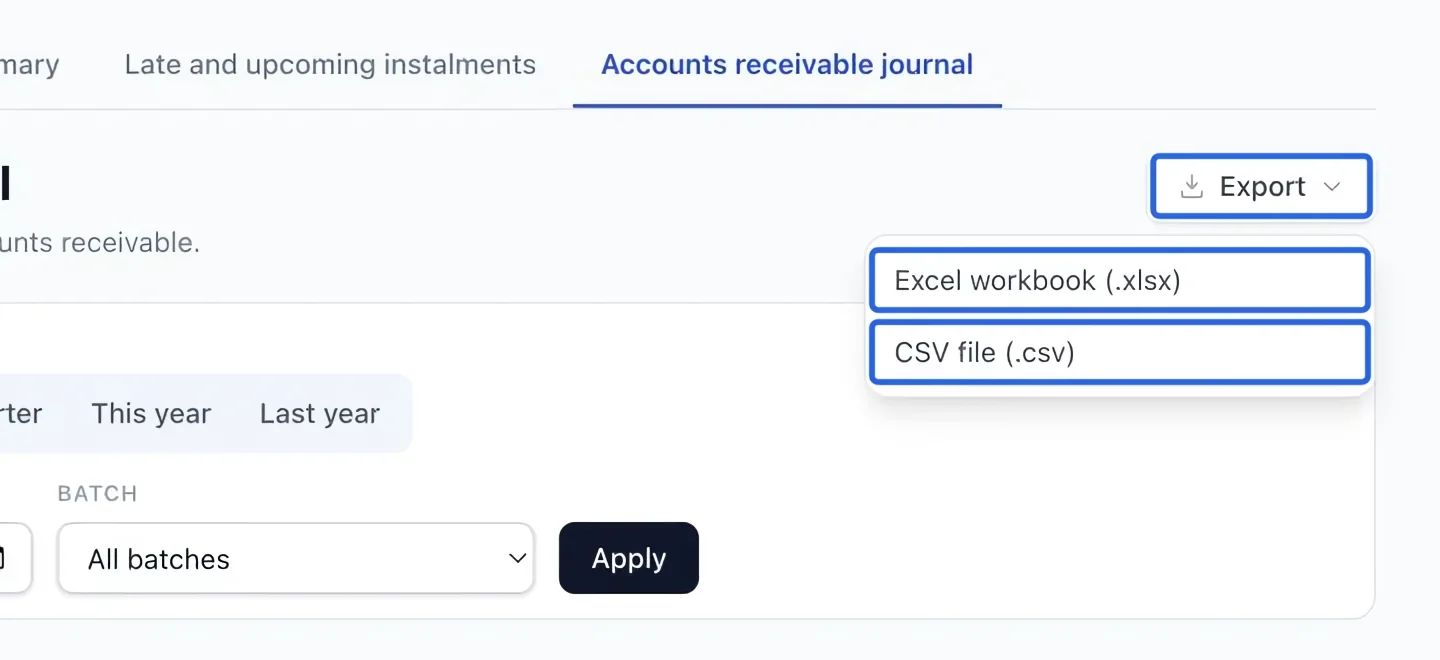
Select the screenshot to enlarge it. The blue outline marks the control to use.
Keep going
Match accounts and clients, then download generic, QuickBooks or Sage/Acomba journals and export summaries.
Accounting & financial reportsTrace write-offs, credit notes, cancellations, fees and discounts included in prices.
Accounting & financial reportsReview open totals, close batches manually or on a schedule, and track verified payout lots.