
Group invoice lines and download client statements
Choose invoice grouping and generate a dated statement of account for a family.
- 1
Choose how invoices group lines
On an invoice, choose Group invoice by → Item or Participant and save. This is an organization-wide preference for invoice presentation, including PDFs. It changes how lines are grouped; it does not change invoice totals or journal entries.
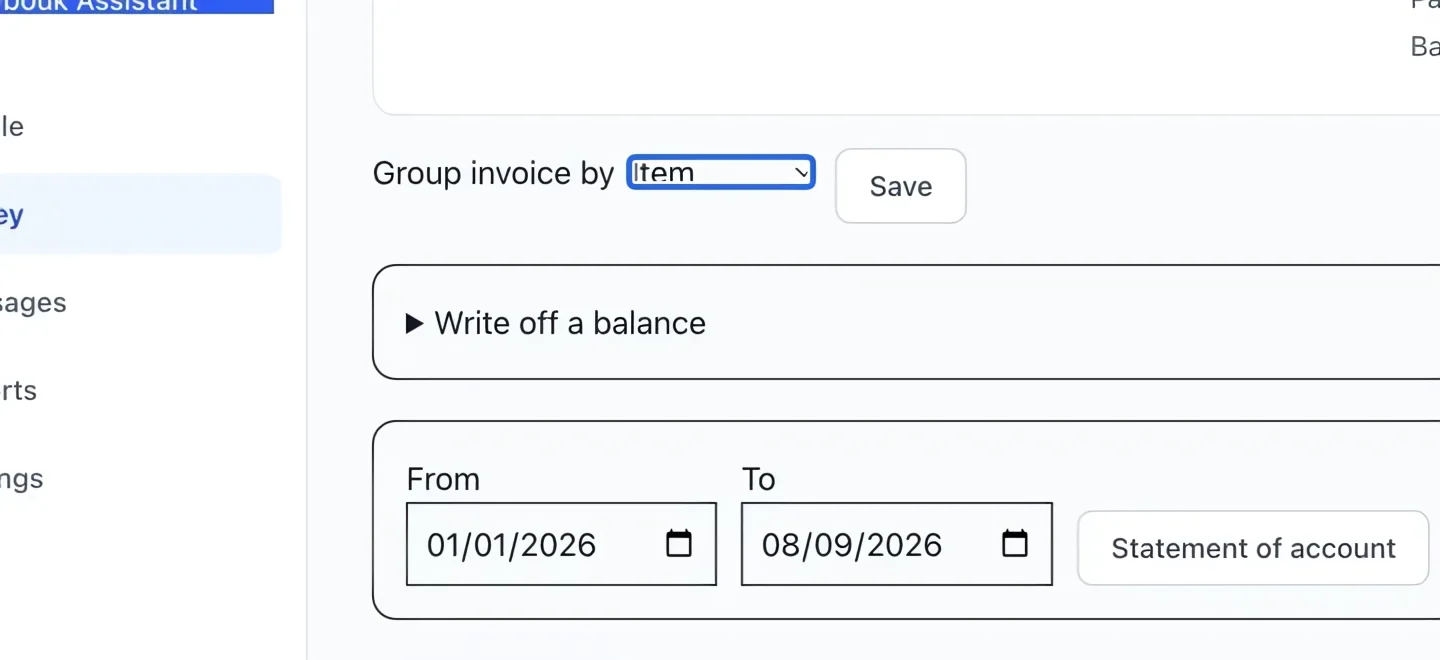
Select the screenshot to enlarge it. The blue outline marks the control to use.
- 2
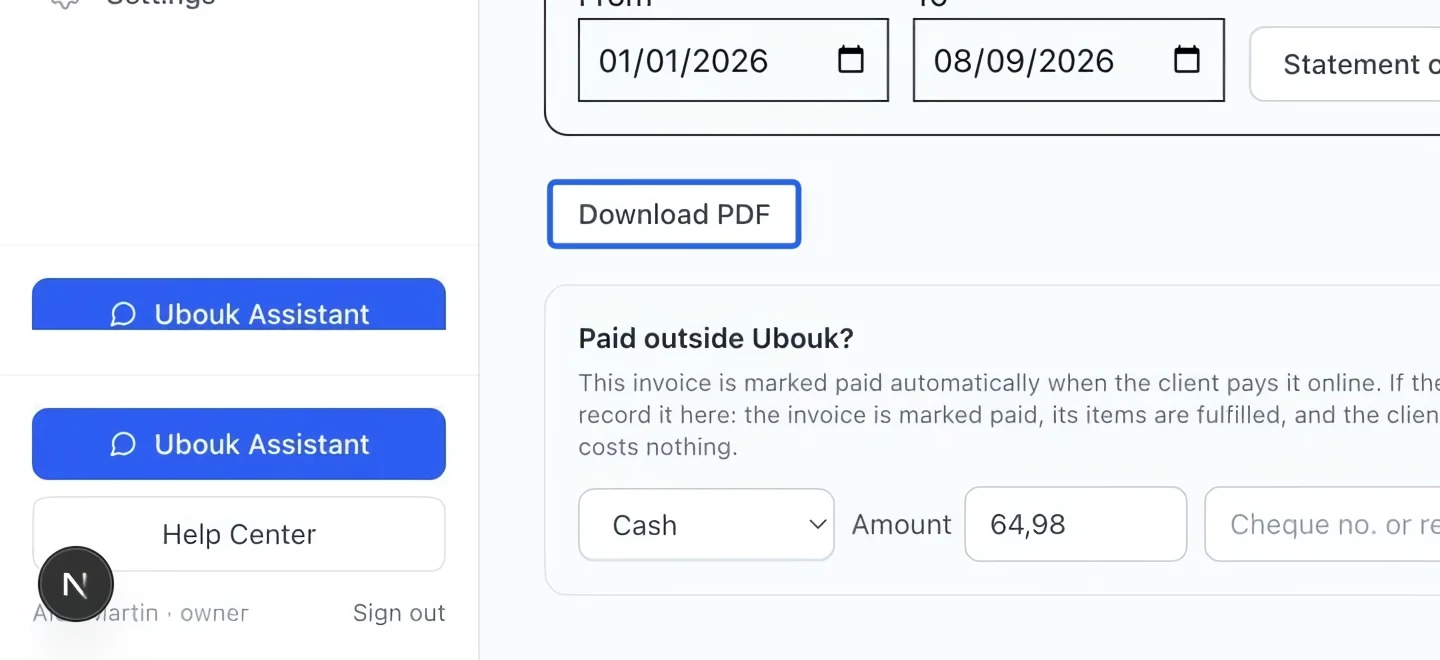
Review the invoice PDF
Choose Download PDF and check the client, grouped lines, tax descriptions and payment information. Tax labels and registration numbers come from Tax accounts. Review the document in the language intended for the family.
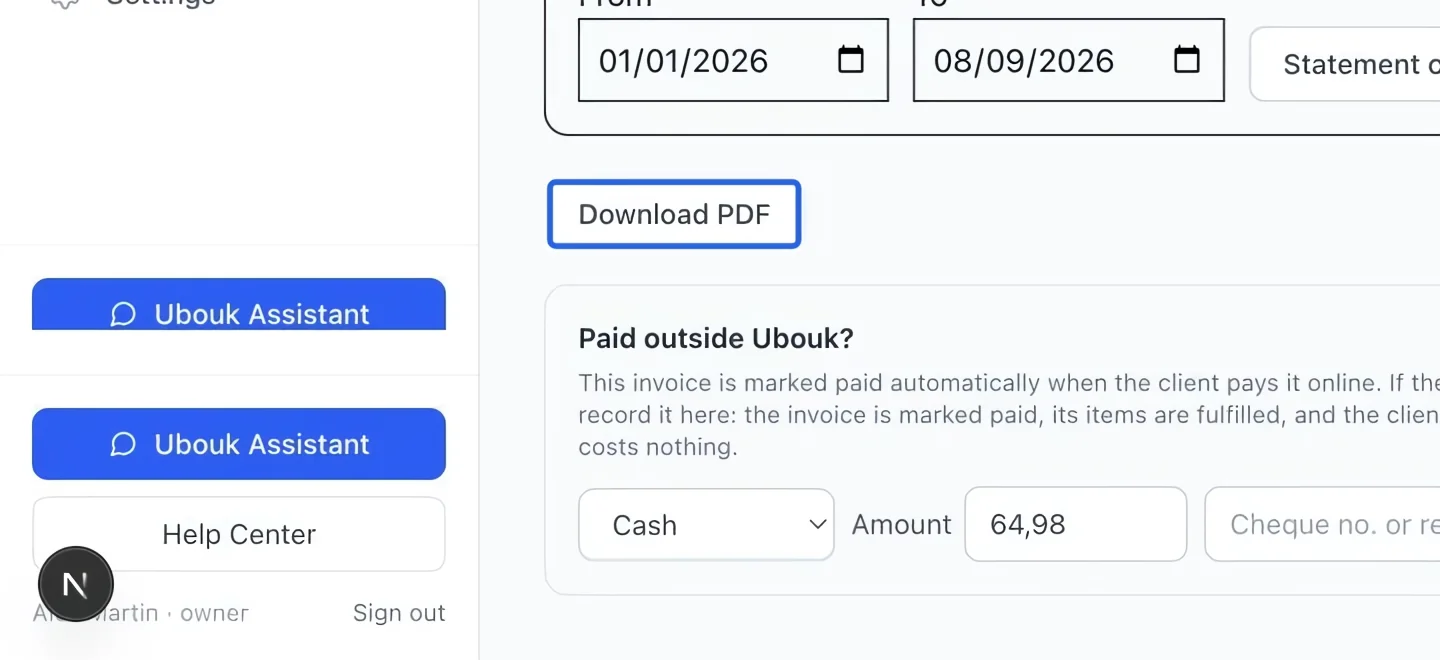
Select the screenshot to enlarge it. The blue outline marks the control to use.
- 3
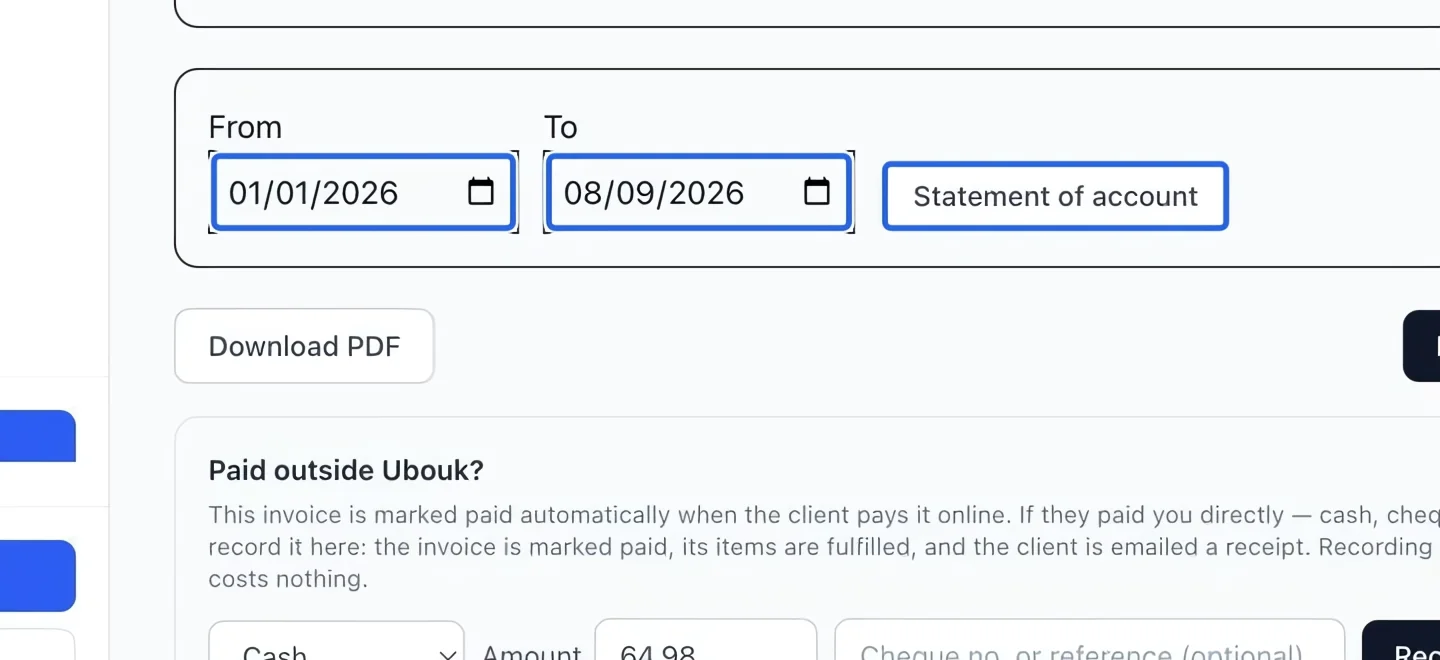
Download a dated account statement
On an invoice linked to a client account, set the statement’s From and To dates, then Statement of account. The PDF covers that client’s account activity across invoices, with opening balance, charges, payments, credits and closing balance. It opens in the current language. This button downloads a statement; it does not email it.
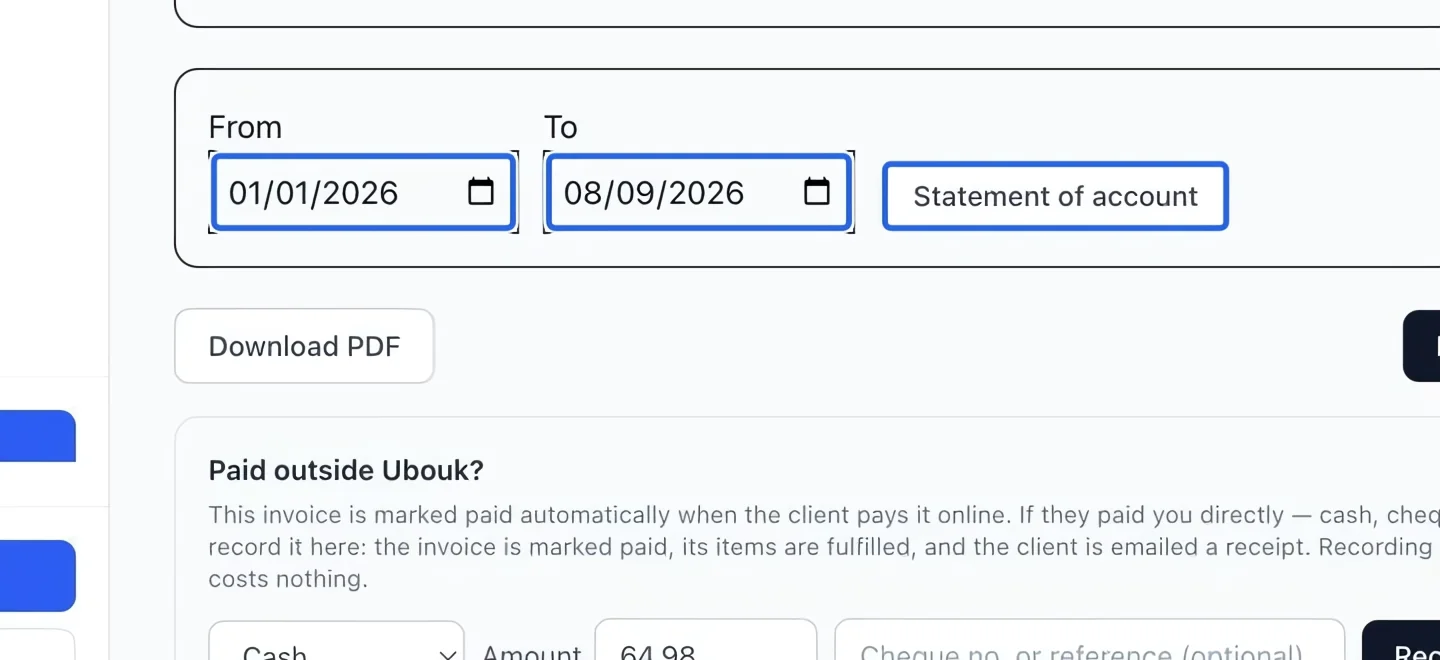
Select the screenshot to enlarge it. The blue outline marks the control to use.
Keep going
Select a client and catalog items, review the total, then save or send an invoice.
Money & invoicingRecord cash, cheque, e-transfer or organization payments and verify the remaining invoice balance.
Accounting & financial reportsCompare outstanding debt, available account credit and the net balance for each client.