
Read client balance summaries
Compare outstanding debt, available account credit and the net balance for each client.
- 1
Choose the balance date
Open Read client balance summaries from Reports. Use an As of preset or enter Custom date, then Apply. This is an organization-wide balance through that date; it does not limit invoices to a start date or batch. Payments settle the oldest due amounts first. Financial reports require owner, administrator or finance manager access.
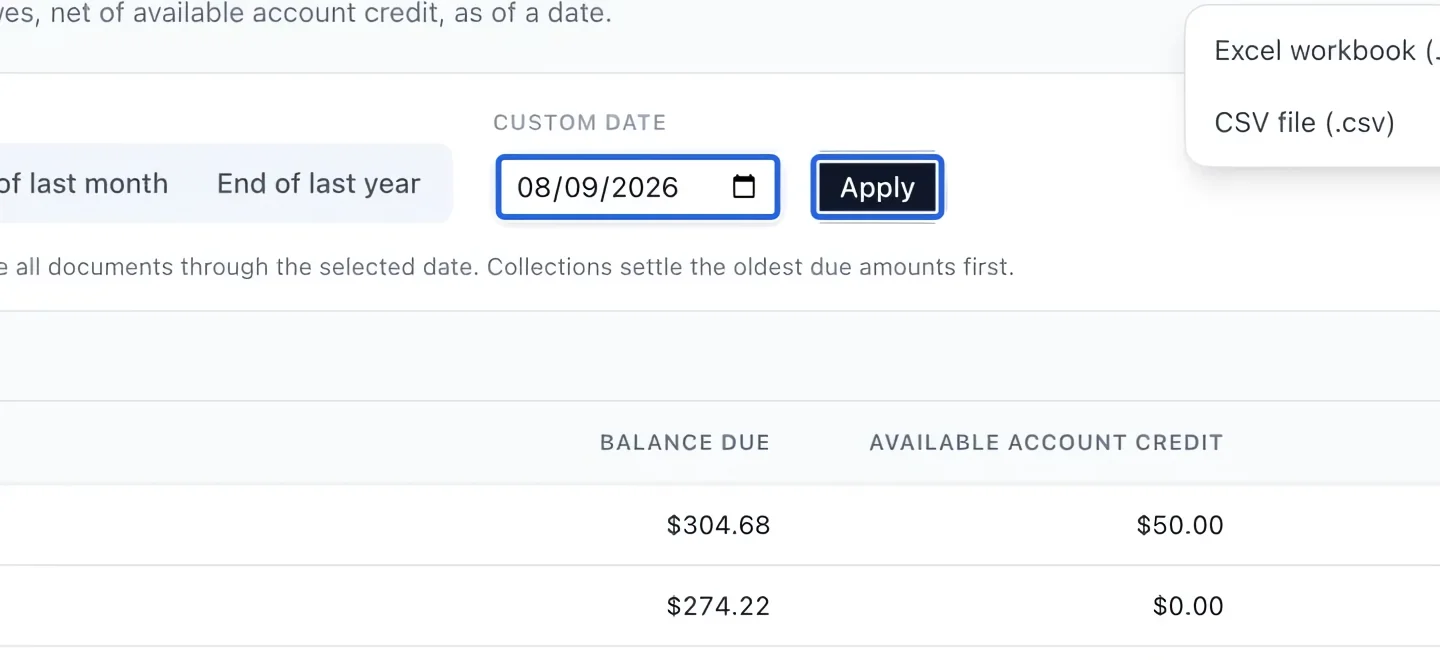
Select the screenshot to enlarge it. The blue outline marks the control to use.
- 2
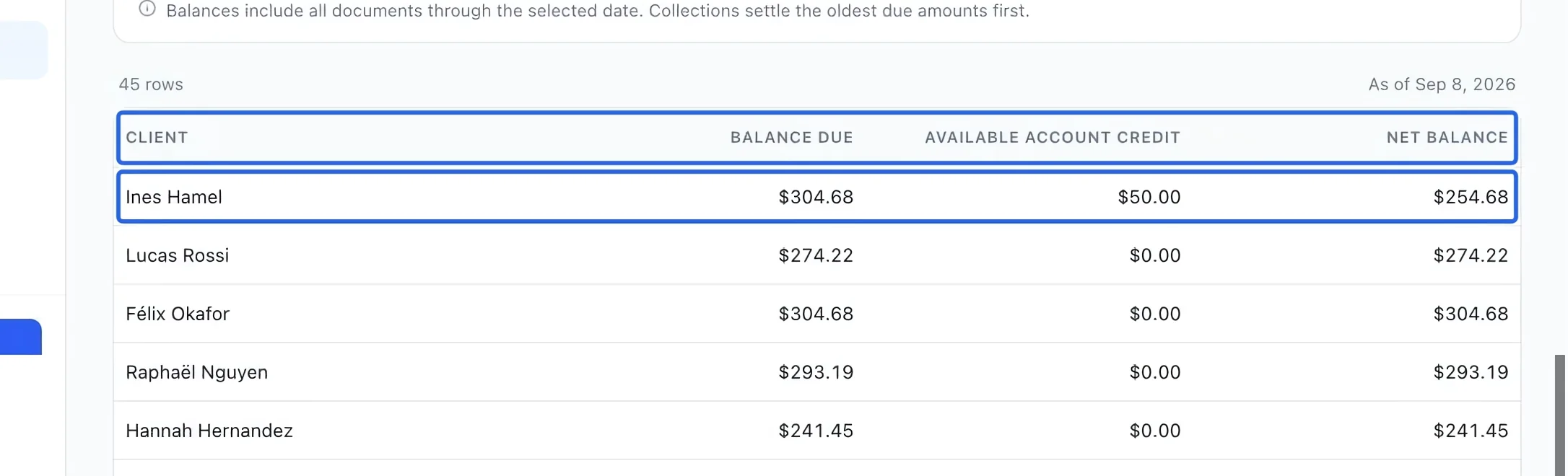
Separate debt from available credit
Read Balance due, Available account credit and Net balance for each client. Net balance equals debt minus available credit; a negative net balance means credit exceeds debt. Showing credit here does not apply it to a particular invoice. Check the underlying invoices or a statement when a family needs the detailed activity.
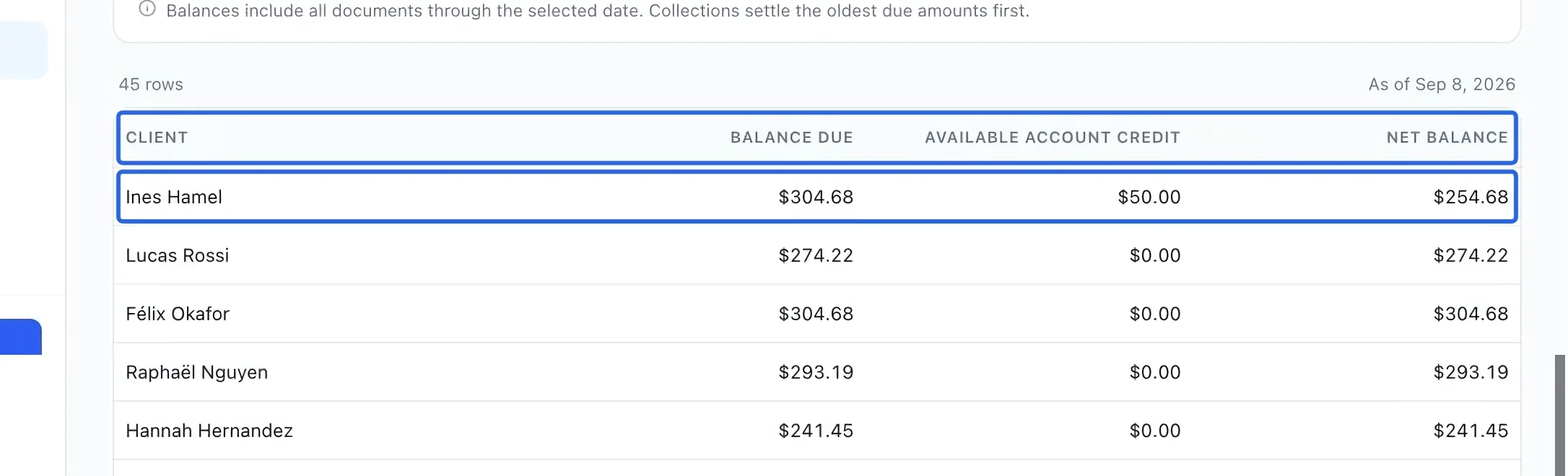
Select the screenshot to enlarge it. The blue outline marks the control to use.
- 3
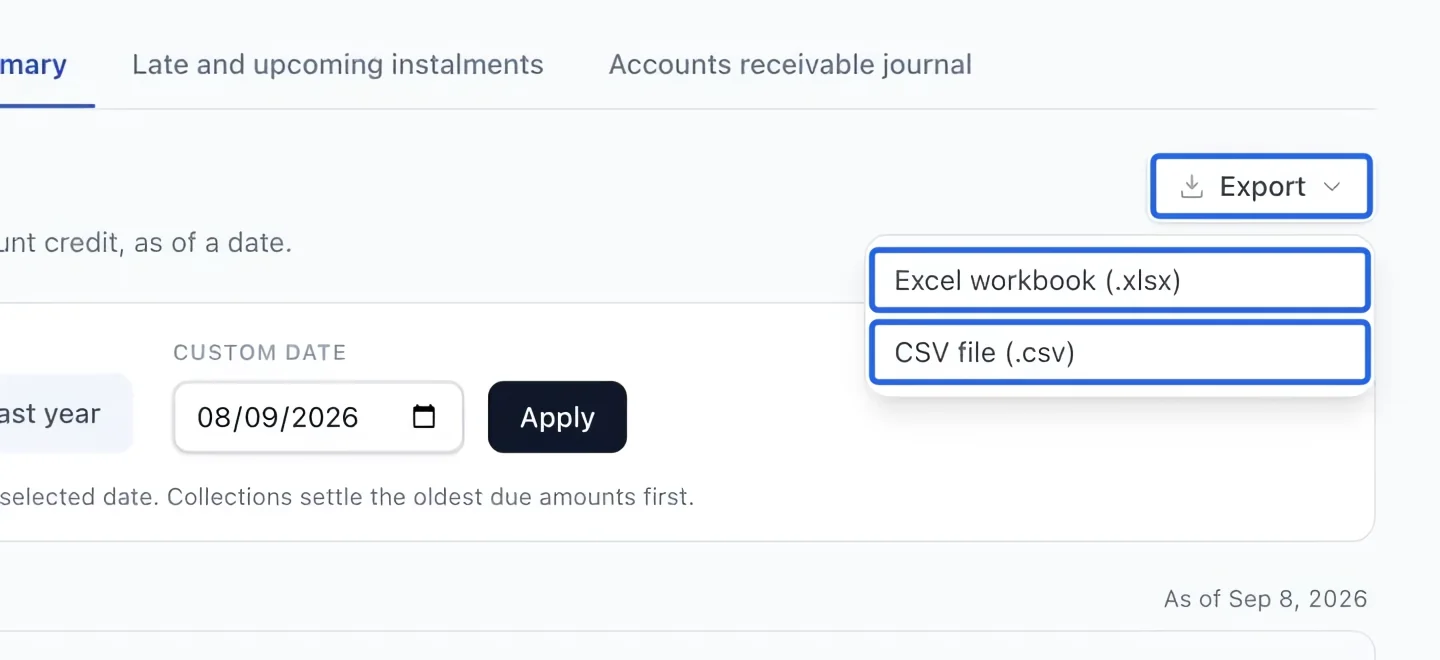
Export the filtered report
Open Export and choose Excel workbook (.xlsx) or CSV file (.csv). The file uses the active filters and current language. The screen shows at most 500 rows; exports include every matching row. If there are no results, check the date and clear restrictive filters. If a historical journal backfill warning appears, have the missing history completed before treating totals as complete.
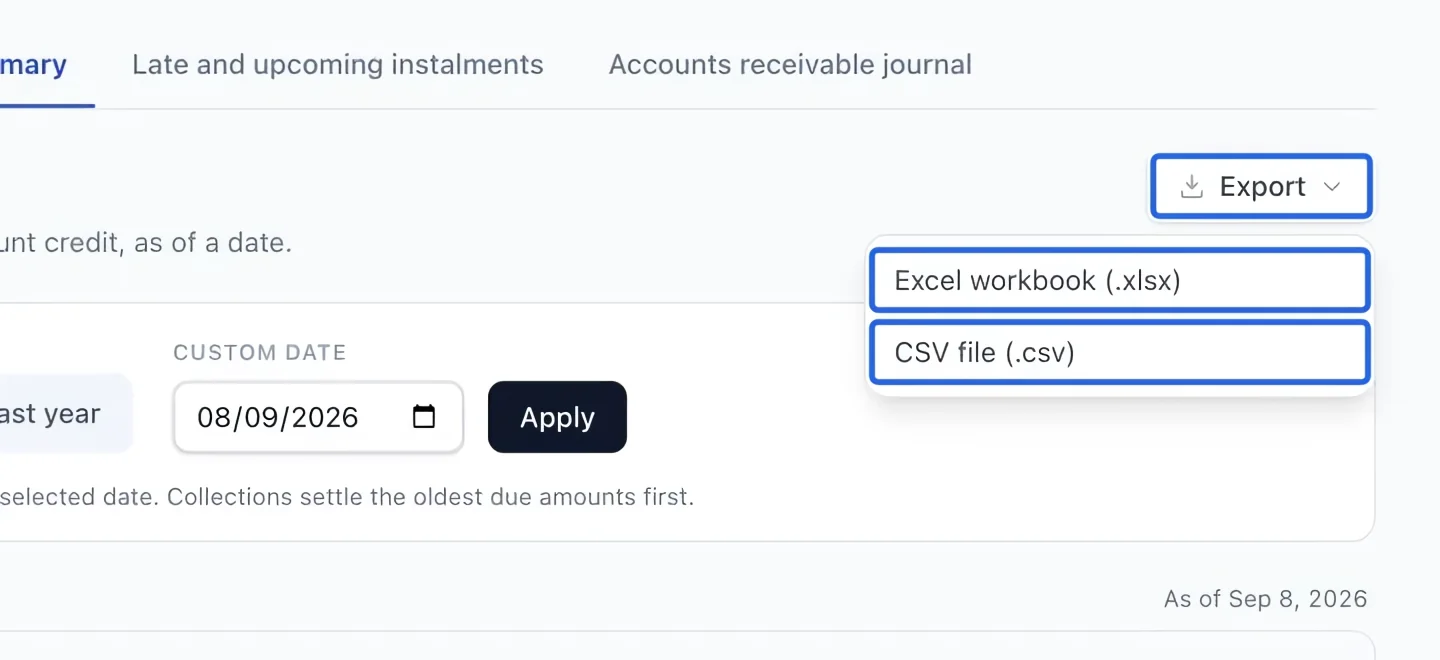
Select the screenshot to enlarge it. The blue outline marks the control to use.
Keep going
Choose invoice grouping and generate a dated statement of account for a family.
Money & invoicingRecord cash, cheque, e-transfer or organization payments and verify the remaining invoice balance.
Accounting & financial reportsIdentify outstanding balances by due date and overdue bucket.