
Map tax accounts and invoice tax labels
Set the tax account, agency, registration number and bilingual invoice description for each component.
- 1
Choose the tax component and account
Open Accounting mappings and find Tax accounts. Choose an active tax account for each existing component. To add another component, use the blank form and its exact component code. Configure the tax rates themselves in Settings; an accounting mapping does not set a rate or an exemption.
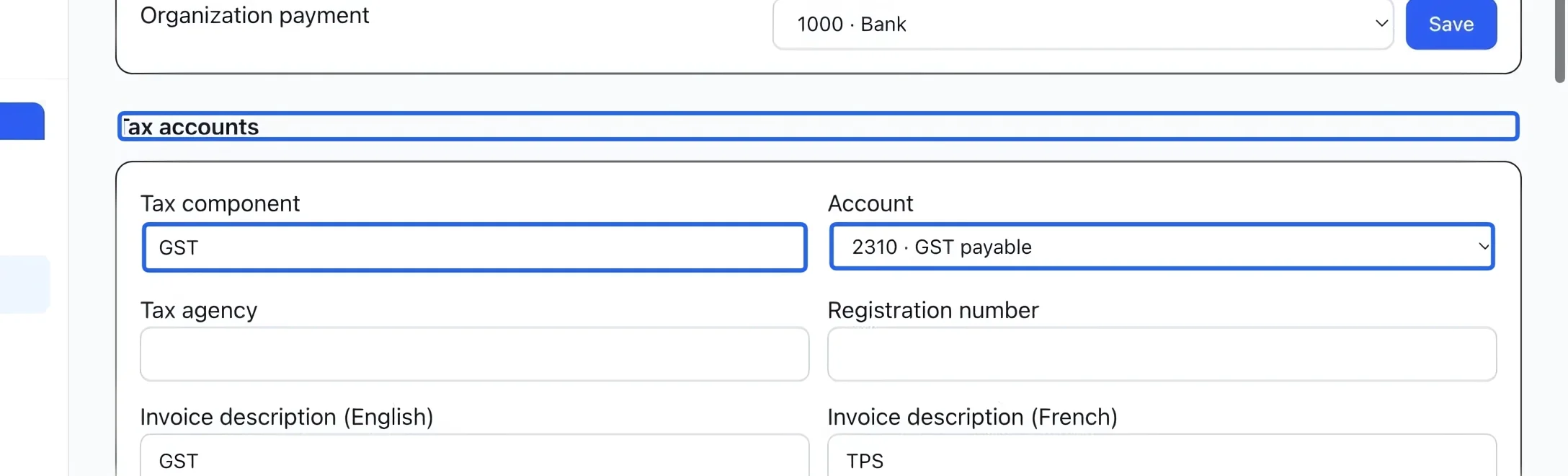
Select the screenshot to enlarge it. The blue outline marks the control to use.
- 2
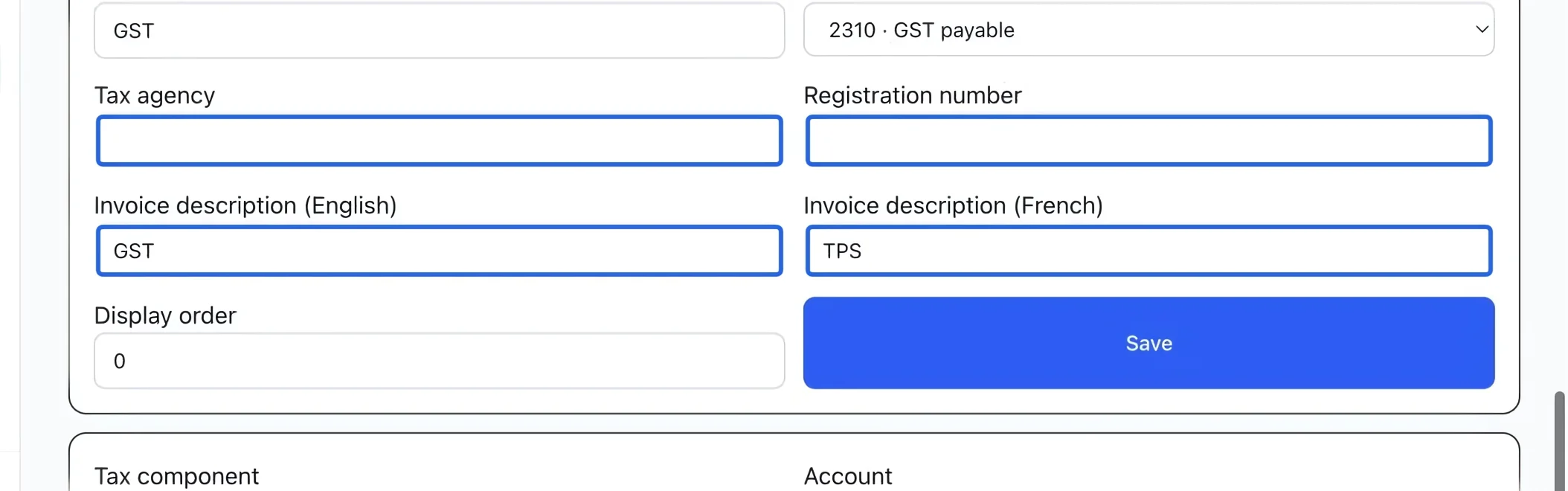
Enter the invoice details
Enter Tax agency, Registration number, and Invoice description (English) and Invoice description (French). These descriptions and registration details appear on invoice PDFs. Check both languages so families see the correct tax names and identifiers.
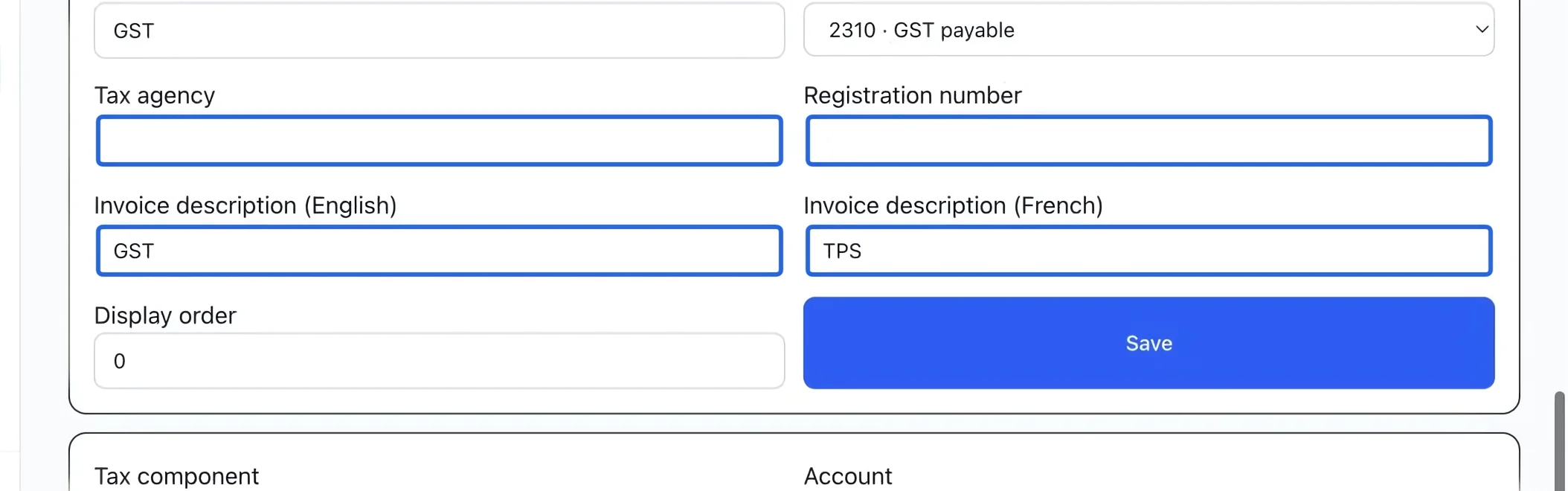
Select the screenshot to enlarge it. The blue outline marks the control to use.
- 3
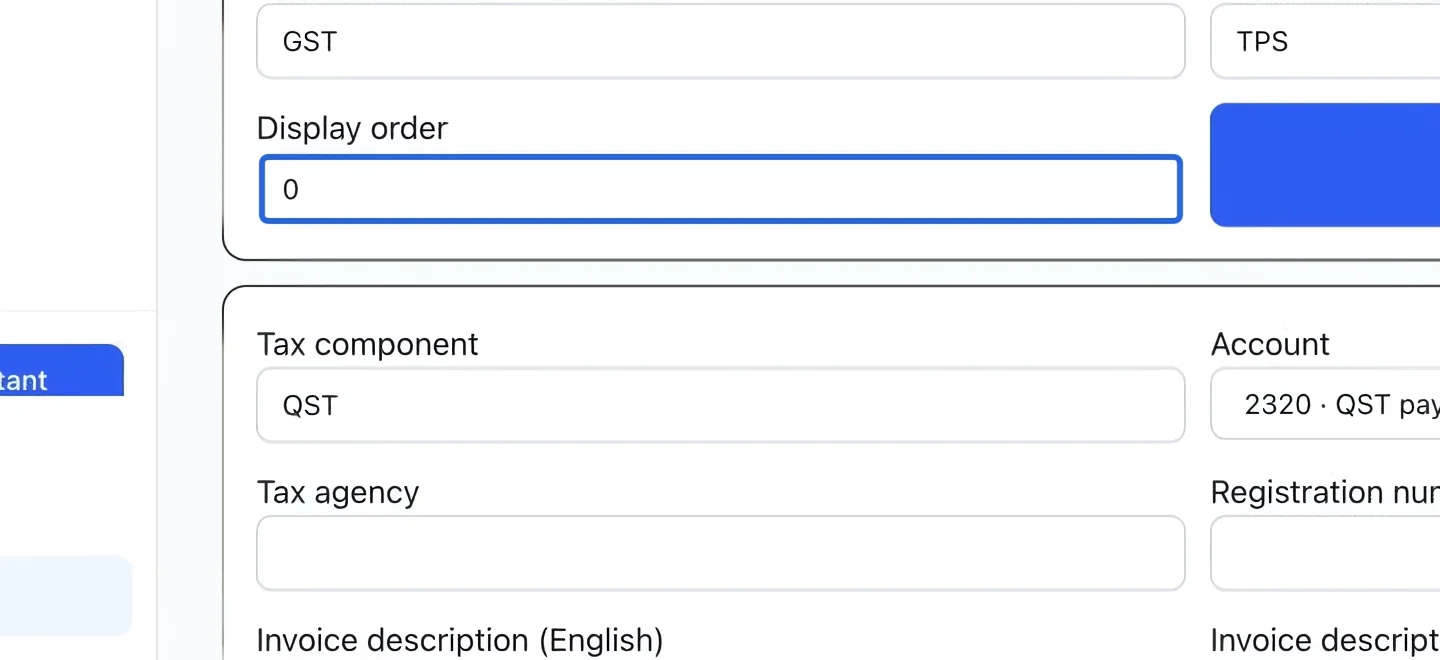
Save and verify tax presentation
Set Display order and save the component’s form; use Add tax mapping for a new component. Download an invoice PDF to verify the result. Use Taxes collected for settled tax and the Tax remittance helper to compare invoiced and collected tax.
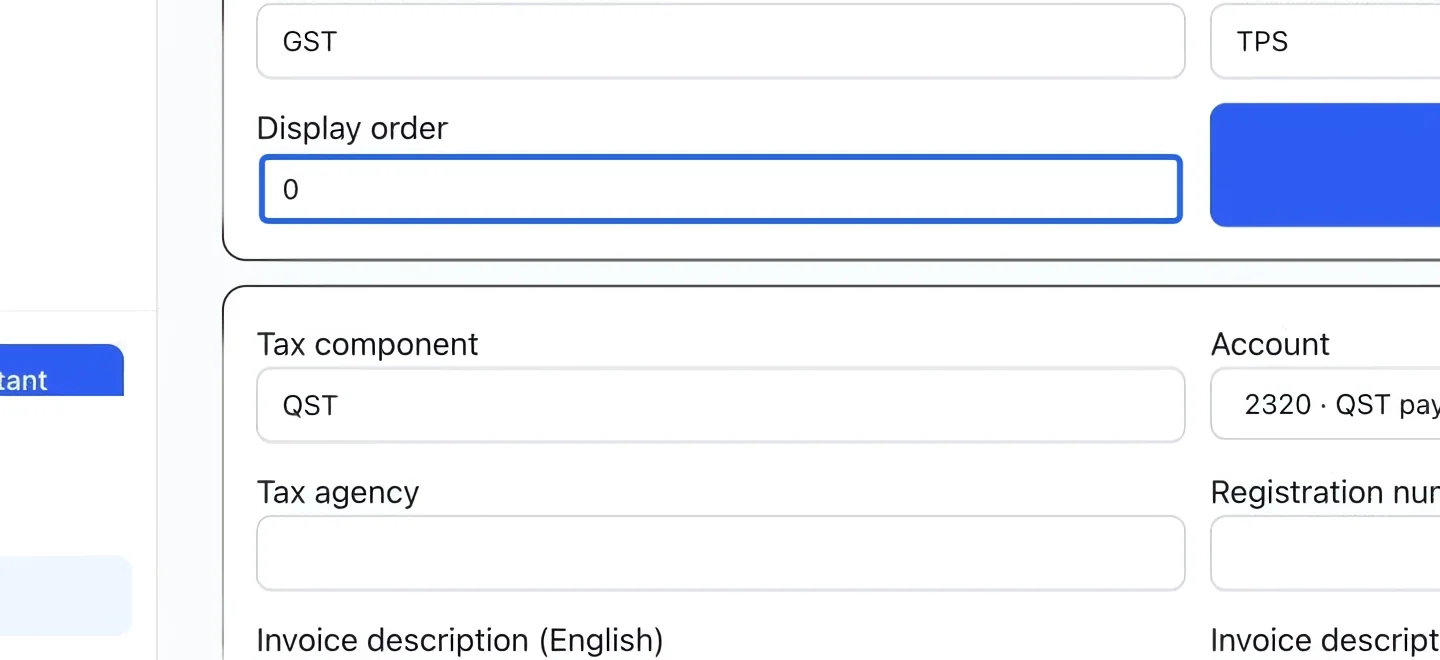
Select the screenshot to enlarge it. The blue outline marks the control to use.
Keep going
Country, sales taxes, timezone, your subscription plan and plan billing: the foundation everything sits on.
Accounting & financial reportsCompare collected, refunded and net tax by component for settled payments.
Accounting & financial reportsCompare output tax invoiced and credited with tax collected and refunded for a filing period.