
Work with client profiles
Every family in one place: registrations, invoices, memberships, documents, notes and history.
- 1
Find an existing client
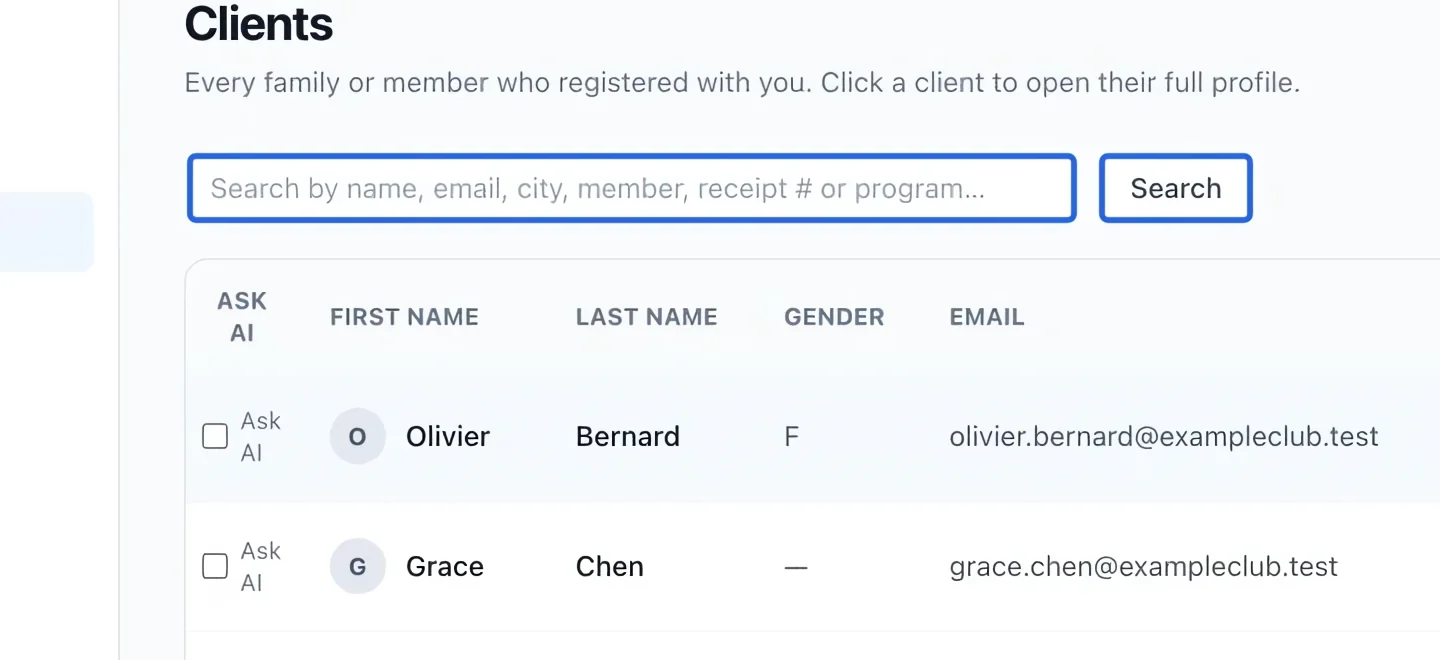
Open People → Clients. Enter a name or email in the search field and click Search. Select the correct client row; check the email to avoid opening a namesake.
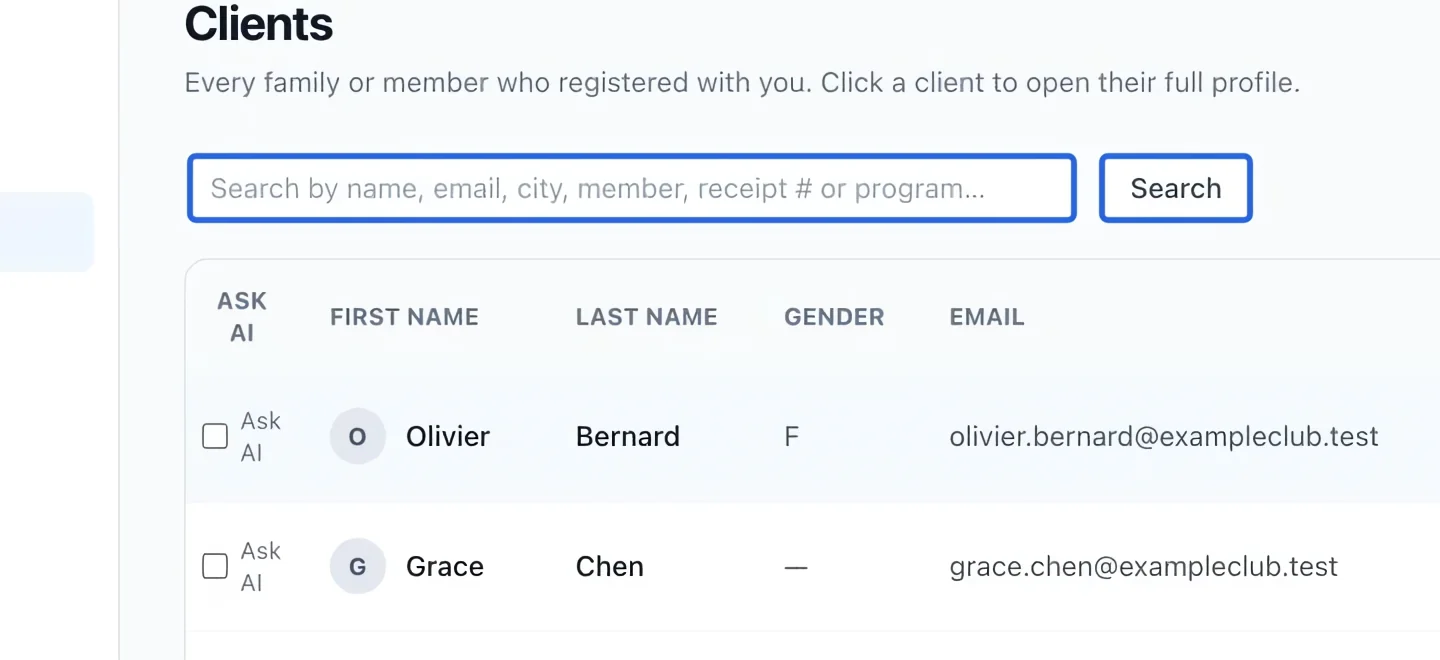
Select the screenshot to enlarge it. The blue outline marks the control to use.
- 2
Review and save profile details
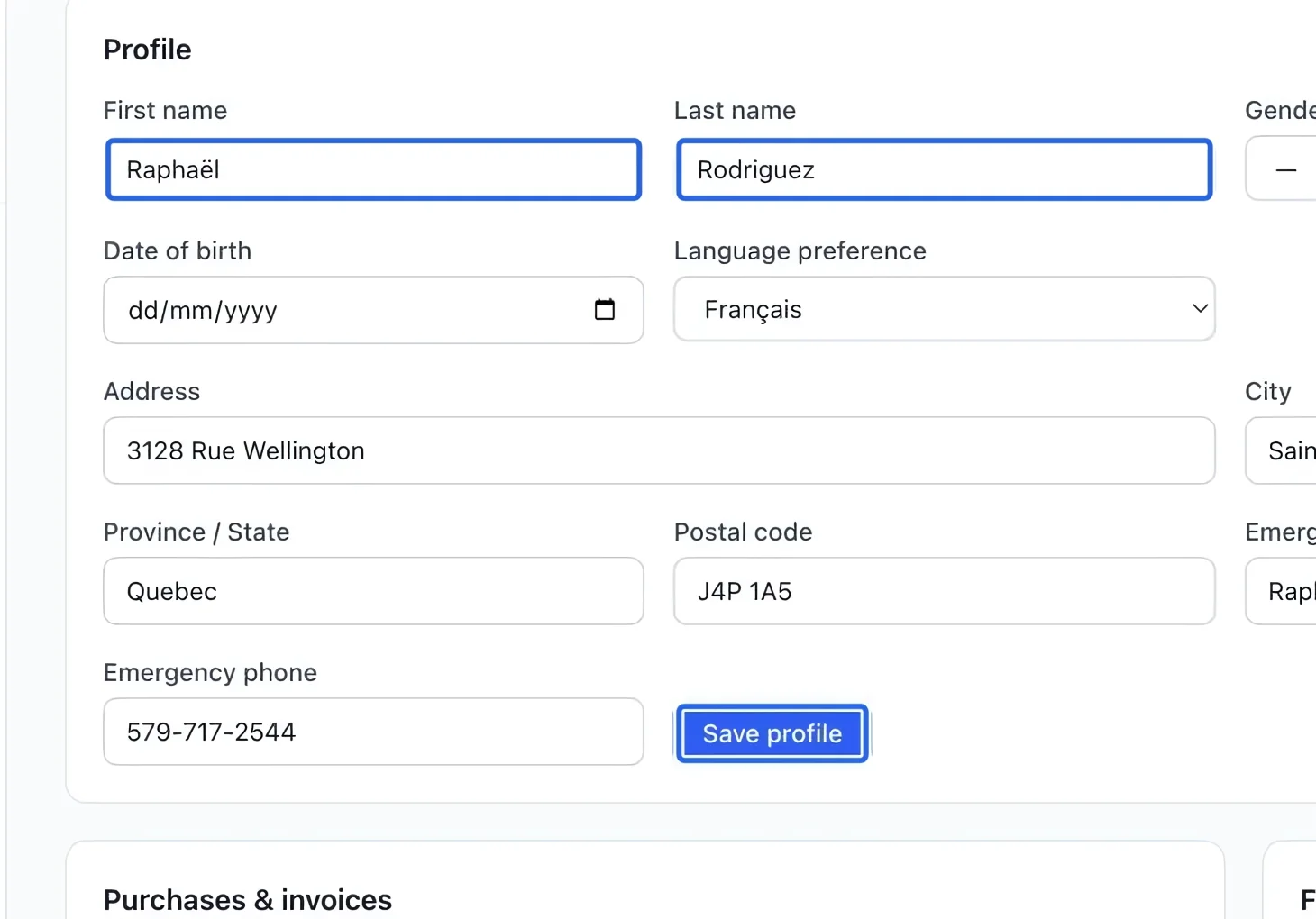
In Profile, correct the client’s details as needed, then click Save profile. This profile is the account holder; the participants appear separately under Family members.
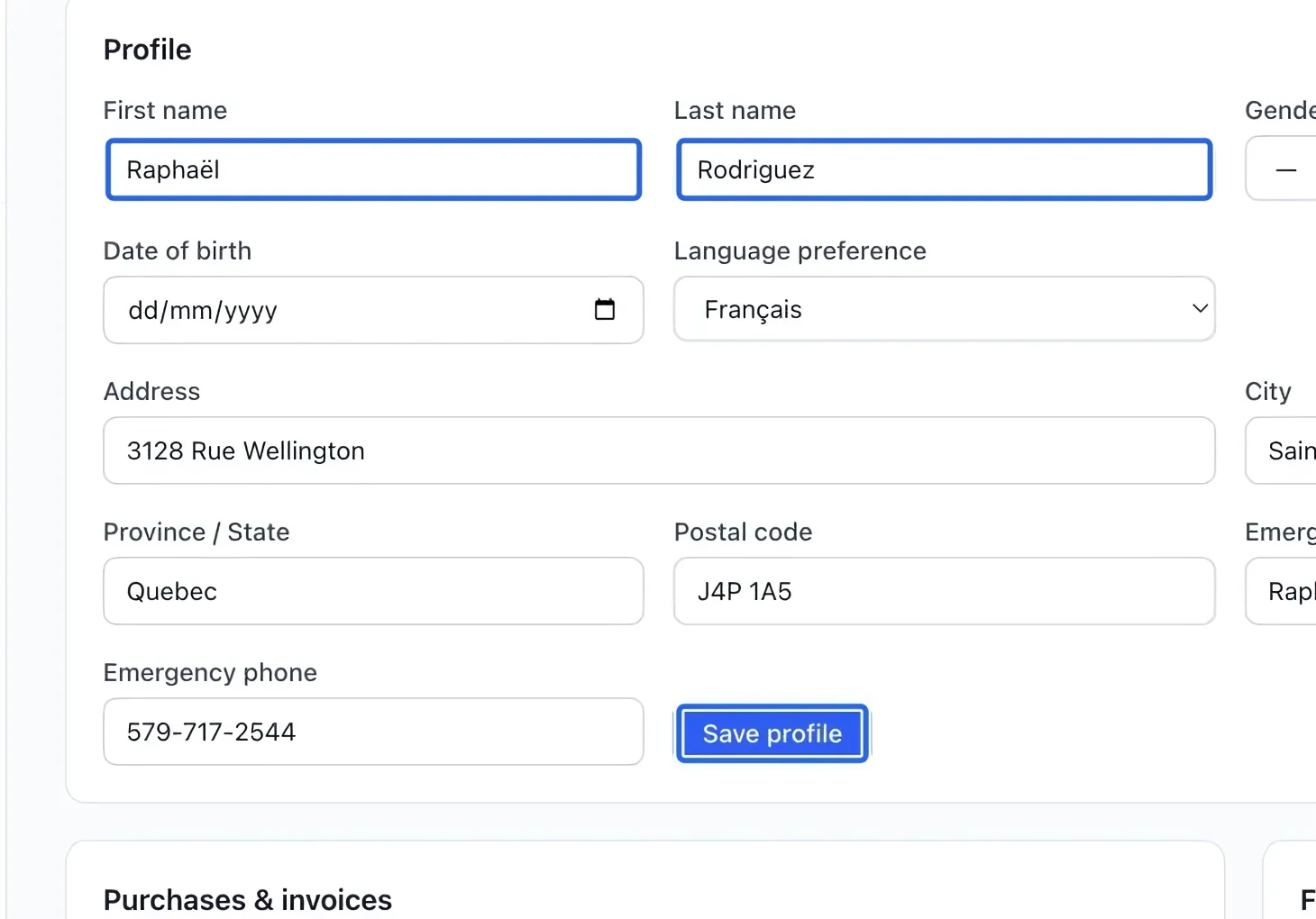
Select the screenshot to enlarge it. The blue outline marks the control to use.
- 3
Find the participant
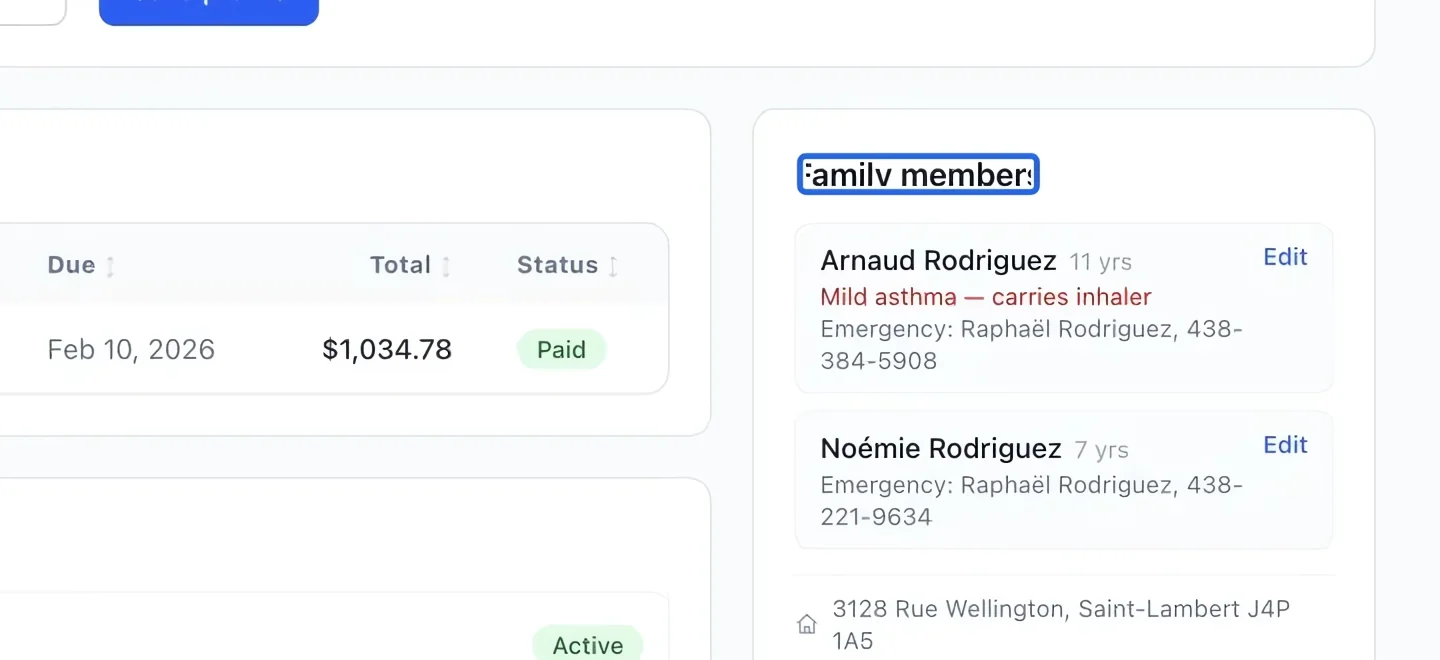
Scroll to Family members. Open the participant’s Edit section to review their details, then save any changes in that section. Check the participant’s name before changing medical or emergency information.
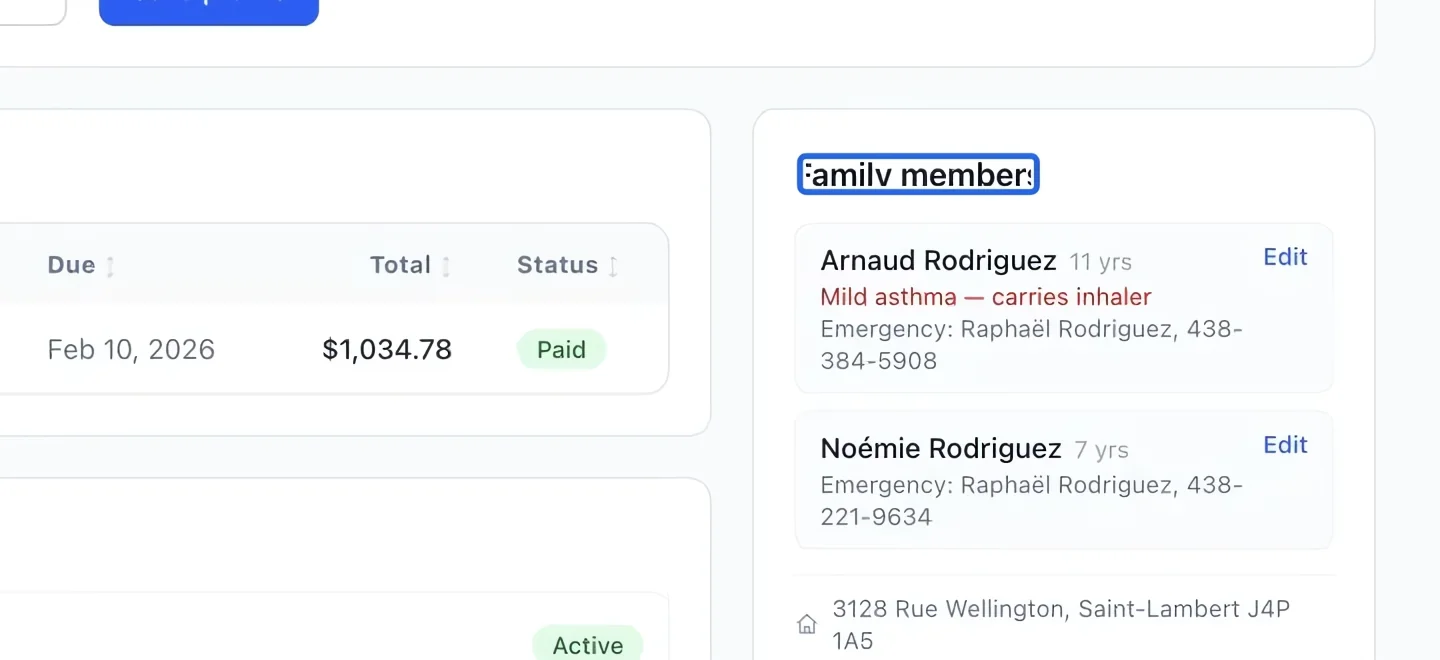
Select the screenshot to enlarge it. The blue outline marks the control to use.
- 4
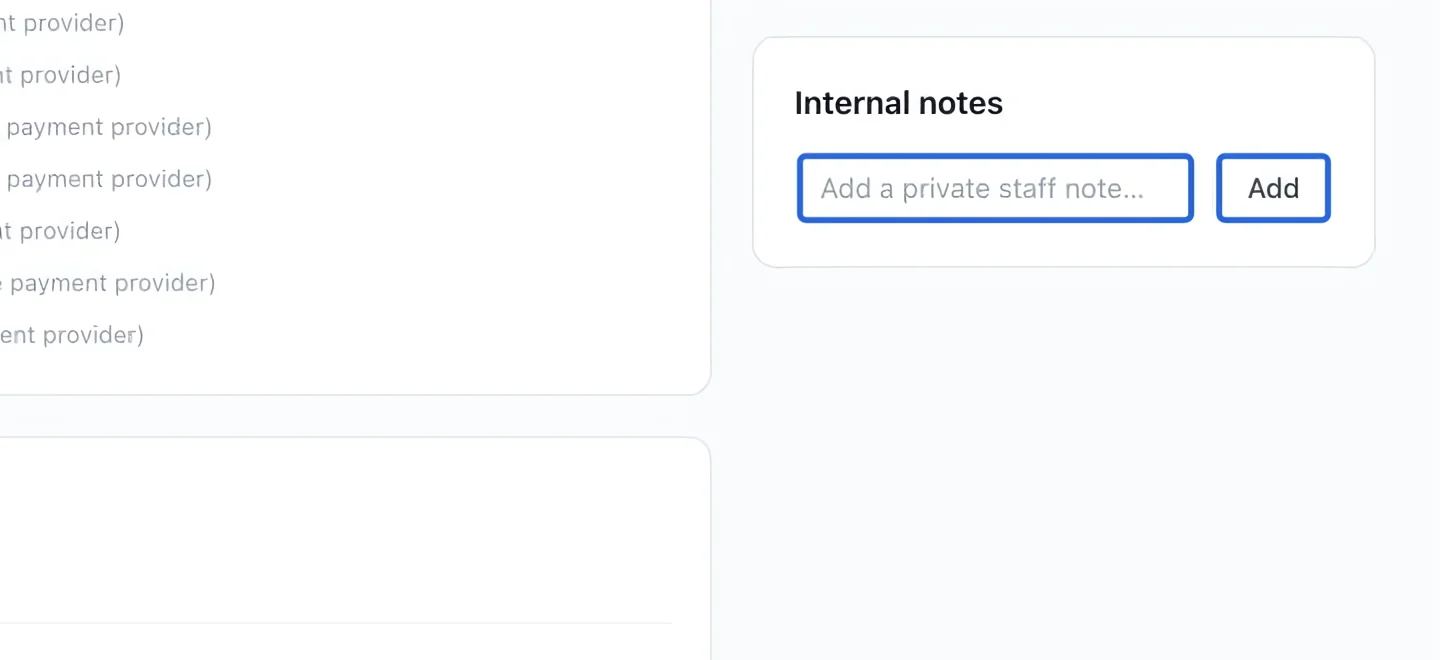
Leave an internal note
Under Internal notes, type a short factual note and click Add. These notes are for staff; do not use them to send a message to the family.
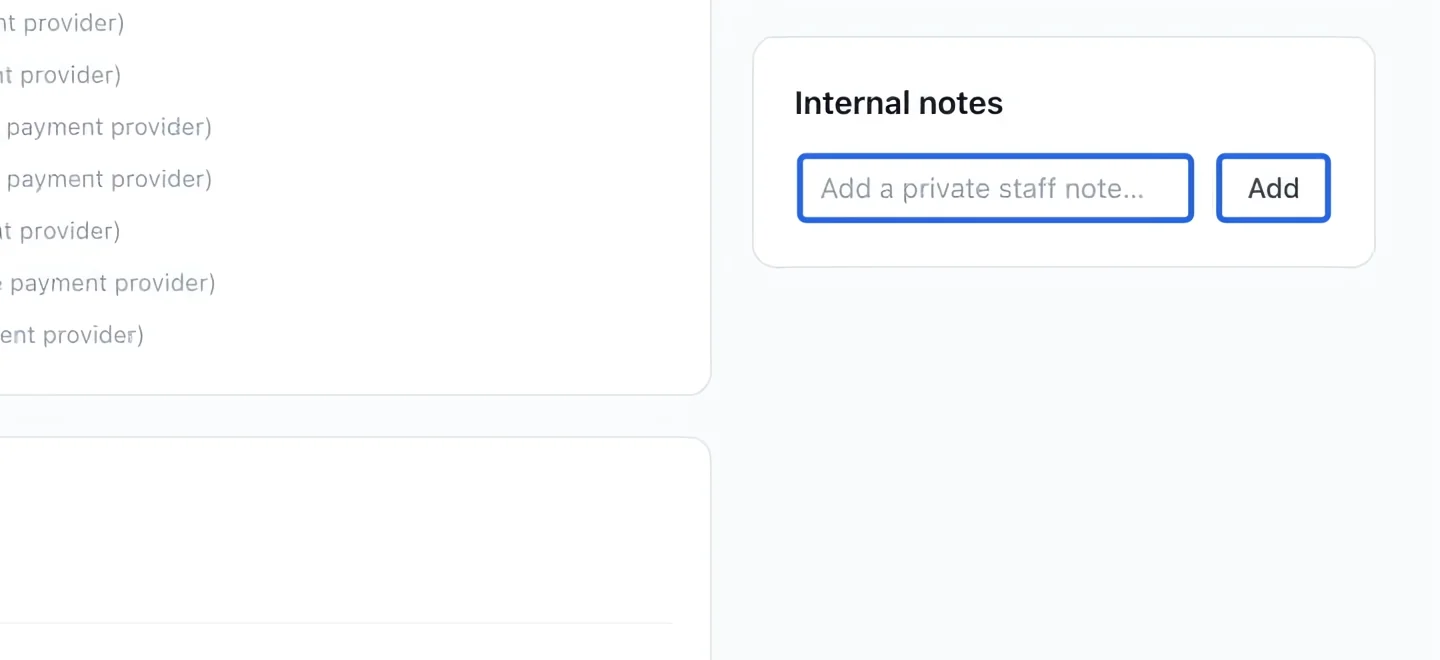
Select the screenshot to enlarge it. The blue outline marks the control to use.
- 5
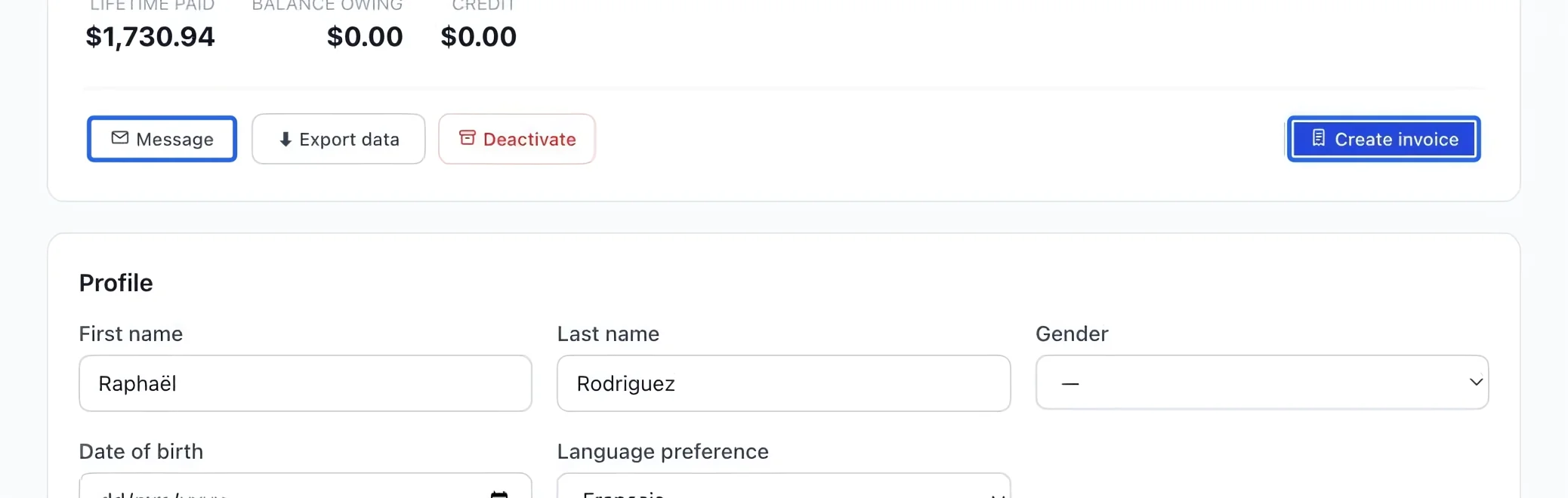
Start a client action
Use Create invoice to bill this client, or Message to contact them. Follow Create an invoice for selecting a program and participant on a staff-created registration. For the family’s financial position, use Client balance summary. Download a statement of account from an invoice linked to that client.
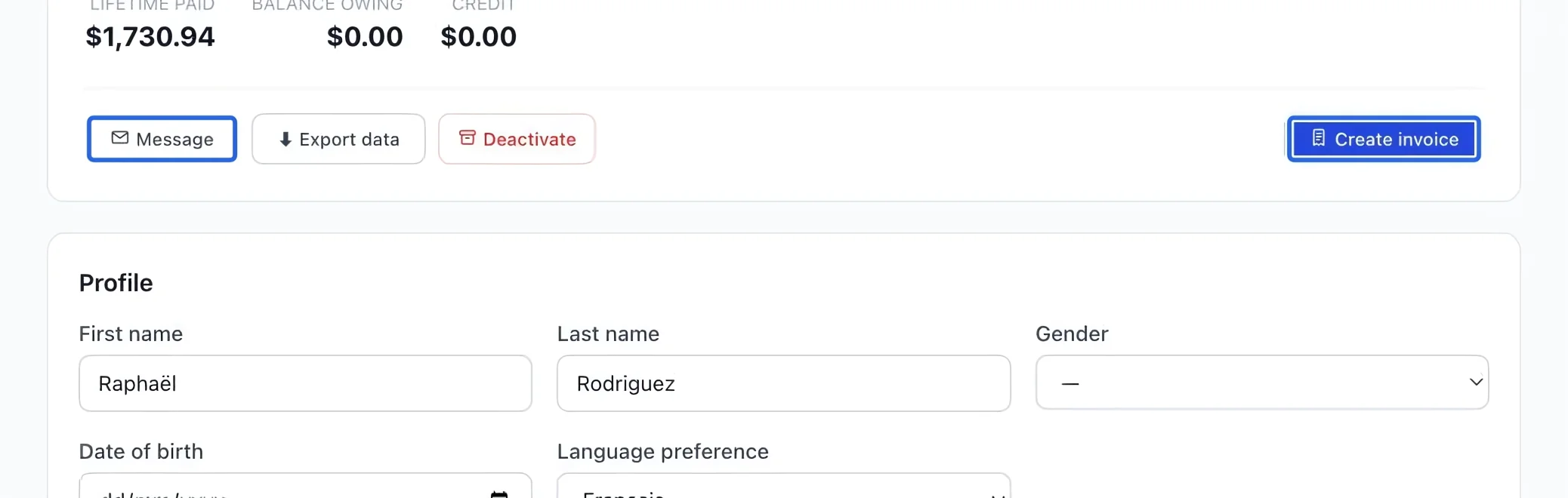
Select the screenshot to enlarge it. The blue outline marks the control to use.
- 6
Use the current client tools
The directory includes clients with registrations, invoices, purchases or an organization client profile. Open the correct family before editing contact details or finances. Use secure card setup for a new payment card; families manage co-guardian access from their own profile.
Keep going
Select a client and catalog items, review the total, then save or send an invoice.
Accounting & financial reportsCompare outstanding debt, available account credit and the net balance for each client.
Money & invoicingChoose invoice grouping and generate a dated statement of account for a family.