
Review payment disputes
Check Stripe synchronization, disputed funds and payment-plan decisions in the dedicated report.
- 1
Open the dispute report
With payment-management permission, open Payment disputes. Check the last successful Stripe check. Use Refresh from Stripe if needed and read any synchronization error. An empty list before a successful synchronization does not establish that there are no disputes.
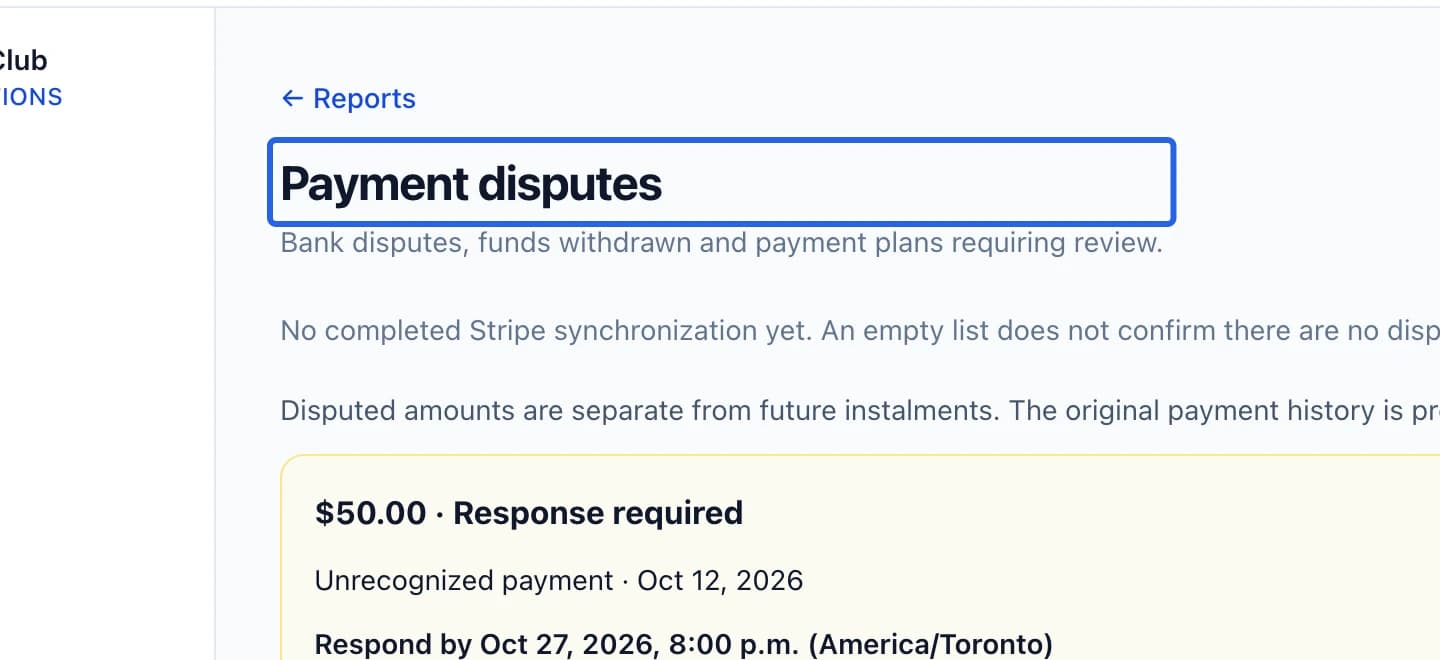
Select the screenshot to enlarge it. The blue outline marks the control to use.
- 2
Inspect the disputed payment and plan
Read the dispute status, withdrawn funds and related payment details. If the report requests a payment-plan decision, review the displayed consequences before saving it. A dispute is distinct from a club-issued credit note or refund; verify the payment outcome separately.
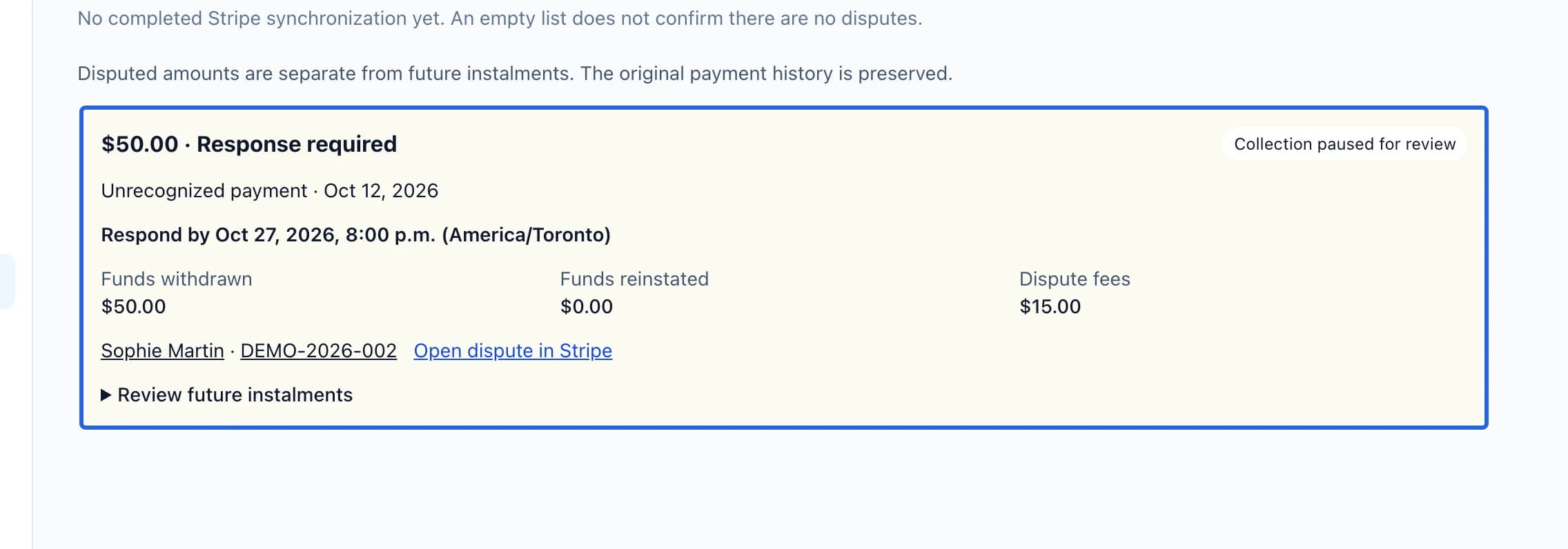
Select the screenshot to enlarge it. The blue outline marks the control to use.
Keep going
Read transaction status, method, refunded amounts and failure reasons.
Money & invoicingOffer discounted course payments in registration and family cart checkout, with a choice of before-start or after-start timing.
Money & invoicingReverse part or all of an invoice (as account credit or a real card refund) with clean books.