
Configure Workforce
Departments, shift roles, pay rules, leave types, statutory holidays and manager permissions.
- 1
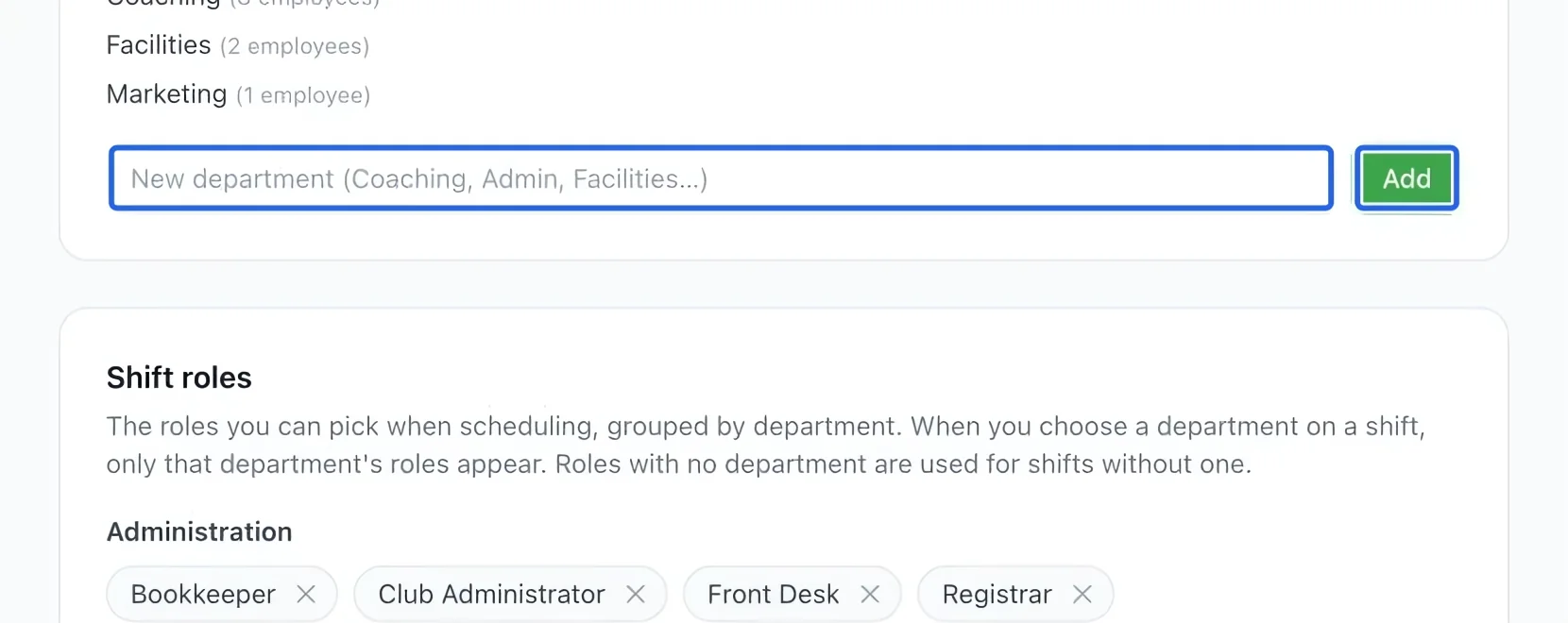
Create departments
Open Workforce → Settings. Under Departments, enter a name such as Coaching and click Add. Use departments to organize employee and schedule lists.
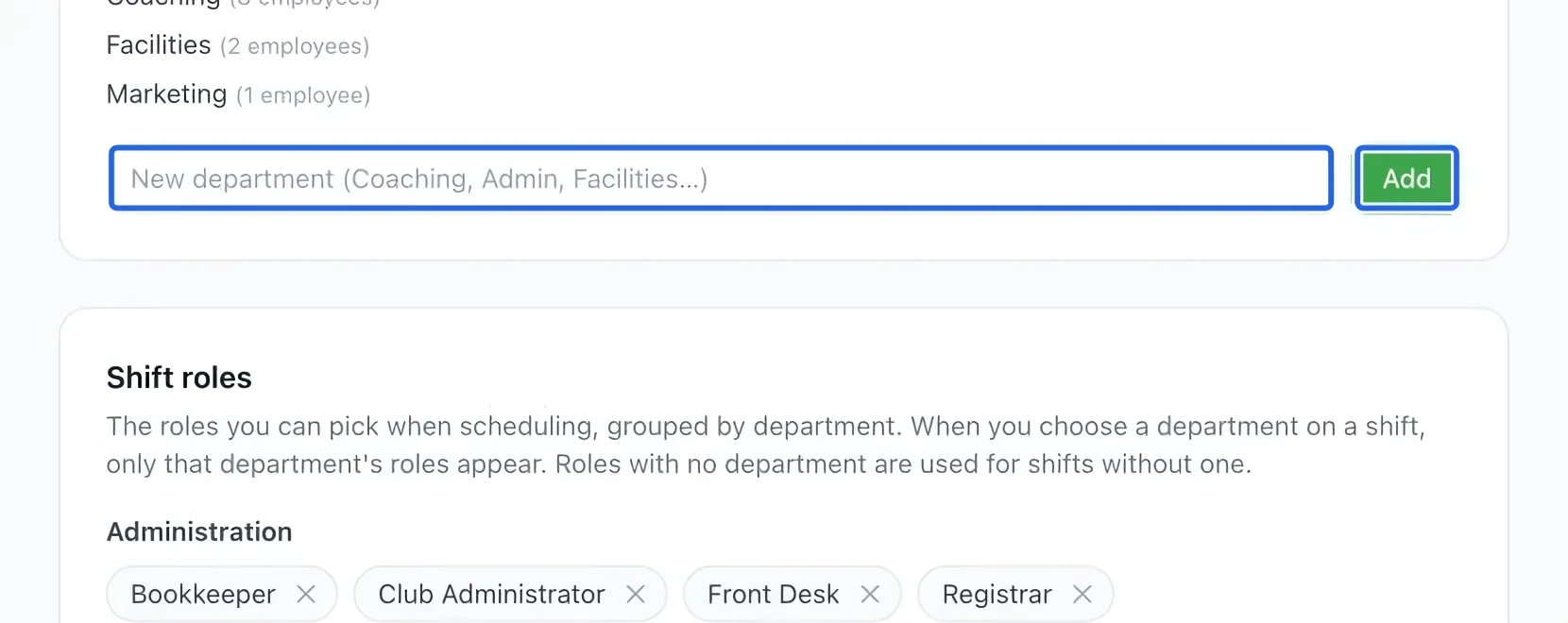
Select the screenshot to enlarge it. The blue outline marks the control to use.
- 2
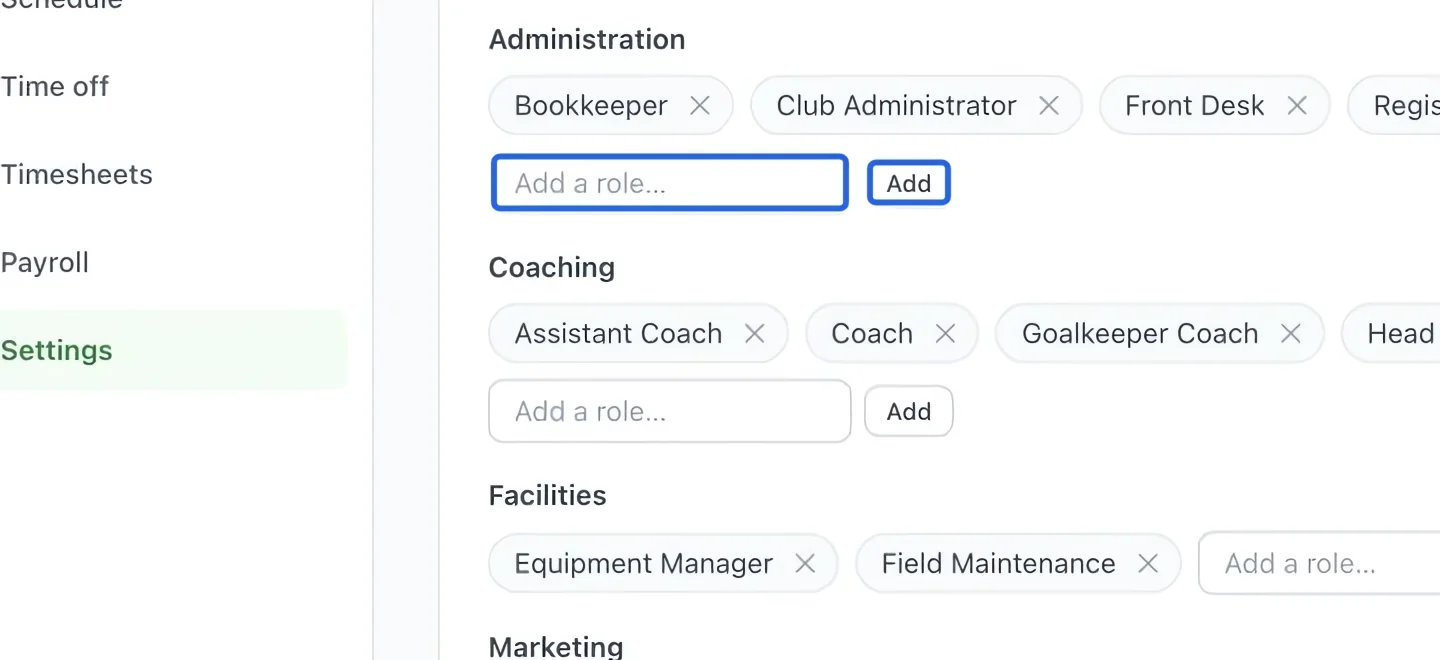
Add shift roles
Under Shift roles, enter the role in the correct department’s field and click that row’s Add. A shift role describes the work; it is not an account permission.
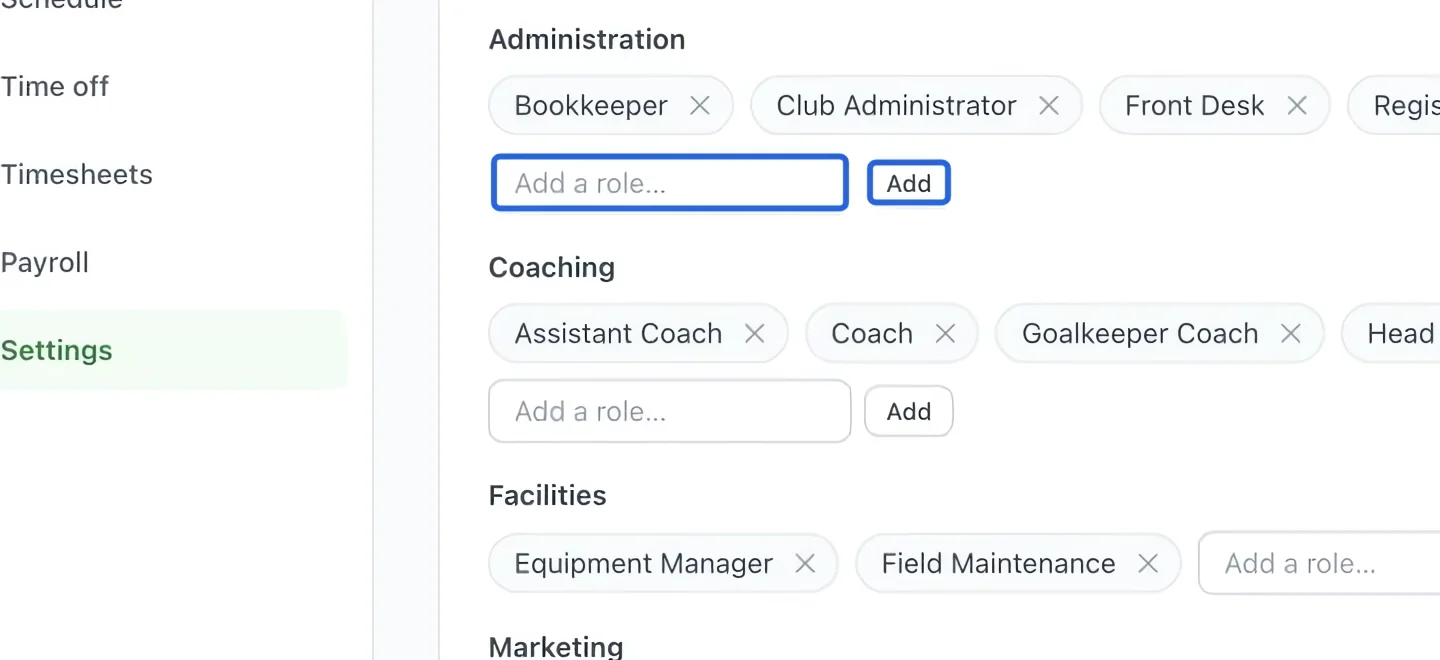
Select the screenshot to enlarge it. The blue outline marks the control to use.
- 3
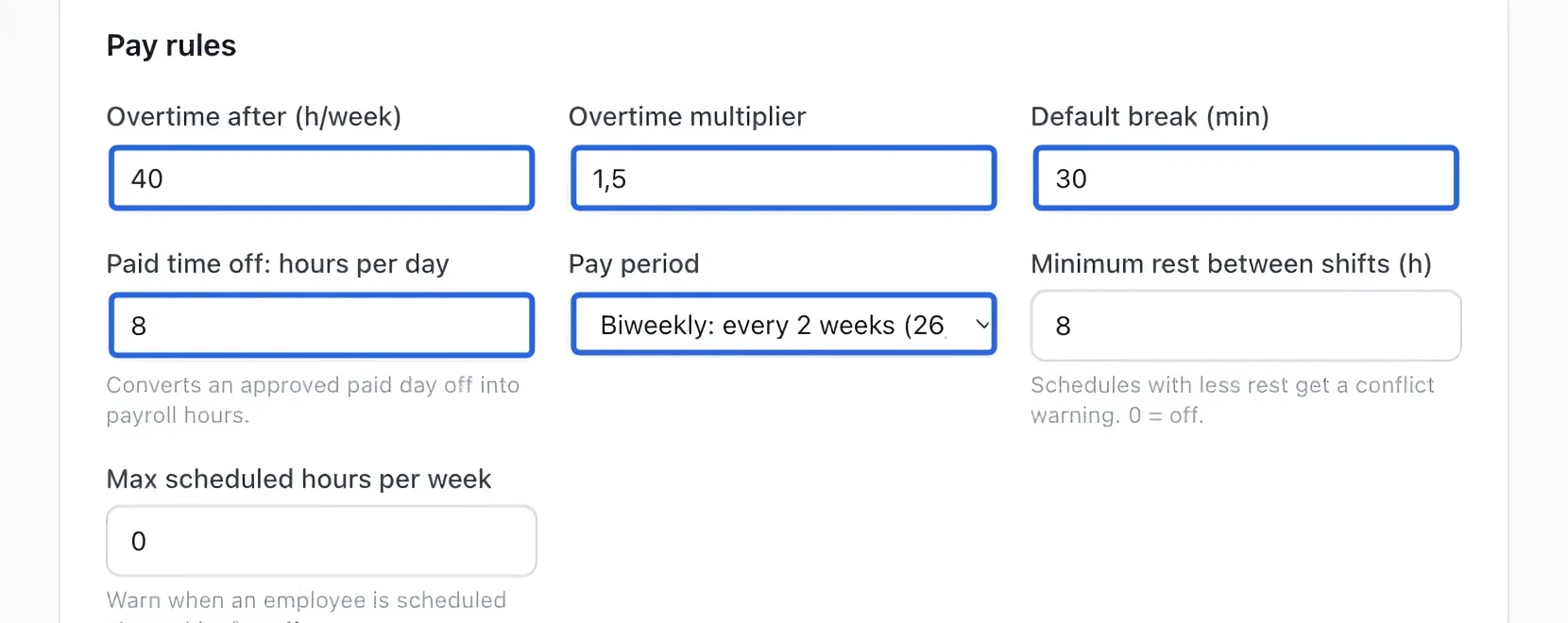
Configure basic pay rules
Set the weekly overtime threshold and multiplier, default break, hours per day and pay period. Verify these with your payroll administrator and wait for the save confirmation after changes.
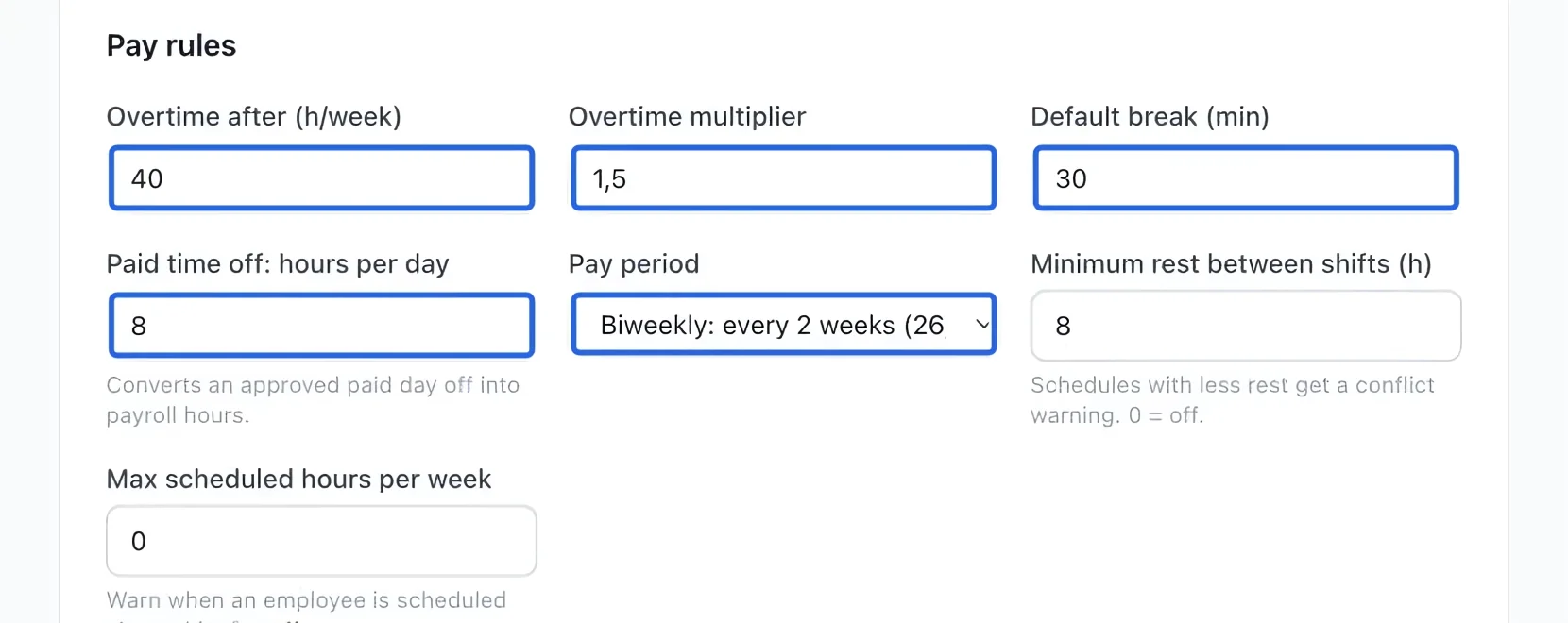
Select the screenshot to enlarge it. The blue outline marks the control to use.
- 4
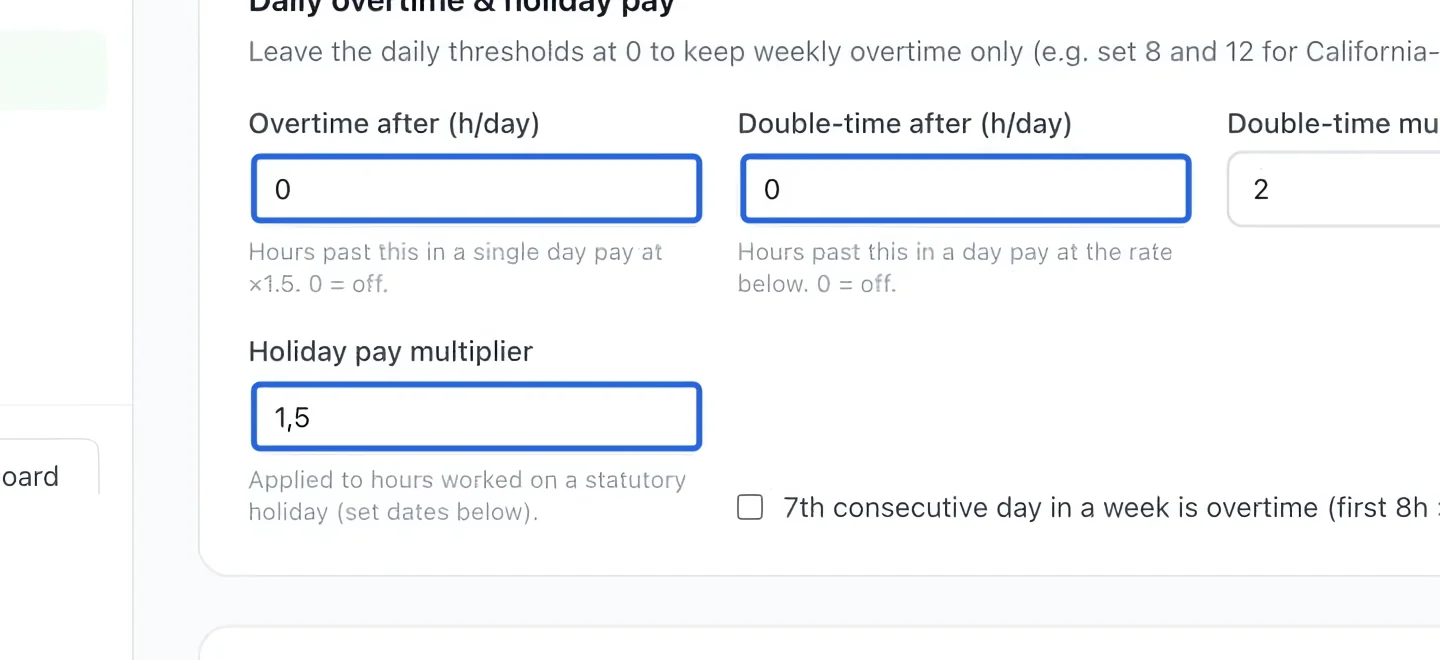
Review daily and holiday rules
In Daily overtime & holiday pay, configure the thresholds and multipliers that apply to your organization. Review an example period to confirm the resulting calculations.
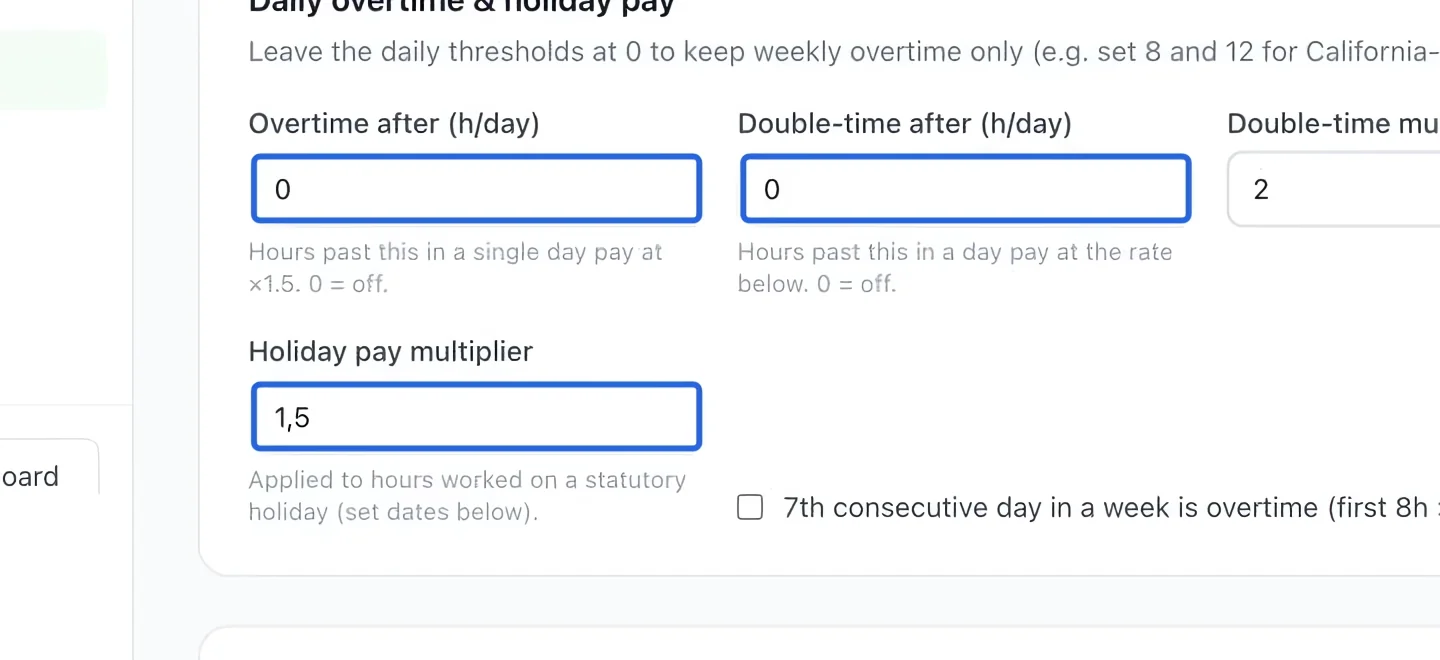
Select the screenshot to enlarge it. The blue outline marks the control to use.
- 5
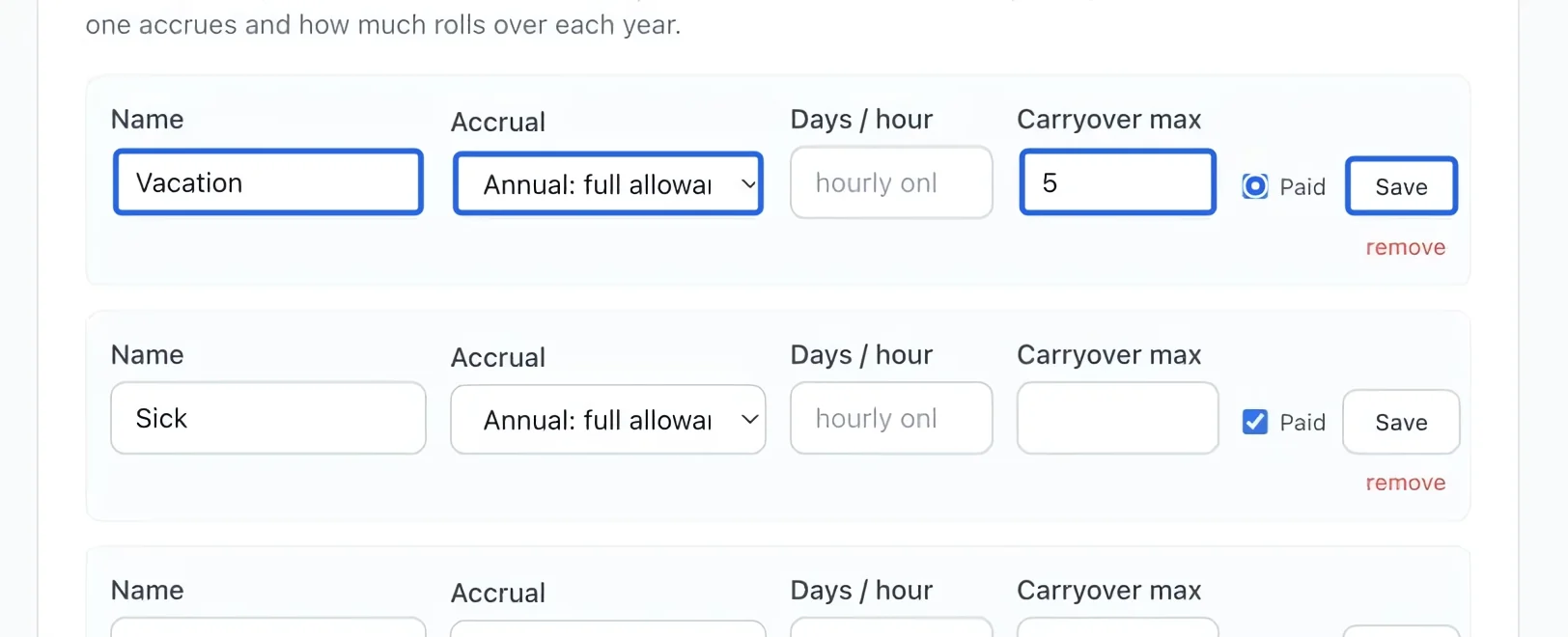
Configure leave types
For each leave type, review its name, accrual method, carryover limit and paid status. Click Save on that row. Set each person’s annual allowance in their employee profile.
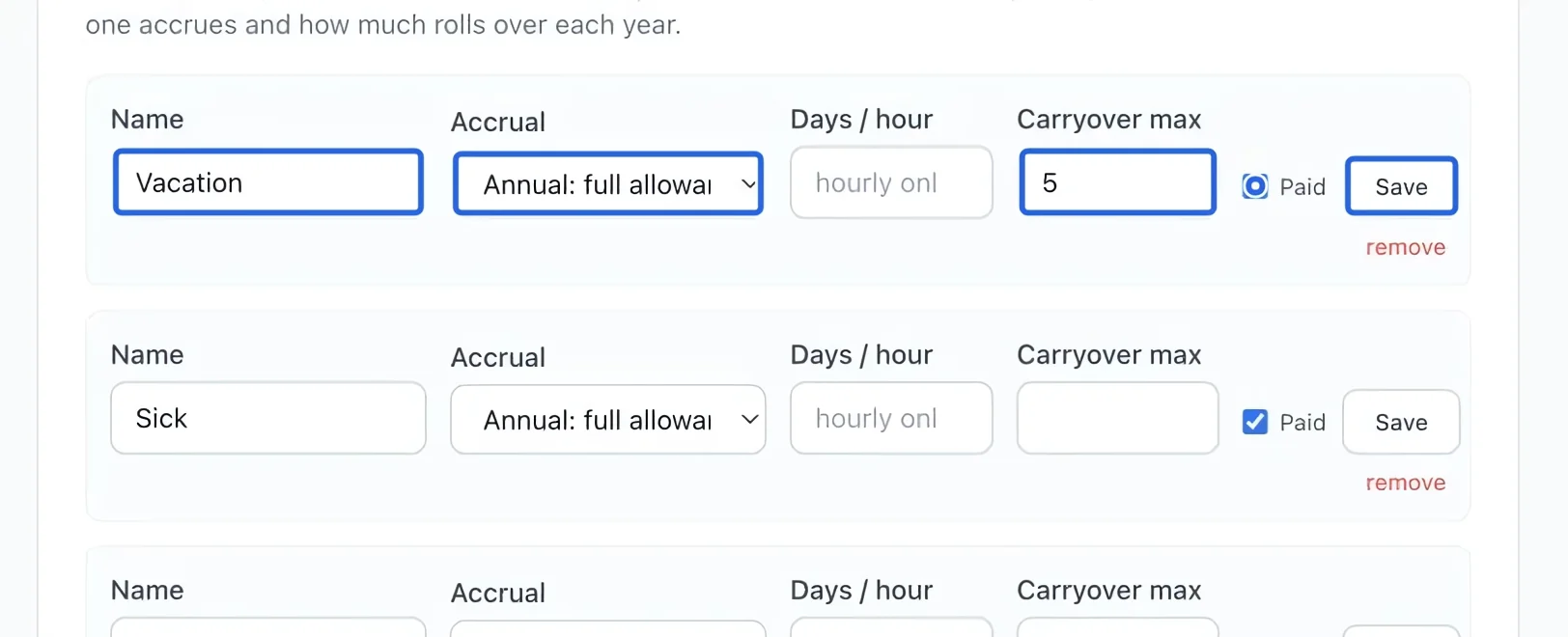
Select the screenshot to enlarge it. The blue outline marks the control to use.
- 6
Add holidays
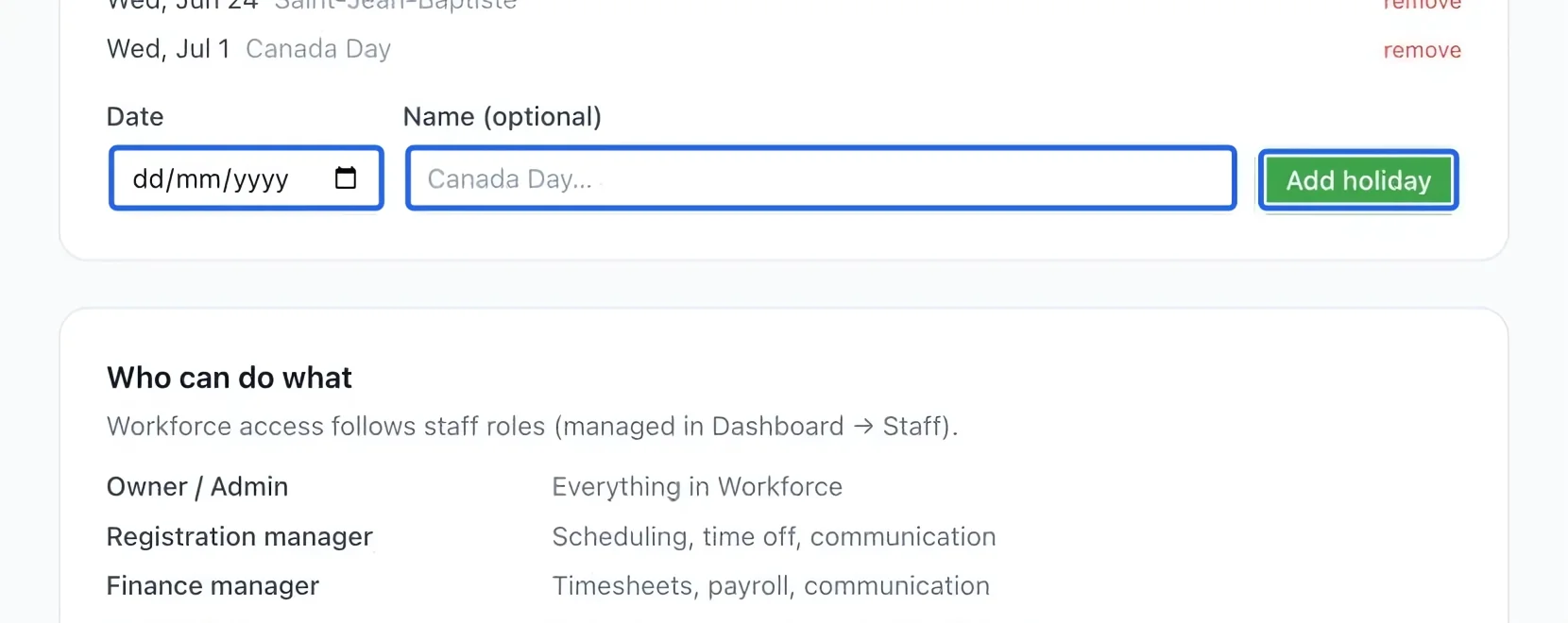
Under Statutory holidays, enter the date and holiday name, then click Add holiday. Review the year and avoid creating a duplicate entry.
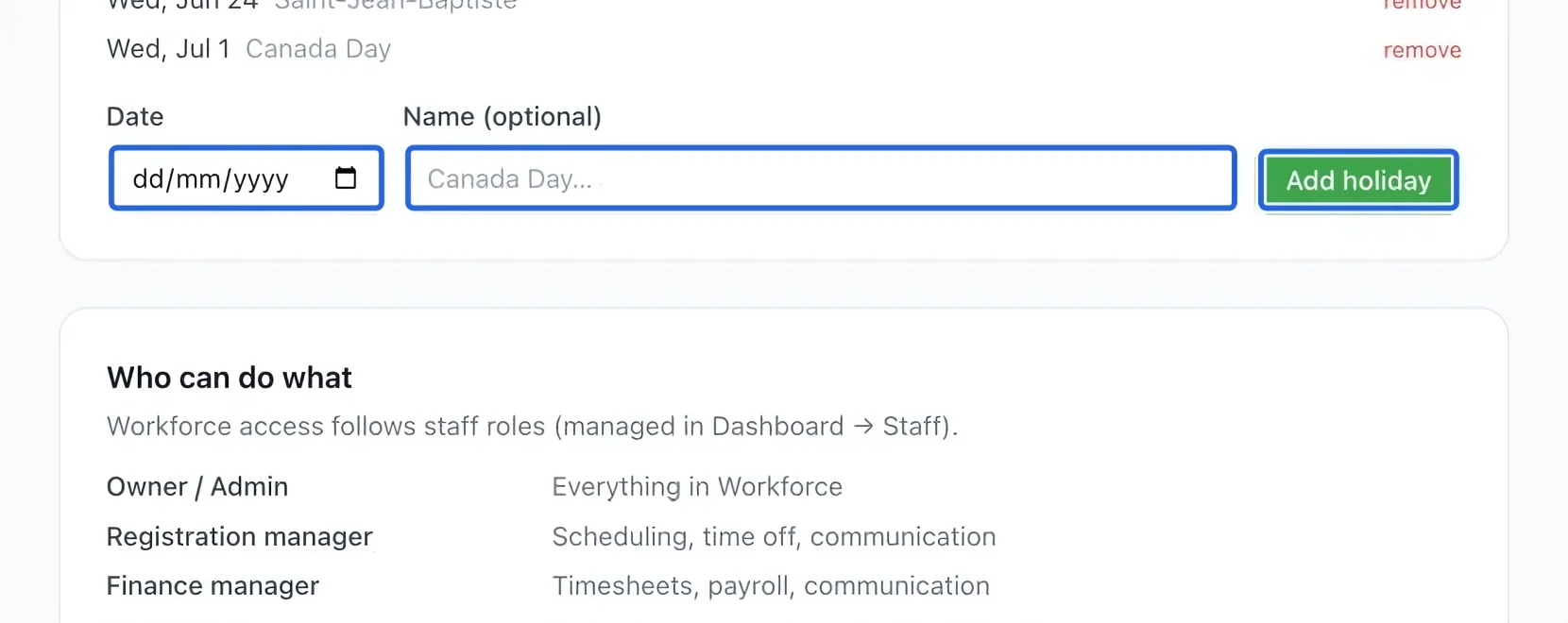
Select the screenshot to enlarge it. The blue outline marks the control to use.
- 7
Choose notifications
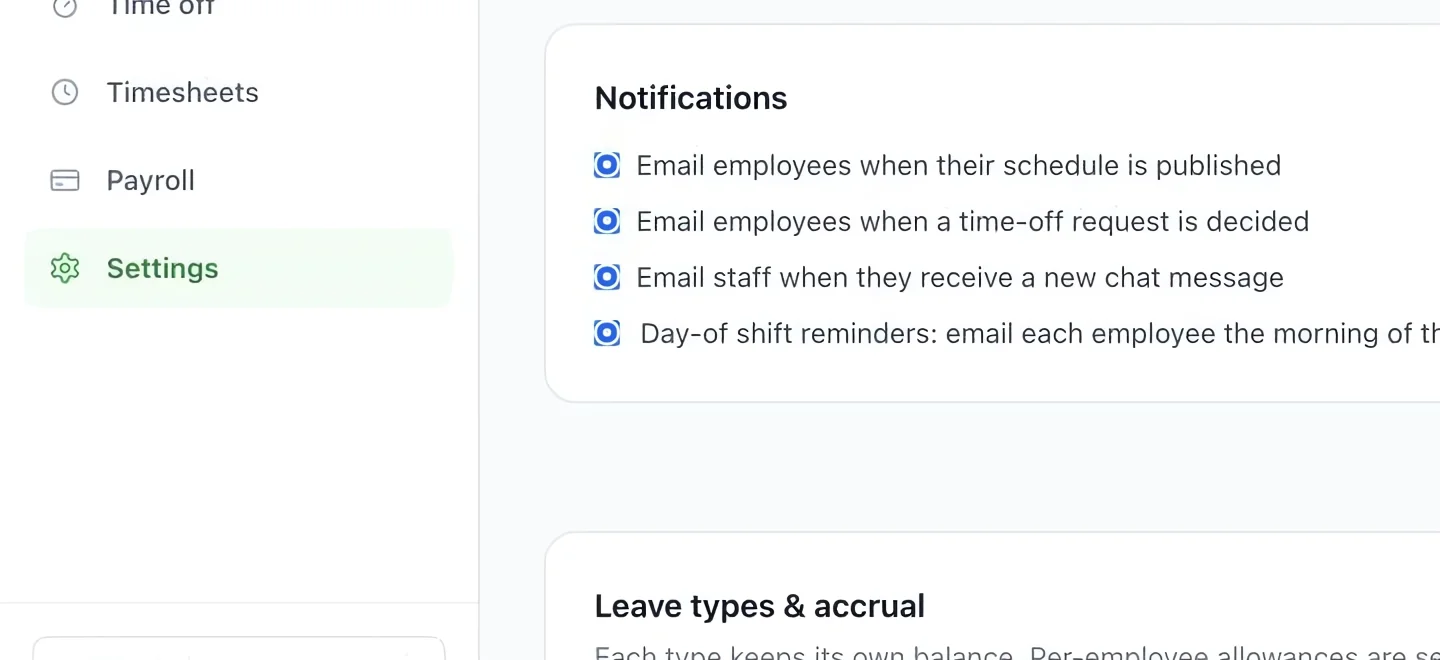
Under Notifications, choose which events should notify staff. Review schedule publication, time-off decisions, messages and reminders separately, and wait for the settings to save.
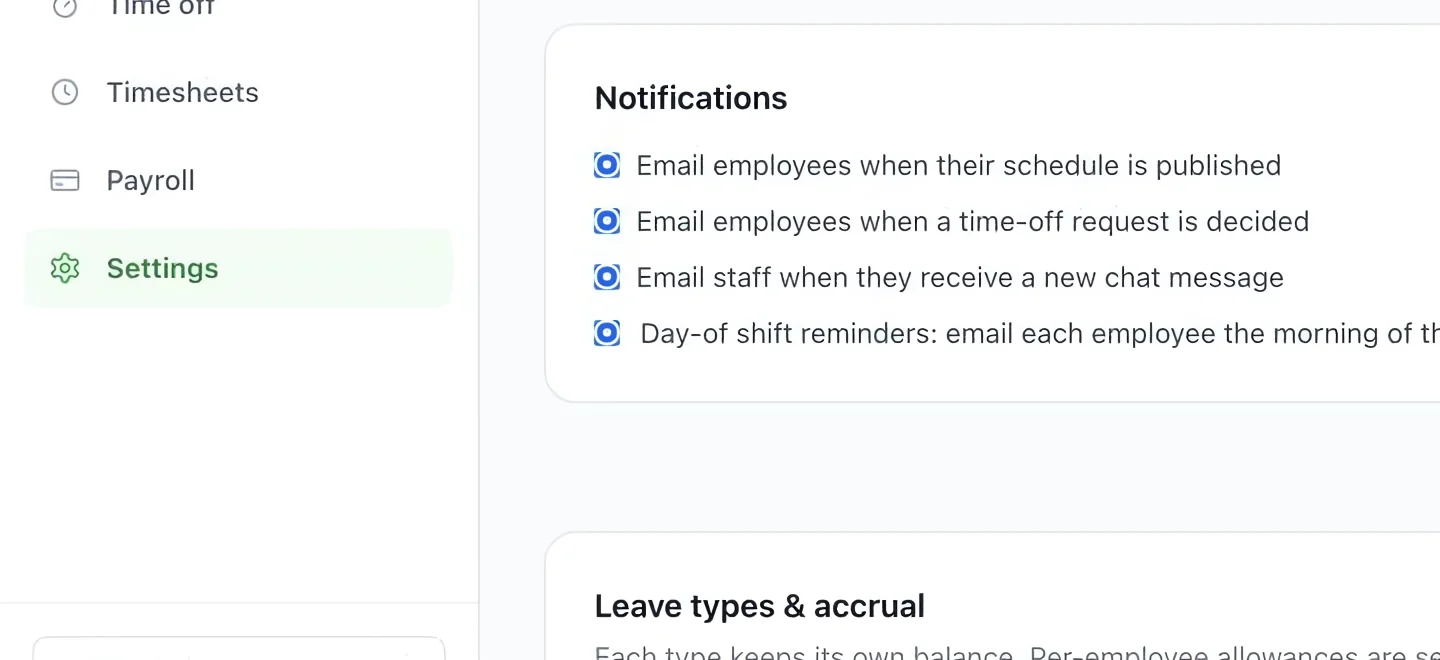
Select the screenshot to enlarge it. The blue outline marks the control to use.
- 8
Check thresholds and employment changes
Review daily and weekly overtime settings together. Zero is retained where the setting allows it; daily thresholds must remain in the order required by the form. When an employee leaves, use the departure process and review future assignments and locked periods rather than only changing their email or hiding the profile.
Keep going
Build your team roster: profiles, departments, hourly rates and portal access for self-service.
WorkforceReview the period, resolve readiness checks, verify totals and prepare the payroll export.
WorkforceRequests, approvals, multi-type leave balances, and how time off feeds the schedule's conflict warnings.