Keep HR records in order
Certifications with expiry dates, onboarding checklists, notes and reviews, per employee, in one place.
- 1
Select the employee
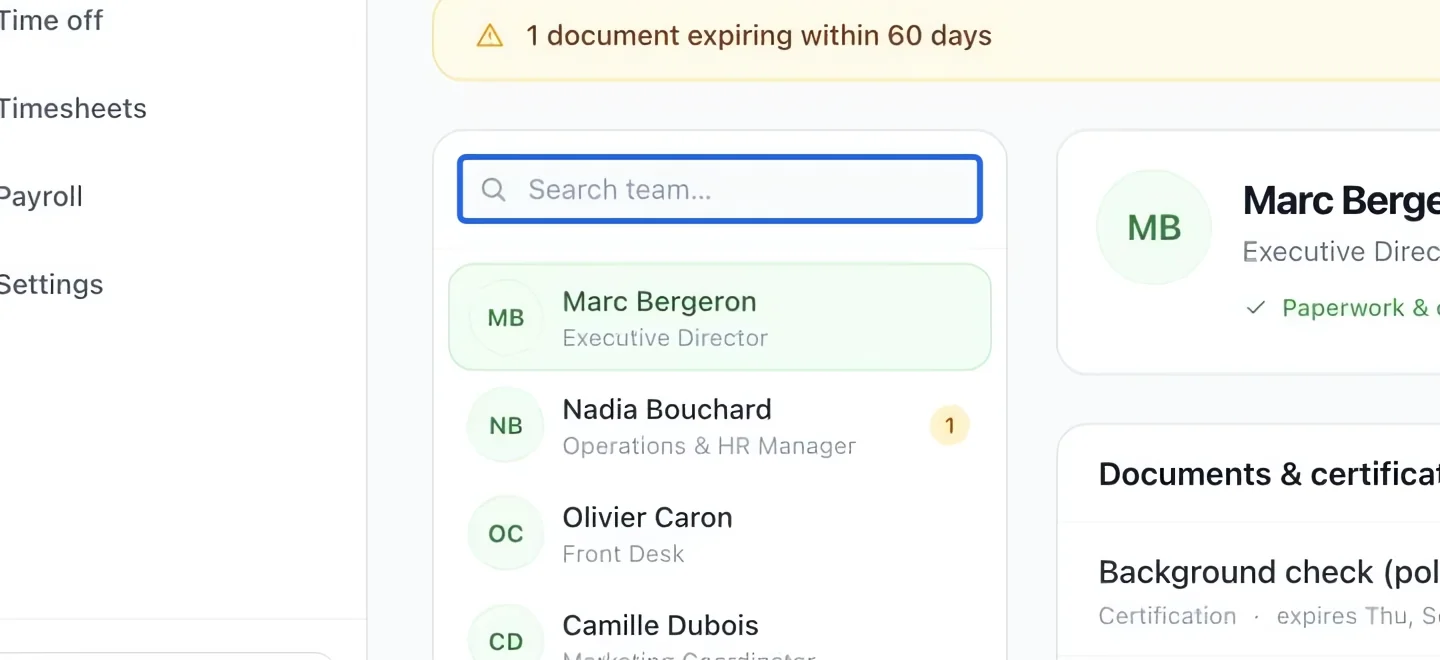
Open Workforce → Team → HR & documents. Search for and select the employee in the left-hand list. Check the name above the records before adding anything.
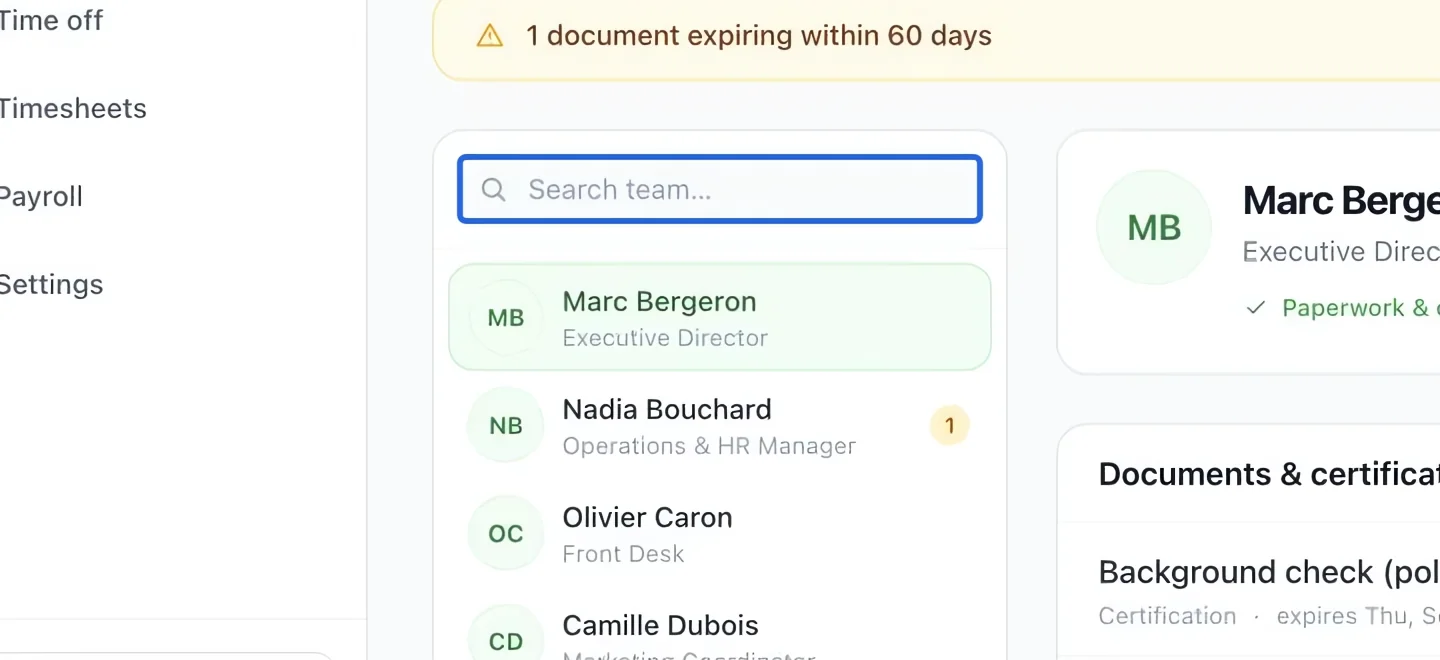
Select the screenshot to enlarge it. The blue outline marks the control to use.
- 2
Add a document or certification
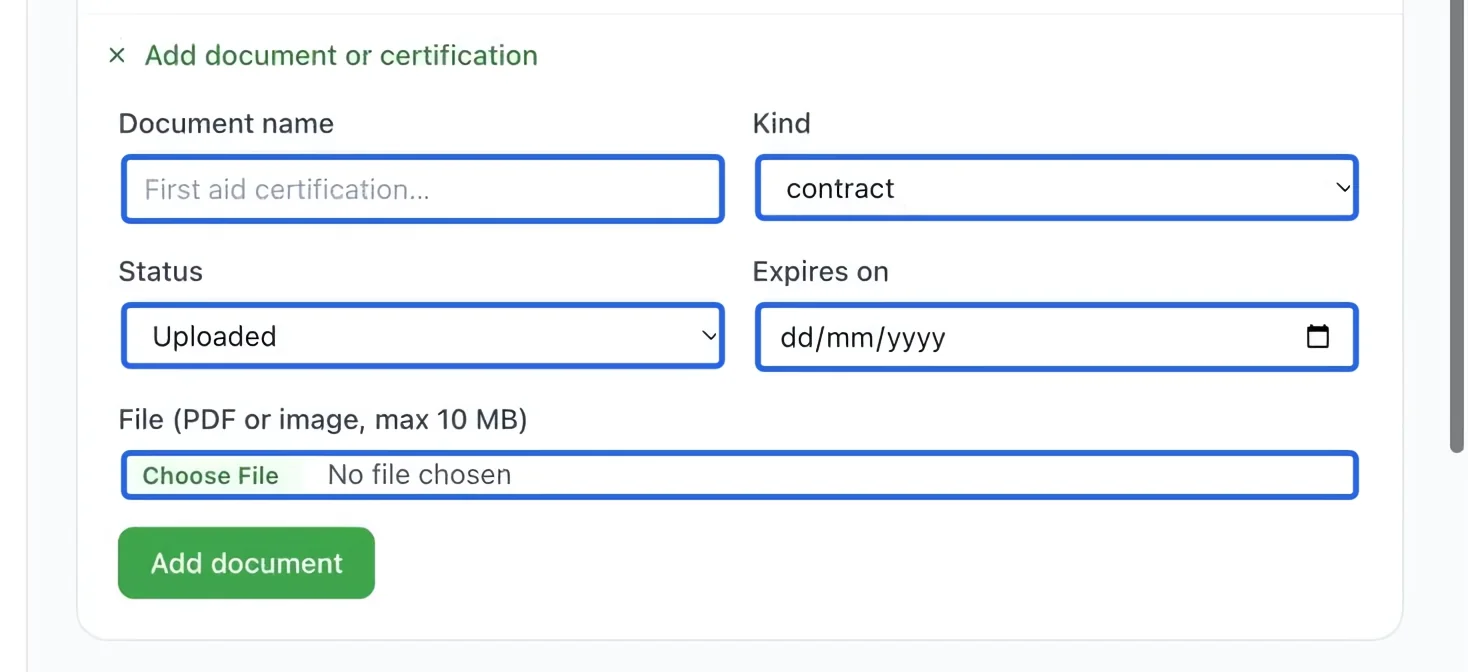
Expand Add document or certification. Enter a name, choose kind and status, set an expiry date when applicable, and choose the file. Click Add document, then check the saved record.
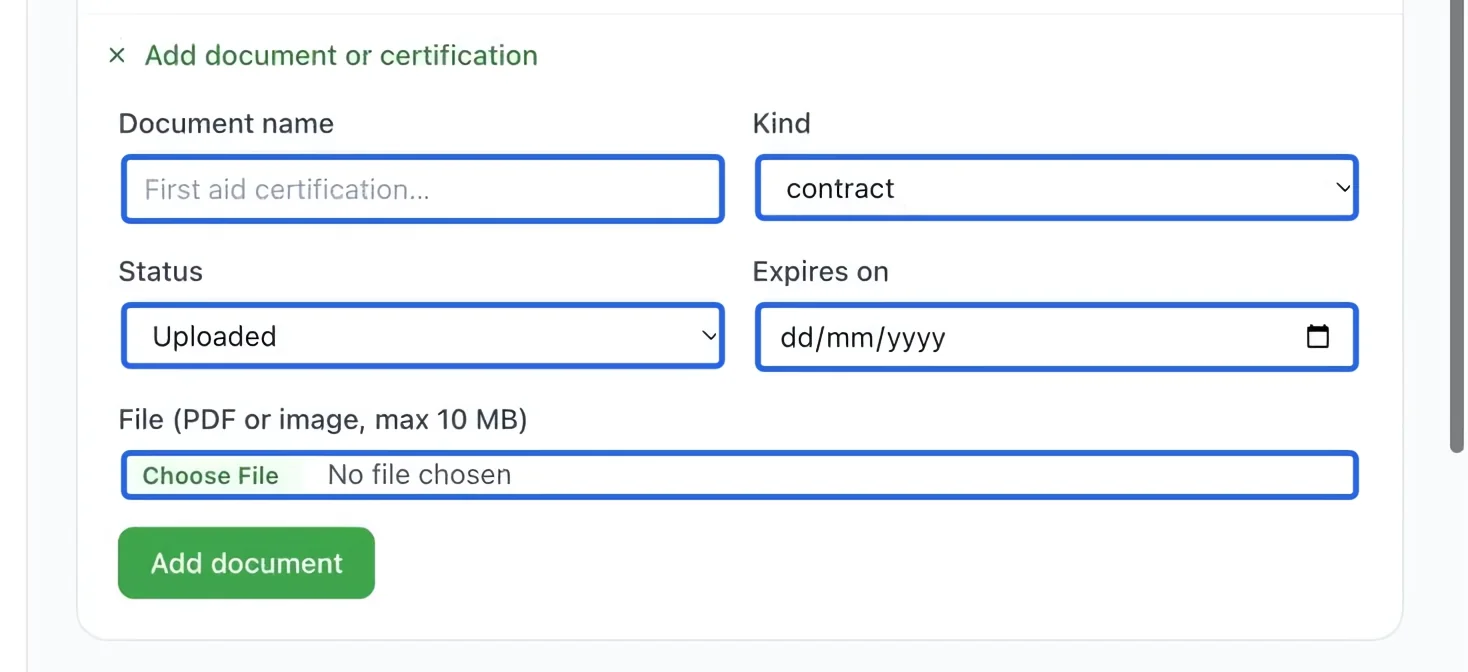
Select the screenshot to enlarge it. The blue outline marks the control to use.
- 3
Add an onboarding task
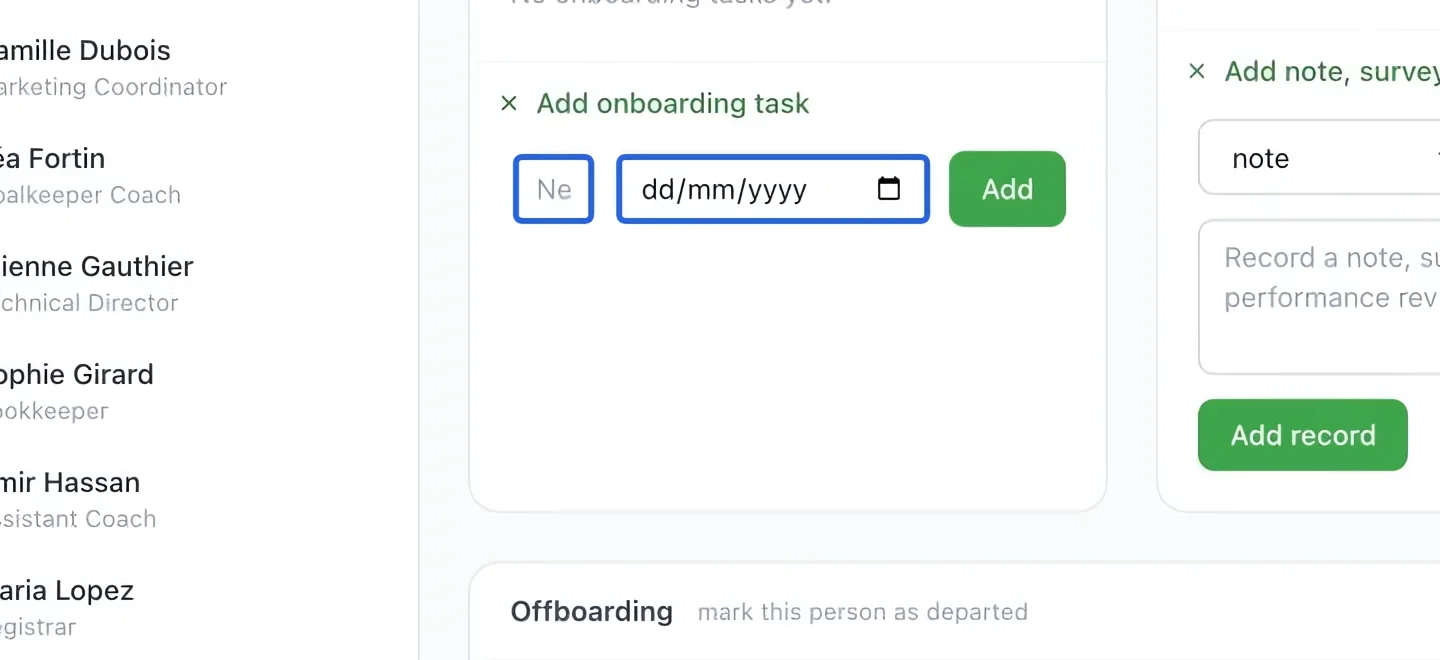
Expand Add onboarding task. Enter a concrete task and its due date, then click Add in that section. Examples include reviewing a policy or returning a signed document.
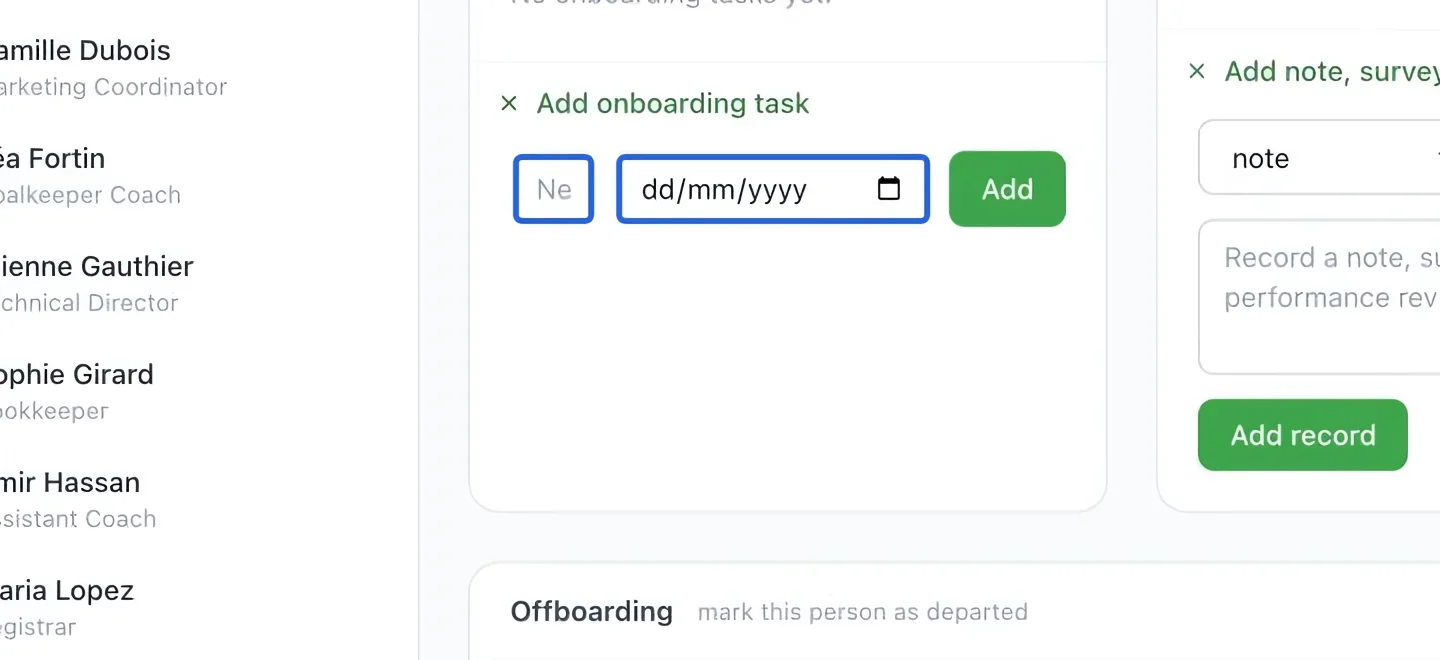
Select the screenshot to enlarge it. The blue outline marks the control to use.
- 4
Record a private HR note
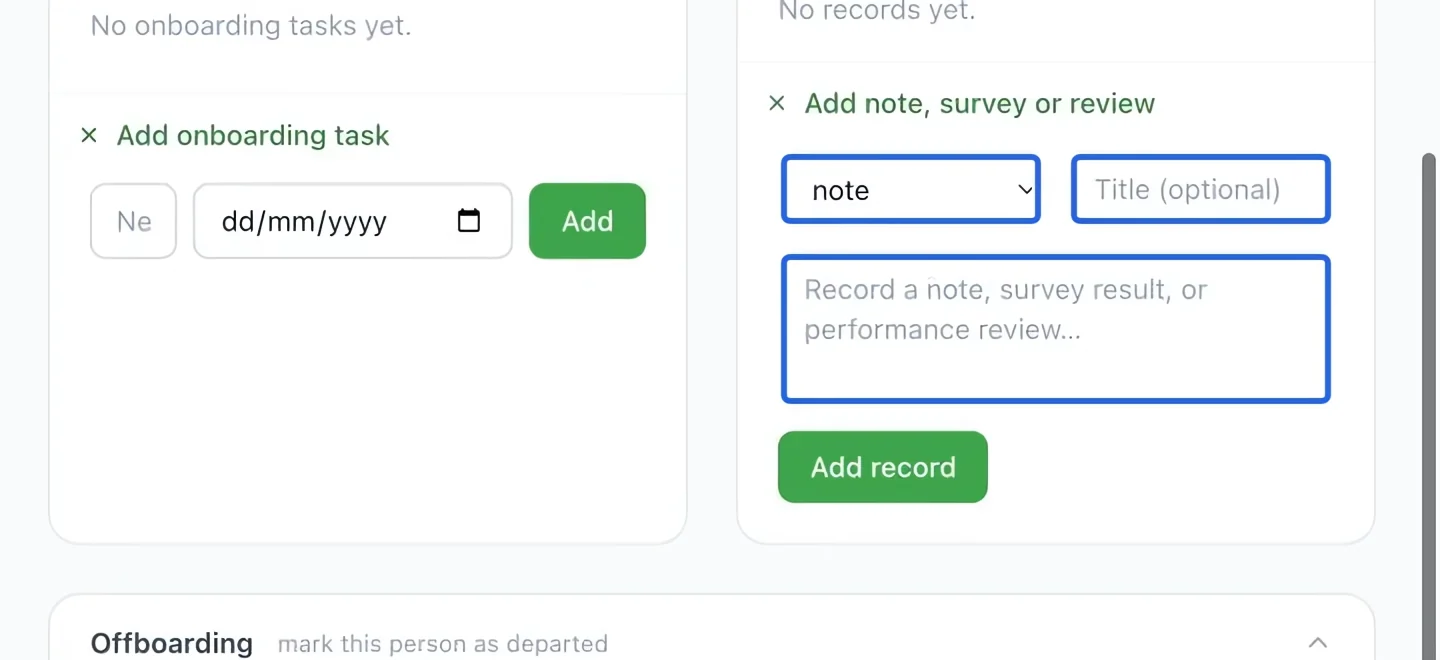
Expand Add note, survey or review. Choose the record type, enter a title and factual notes, then click Add record. Check that you are still on the correct employee.
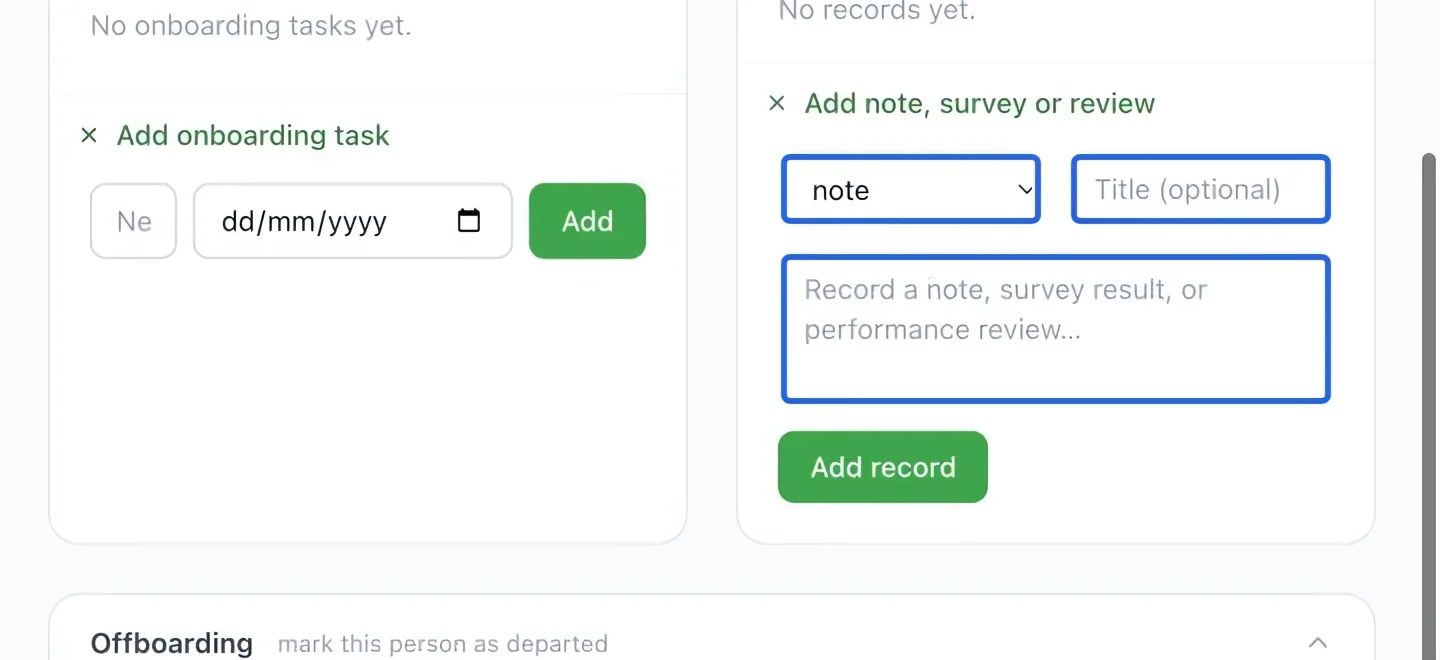
Select the screenshot to enlarge it. The blue outline marks the control to use.
- 5
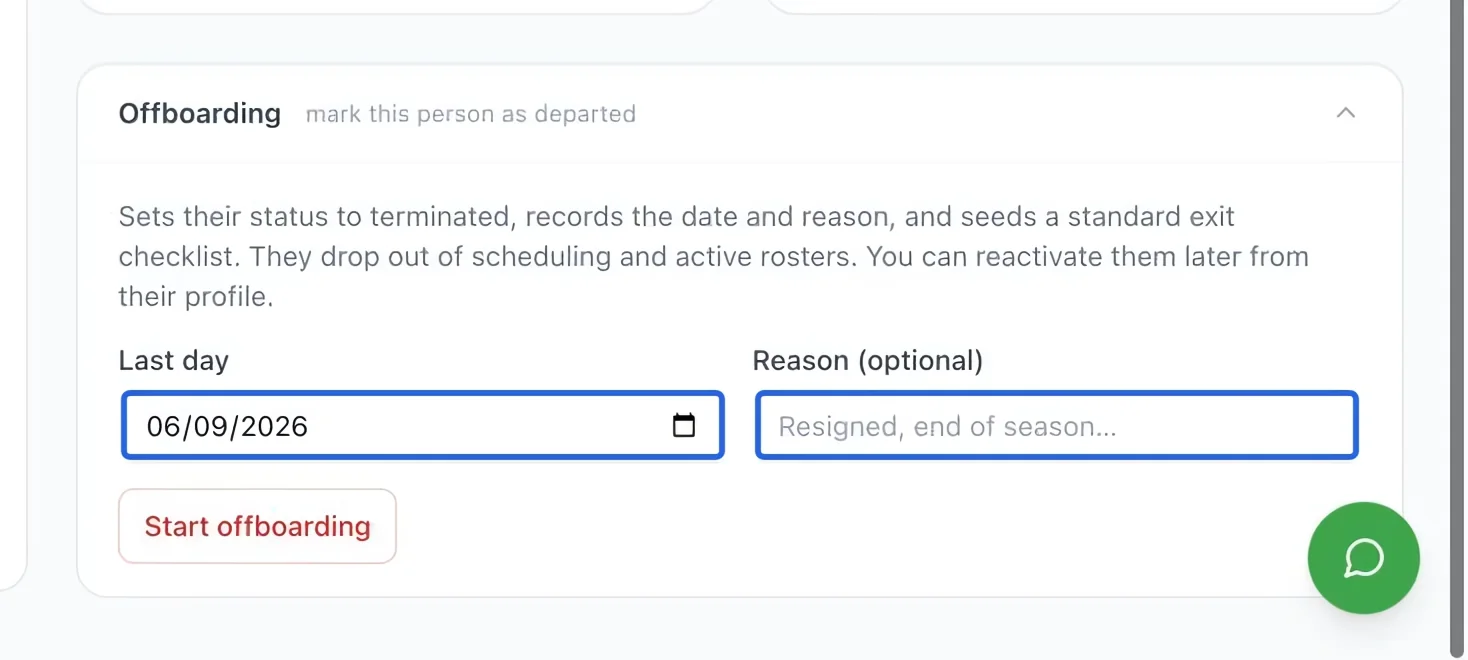
Prepare offboarding
For a departure, expand Offboarding, enter the departure date and reason, then review before Start offboarding. Follow the resulting checklist and review the person’s account access separately.
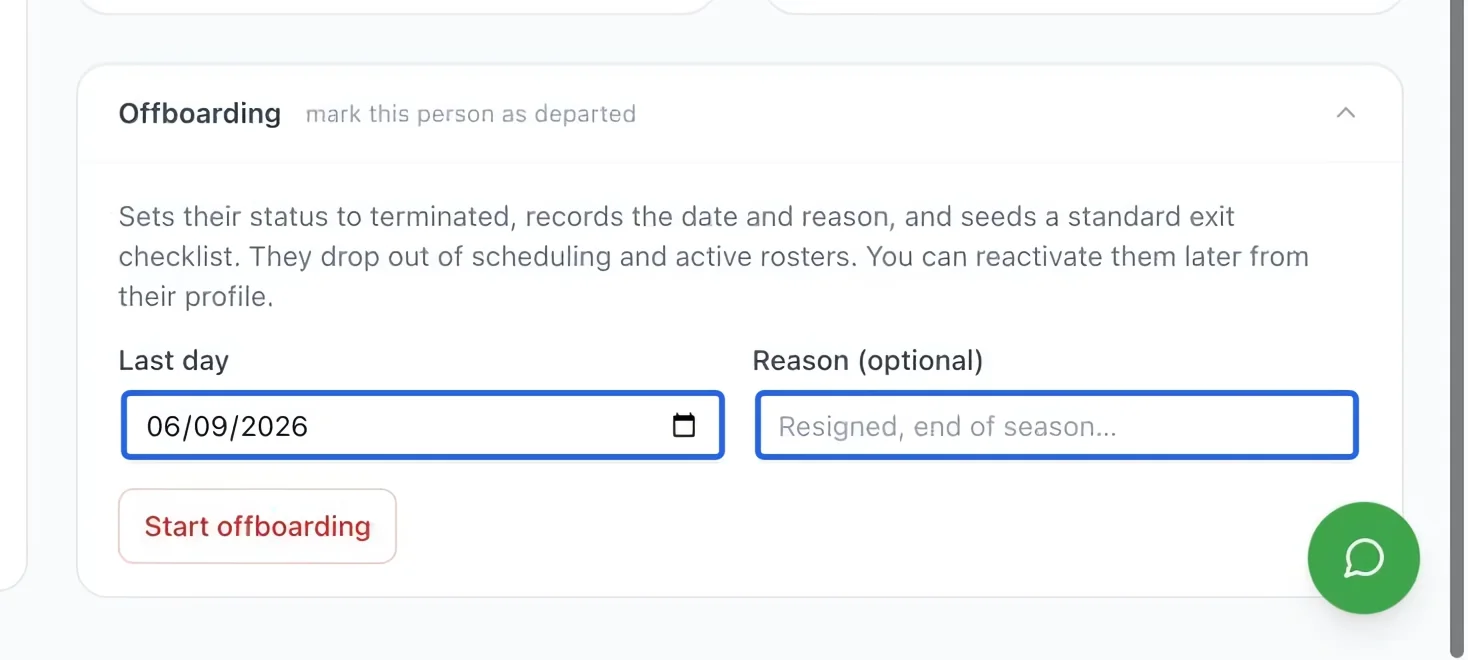
Select the screenshot to enlarge it. The blue outline marks the control to use.