
Invite your staff
Add coaches, managers and volunteers with a role that matches what they should see.
- 1
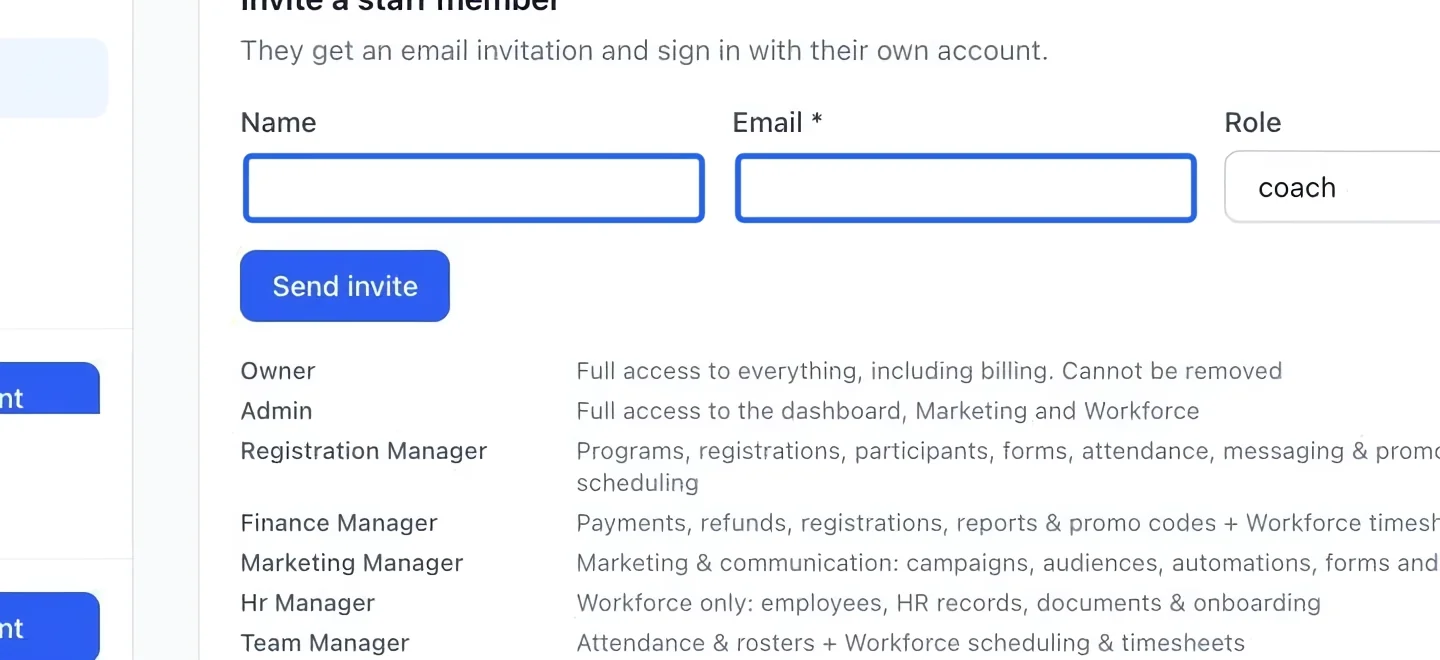
Enter the person’s details
Open Settings → Staff. Scroll to Invite a staff member. Enter the person’s name and their own email address. Check the spelling: the invitation goes to that address.
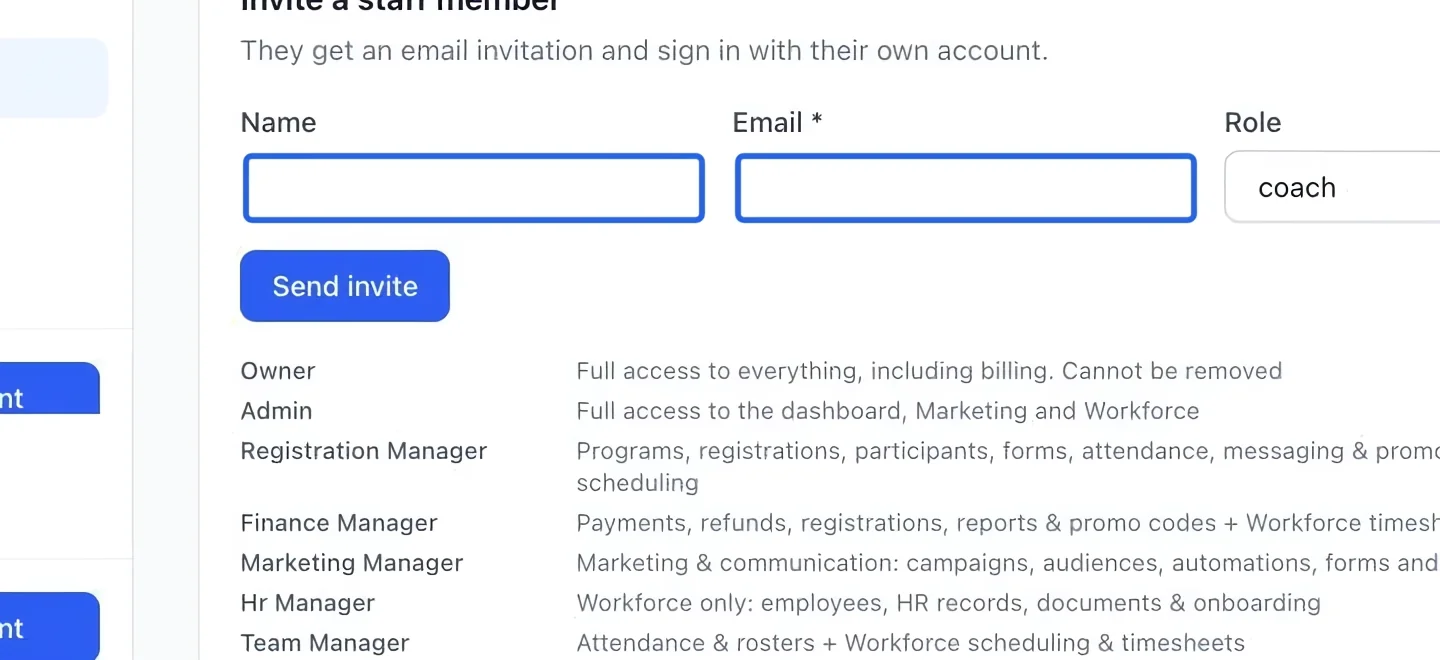
Select the screenshot to enlarge it. The blue outline marks the control to use.
- 2
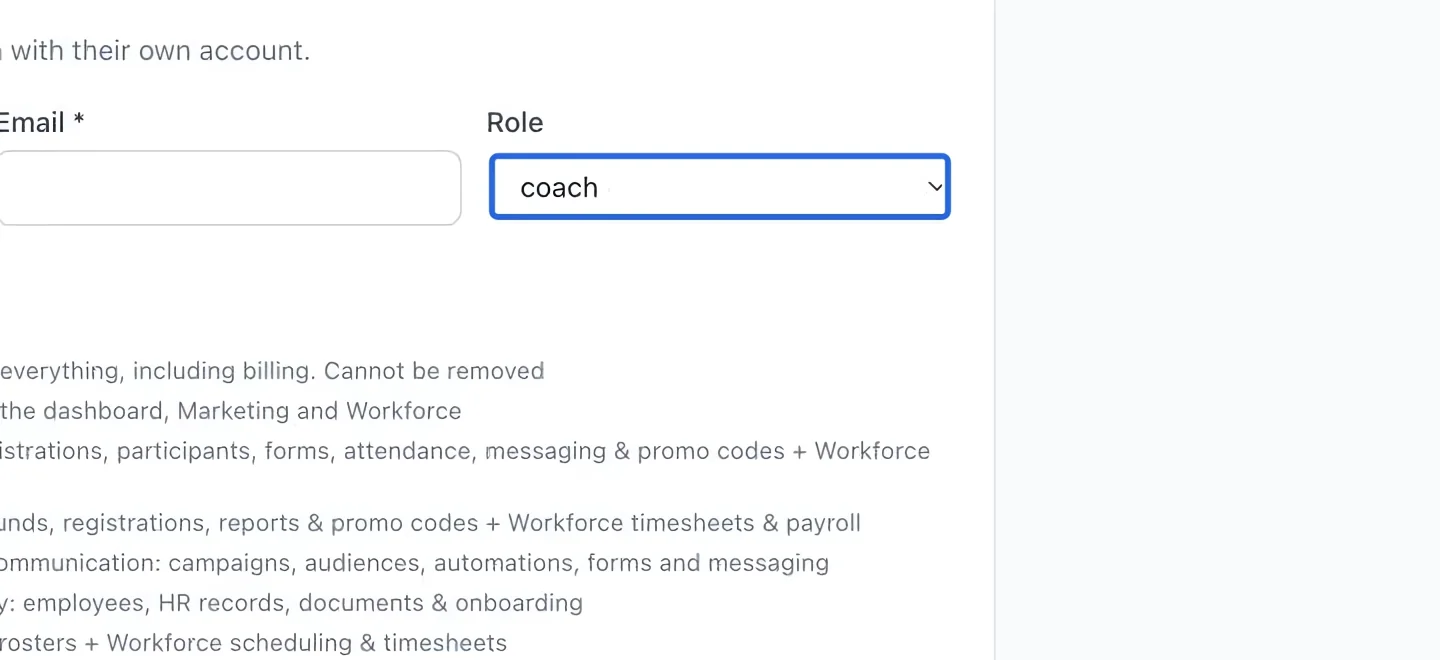
Choose access appropriate to the job
Choose Role in the invitation form. For example, select coach for attendance work. Use a manager role only when the person needs its responsibilities. Marketing and HR access also depend on your plan. The finance manager role gives access to accounting and financial reports. Choosing the initial accounting basis requires an owner or administrator; reopening a closed month requires the owner.
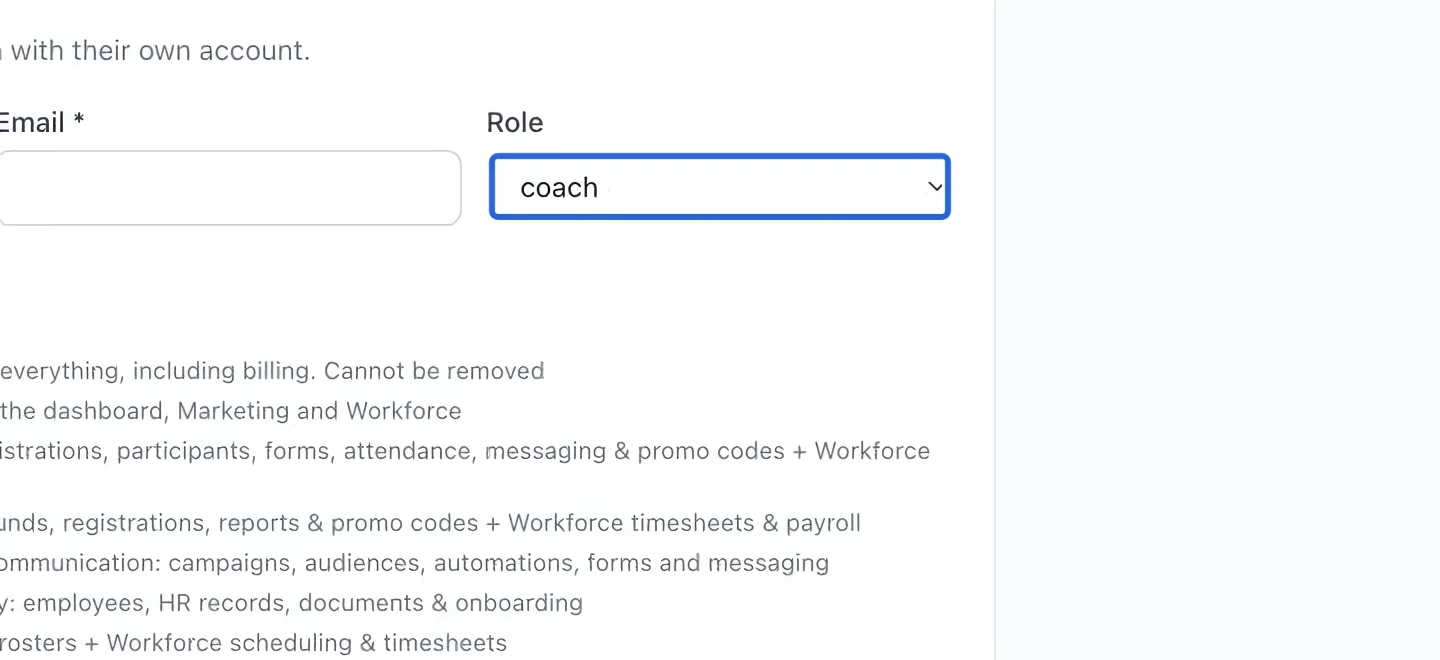
Select the screenshot to enlarge it. The blue outline marks the control to use.
- 3
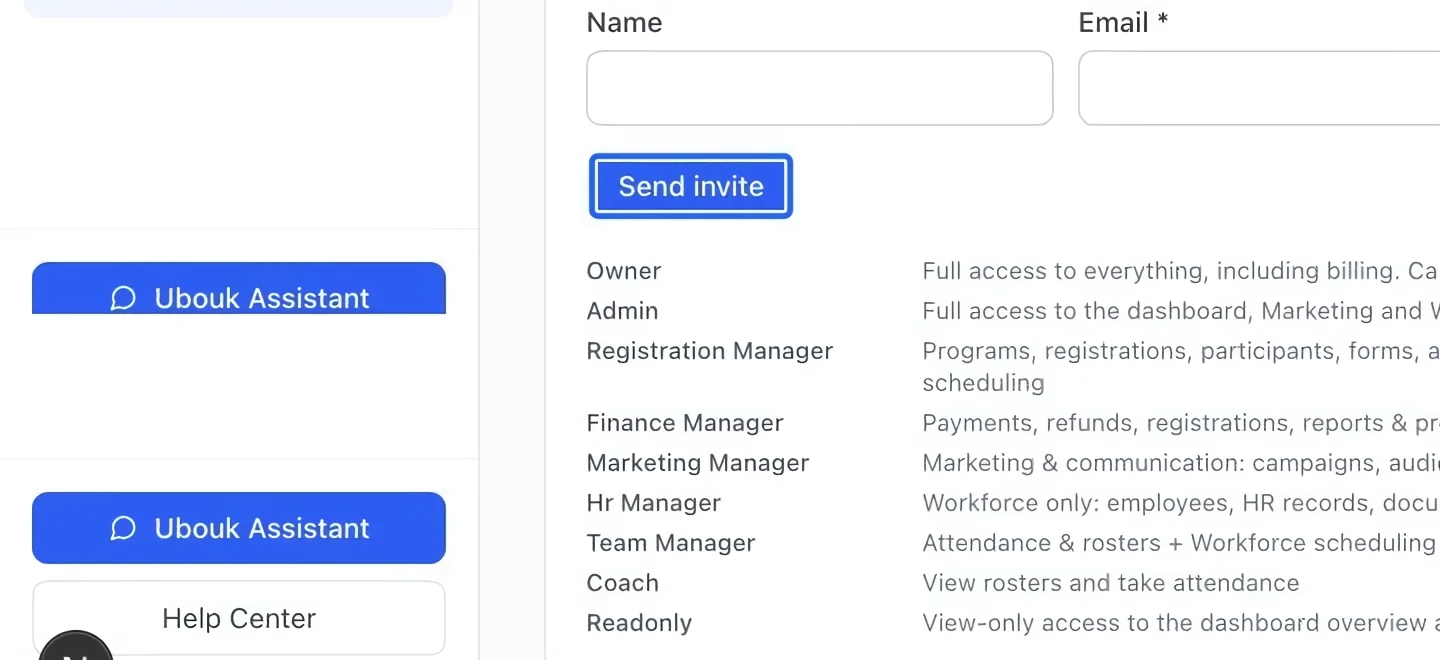
Send the invitation
Click Send invite once. Ask the person to open the invitation email and accept it using their own account. Sending an invitation and the recipient accepting it are separate steps.
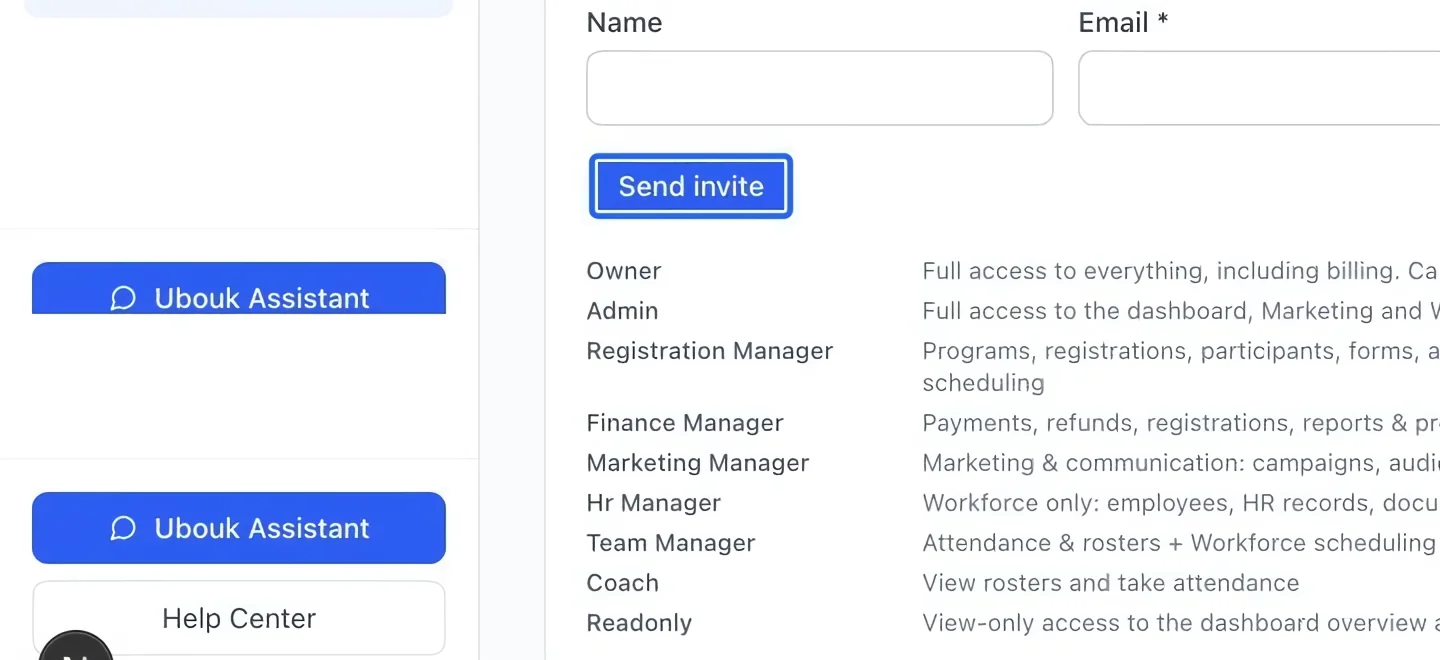
Select the screenshot to enlarge it. The blue outline marks the control to use.
- 4
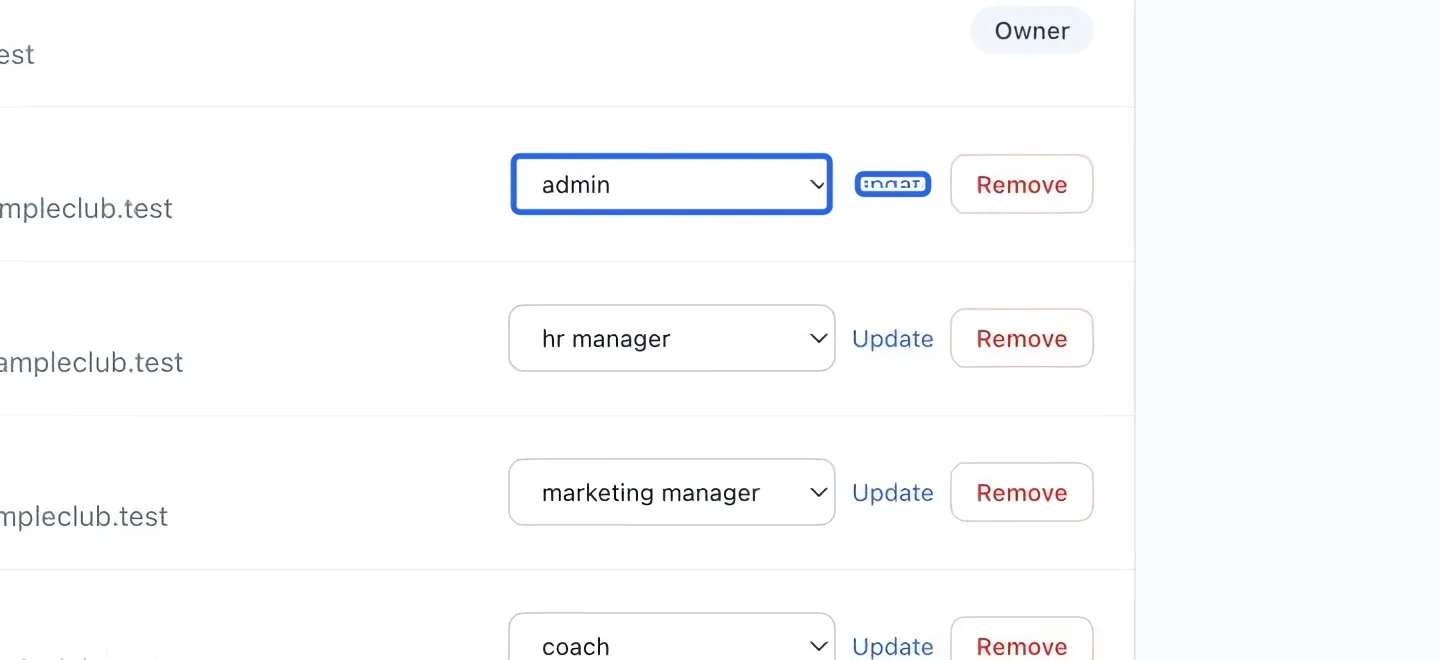
Update an existing role
In the staff list, find the correct person. Change the role beside their name, then click that row’s Update button. Recheck the displayed role after saving.
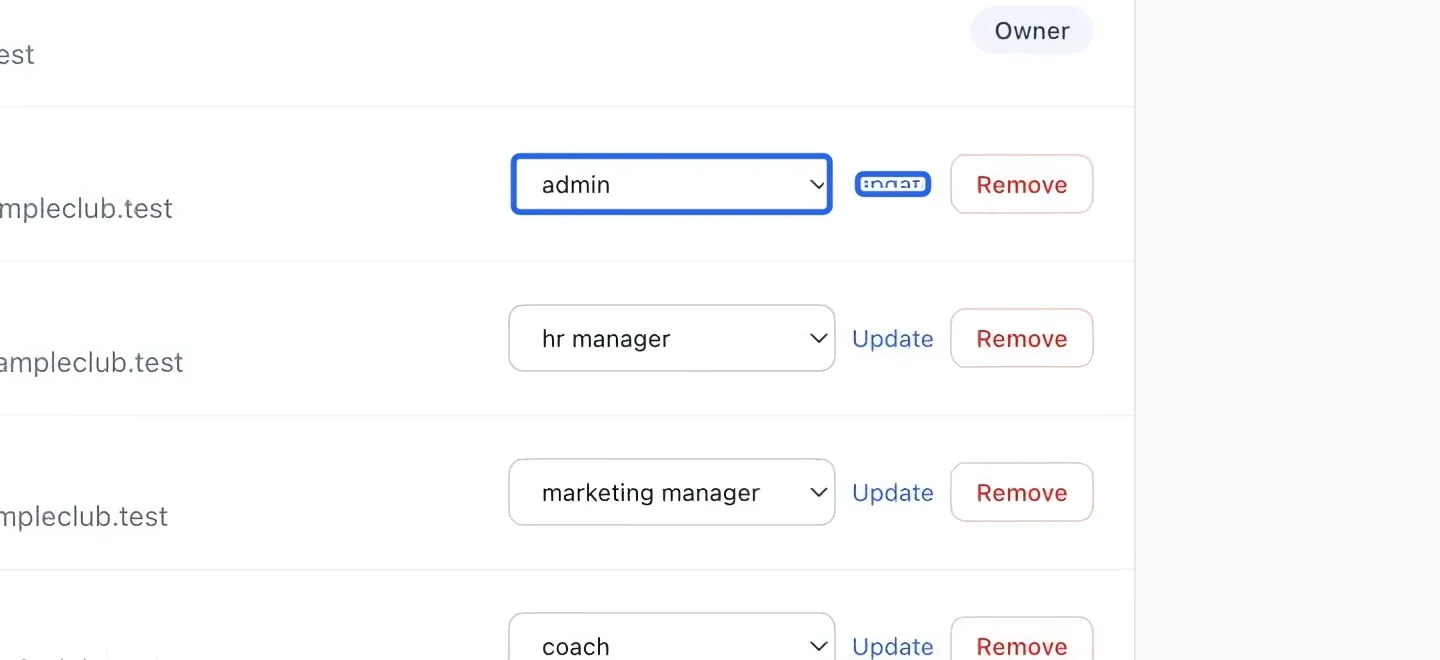
Select the screenshot to enlarge it. The blue outline marks the control to use.
- 5
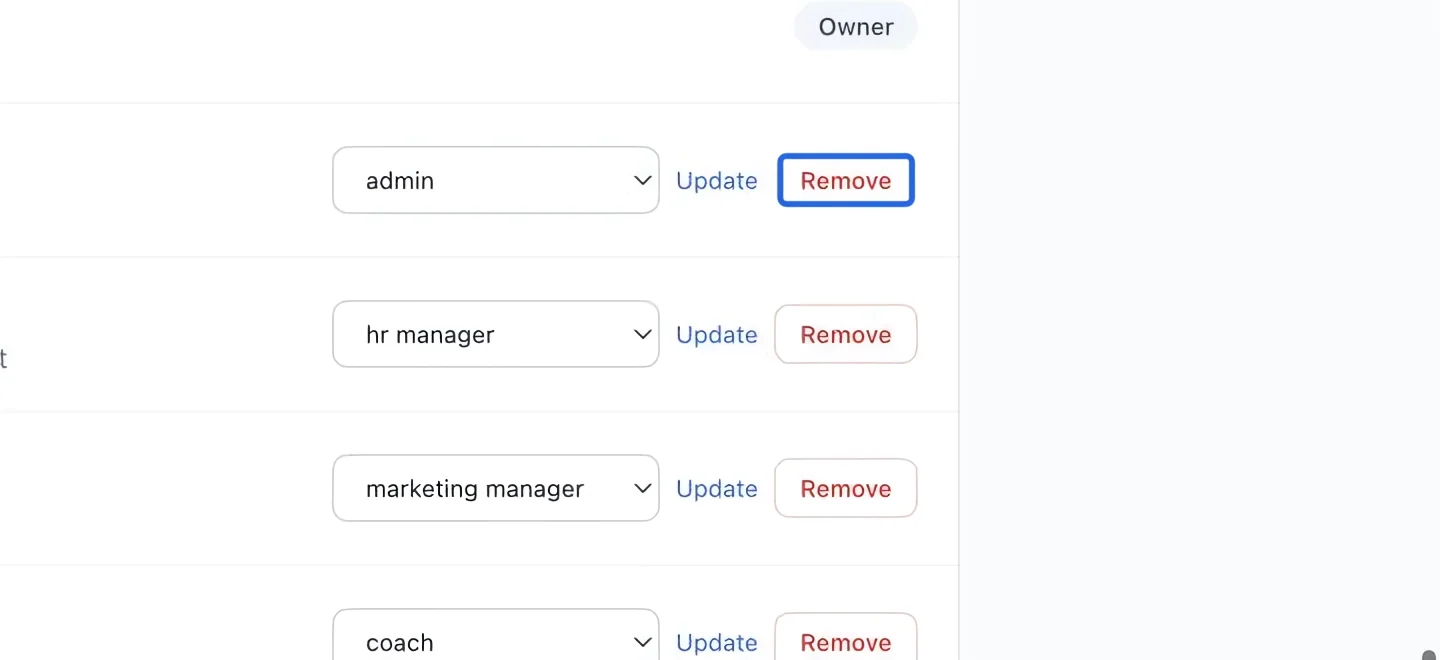
Remove access when needed
To revoke dashboard access, find the person’s row and click Remove. Read any confirmation before completing it. Use separate accounts for each person so actions can be traced in the audit log.
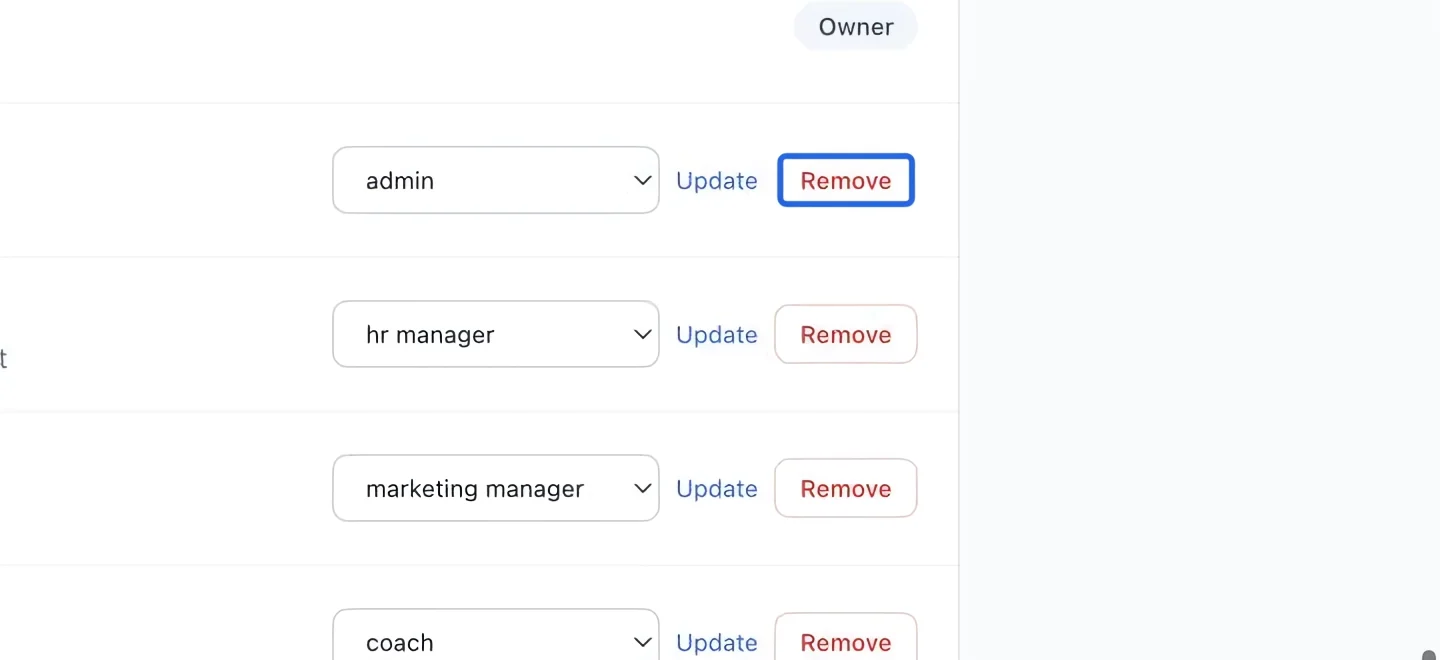
Select the screenshot to enlarge it. The blue outline marks the control to use.
Keep going
Choose your accounting basis, add accounts, and maintain the accounts used by your financial reports.
Settings & securityEvery staff action, recorded as it happens: who changed what, and when.
Settings & securityTwo-step verification, step-up checks on sensitive actions, and good account hygiene for staff.