
Prepare the tax remittance worksheet
Compare output tax invoiced and credited with tax collected and refunded for a filing period.
- 1
Choose the report period
Open Prepare the tax remittance worksheet from Reports. Choose a period preset or enter From and To. Optionally select a Batch, then Apply. Dates and batch work together, so widen the period if a batch appears incomplete. Financial reports require owner, administrator or finance manager access.
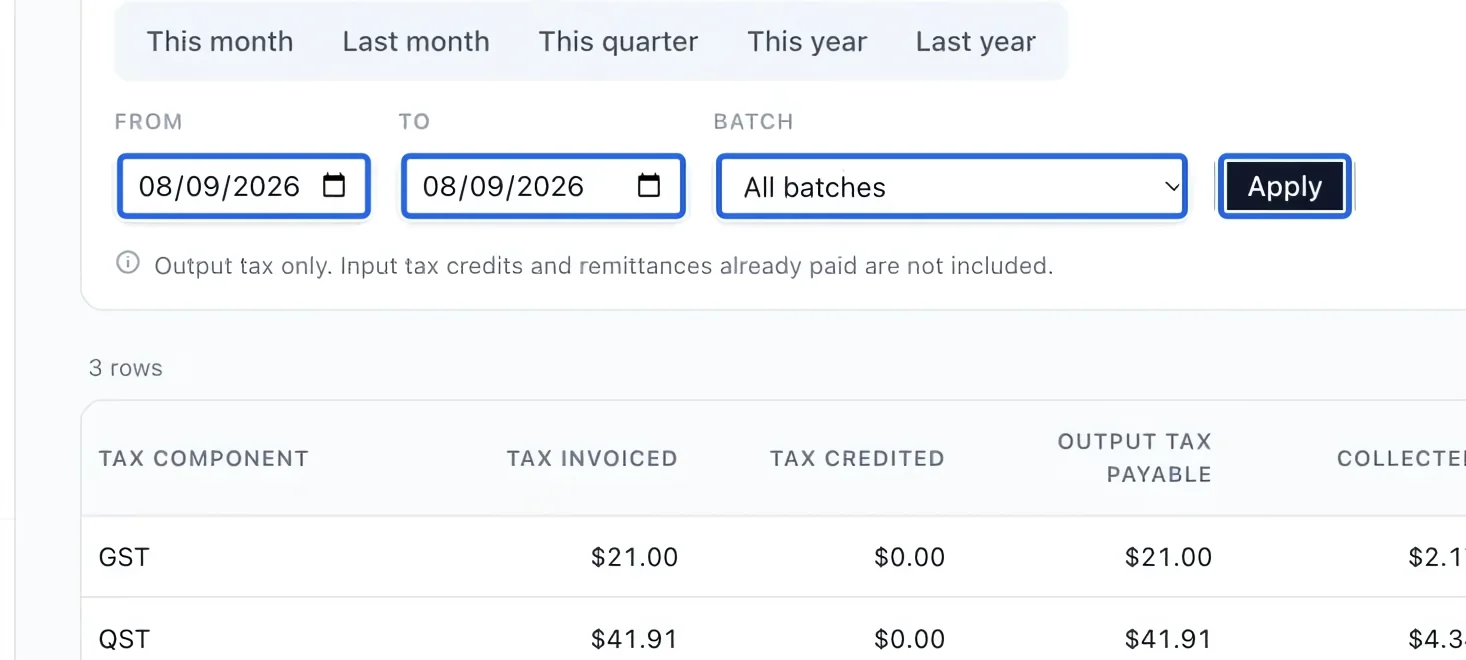
Select the screenshot to enlarge it. The blue outline marks the control to use.
- 2
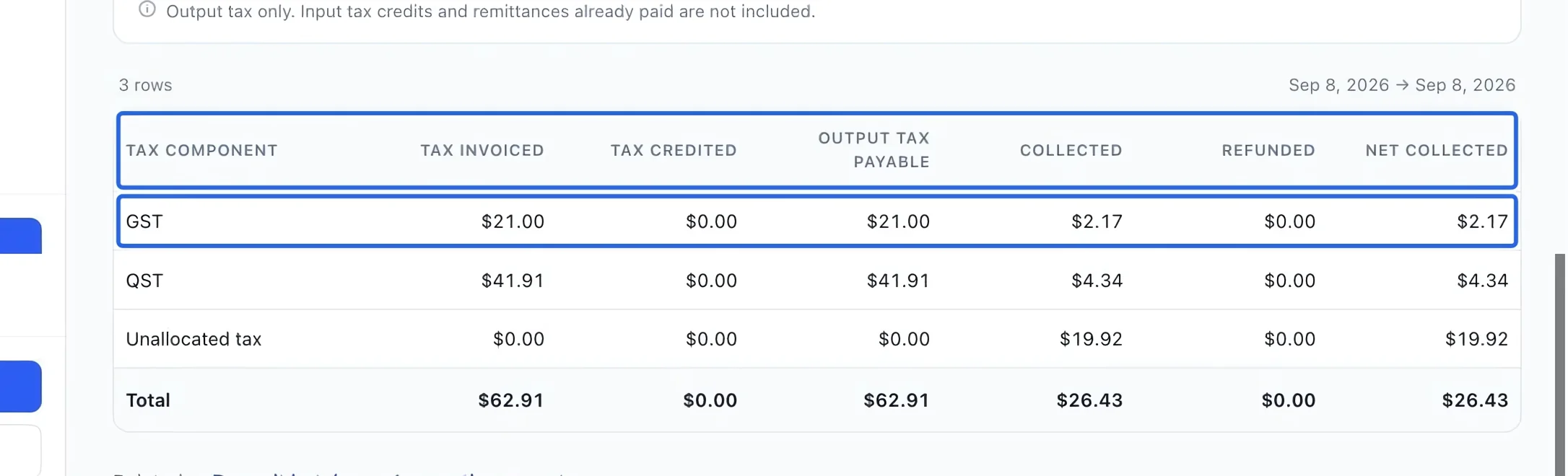
Compare invoice tax with collected tax
Read Tax invoiced, Tax credited and Output tax payable beside Collected, Refunded and Net collected for each component. Output tax payable is invoiced minus credited; net collected is collected minus refunded. Differences can come from unpaid invoices or collections of earlier invoices. This worksheet excludes input tax credits and remittances already paid; it is not a completed tax return.
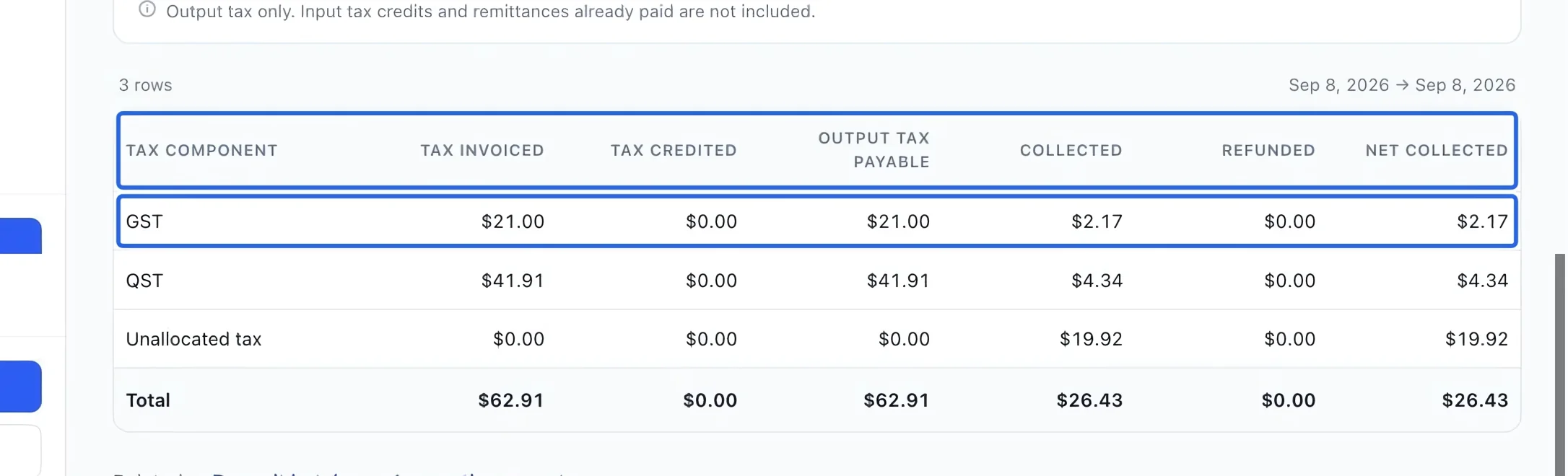
Select the screenshot to enlarge it. The blue outline marks the control to use.
- 3
Export the filtered report
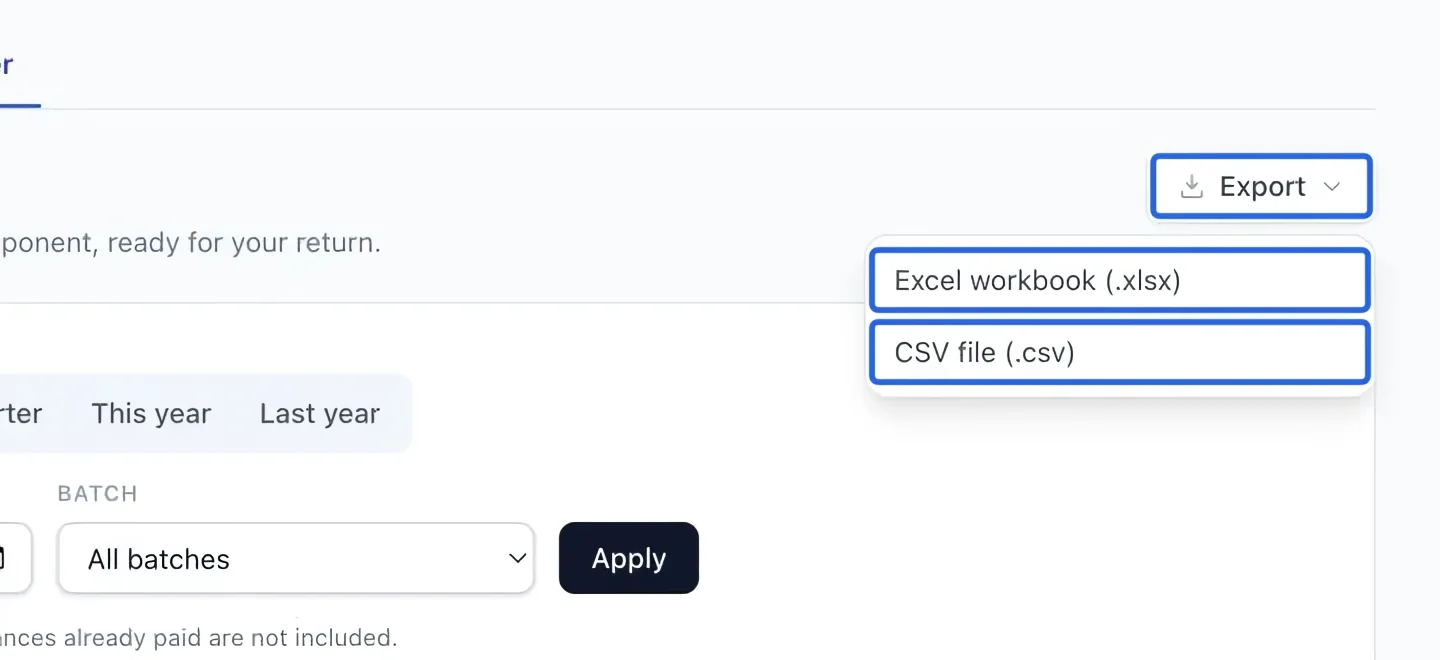
Open Export and choose Excel workbook (.xlsx) or CSV file (.csv). The file uses the active filters and current language. The screen shows at most 500 rows; exports include every matching row. If there are no results, check the date and clear restrictive filters. If a historical journal backfill warning appears, have the missing history completed before treating totals as complete.
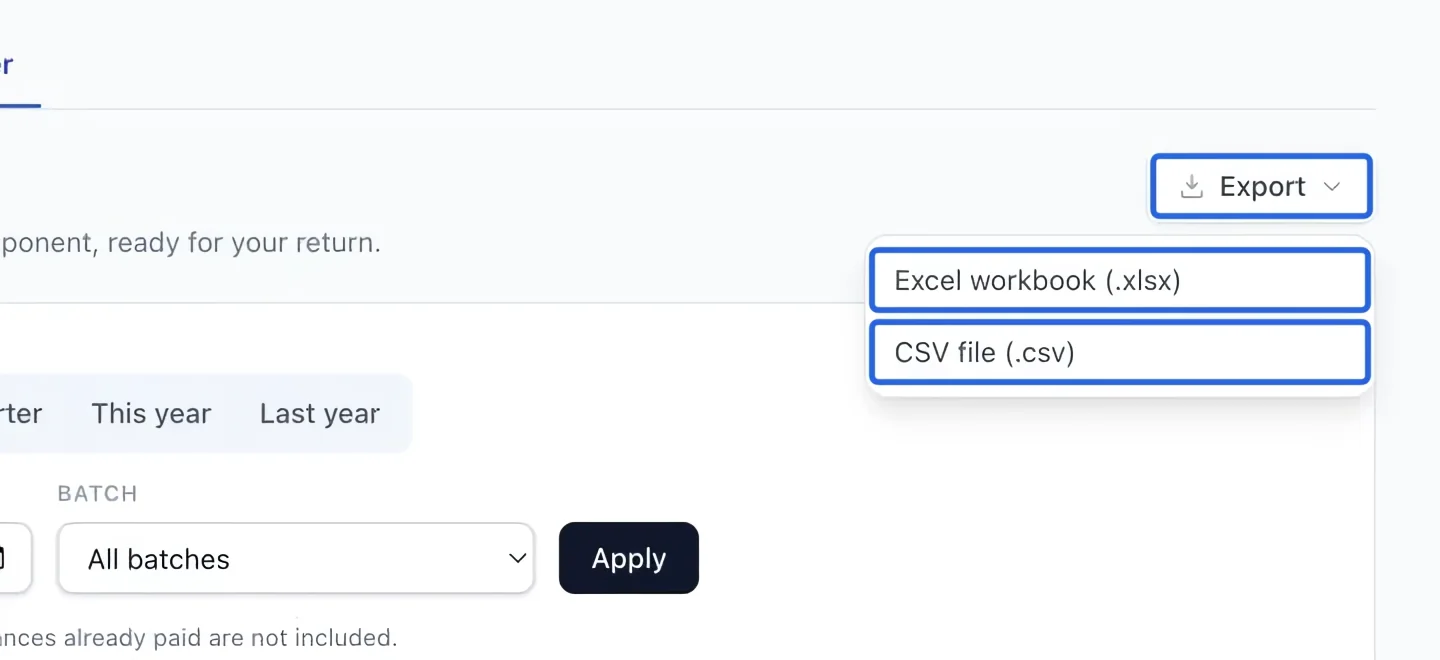
Select the screenshot to enlarge it. The blue outline marks the control to use.
Keep going
Compare collected, refunded and net tax by component for settled payments.
Accounting & financial reportsSet the tax account, agency, registration number and bilingual invoice description for each component.
Accounting & financial reportsMatch accounts and clients, then download generic, QuickBooks or Sage/Acomba journals and export summaries.