
Close and reopen an accounting month
Protect a reviewed month from new postings and use an owner override when corrections are required.
- 1
Choose the month and reason
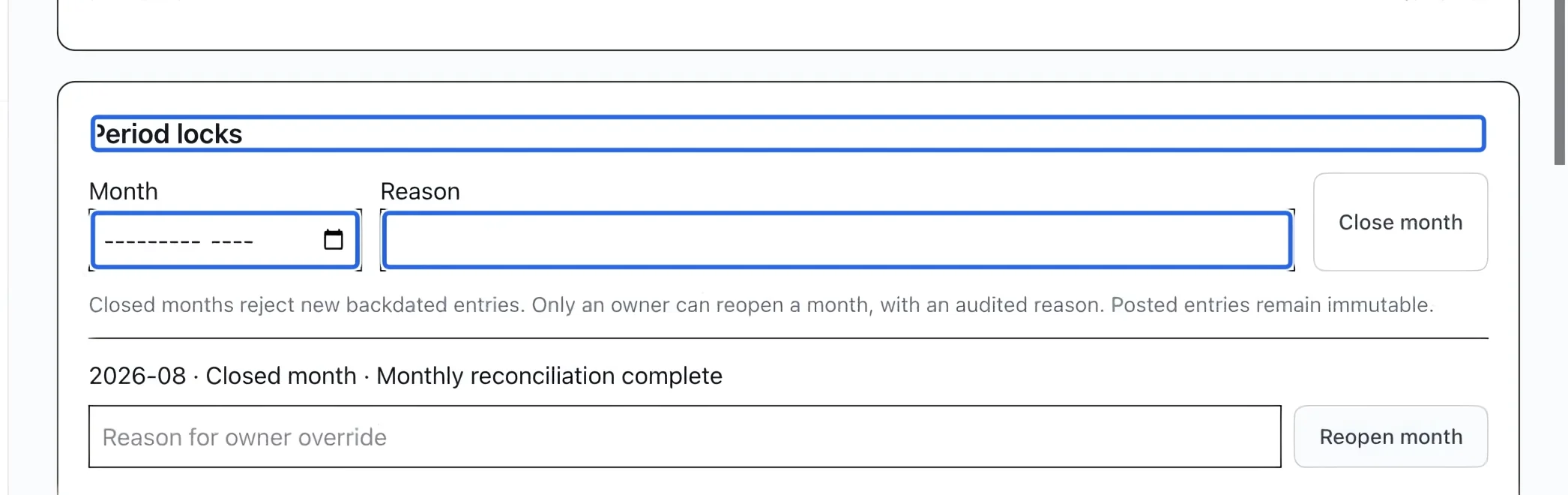
Open Optional accounting automation and find Period locks. After reviewing the month’s reports, enter Month and a clear Reason, such as completion of the monthly reconciliation. This closes a calendar month independently of accounting batches.
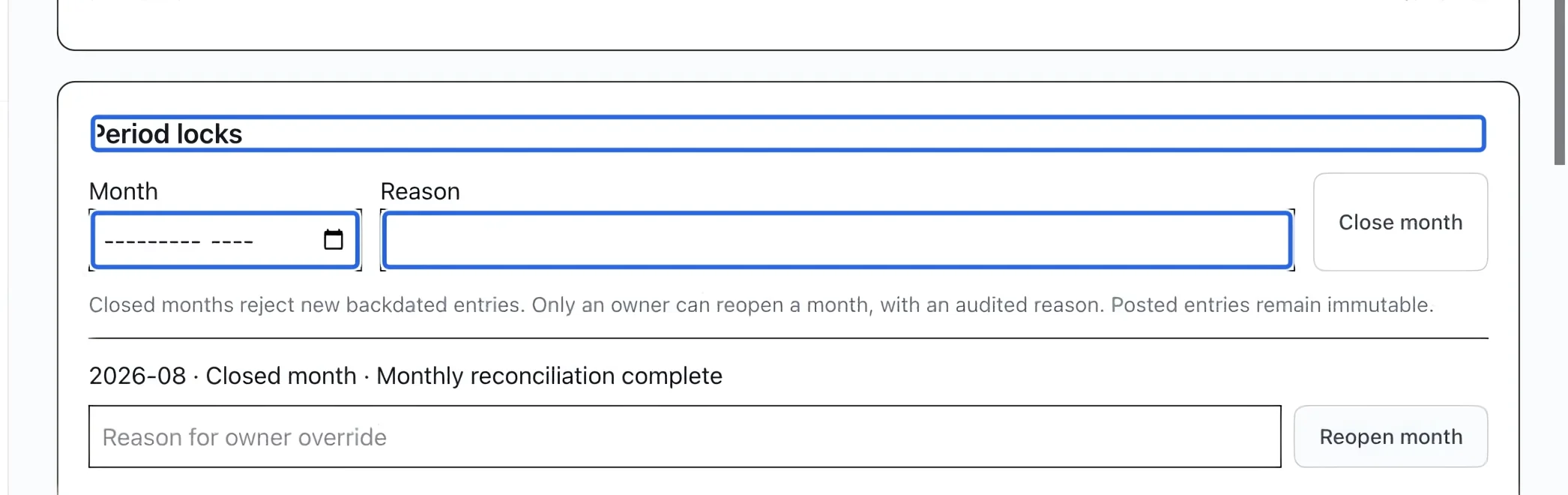
Select the screenshot to enlarge it. The blue outline marks the control to use.
- 2
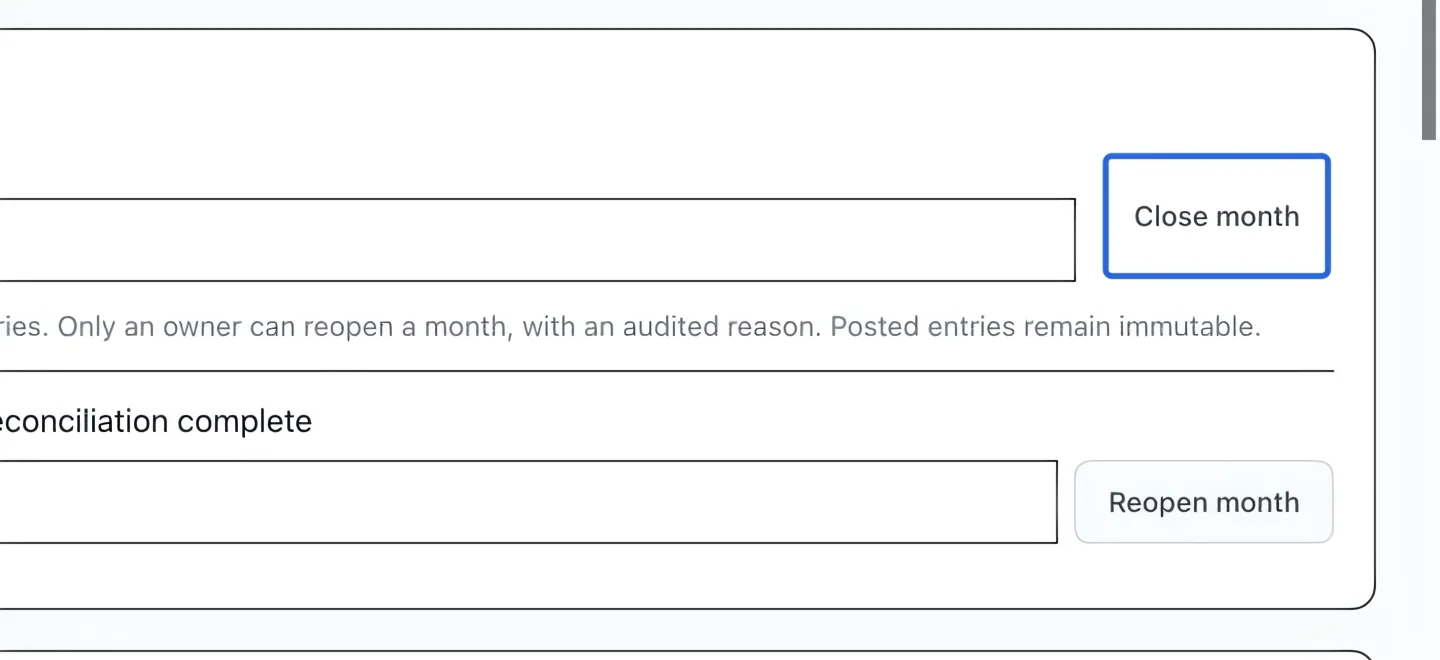
Close the month
Click Close month and confirm the month is listed as closed. New entries with an effective date in that month, including backdated invoices or adjustments, are rejected. Existing entries remain unchanged. Check the date and month status if an operation reports a closed-period error.
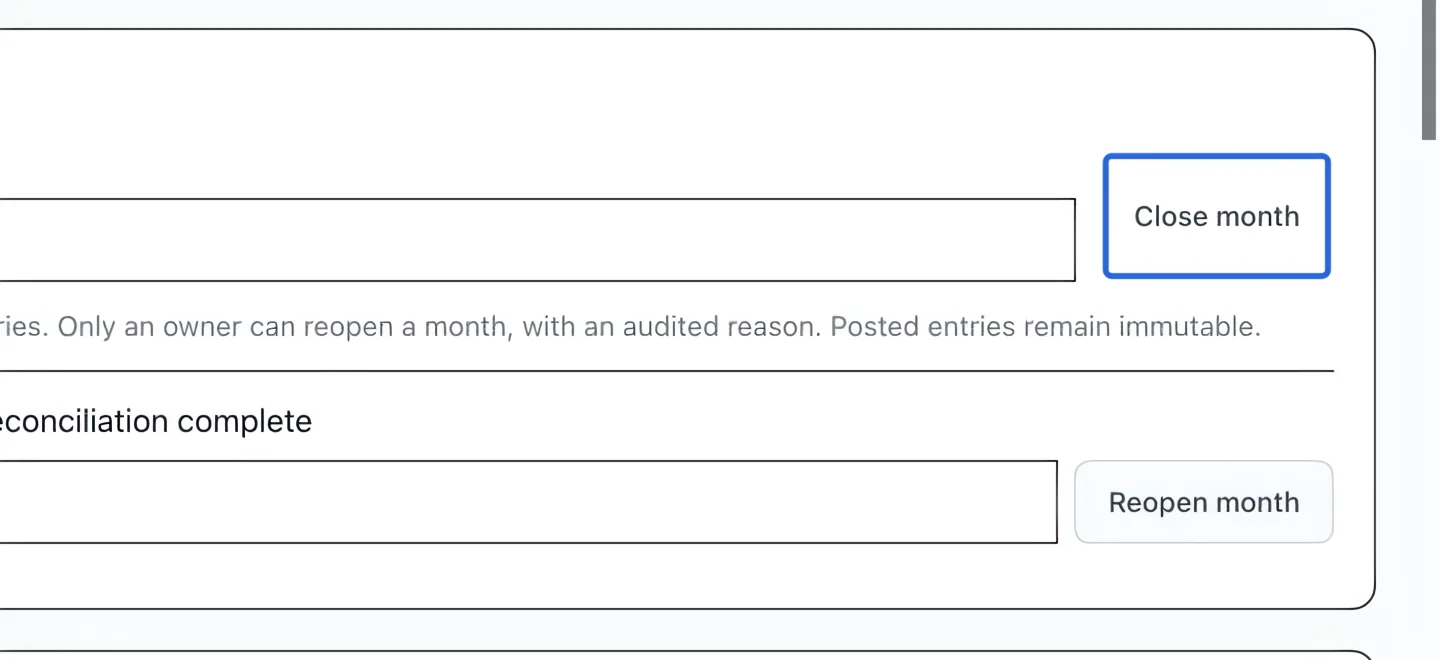
Select the screenshot to enlarge it. The blue outline marks the control to use.
- 3
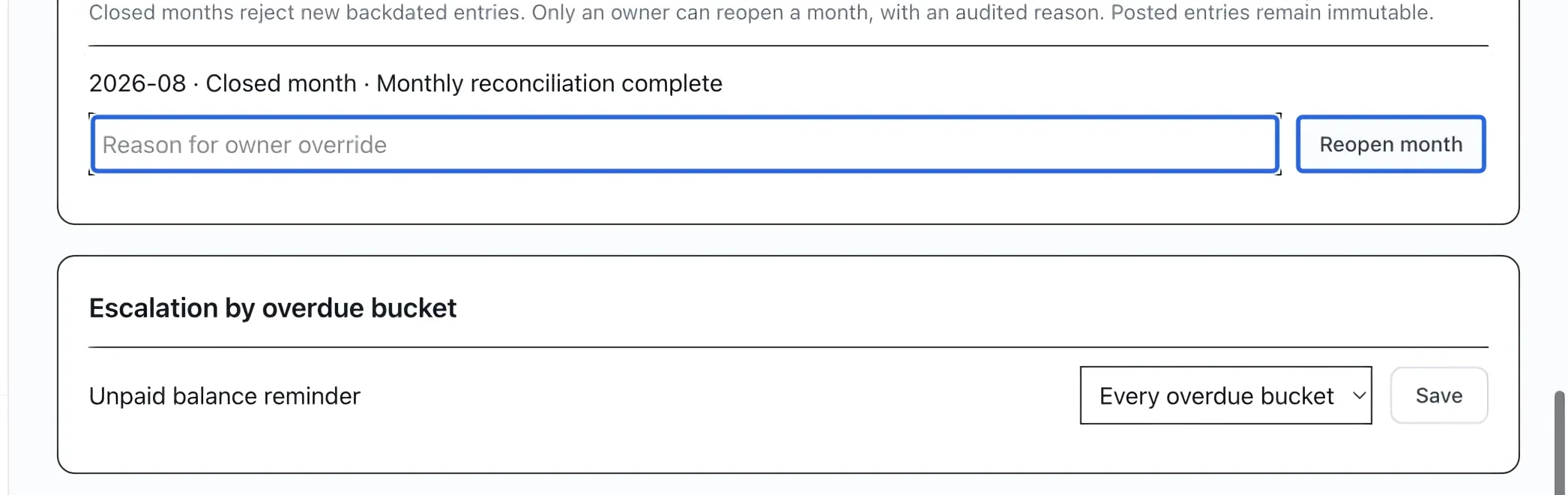
Reopen with an owner reason
Only an owner sees Reopen month. Enter Reason for owner override beside the closed month and reopen it. Complete the correction, review the reports, then close the month again with a reason. Reopening allows new entries; it never edits the sealed history. Both closing and reopening are recorded in the audit log.
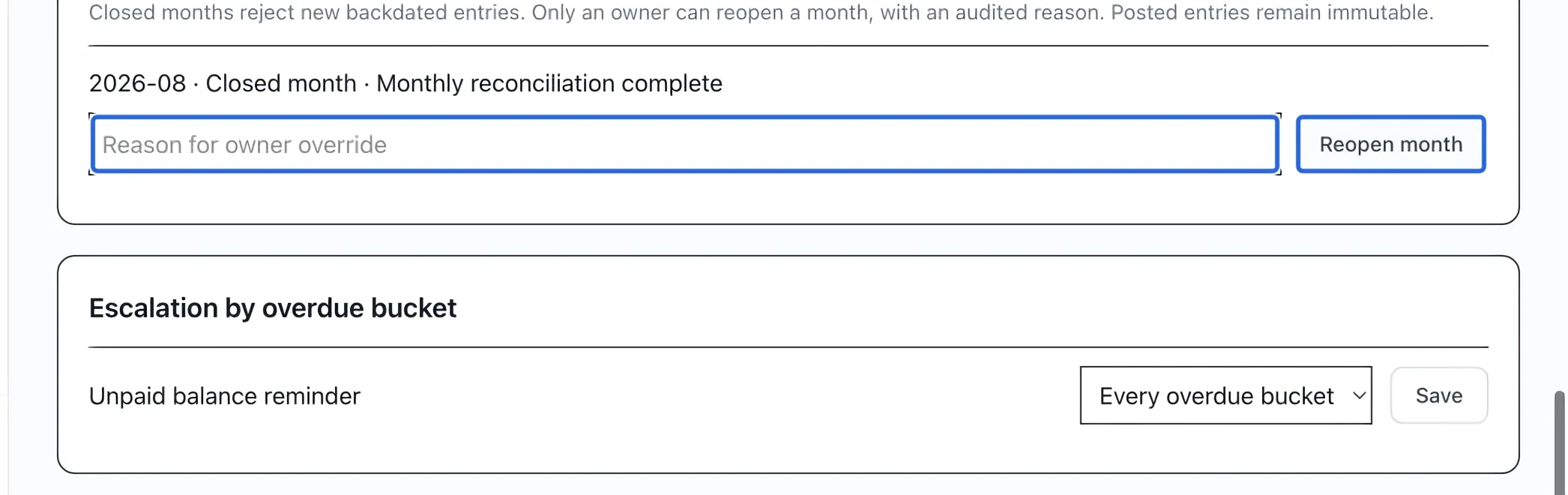
Select the screenshot to enlarge it. The blue outline marks the control to use.
Keep going
Review open totals, close batches manually or on a schedule, and track verified payout lots.
Accounting & financial reportsMatch accounts and clients, then download generic, QuickBooks or Sage/Acomba journals and export summaries.