Secure your account
Two-step verification, step-up checks on sensitive actions, and good account hygiene for staff.
- 1
Open security settings
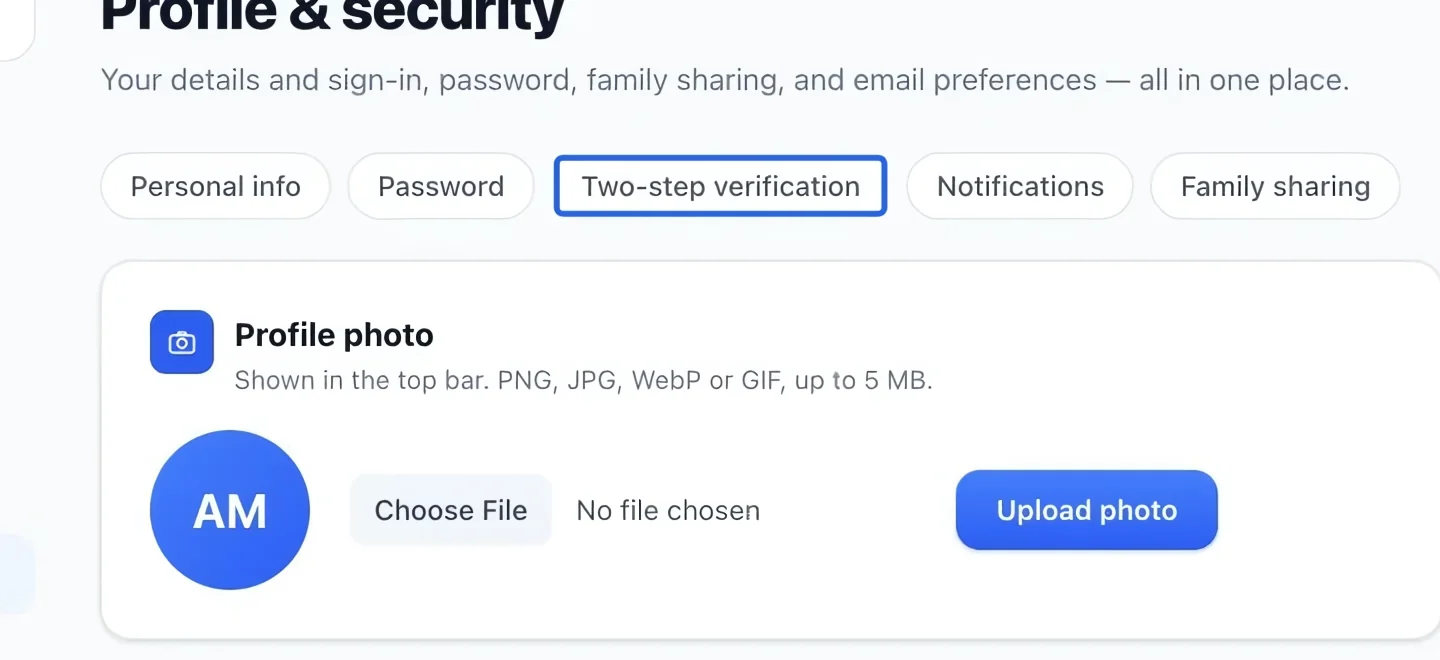
Open your account menu at the top right, choose Profile & security, then Two-step verification in the page navigation. This section explains the protection applied to your account.
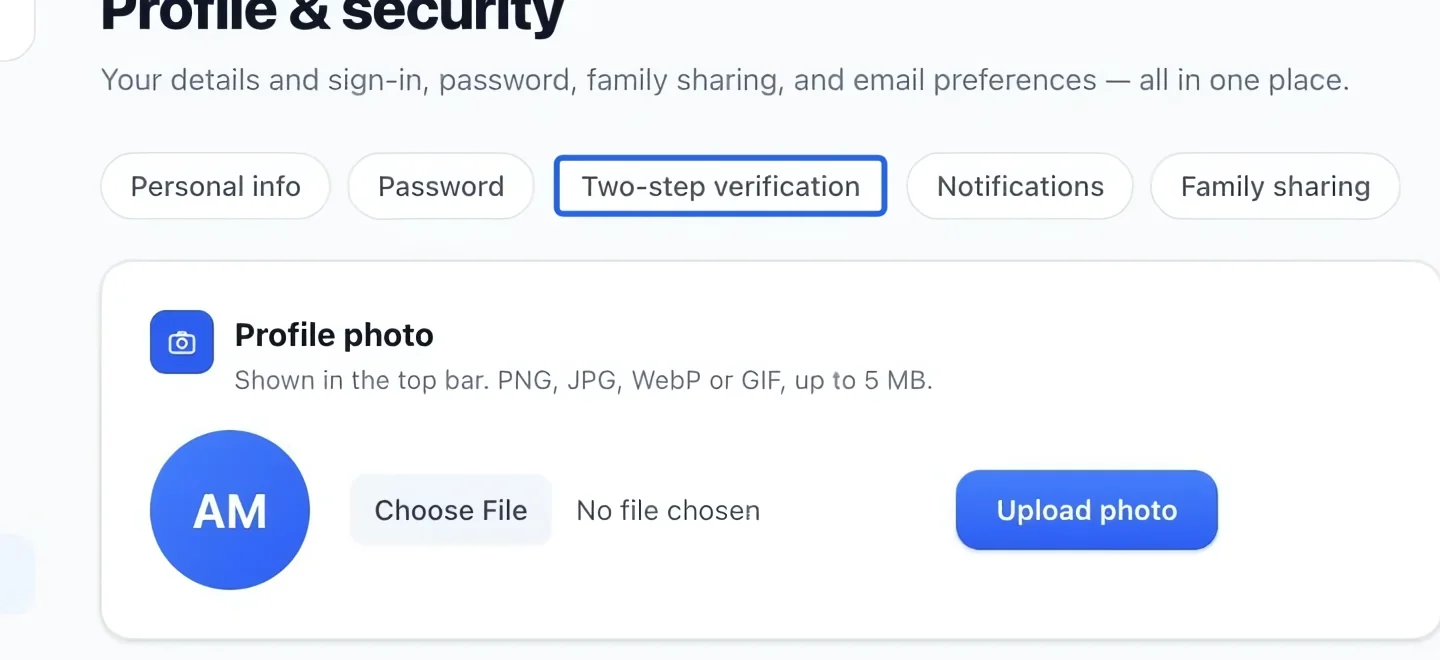
Select the screenshot to enlarge it. The blue outline marks the control to use.
- 2
Review two-step verification
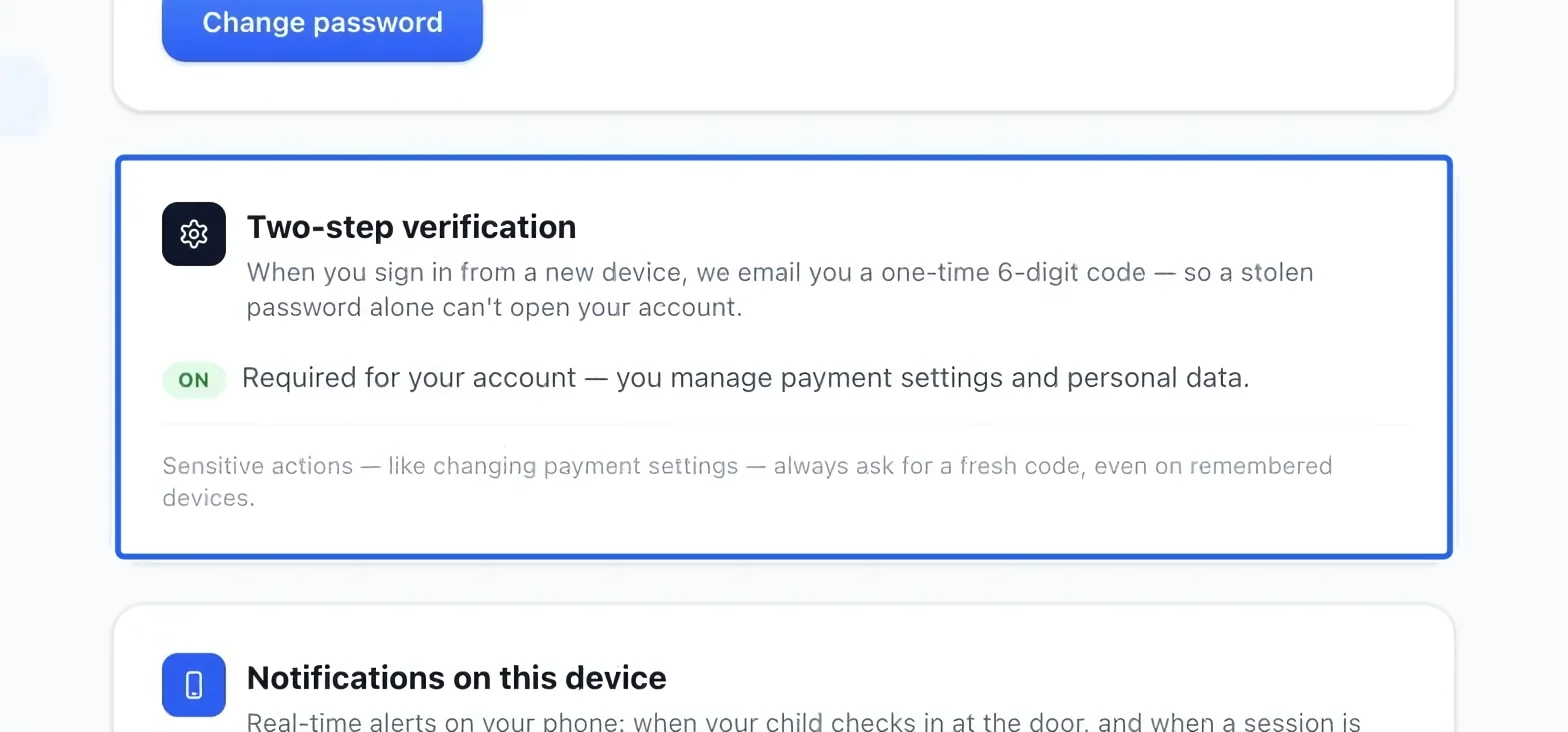
Owners and administrators have required verification; their page may show an explanation rather than an enable switch. If your account offers an opt-in control, enable it and follow the displayed instructions. Keep access to your email account.
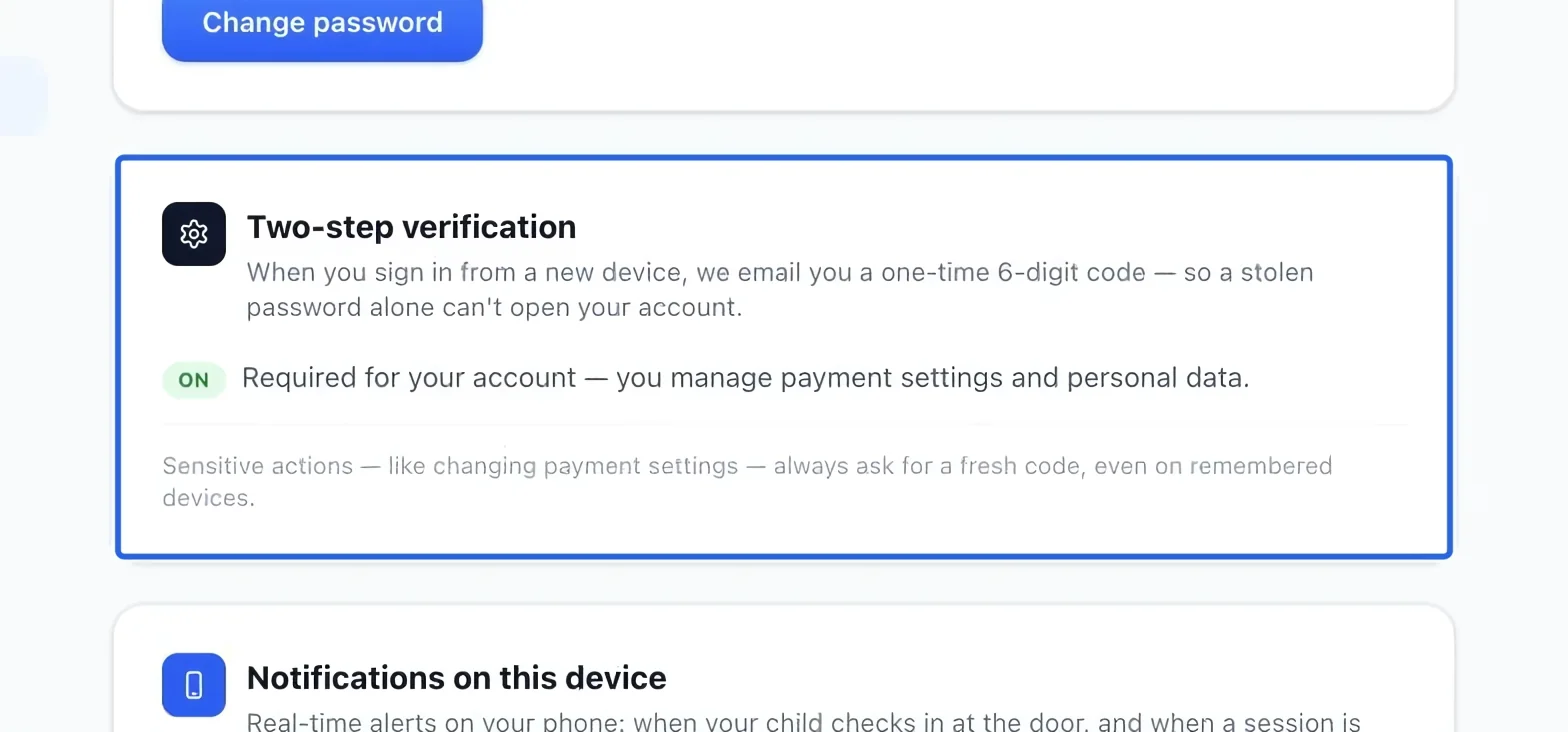
Select the screenshot to enlarge it. The blue outline marks the control to use.
- 3
Understand fresh verification checks
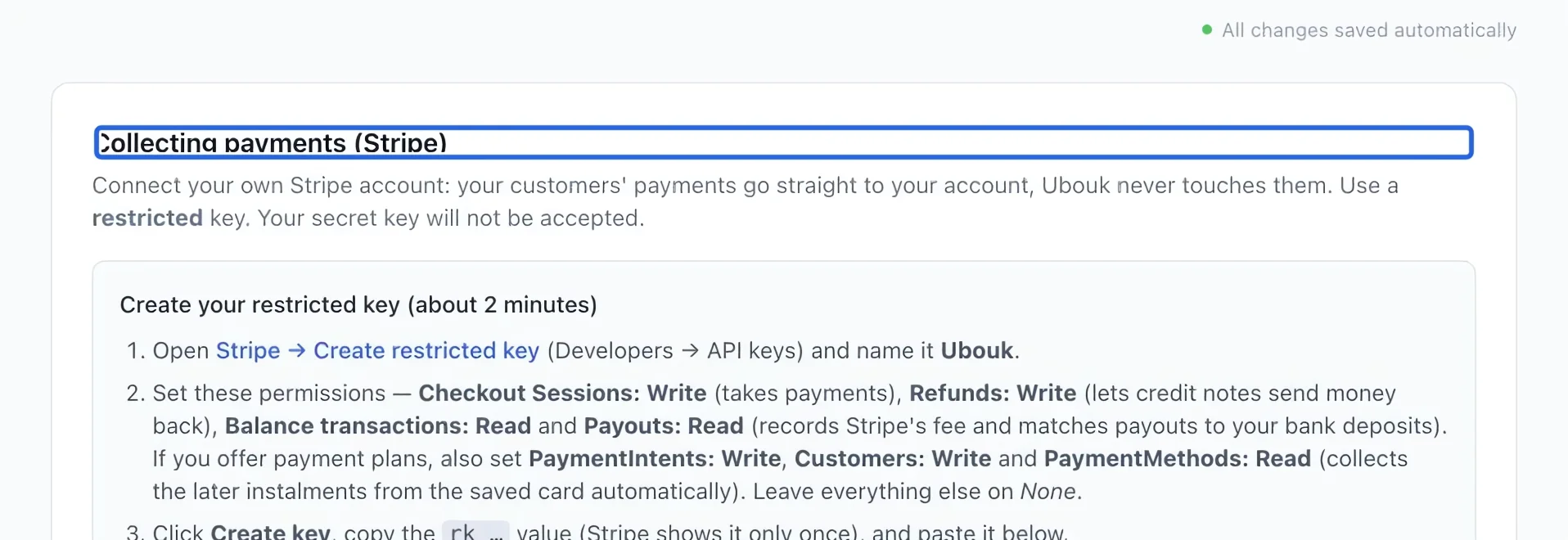
Sensitive settings, such as the Stripe connection, may request a fresh emailed code even while signed in. Complete the check in the platform and return to the setting. Never send that code to another person.
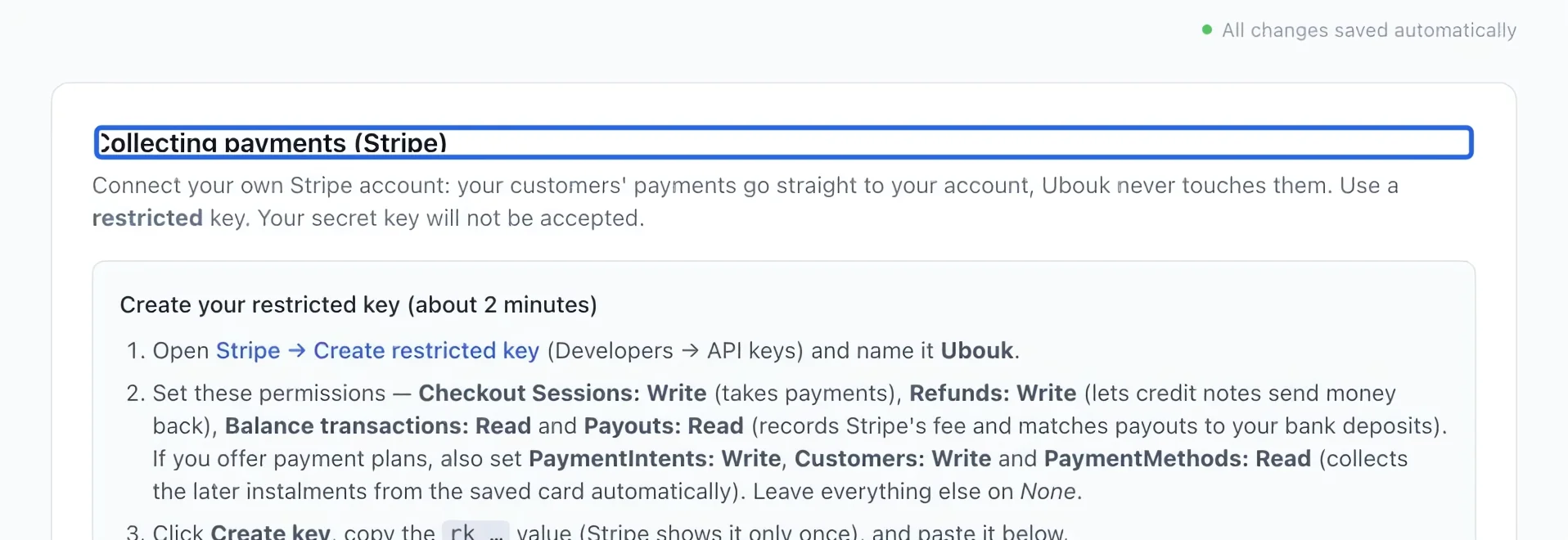
Select the screenshot to enlarge it. The blue outline marks the control to use.
- 4
Review staff access regularly
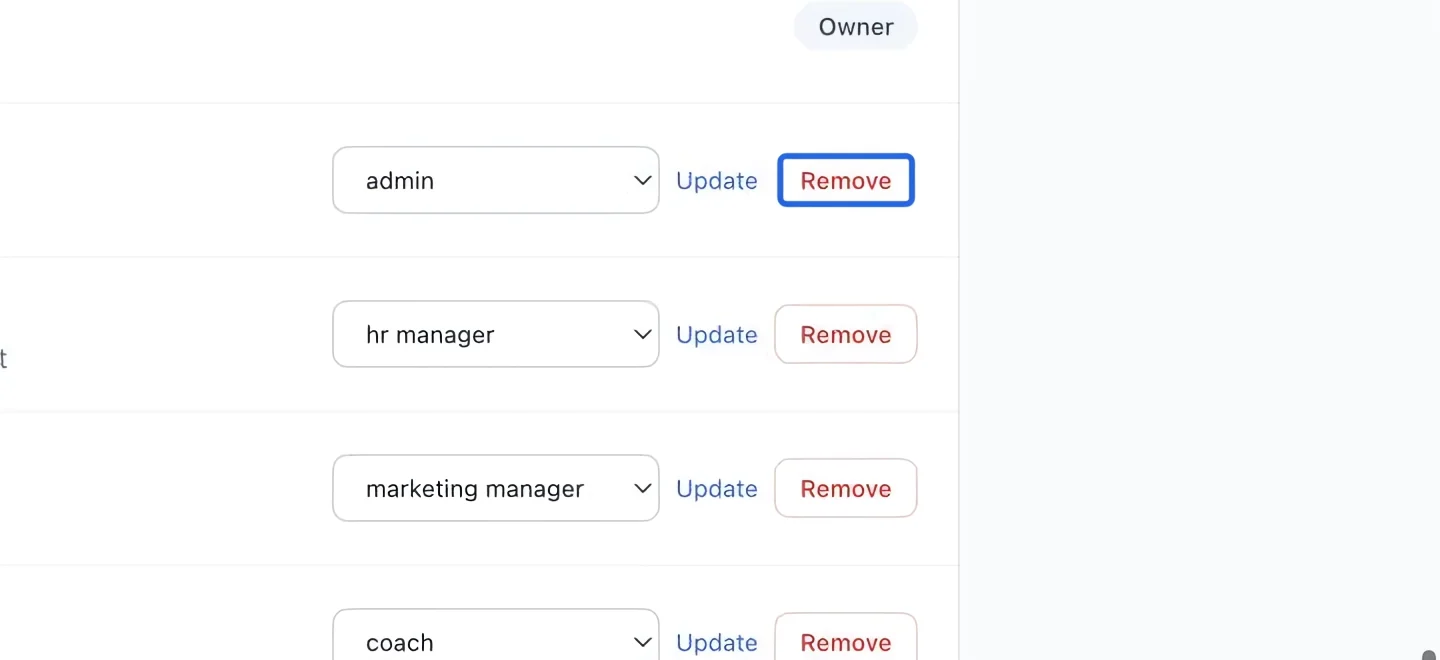
Review Settings → Staff and remove access that is no longer needed. Give each person their own account and a role appropriate to their responsibilities.
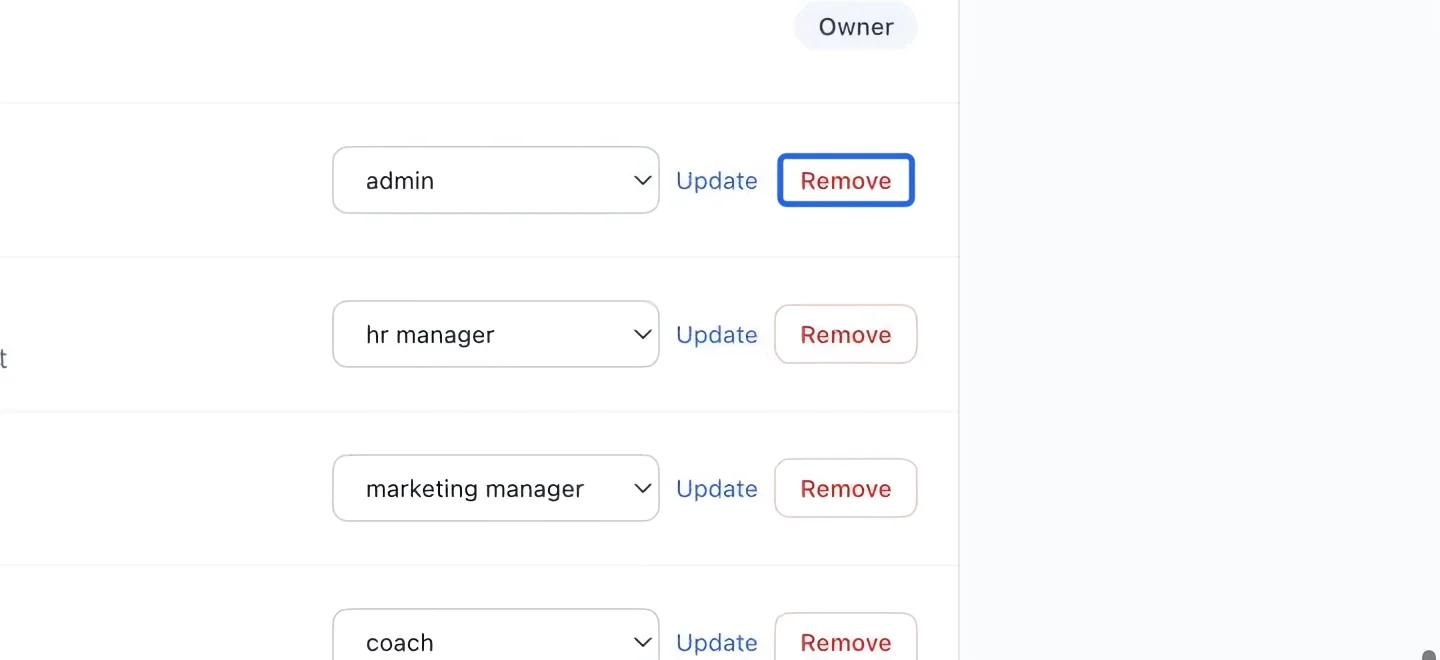
Select the screenshot to enlarge it. The blue outline marks the control to use.