
Use your employee workspace
Find published shifts, record hours, manage availability and complete assigned documents.
- 1
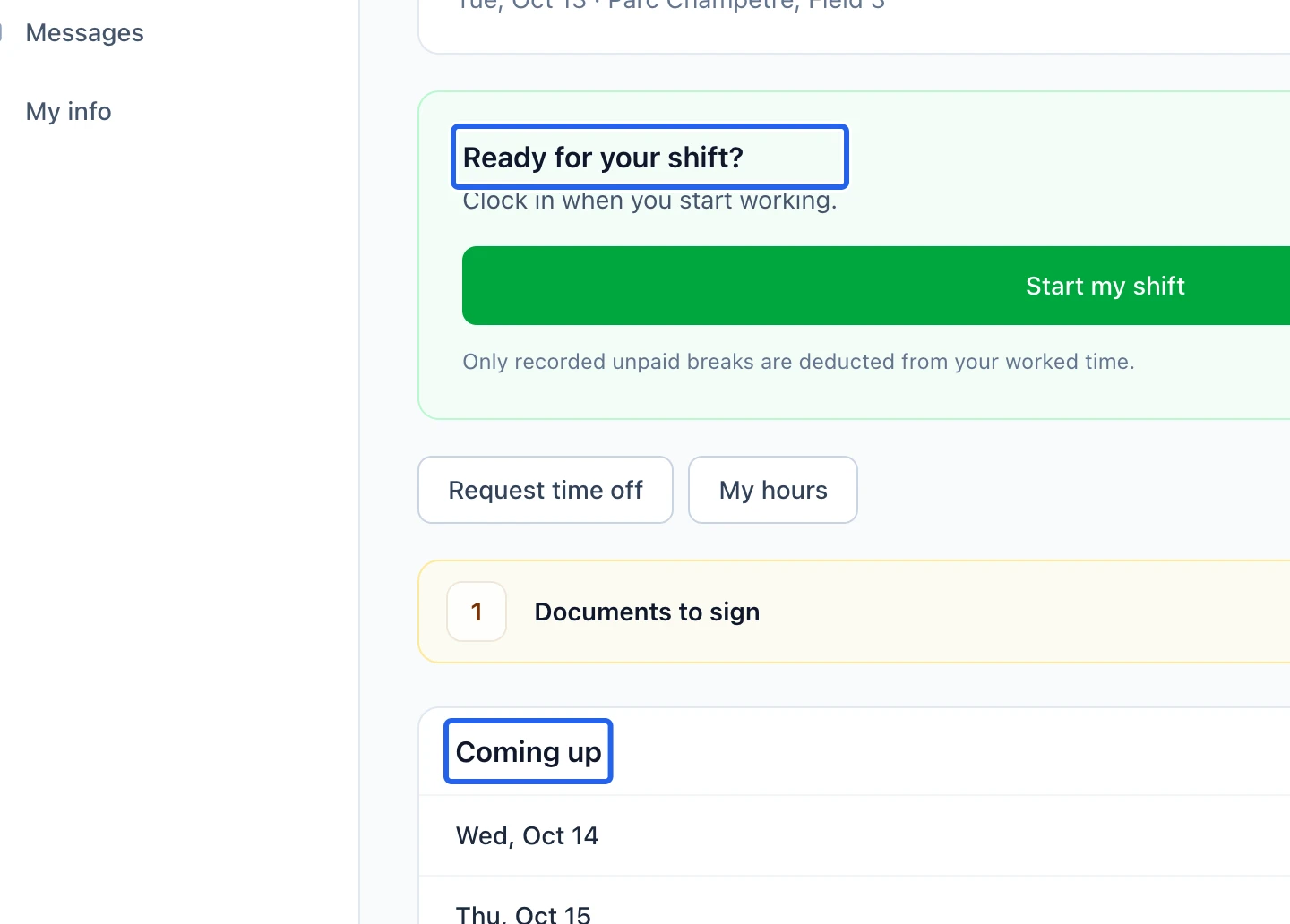
Open your personal workspace
Sign in with the account linked to your employee profile and open My work. If the profile is not linked, ask an administrator to link it. Managers can switch between their personal view and team overview.
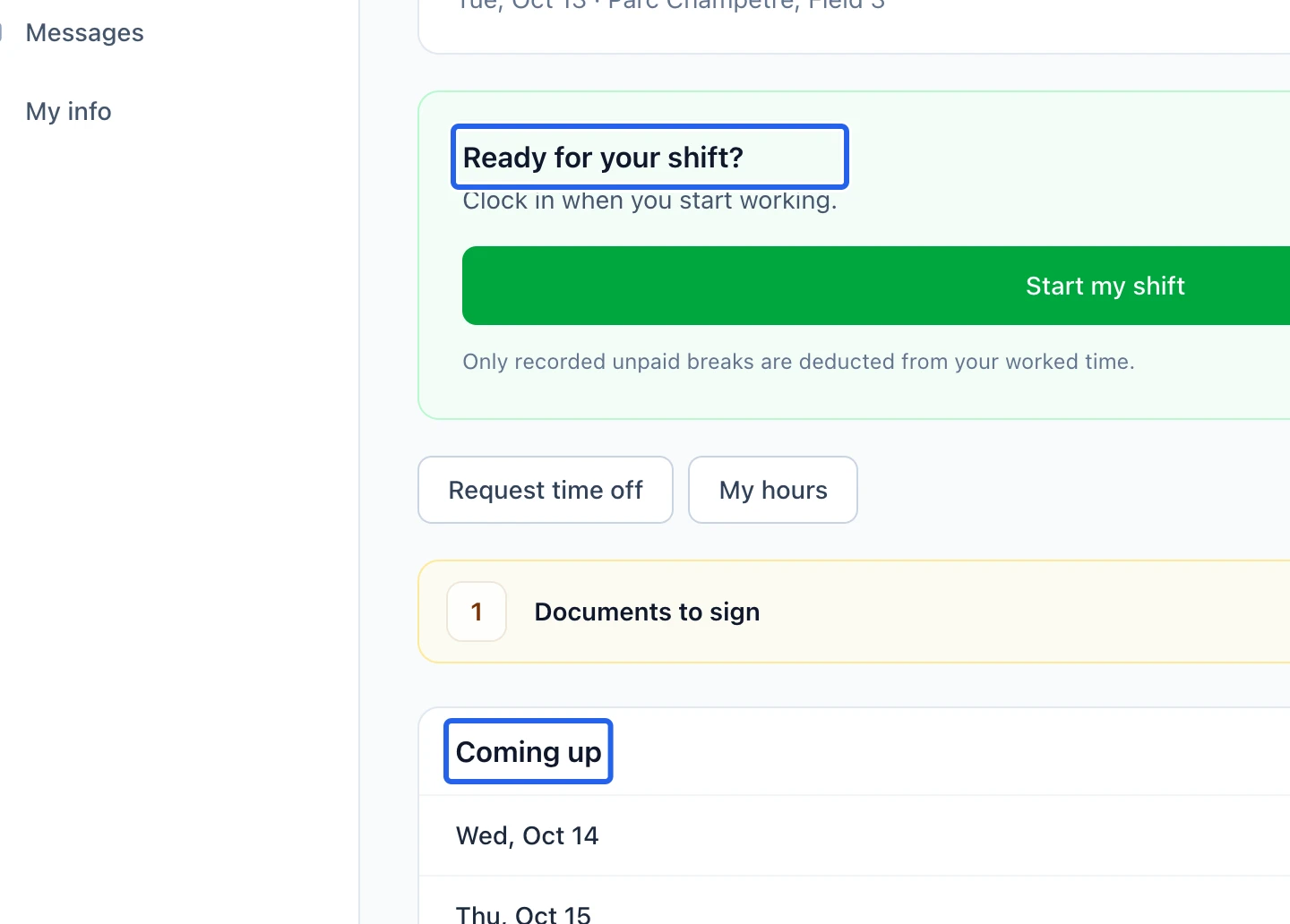
Select the screenshot to enlarge it. The blue outline marks the control to use.
- 2
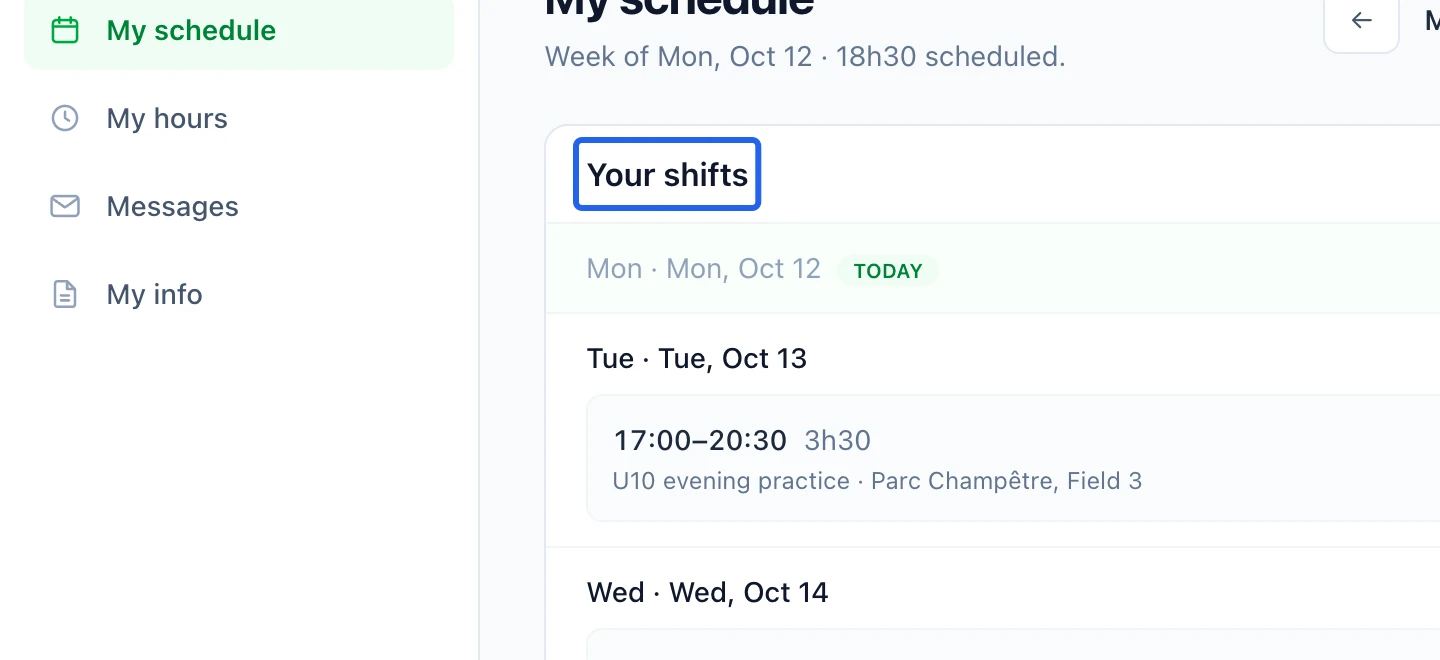
Check shifts and availability
Open My schedule for published shifts and schedule changes. Review dates, times and locations. Use Availability for the availability controls offered to you, and Time off for a leave request. A request is not an approved schedule change.
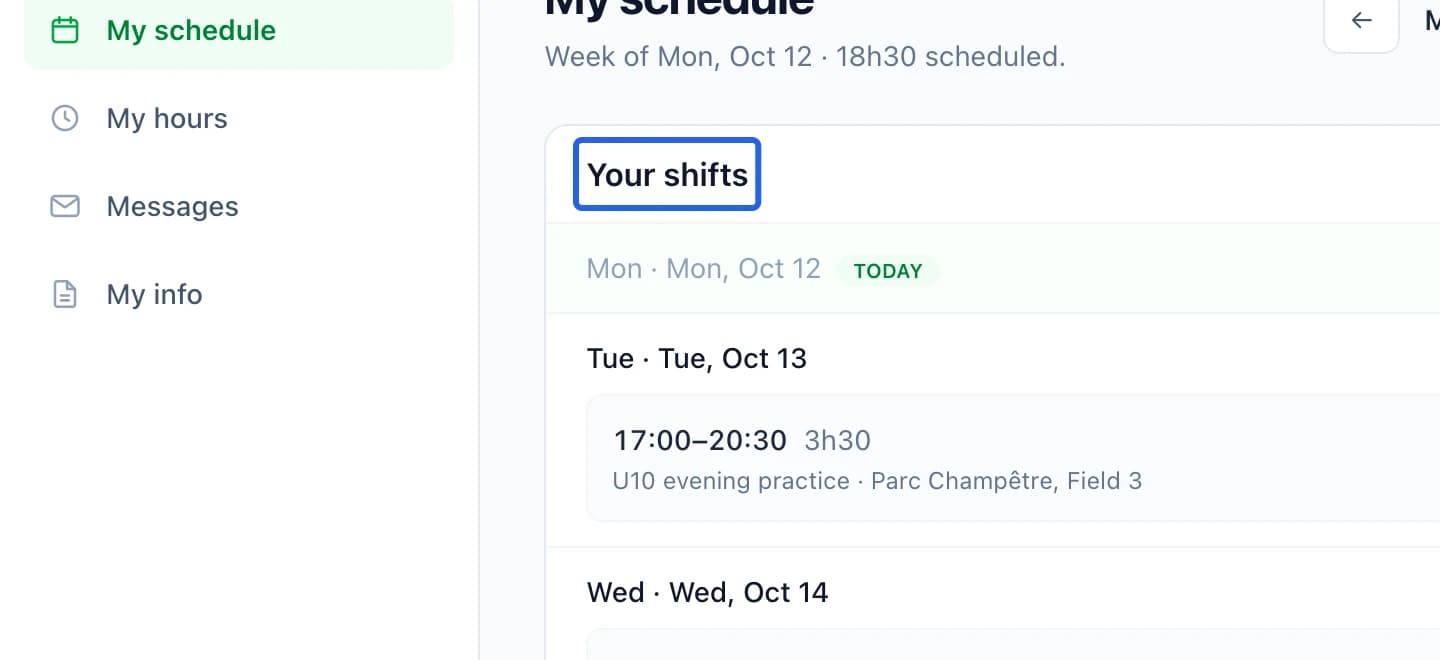
Select the screenshot to enlarge it. The blue outline marks the control to use.
- 3
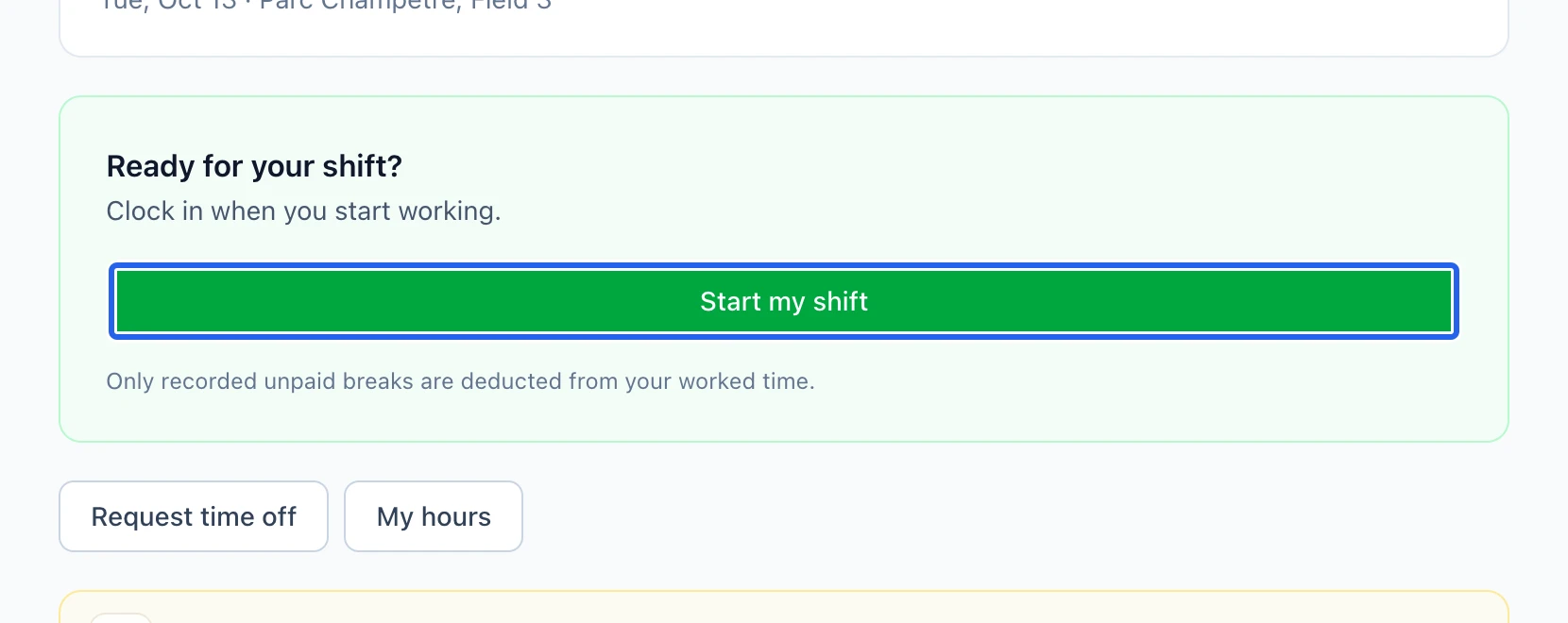
Record and review your hours
Use the clock controls when available and check the confirmation after clocking in or out. Review My hours; report missing or incorrect time to your manager. Recorded hours still need the organization’s review before payroll.
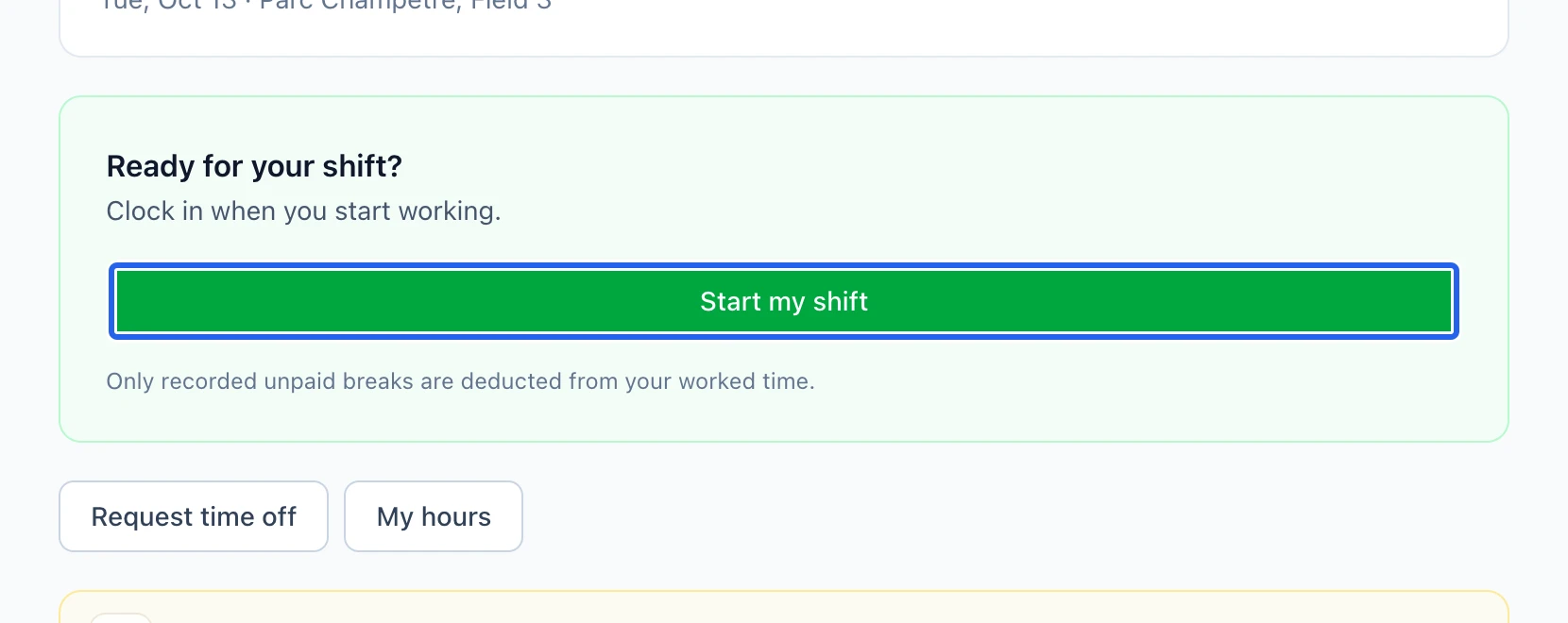
Select the screenshot to enlarge it. The blue outline marks the control to use.
- 4
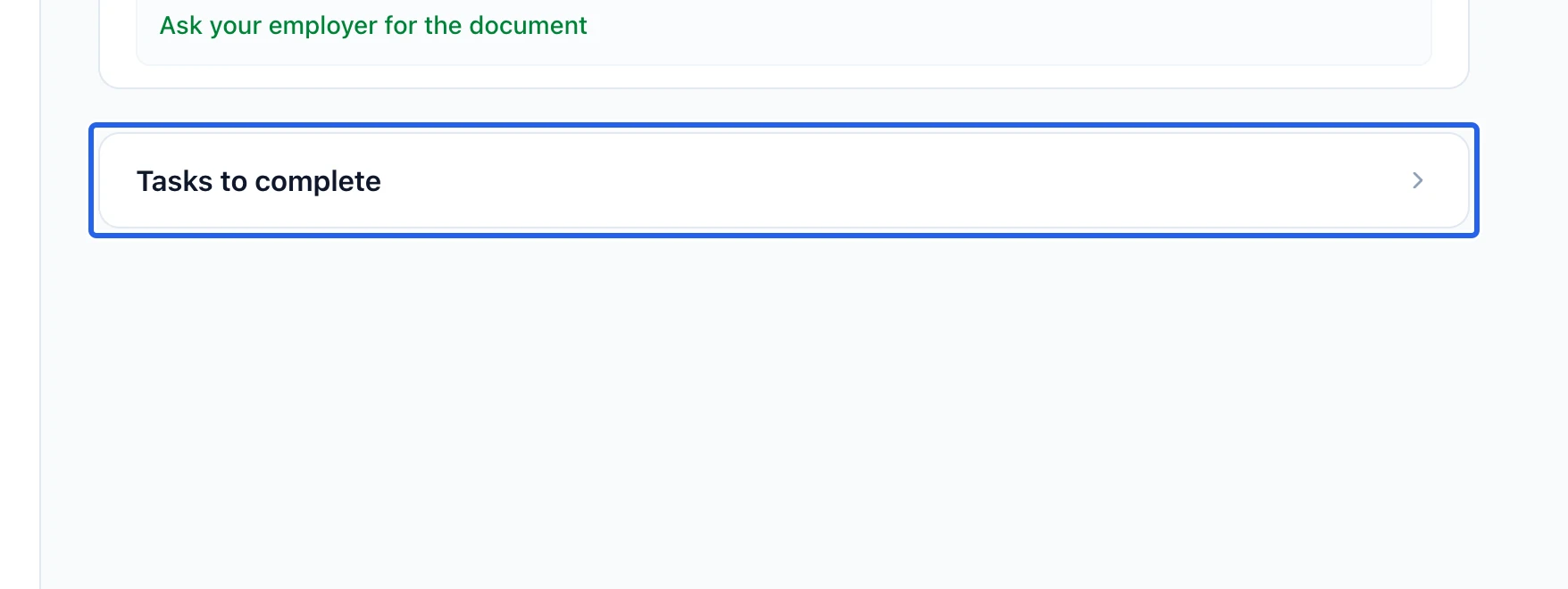
Complete assigned documents
Open Documents, read the assigned document and complete the requested acknowledgement or signature. Review the saved status. Use the internal team messages for work questions, keeping family registration messages in their separate module.
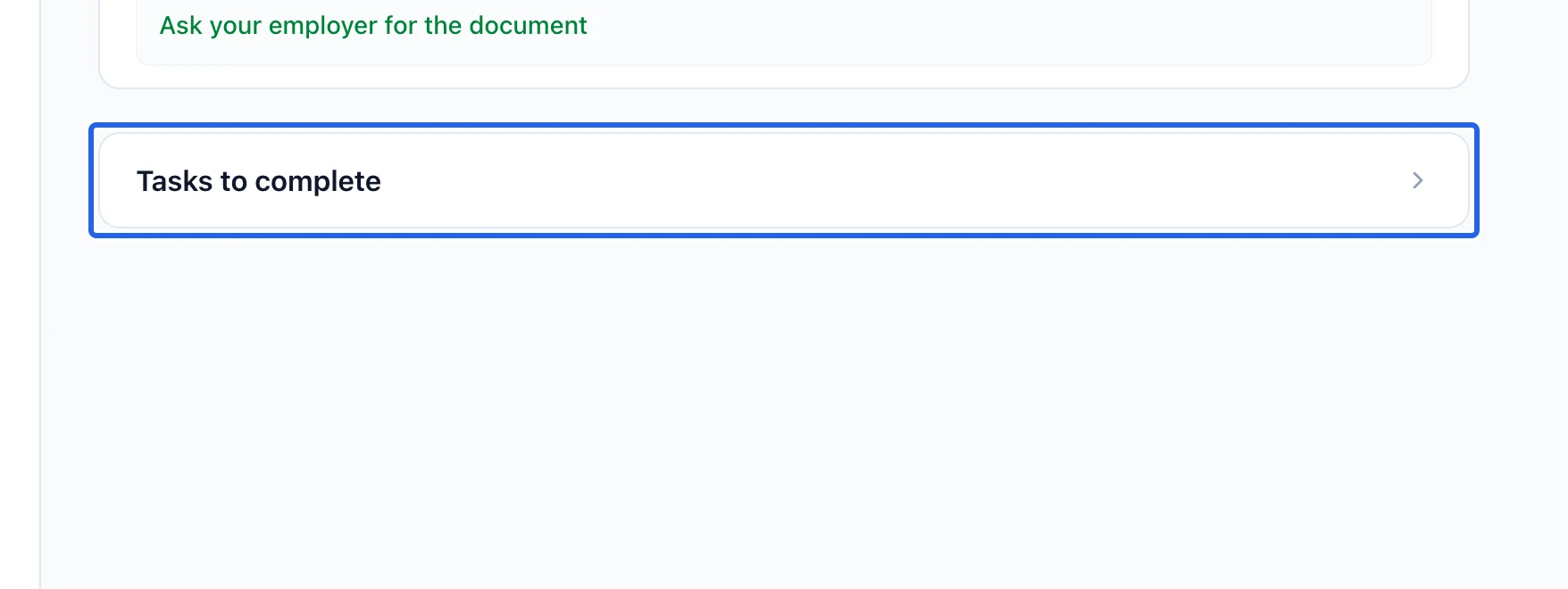
Select the screenshot to enlarge it. The blue outline marks the control to use.
Keep going
Requests, approvals, multi-type leave balances, and how time off feeds the schedule's conflict warnings.
WorkforcePublished shifts become timesheet entries by themselves; you adjust real hours, approve, and lock for payroll.
WorkforceUse private conversations, group chats and announcements, and interpret read status.