Review and approve timesheets
Published shifts become timesheet entries by themselves; you adjust real hours, approve, and lock for payroll.
- 1
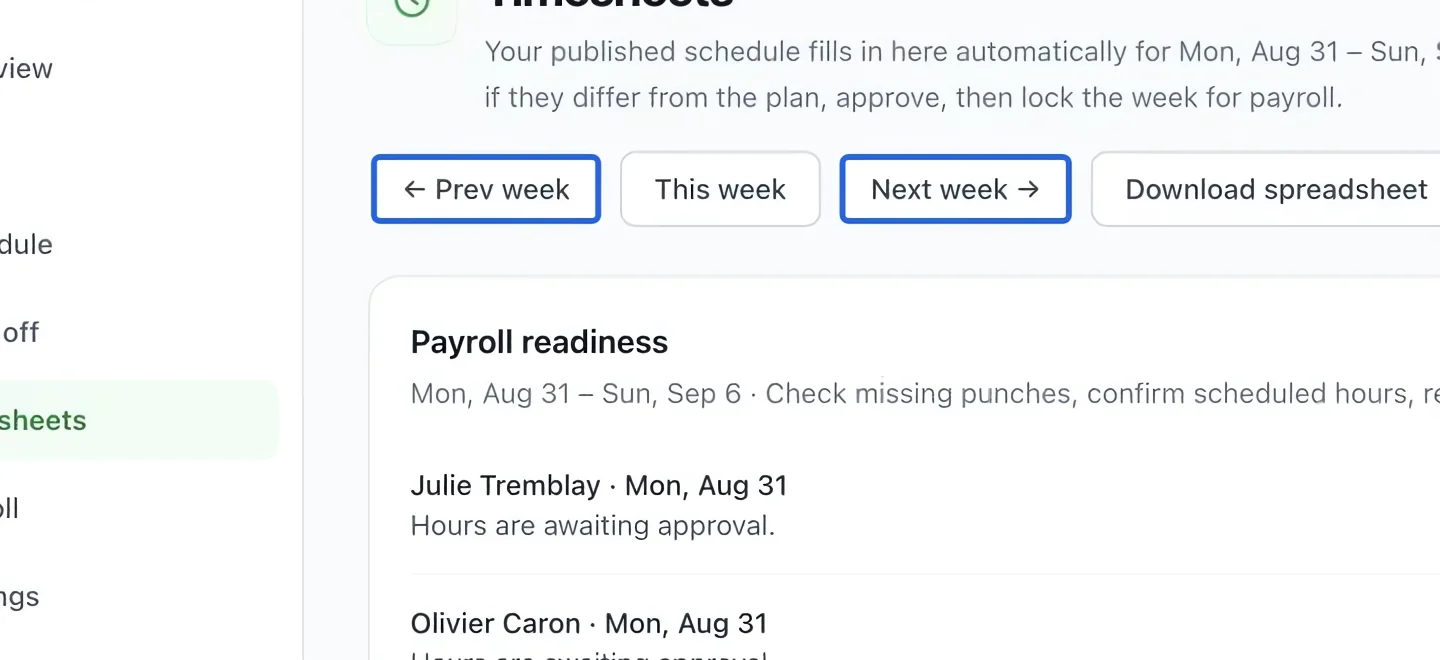
Select the week
Open Workforce → Timesheets. Use the previous/next week links to select the period you are reviewing. Published shifts may prefill Scheduled entries; these are not proof of actual worked hours.
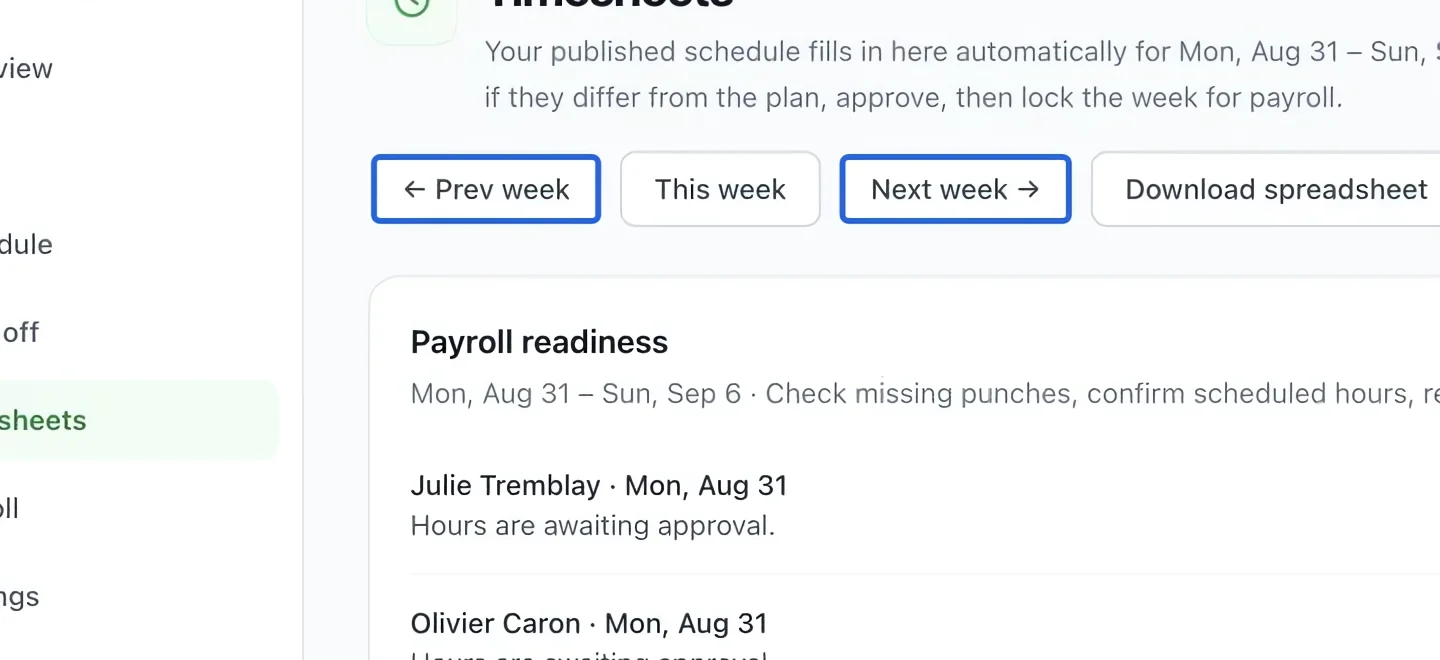
Select the screenshot to enlarge it. The blue outline marks the control to use.
- 2
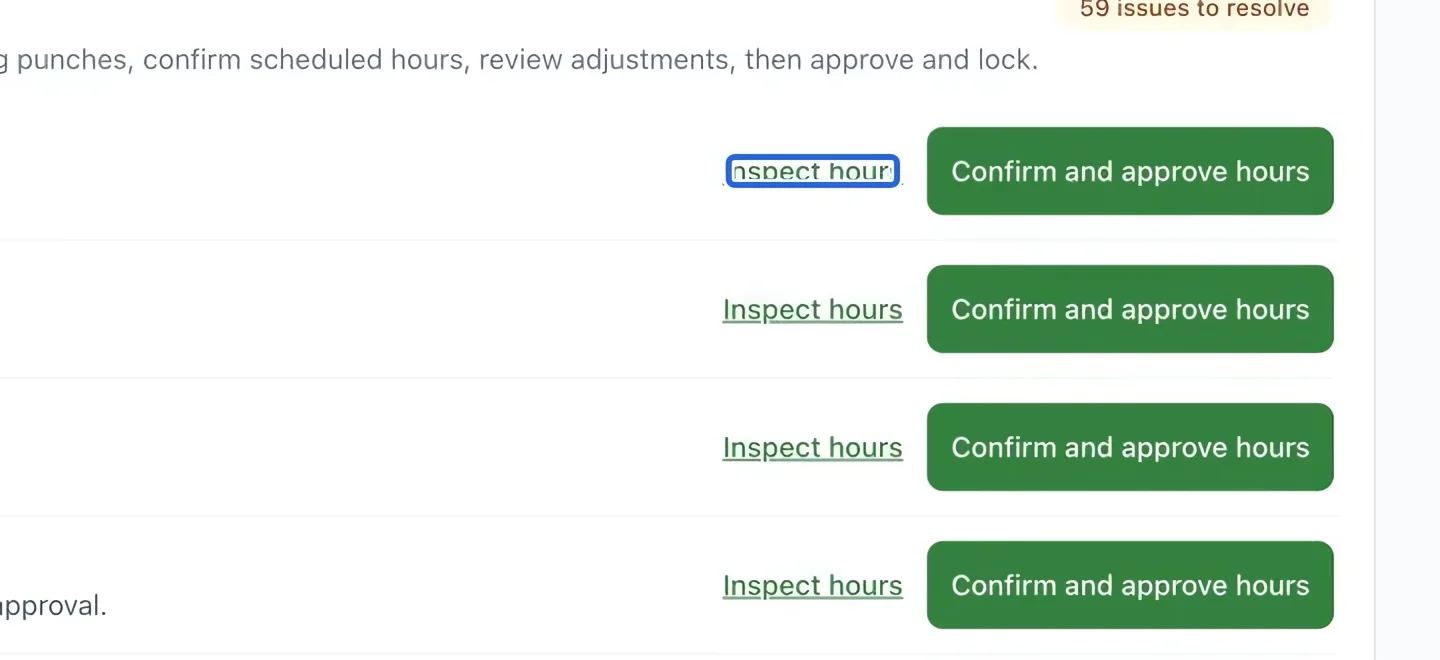
Inspect the flagged hours
Under Payroll readiness, click Inspect hours for an issue. Compare actual start/end times and unpaid breaks with what happened. Missing clock-outs and ongoing breaks must be corrected.
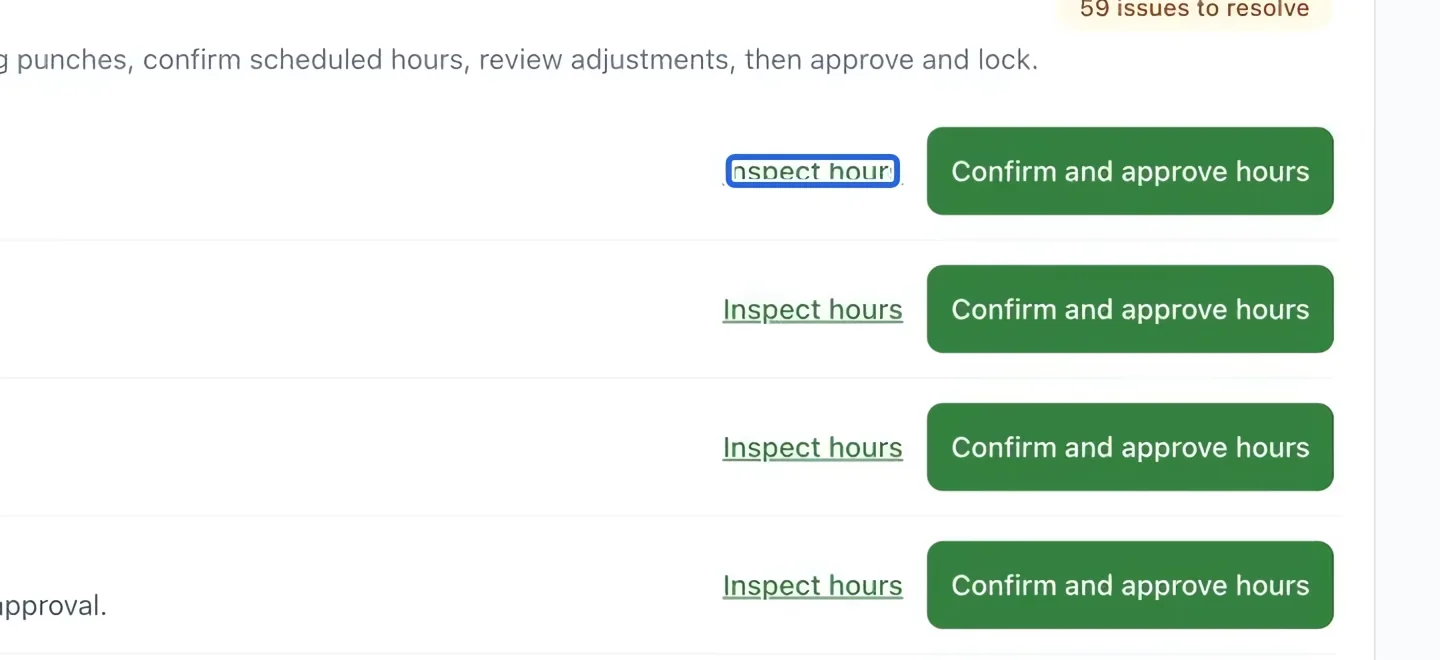
Select the screenshot to enlarge it. The blue outline marks the control to use.
- 3
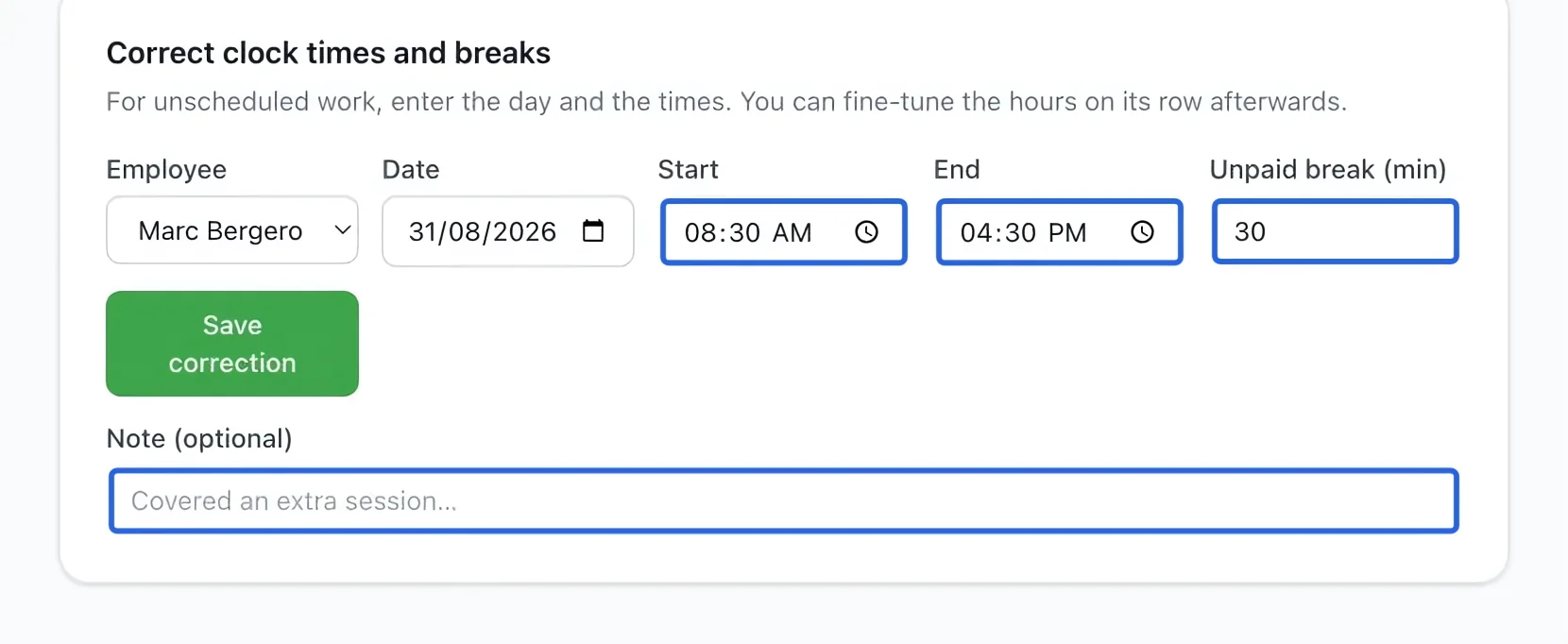
Correct a time entry
Use Correct punches on the relevant entry to fix clock times or breaks, or adjust worked hours as appropriate. Add a clear reason and save. Review an adjustment again if it is changed later.
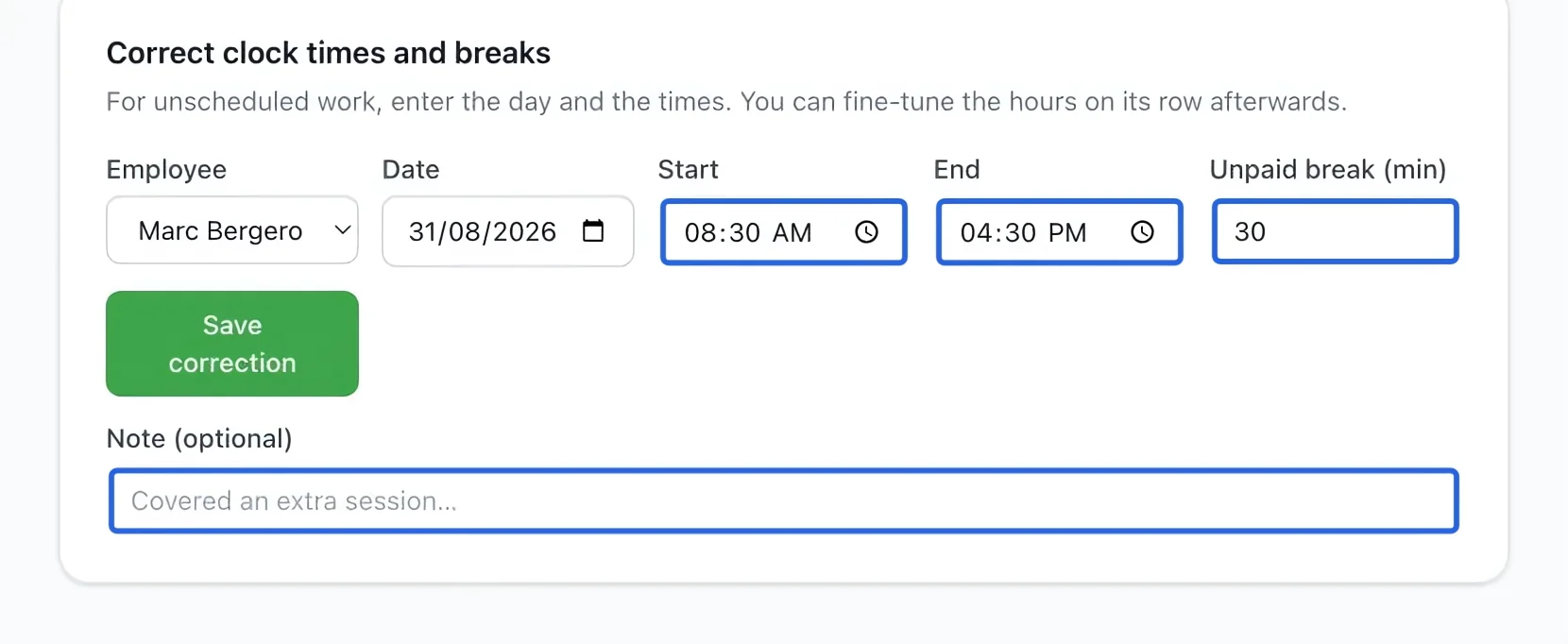
Select the screenshot to enlarge it. The blue outline marks the control to use.
- 4
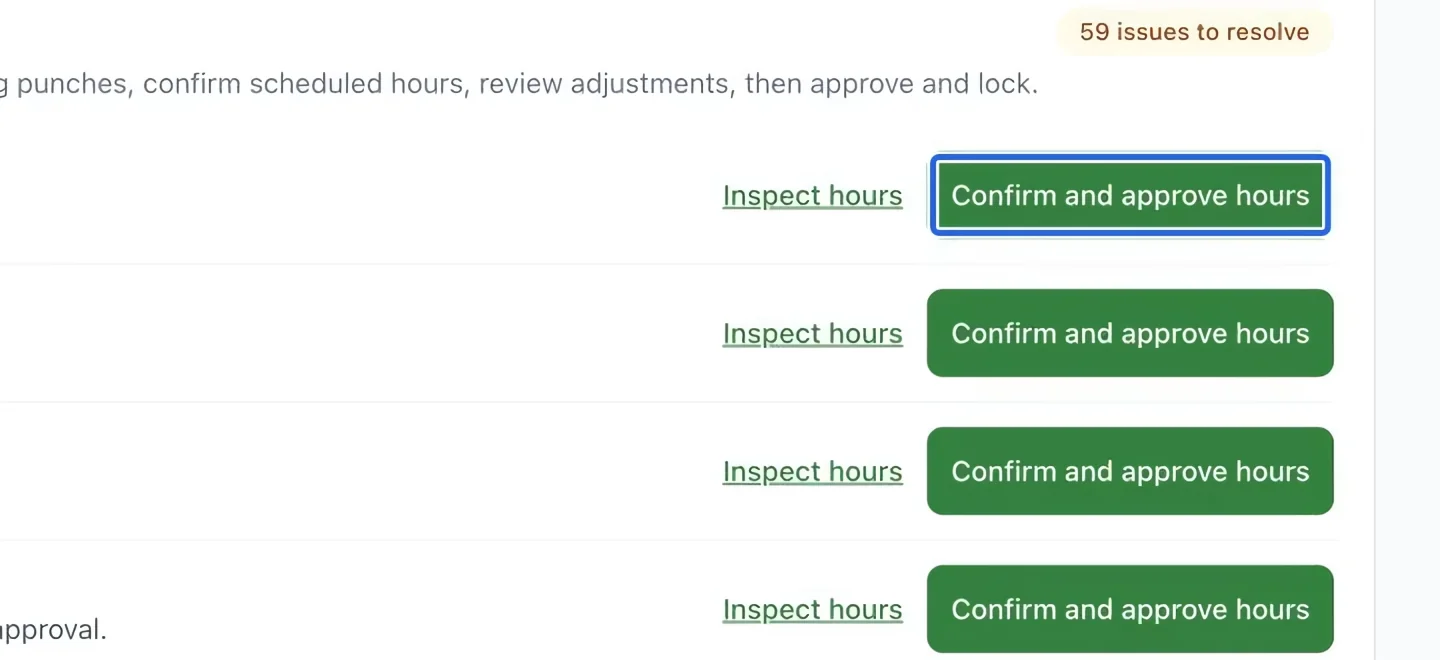
Approve reviewed hours
After checking an entry, use Confirm and approve hours where offered. Resolve all readiness issues. Entries with unresolved checks cannot simply be approved or locked; review each warning rather than approving blindly.
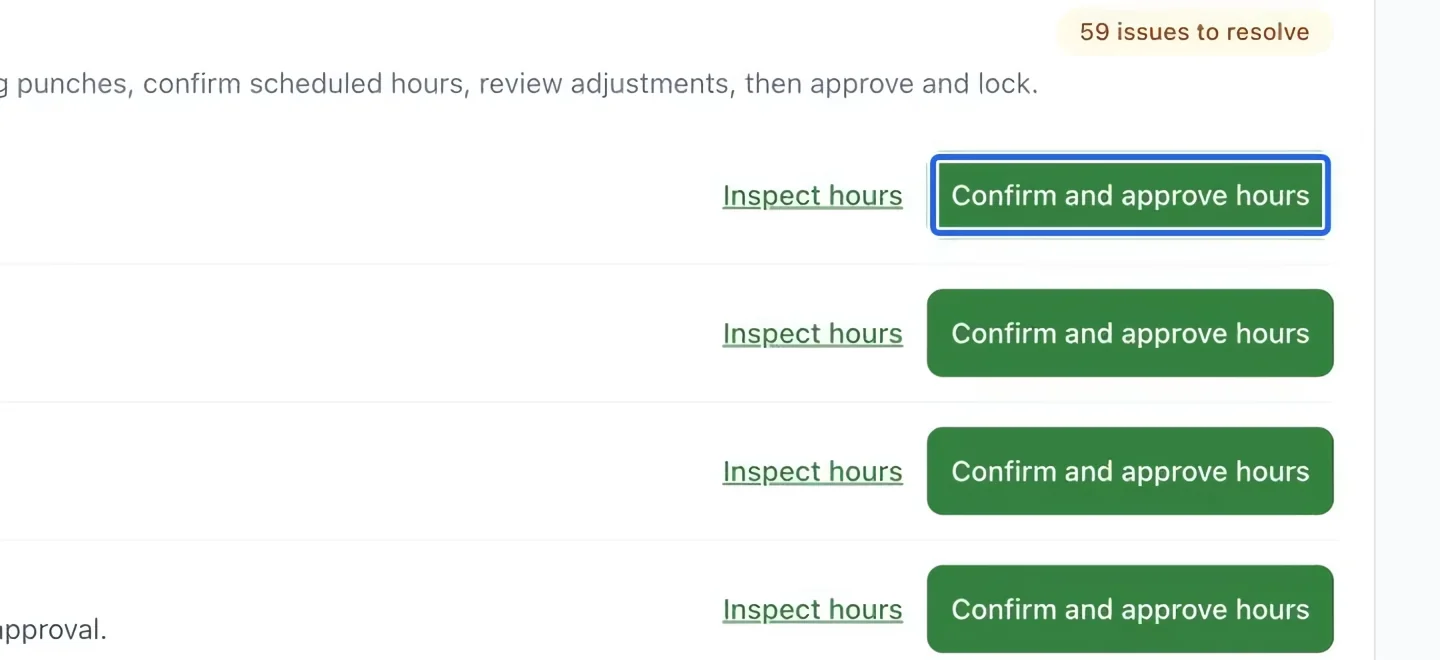
Select the screenshot to enlarge it. The blue outline marks the control to use.
- 5
Export the reviewed period
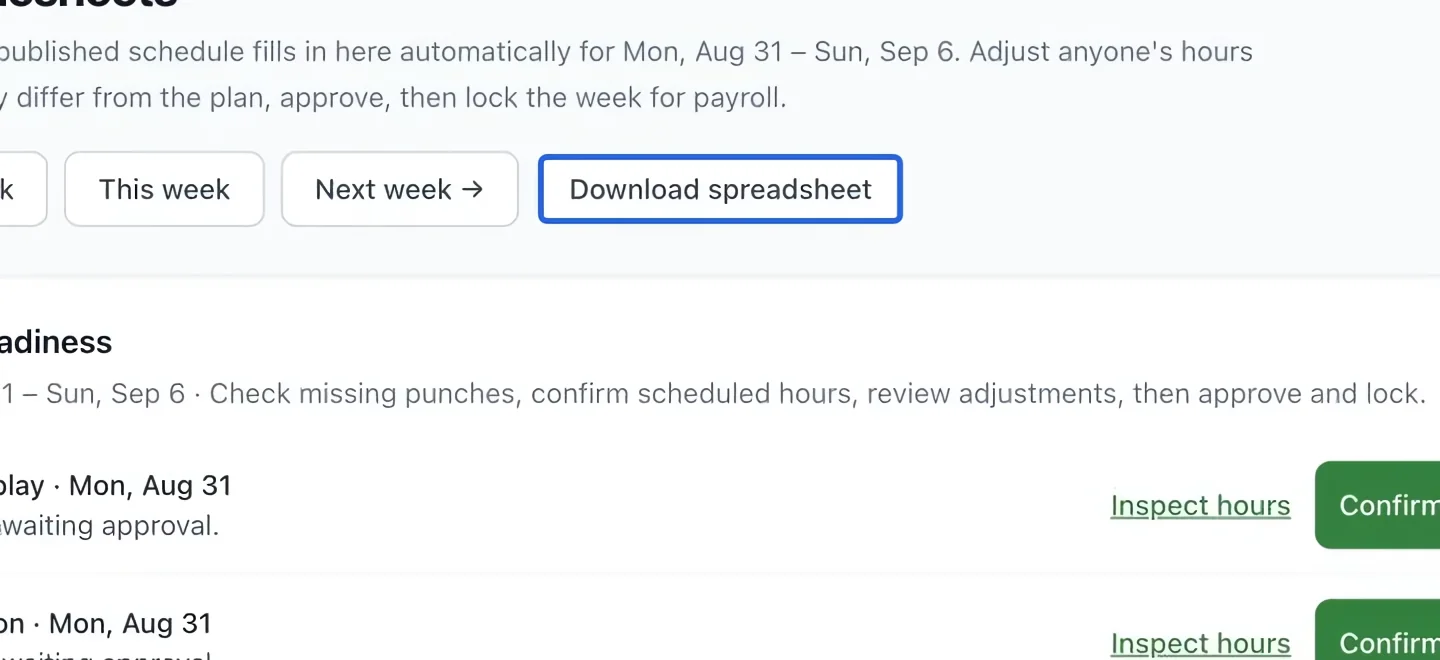
Use Download spreadsheet for the selected dates. Before final payroll, ensure all required entries are approved and readiness checks pass. Locking freezes entries; do not lock while corrections are still outstanding.
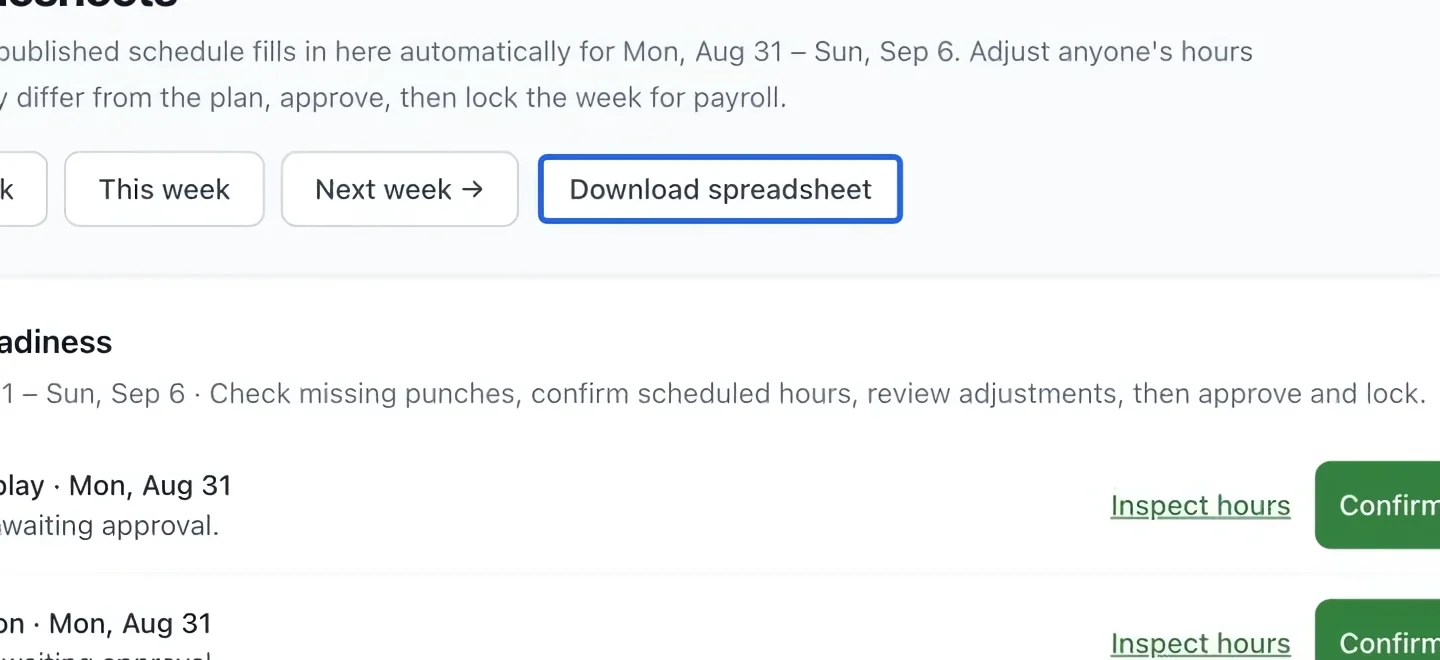
Select the screenshot to enlarge it. The blue outline marks the control to use.
- 6
Resolve the source of an hours warning
Review every recorded hour, including entries that cannot yet be included in payroll. If the page reports an invalid scheduled shift, open that shift and correct its dates or times before proceeding. An empty list alone does not resolve a warning shown above it.