
Customize the first registration profile
Choose the information each family and participant provides to your club, and preview both languages.
- 1
Open the club profile settings
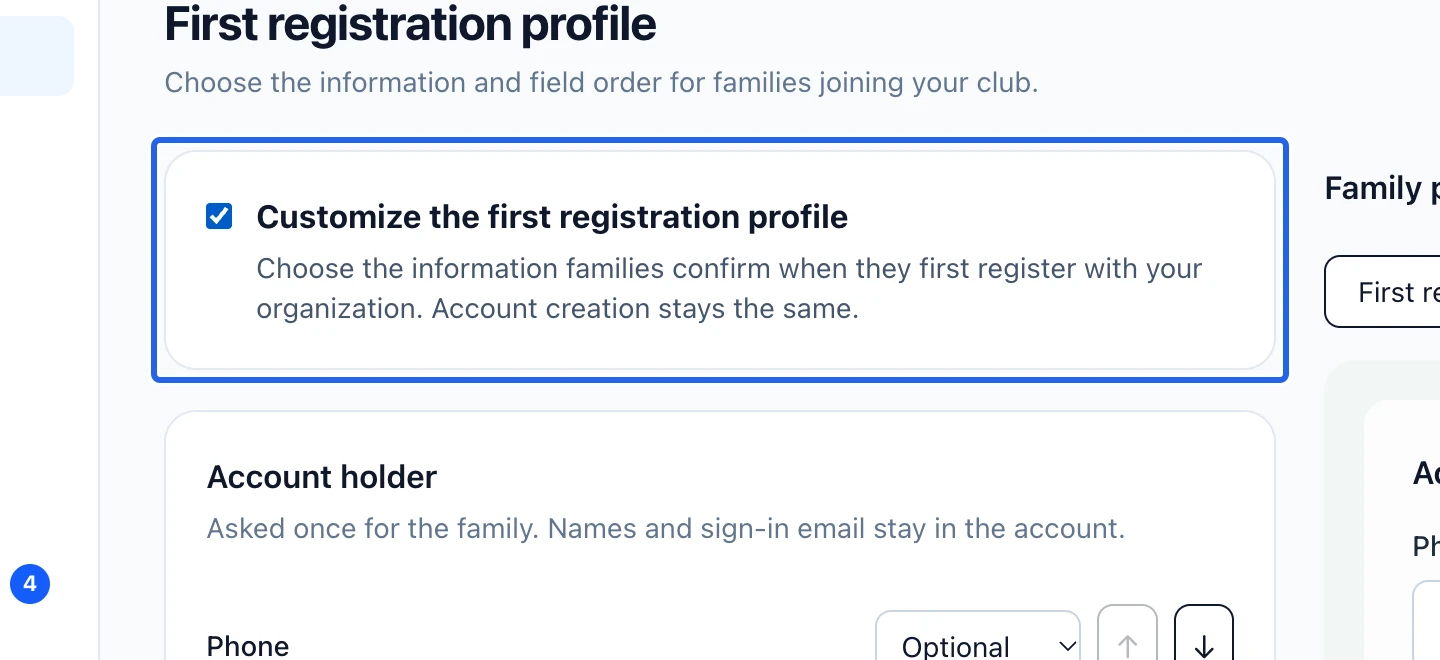
Open First registration profile with permission to manage forms. Enable Customize the first registration profile. This profile collects information for your club; the questions attached to an individual program remain in its separate registration form.
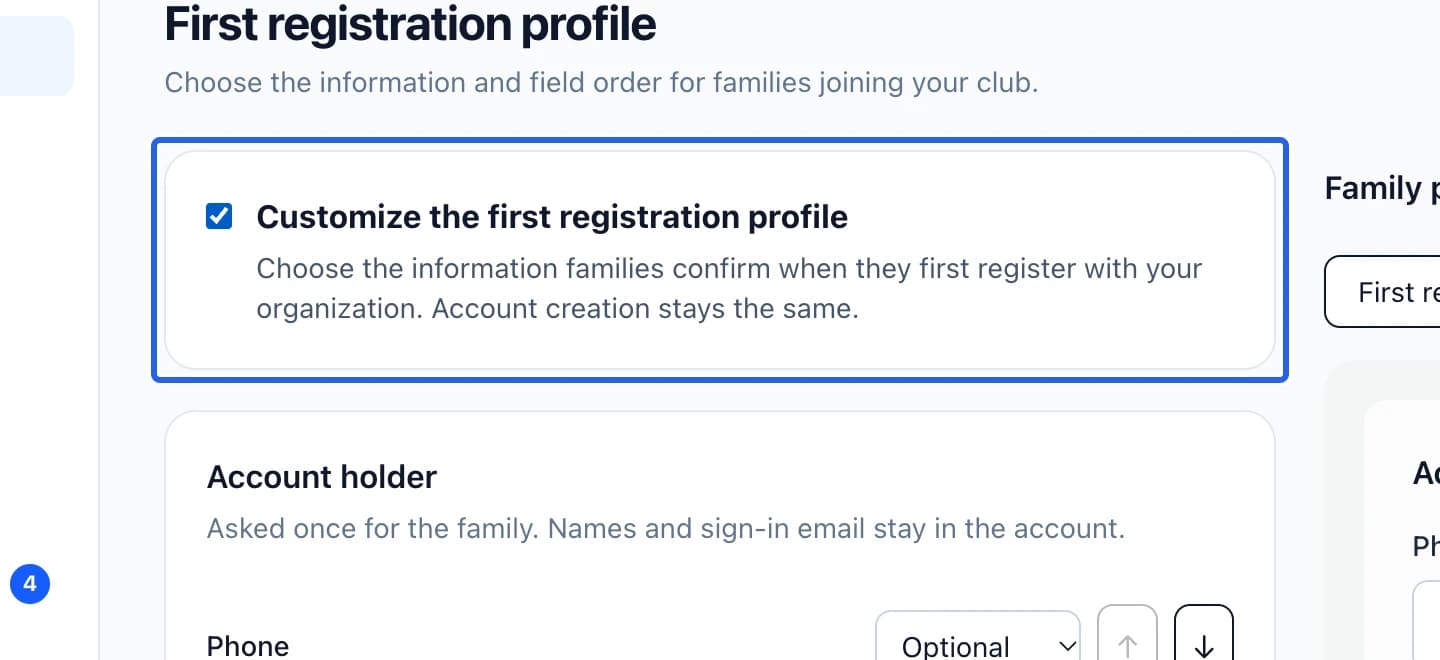
Select the screenshot to enlarge it. The blue outline marks the control to use.
- 2
Choose account and participant fields
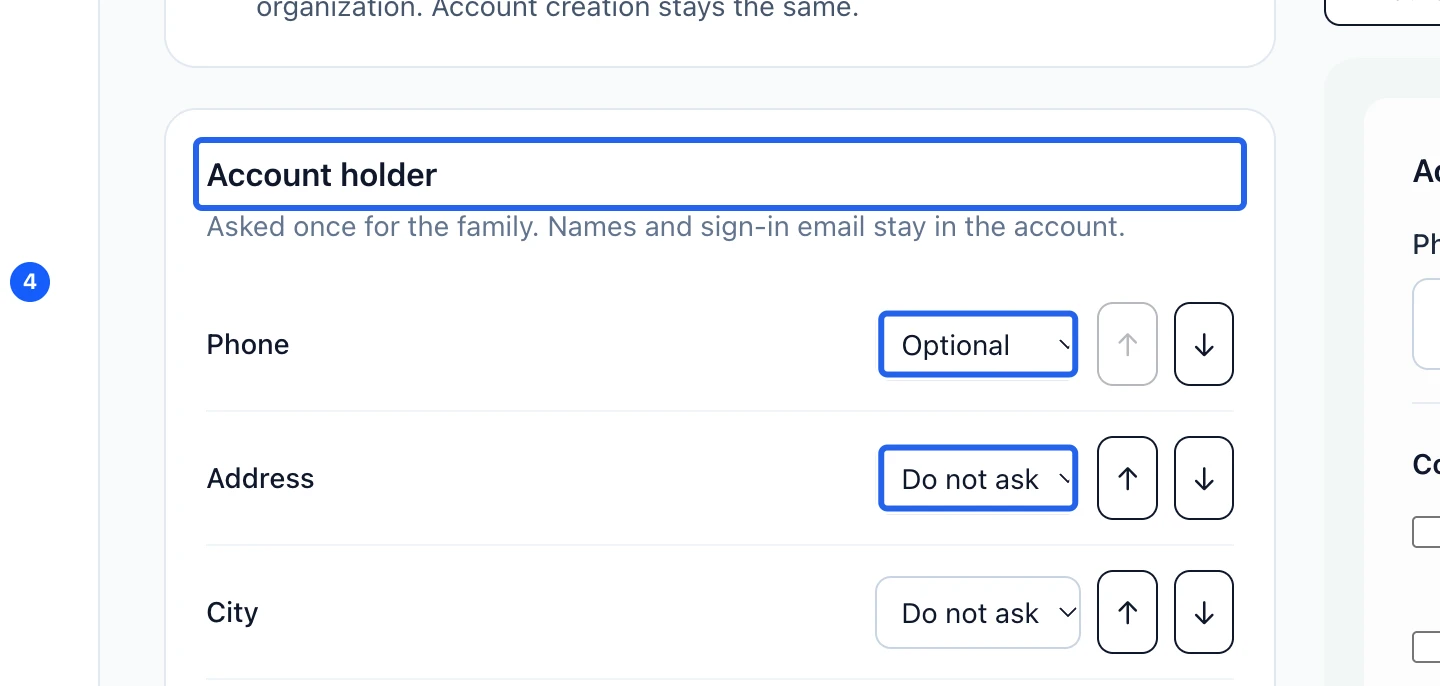
For Account holder, choose the phone and address fields. For Participant, choose birth date, gender, medical notes and emergency details. Set each available field to hidden, optional or required, and use the arrows to reorder it. Participant names remain required; a program with an age limit requires a birth date even if this profile hides it.
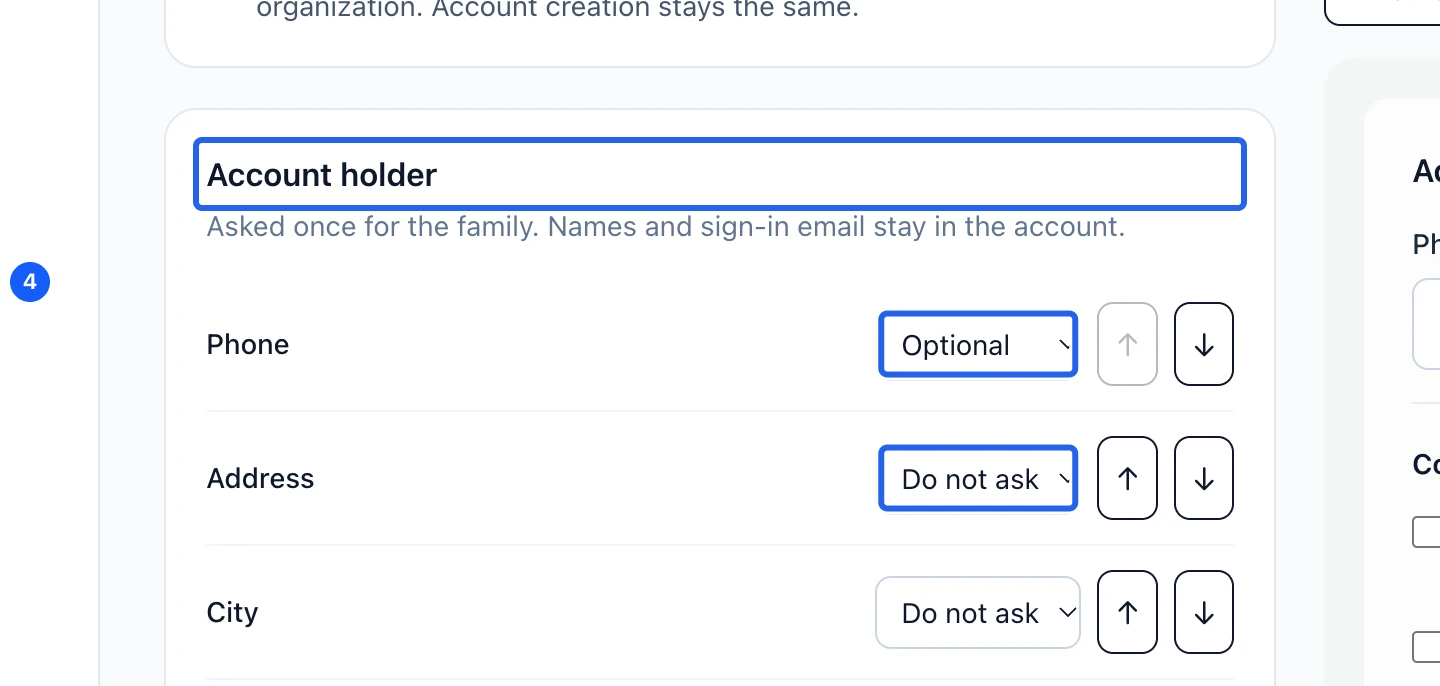
Select the screenshot to enlarge it. The blue outline marks the control to use.
- 3
Position the optional permissions
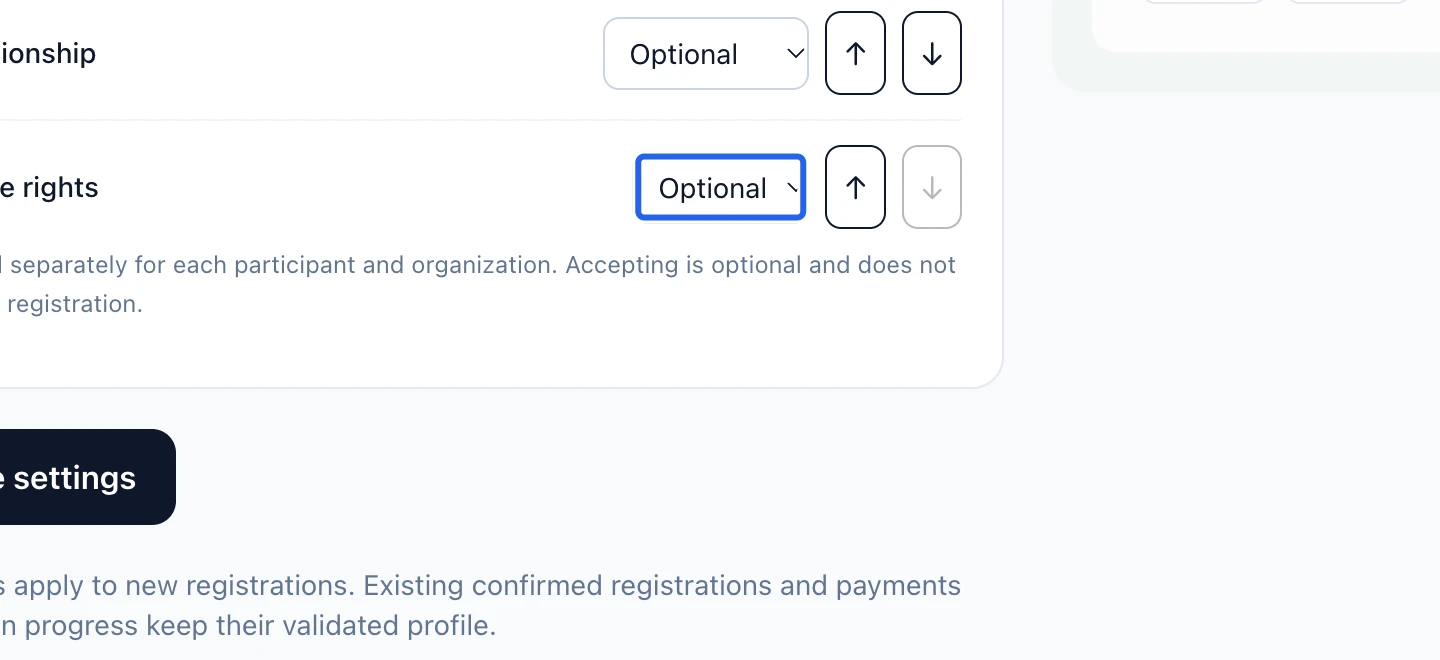
Reorder communication preferences in the account section and image permission in each participant’s section. These choices stay optional: refusing image permission does not block registration. Image permission belongs to one participant and one organization; existing communication preferences are retained.
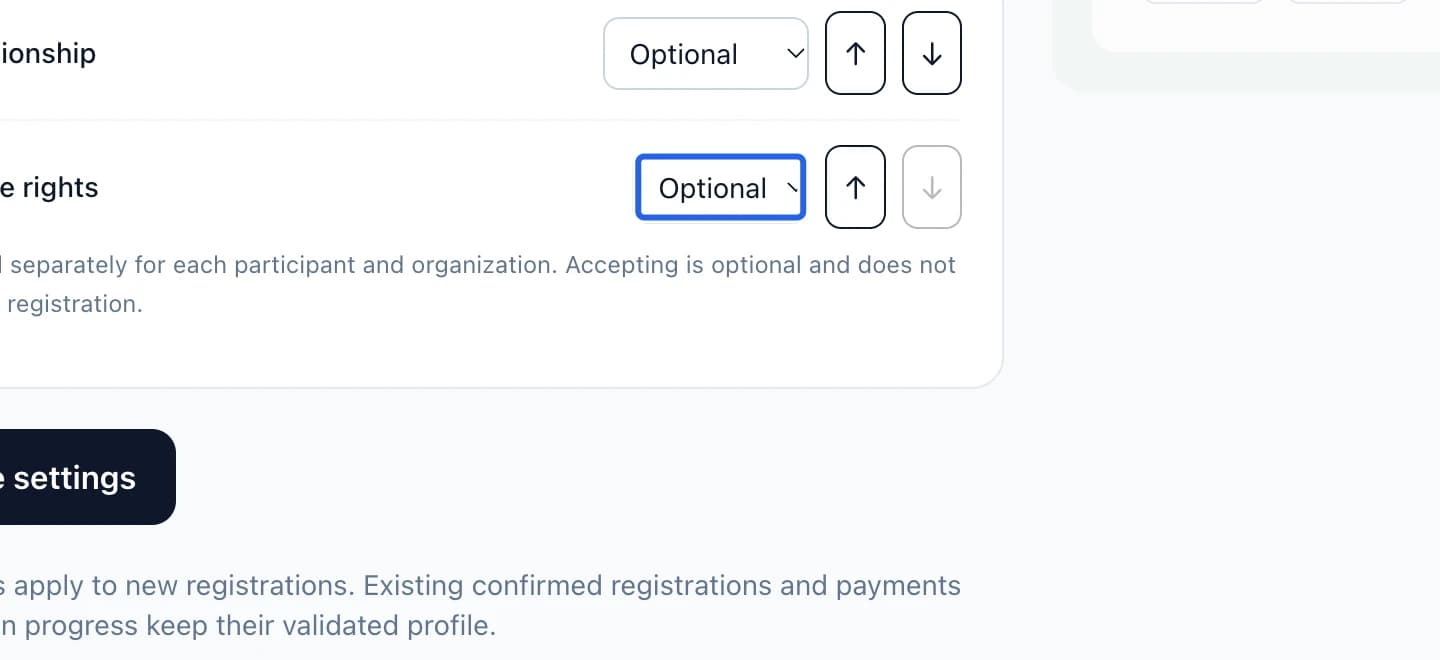
Select the screenshot to enlarge it. The blue outline marks the control to use.
- 4
Preview and save the profile
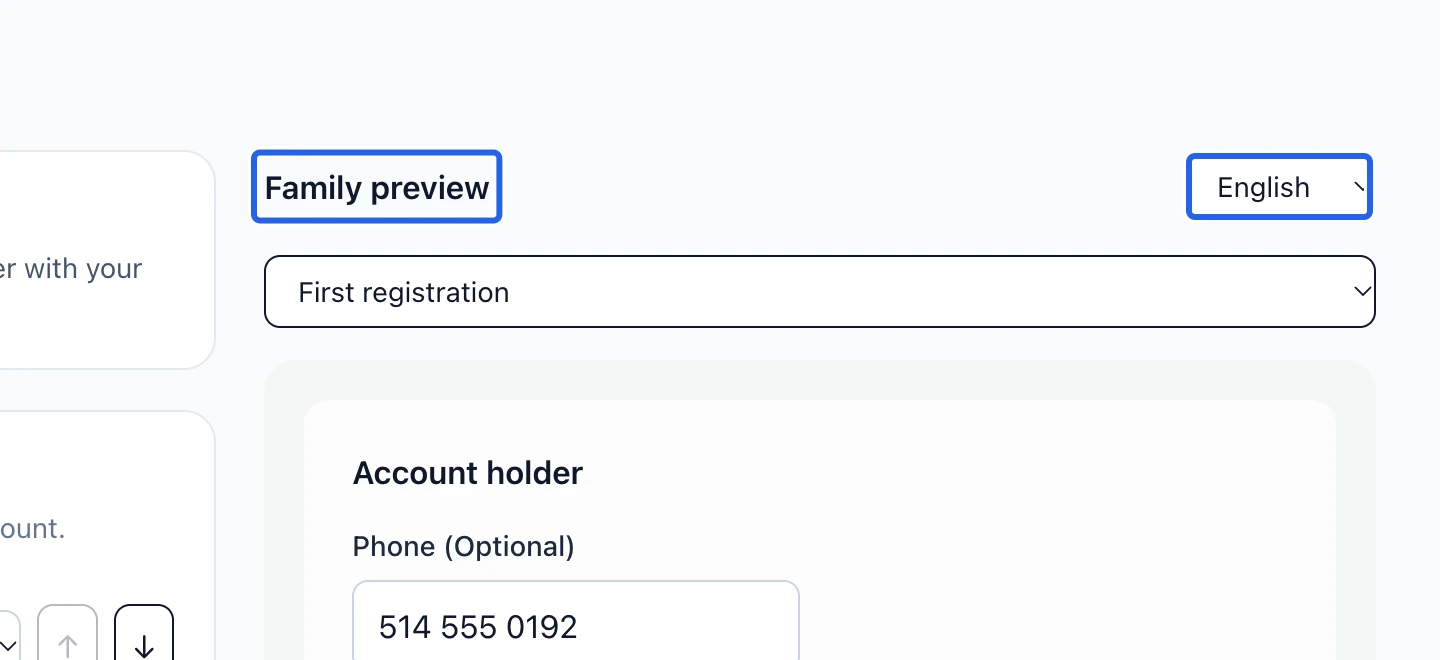
Use Family preview in French and English, for both a first registration and a returning family. Click Save settings and wait for confirmation. Changes apply to new registrations; confirmed registrations and payments already in progress retain the profile validated for them.
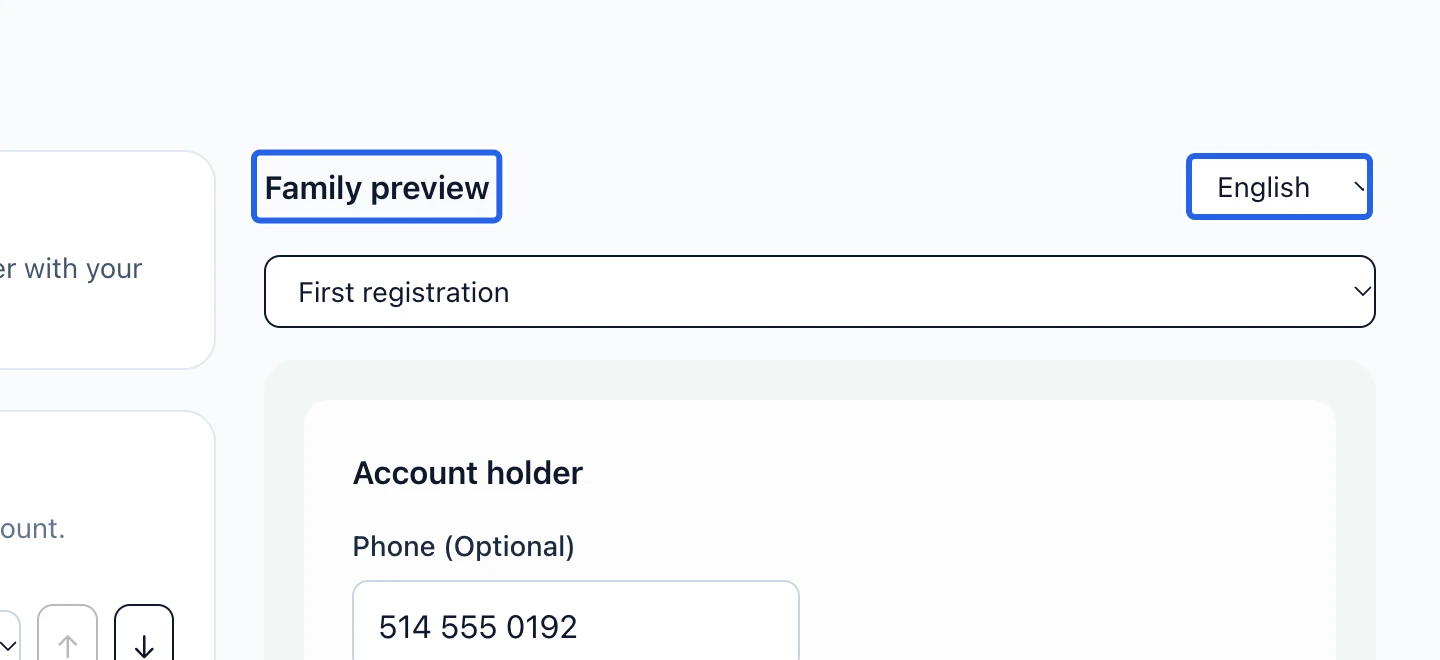
Select the screenshot to enlarge it. The blue outline marks the control to use.
Keep going
Collect medical info, emergency contacts and signed waivers with reusable form templates.
Clients & attendanceFollow the public registration journey, confirm participant details and review the final status.
Clients & attendanceExport the displayed schedule or several programs to Excel, with the fields and column order you need.