
Edit several programs together
Select programs, change only the intended fields and review the result before applying it.
- 1
Check the entire selection
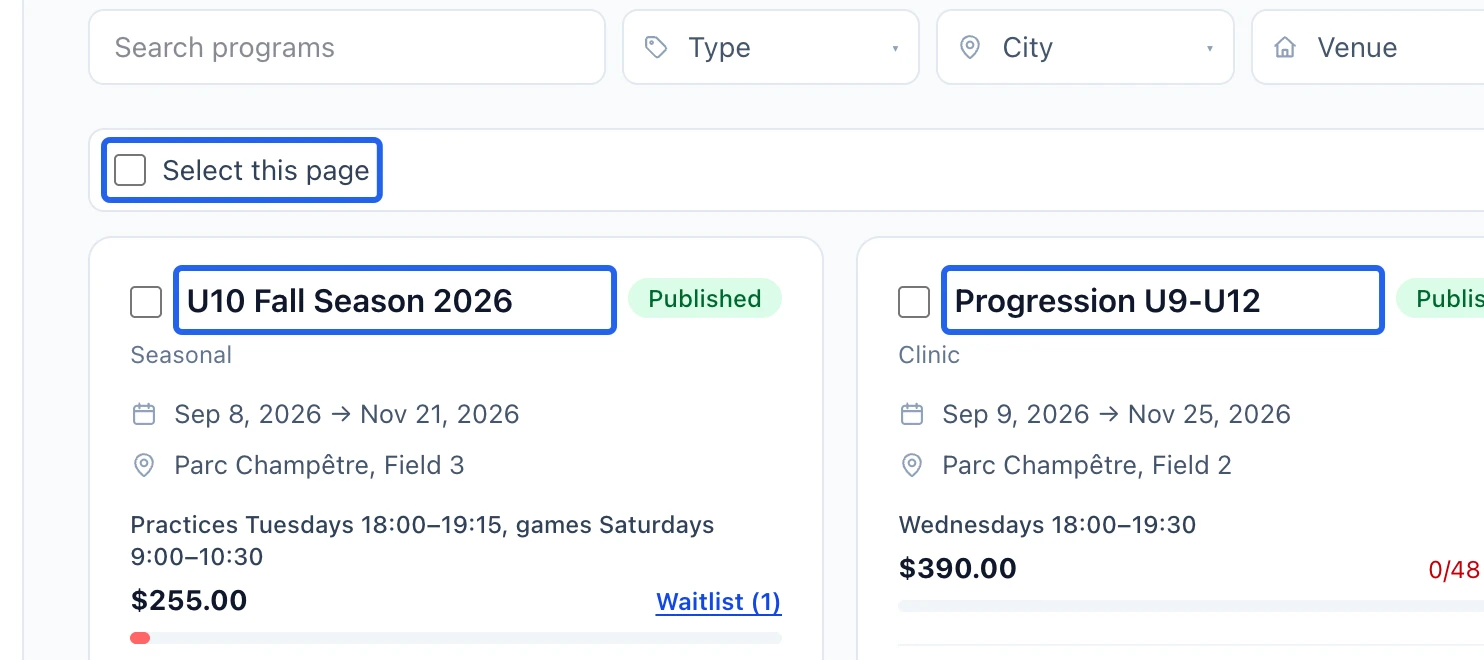
Open Programs. Select individual rows, Select this page, or all matching results when offered. Open the selection details to check programs on other pages or hidden by filters. An operation accepts up to 100 programs; narrow your filters if needed.
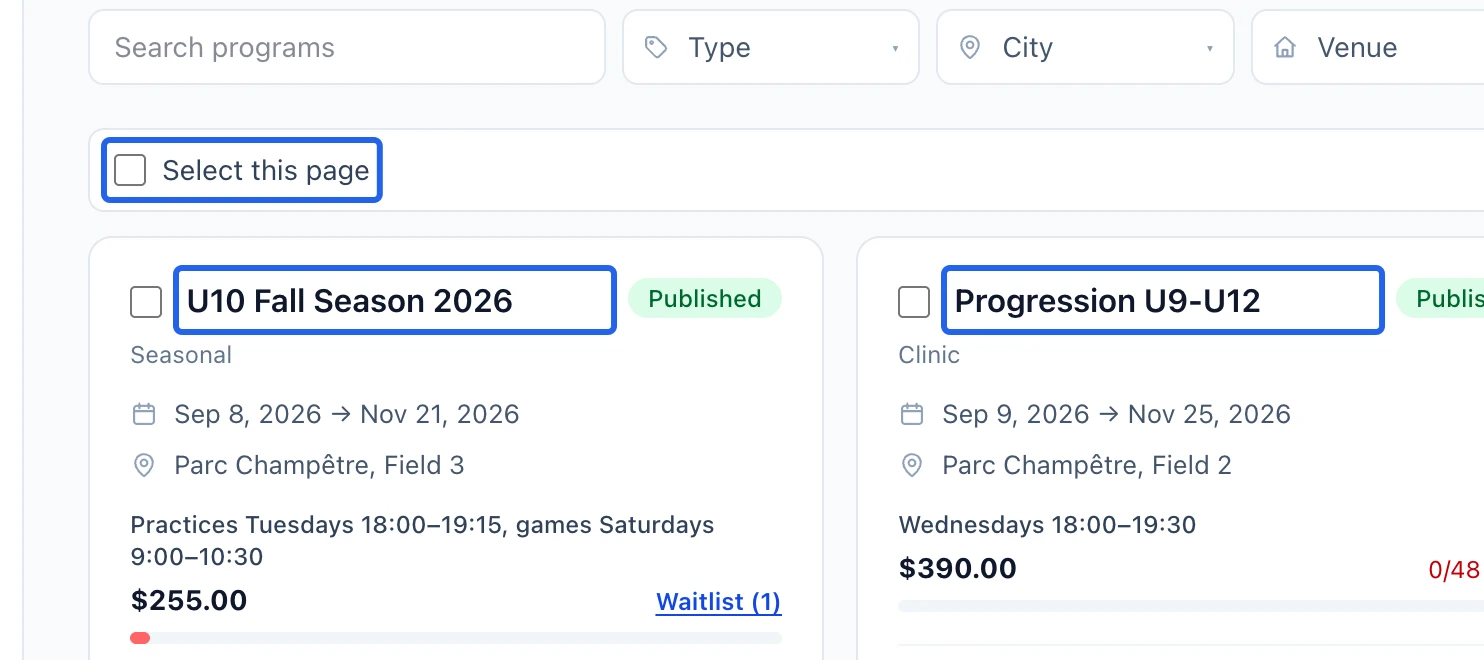
Select the screenshot to enlarge it. The blue outline marks the control to use.
- 2
Enable only the intended changes
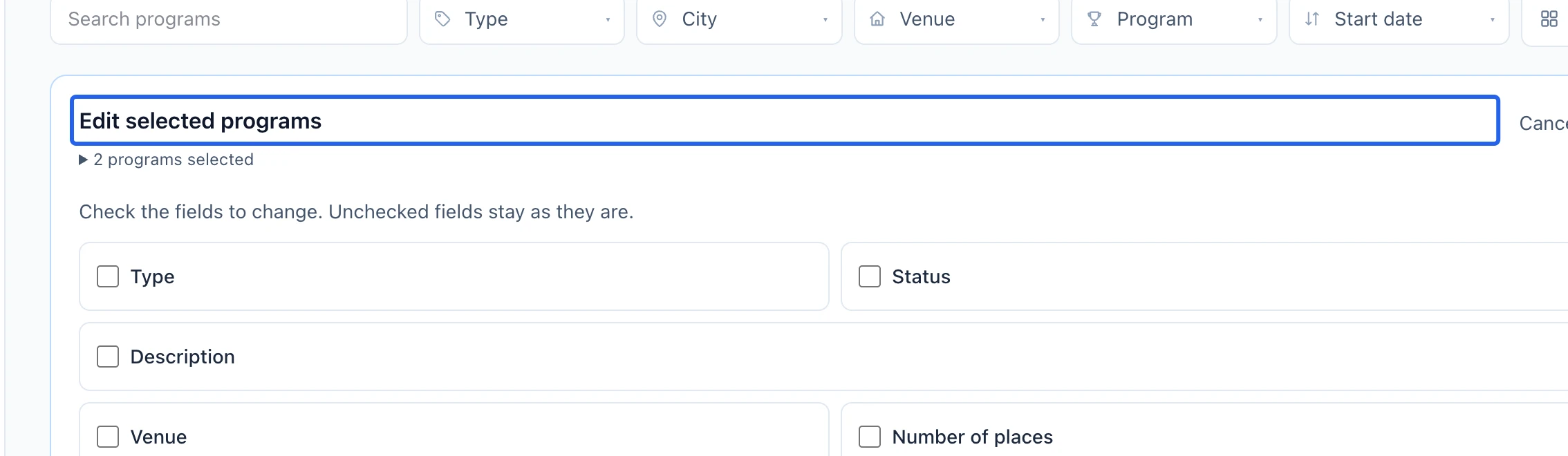
Click Edit, then check each field to change. Unchecked fields keep their values. Set type, status, description, venue, capacity, registration dates or price; expand Other settings for forms and payment plans. Use the explicit clear control when removing a value. A shared description replaces the primary-language description while keeping existing translations.
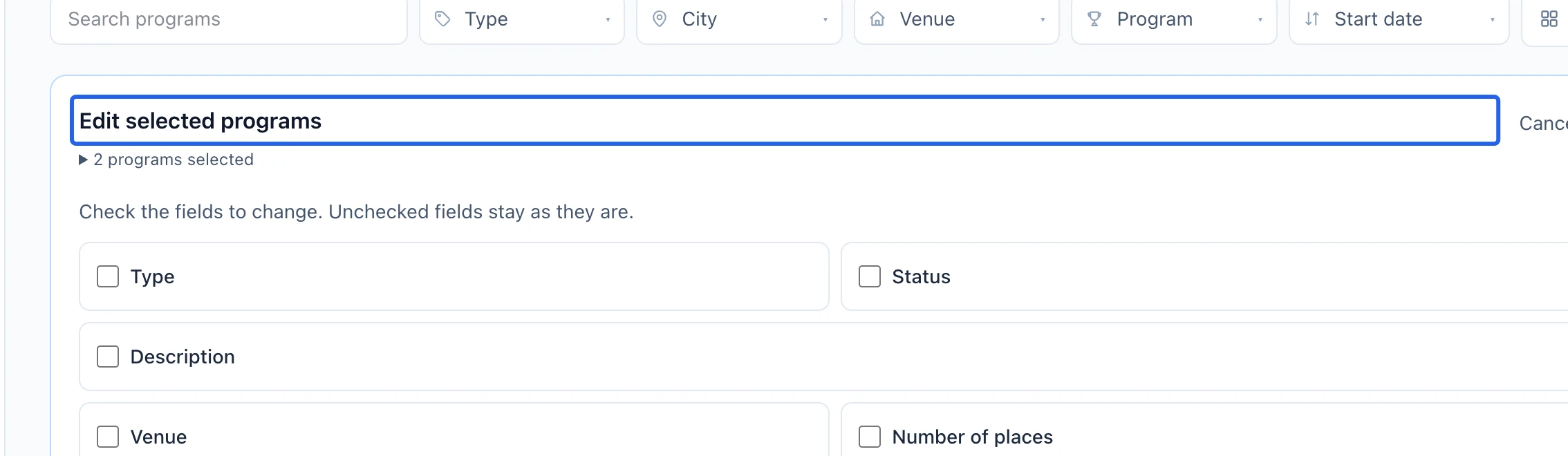
Select the screenshot to enlarge it. The blue outline marks the control to use.
- 3
Review prices and option effects
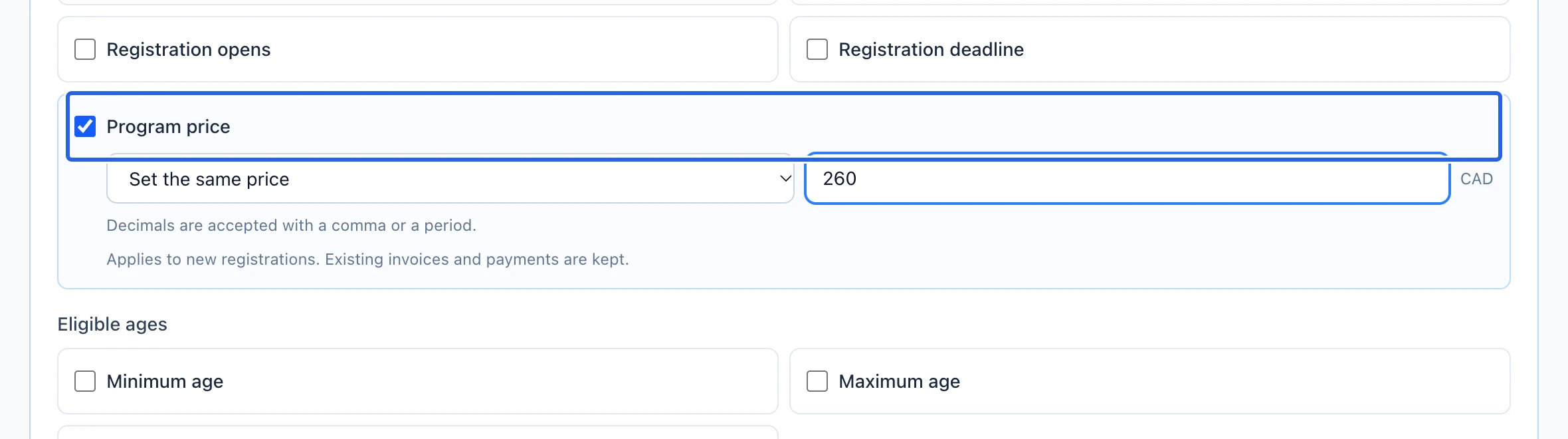
For price, choose a fixed price or an increase/decrease by amount or percentage. Click Review changes. Read the affected program and option counts, then open Details by program to inspect the before/after values. Pay particular attention to option capacities and prices, dates and publication status. Existing registrations and payments are not repriced by changing catalog settings.
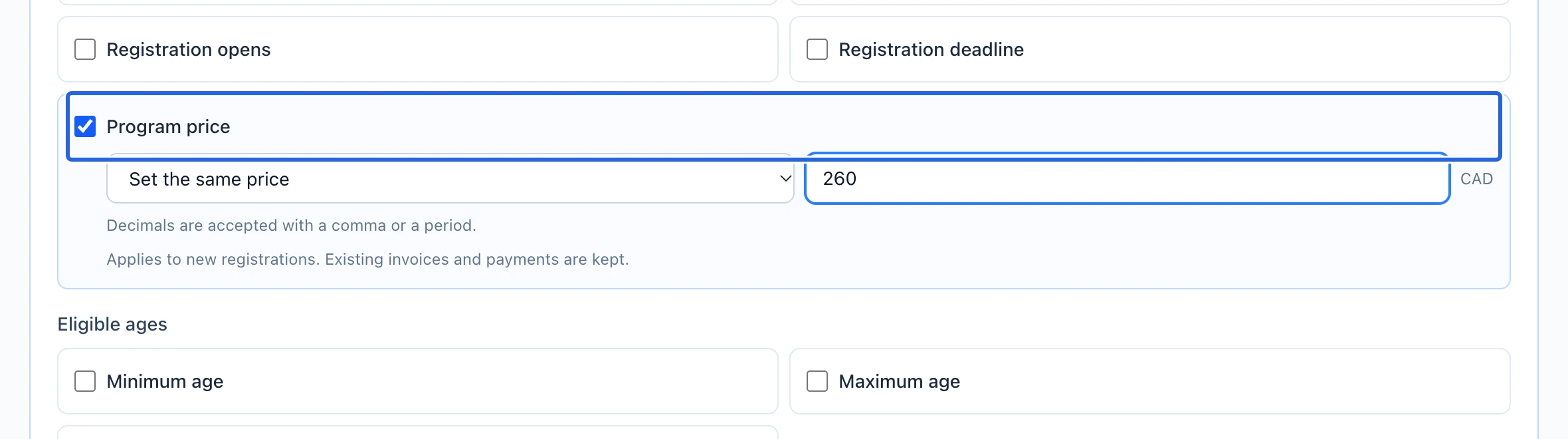
Select the screenshot to enlarge it. The blue outline marks the control to use.
- 4
Apply the reviewed changes
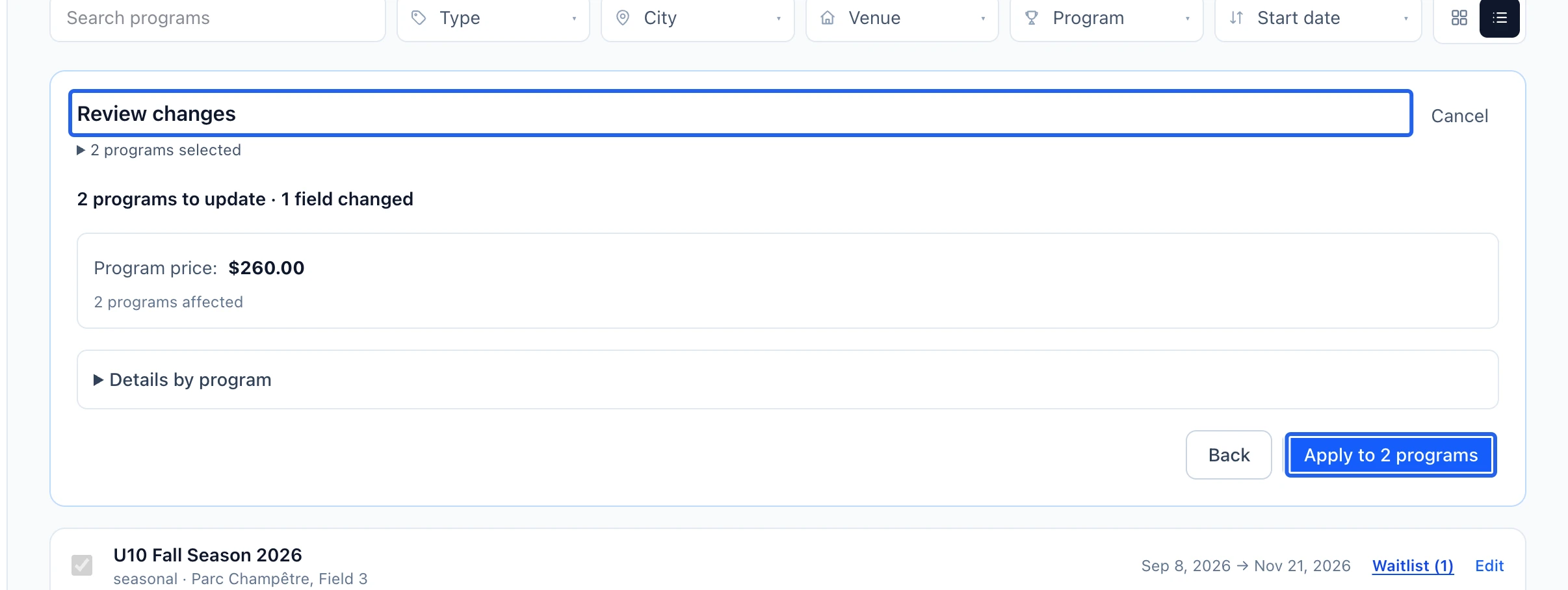
Go back if anything is wrong, or apply the reviewed changes. If the platform reports that records changed in the meantime, prepare a fresh review. Wait for the saved count and inspect the affected programs. Duplicate creates separate drafts; it is a different operation.
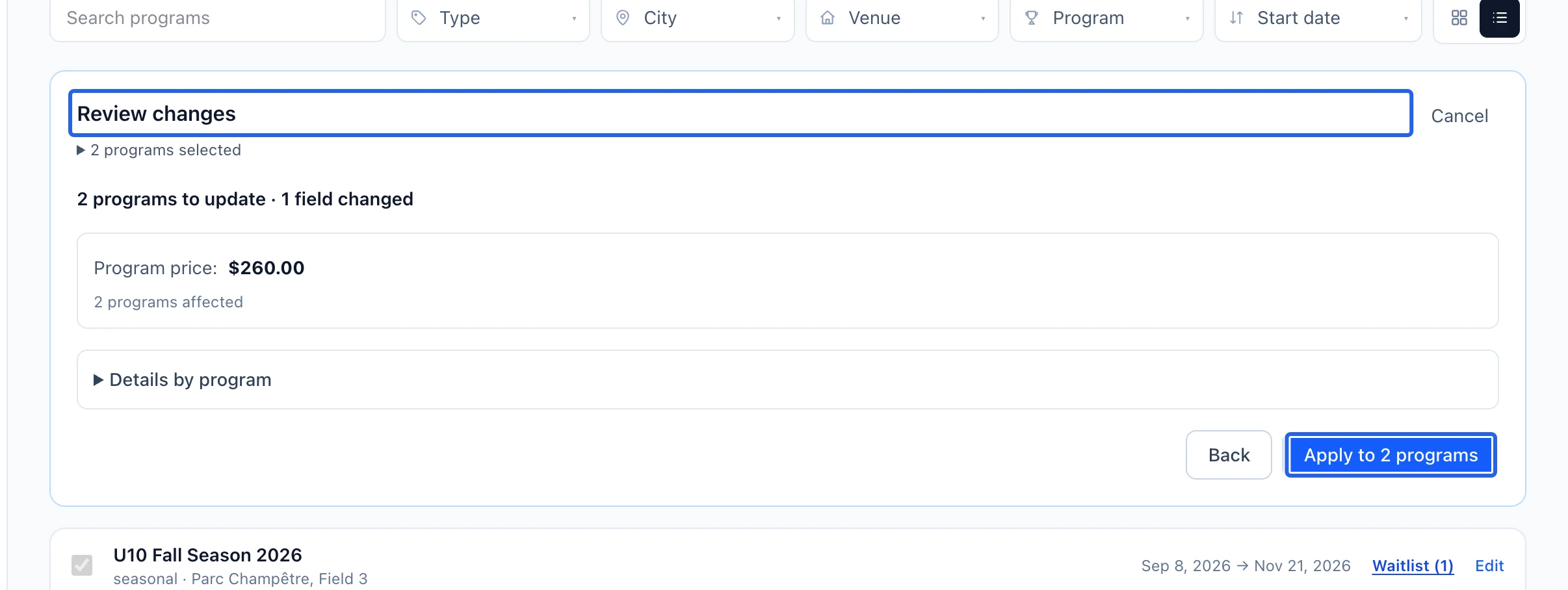
Select the screenshot to enlarge it. The blue outline marks the control to use.
Keep going
Copy selected programs into drafts, choosing their destination type while preserving dates and schedules.
Programs & activitiesPublish a season, camp, league or clinic that families can register for on your portal.
Clients & attendanceExport the displayed schedule or several programs to Excel, with the fields and column order you need.