
Export participant lists and create templates
Export the displayed schedule or several programs to Excel, with the fields and column order you need.
- 1
Choose programs and export scope
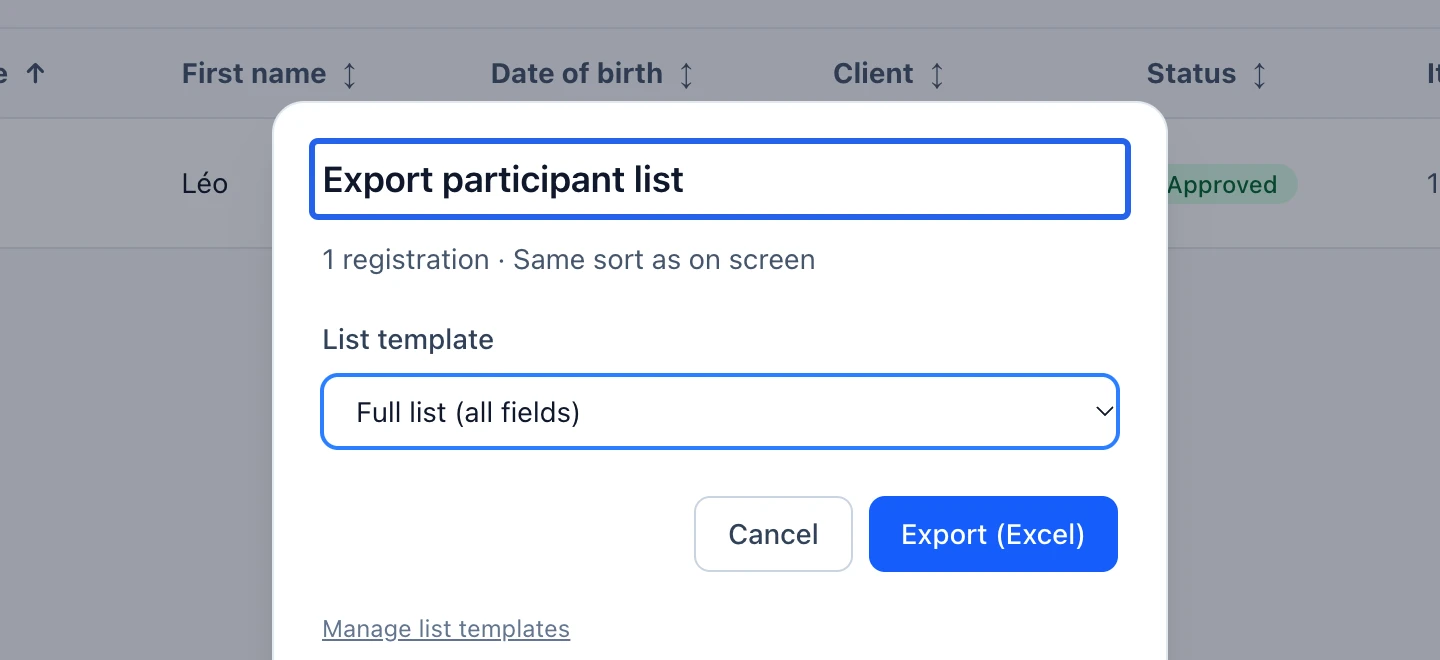
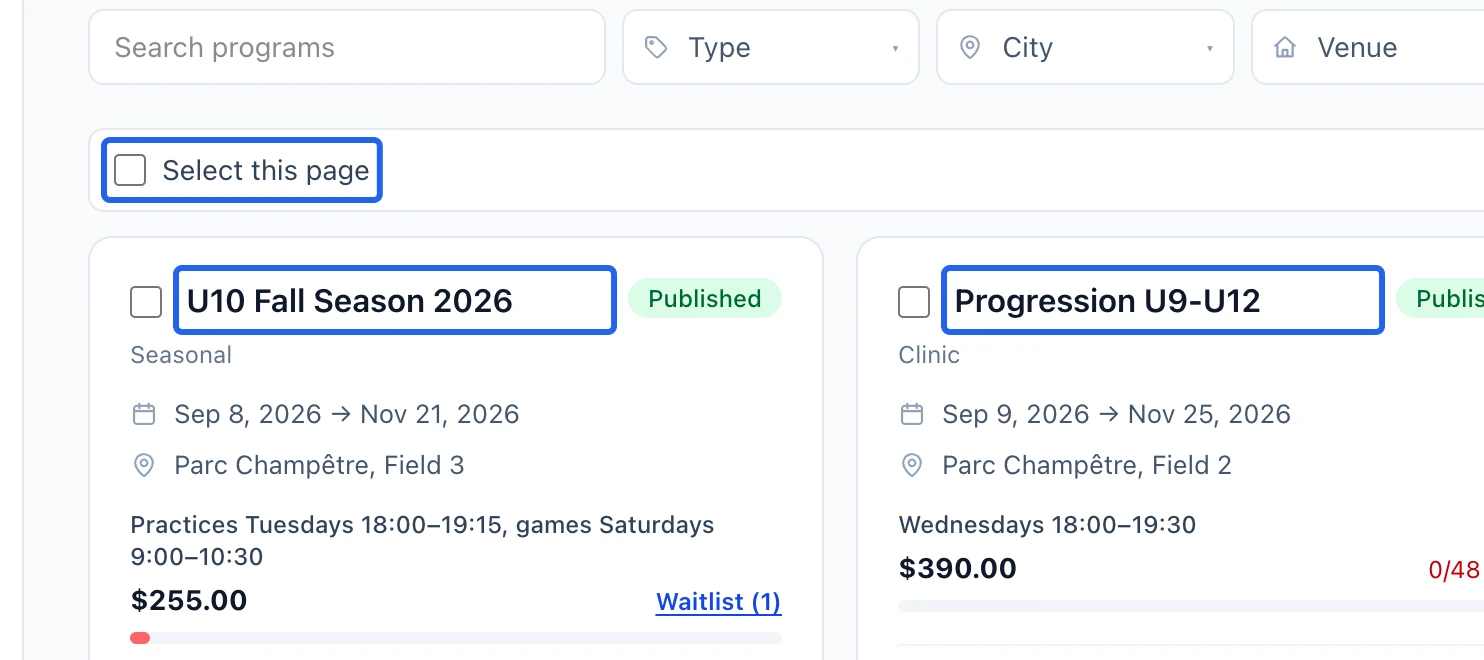
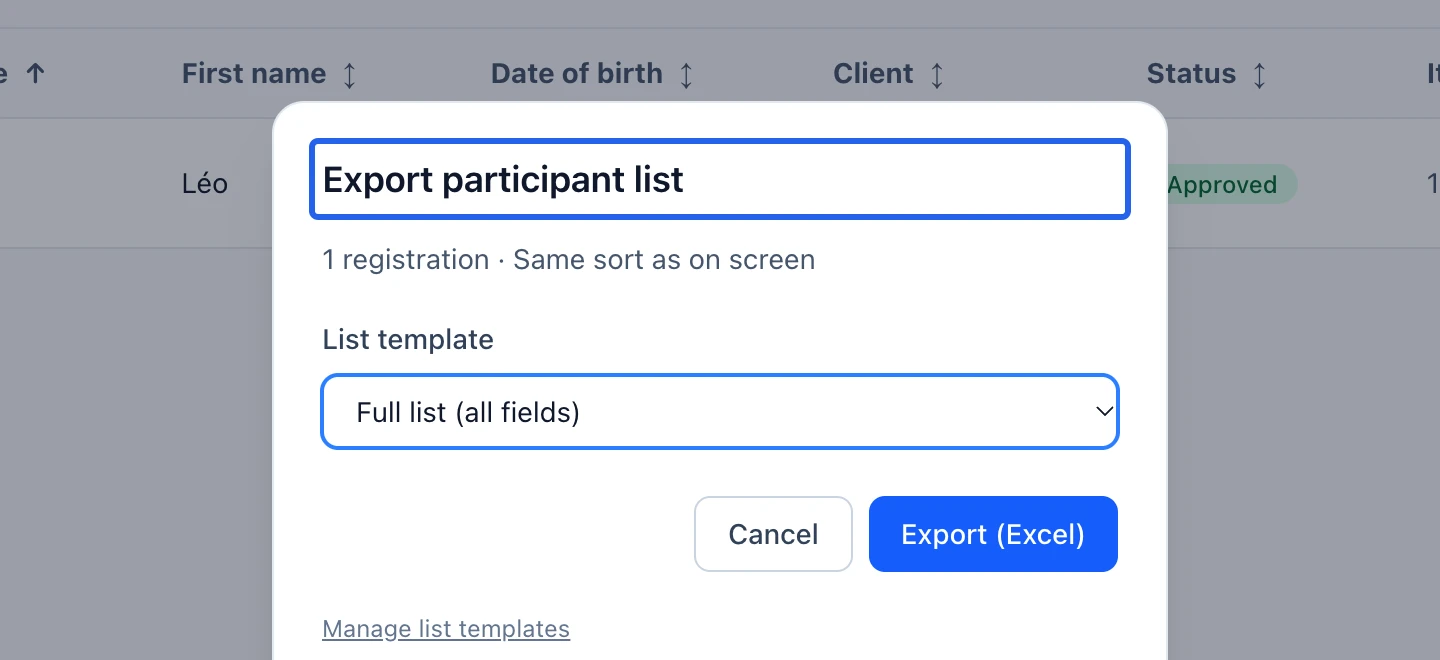
From a program’s registration list, open the Excel export. Choose Displayed schedule or Entire program when that choice appears. The registration count and screen sort help you verify the selection. From Programs, select several programs and click List for a single workbook with sheets by program or option.
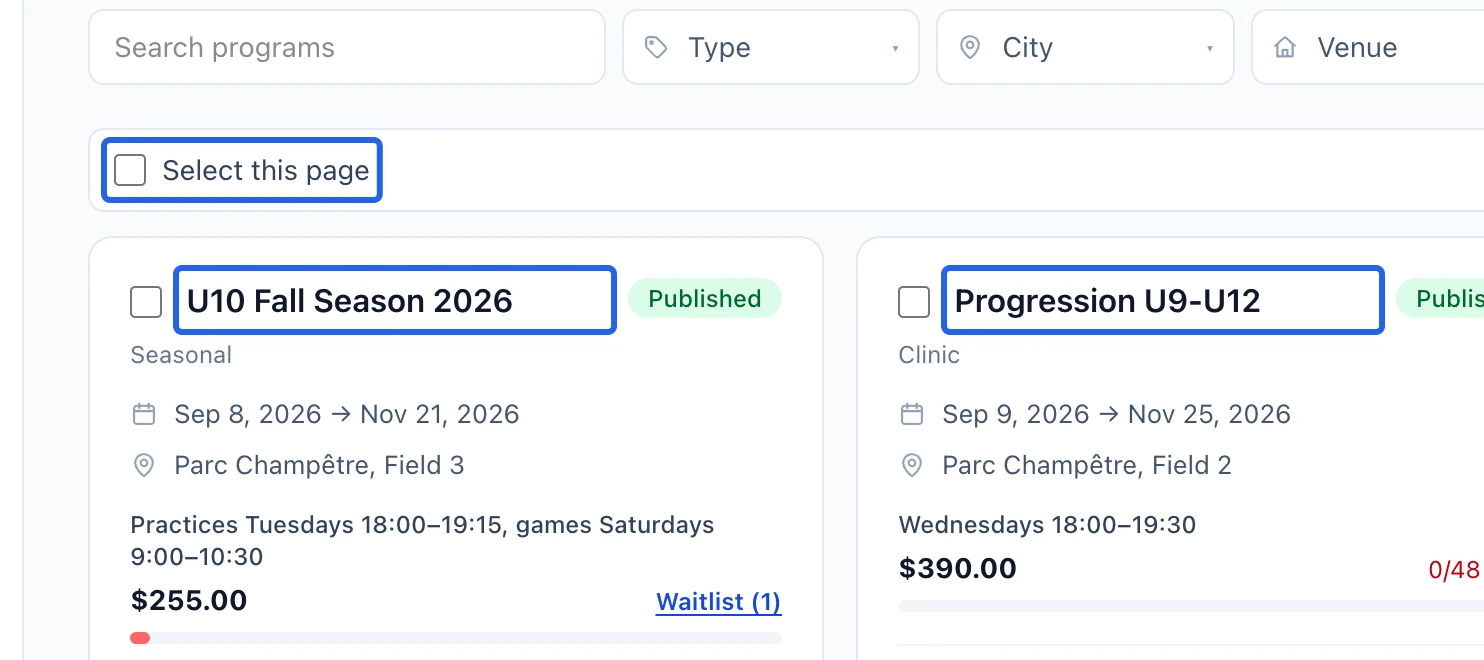
Select the screenshot to enlarge it. The blue outline marks the control to use.
- 2
Create a reusable list template
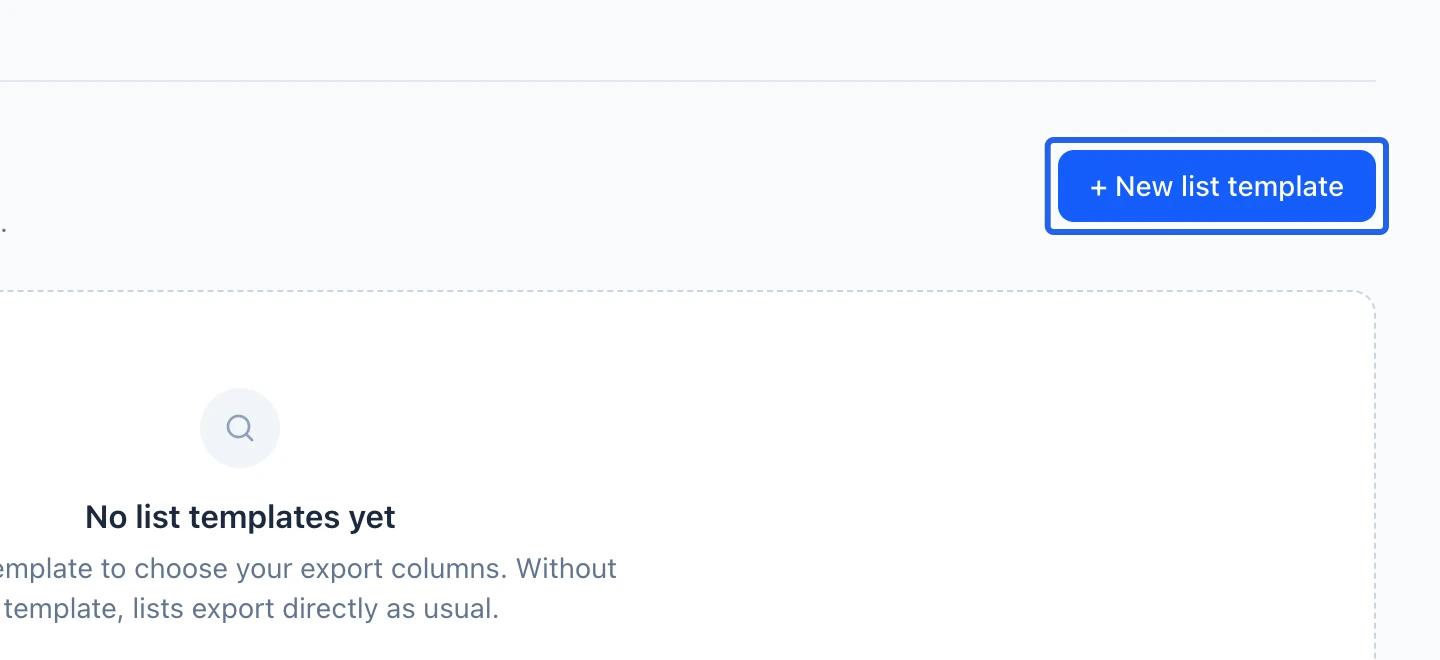
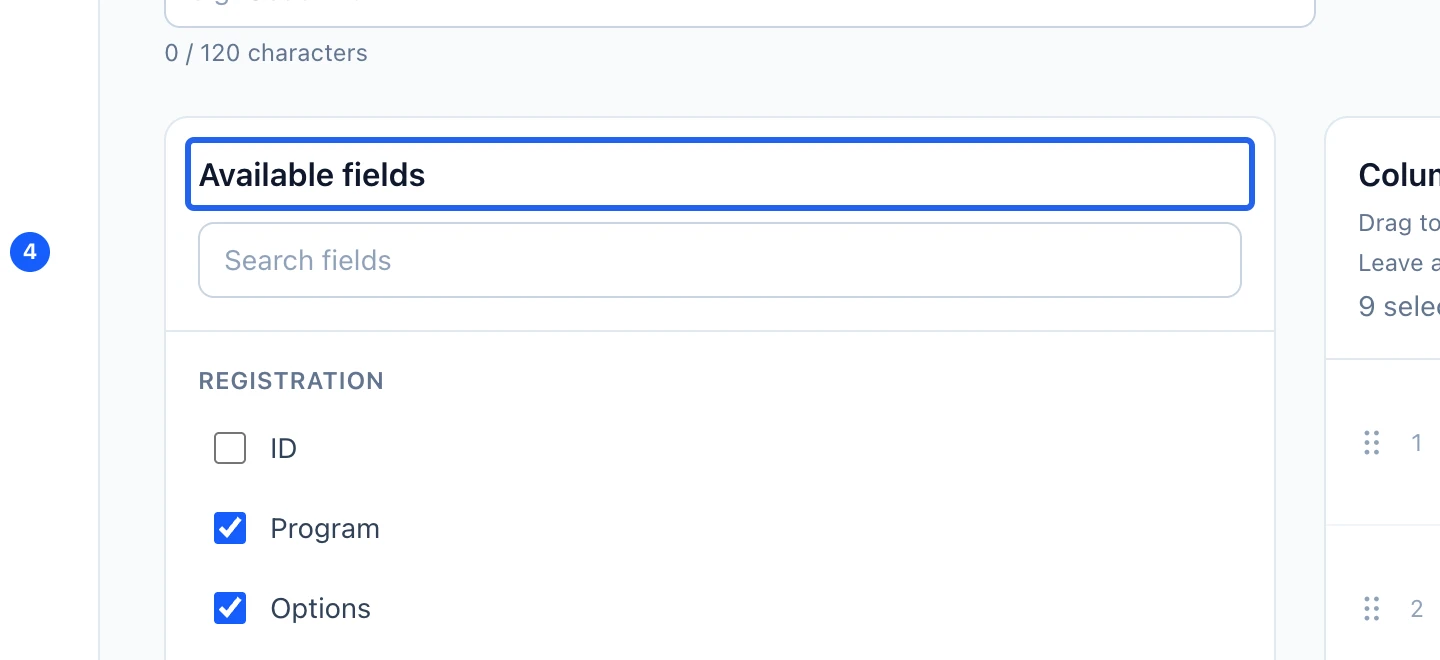
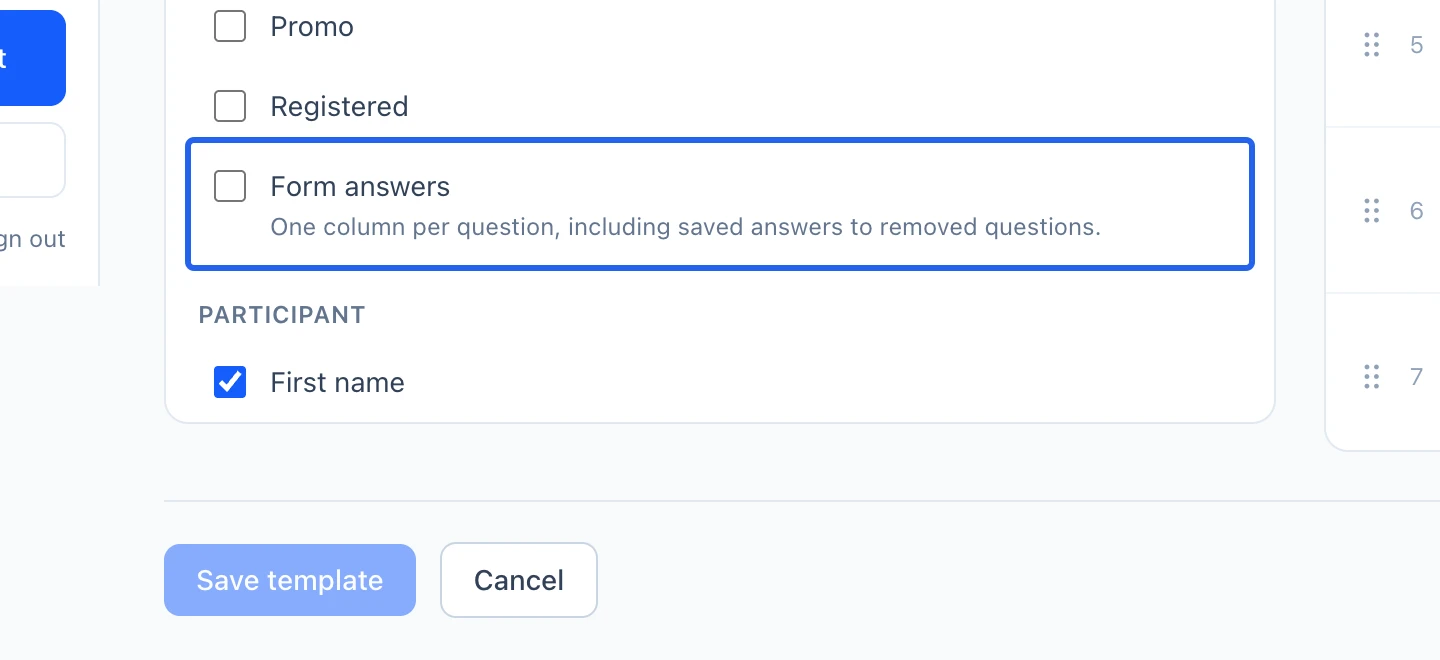
Open List templates, create or edit a template, name it and choose its columns. Move columns using the handle or arrow buttons. Enter a custom column heading when needed; clearing it restores the original label. Save the template before exporting. A renamed heading does not change the underlying question.
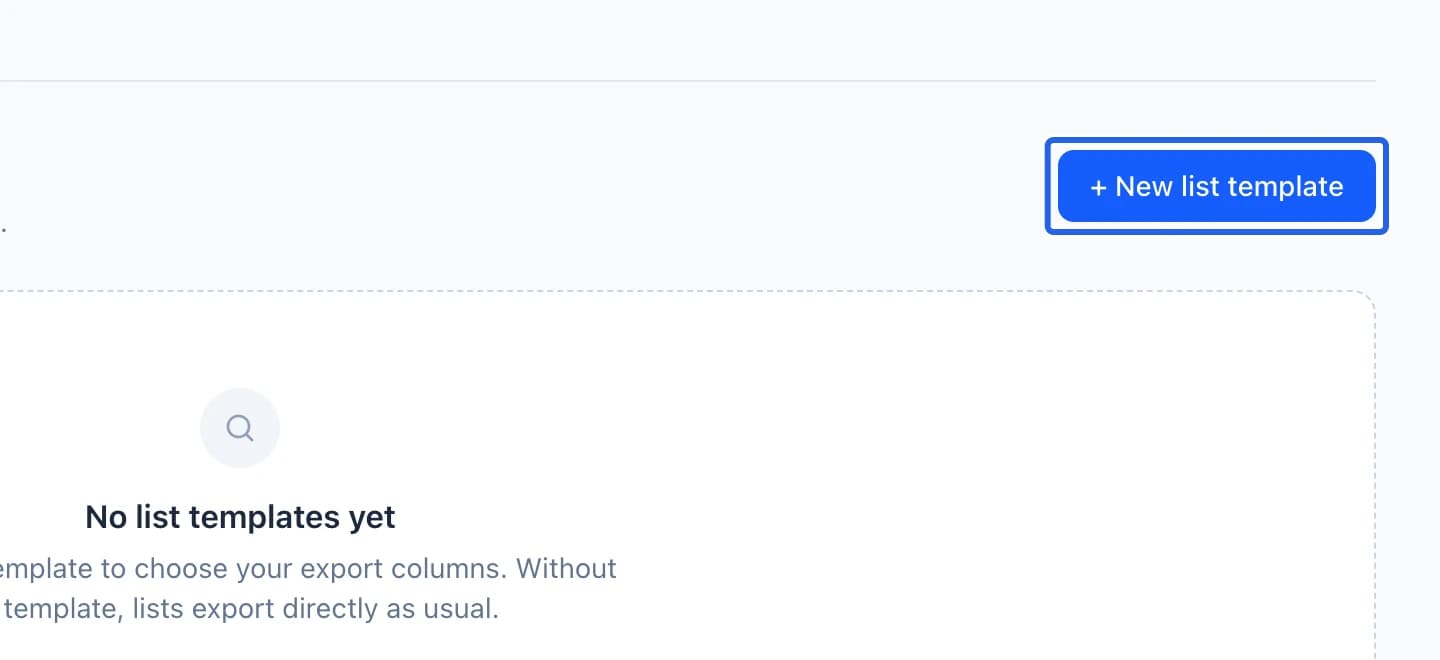
Select the screenshot to enlarge it. The blue outline marks the control to use.
- 3
Select the right fields
Choose Full list (all fields) or a saved template. Available fields include club contact details, emergency information, current image permission, payment method, purchased items and registration answers. Include only what the recipients of the file need and are authorized to use.
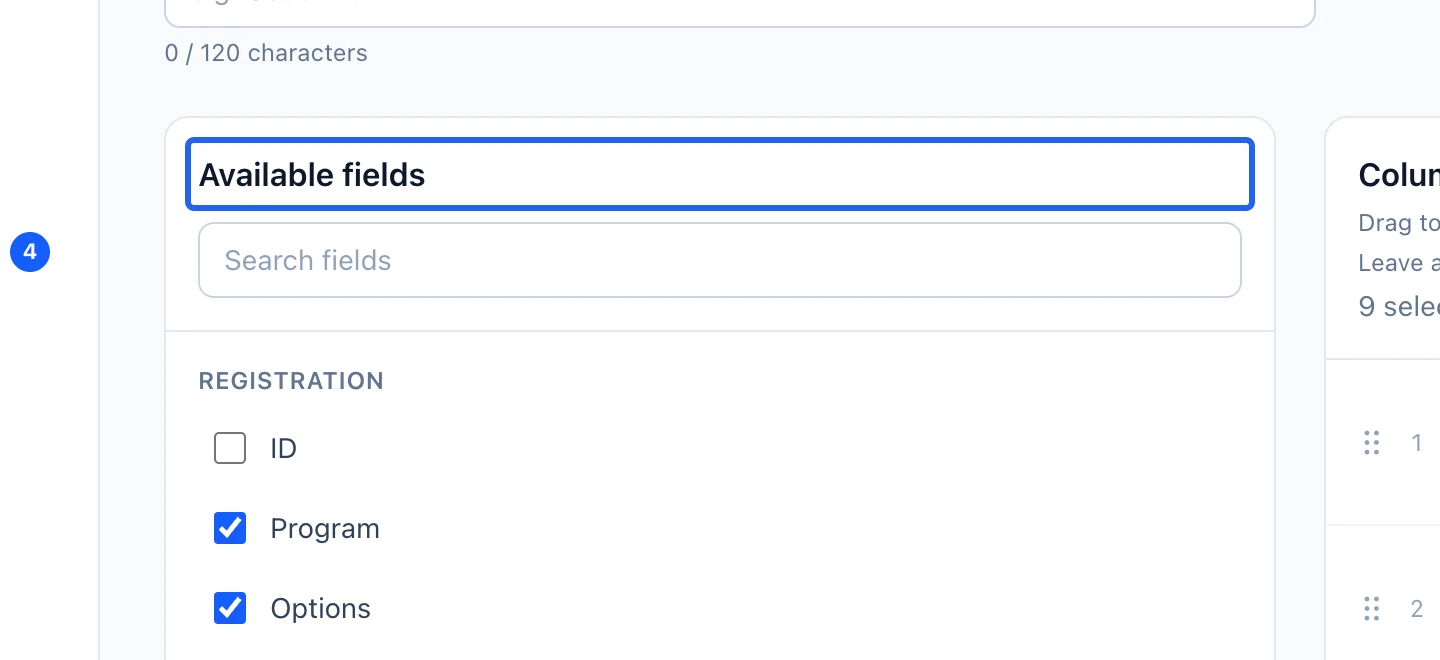
Select the screenshot to enlarge it. The blue outline marks the control to use.
- 4
Interpret historical answers and empty cells
Not provided, No answer and Not applicable have different meanings. Refused image permission differs from an unanswered choice. Saved questions remain associated with their original form when provenance is available; an older answer with an unknown form is identified explicitly. Use Full list to retrieve such answers without assigning them to a different question.
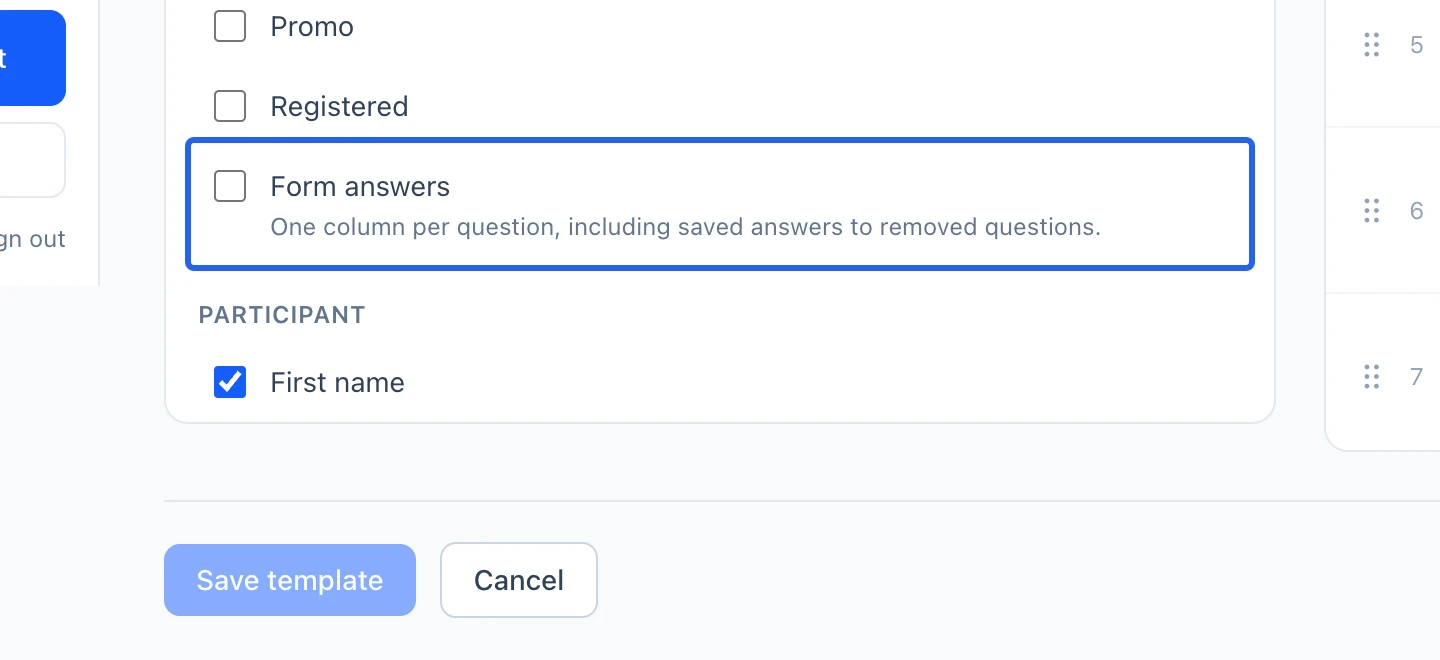
Select the screenshot to enlarge it. The blue outline marks the control to use.
- 5
Check the downloaded workbook
Open the Excel file and verify its program/option sheets, status scope, headings and sort order. Empty programs retain their headings. If the download fails, the selection is retained: use Retry after reading the error. Exporting a file does not email it to families.
Select the screenshot to enlarge it. The blue outline marks the control to use.
Keep going
Every family in one place: registrations, invoices, memberships, documents, notes and history.
Programs & activitiesChoose the information each family and participant provides to your club, and preview both languages.
Programs & activitiesCollect medical info, emergency contacts and signed waivers with reusable form templates.