Read revenue by client
Compare each client’s net sales using the organization’s accounting basis.
- 1
Choose the report period
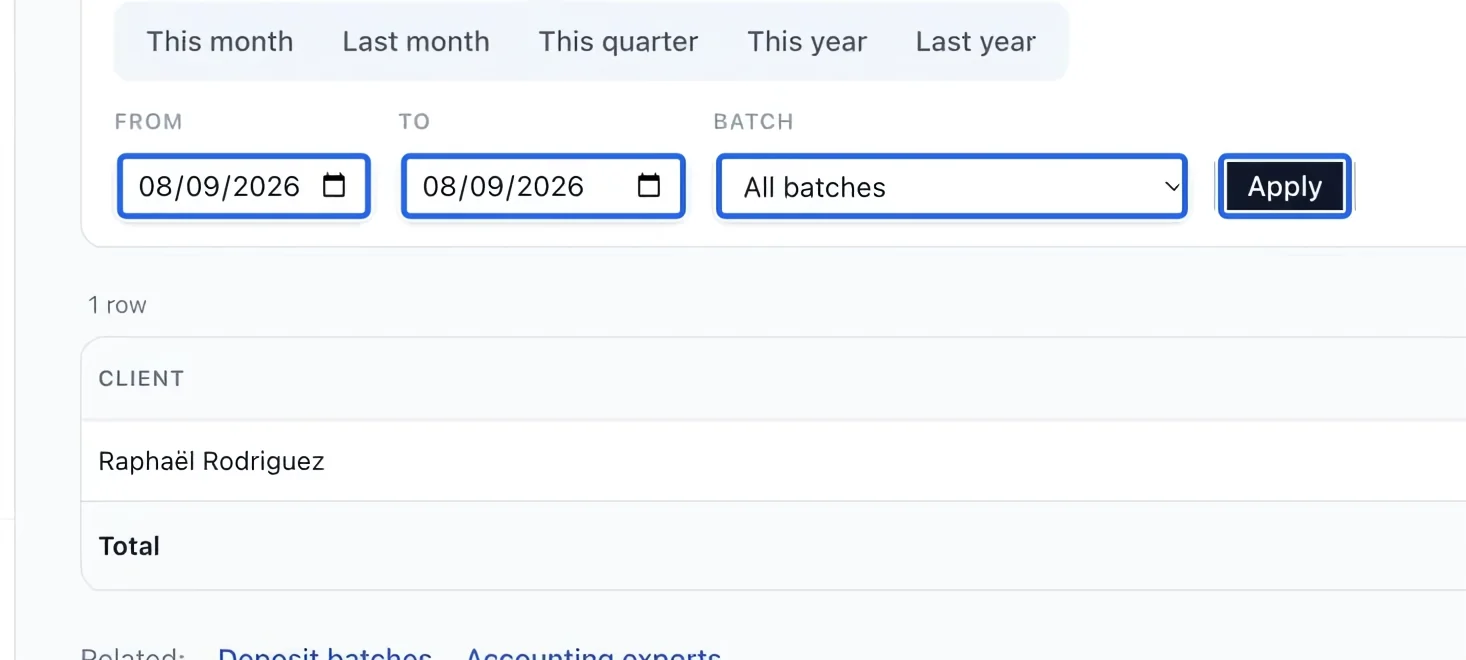
Open Read revenue by client from Reports. Choose a period preset or enter From and To. Optionally select a Batch, then Apply. Dates and batch work together, so widen the period if a batch appears incomplete. Financial reports require owner, administrator or finance manager access.
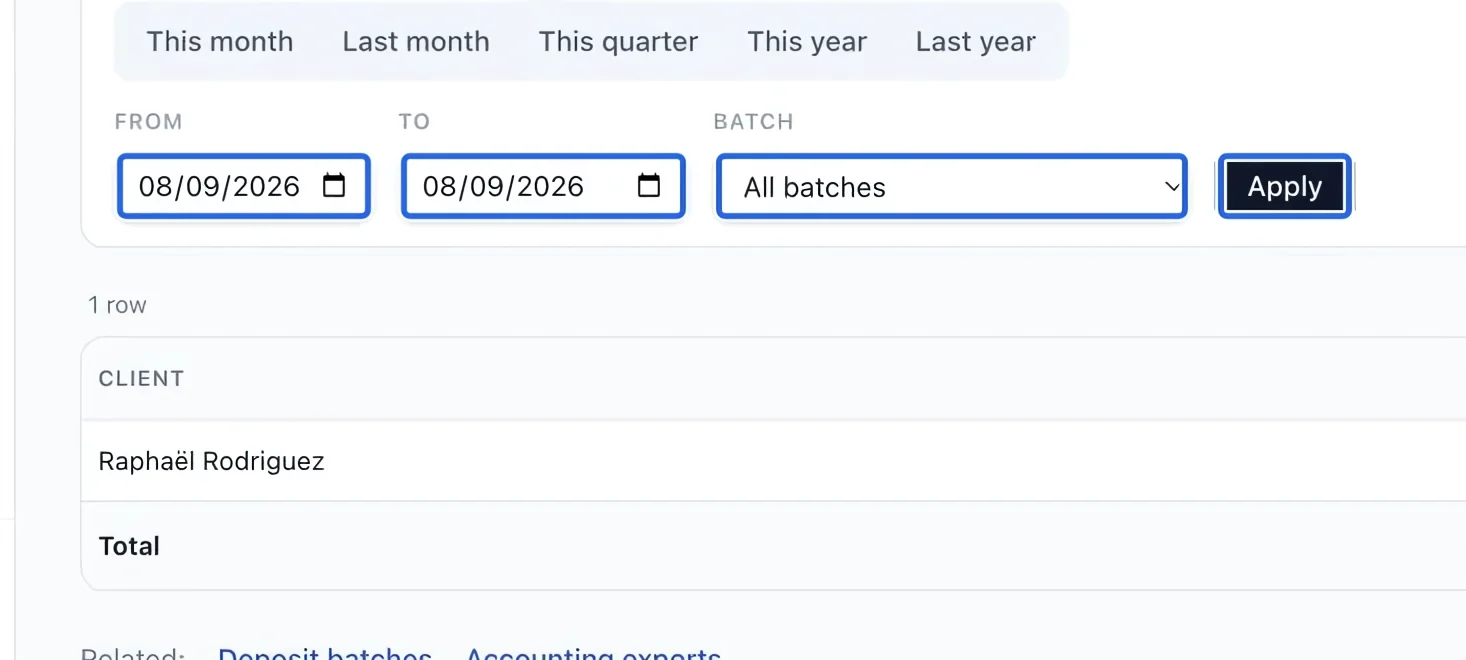
Select the screenshot to enlarge it. The blue outline marks the control to use.
- 2
Compare client net sales
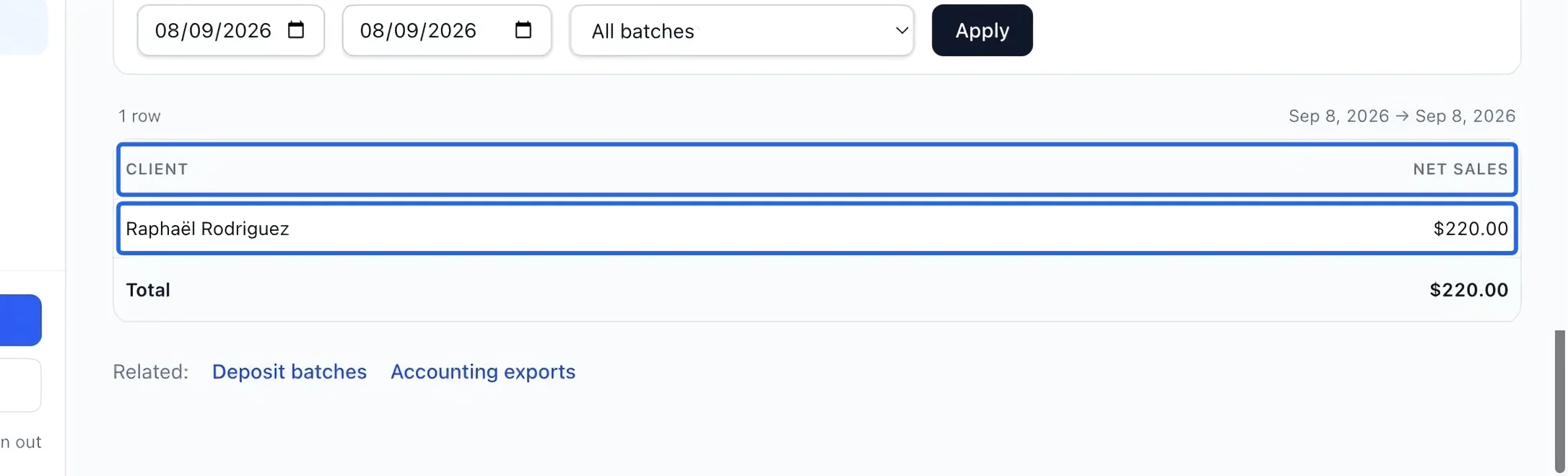
The report groups Net sales by client using the displayed accounting basis. Cash includes settled sales allocations and refunds; accrual includes posted revenue and adjustments. Compare the total with Sales summary for the same period and batch. This report measures revenue, not the client’s remaining debt or lifetime collections; use Client balance summary for debt.
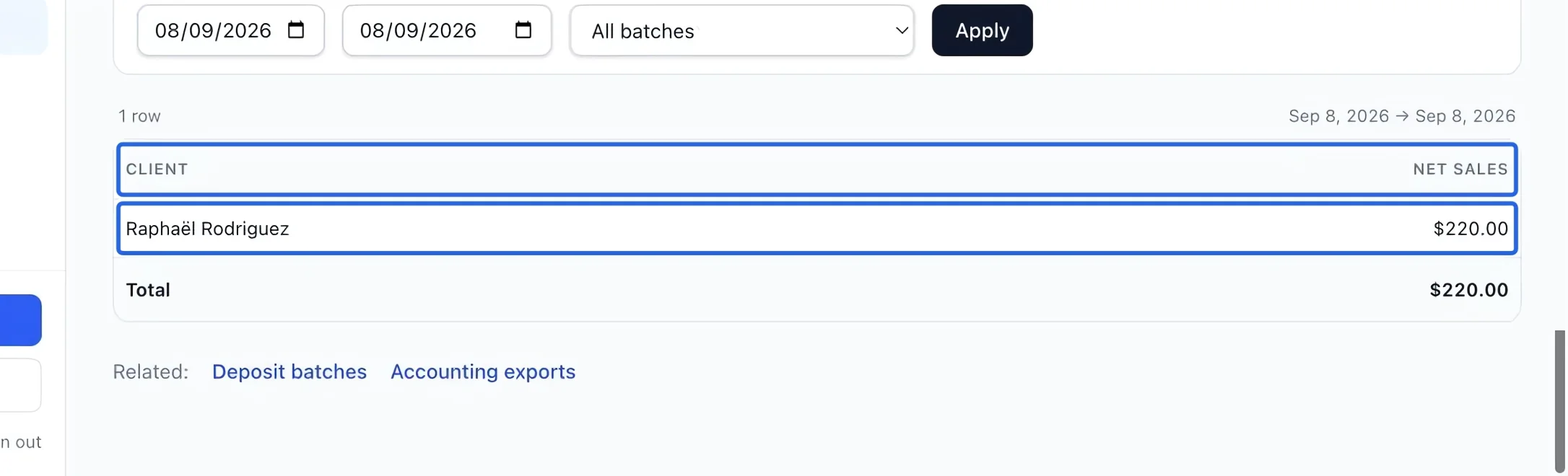
Select the screenshot to enlarge it. The blue outline marks the control to use.
- 3
Export the filtered report
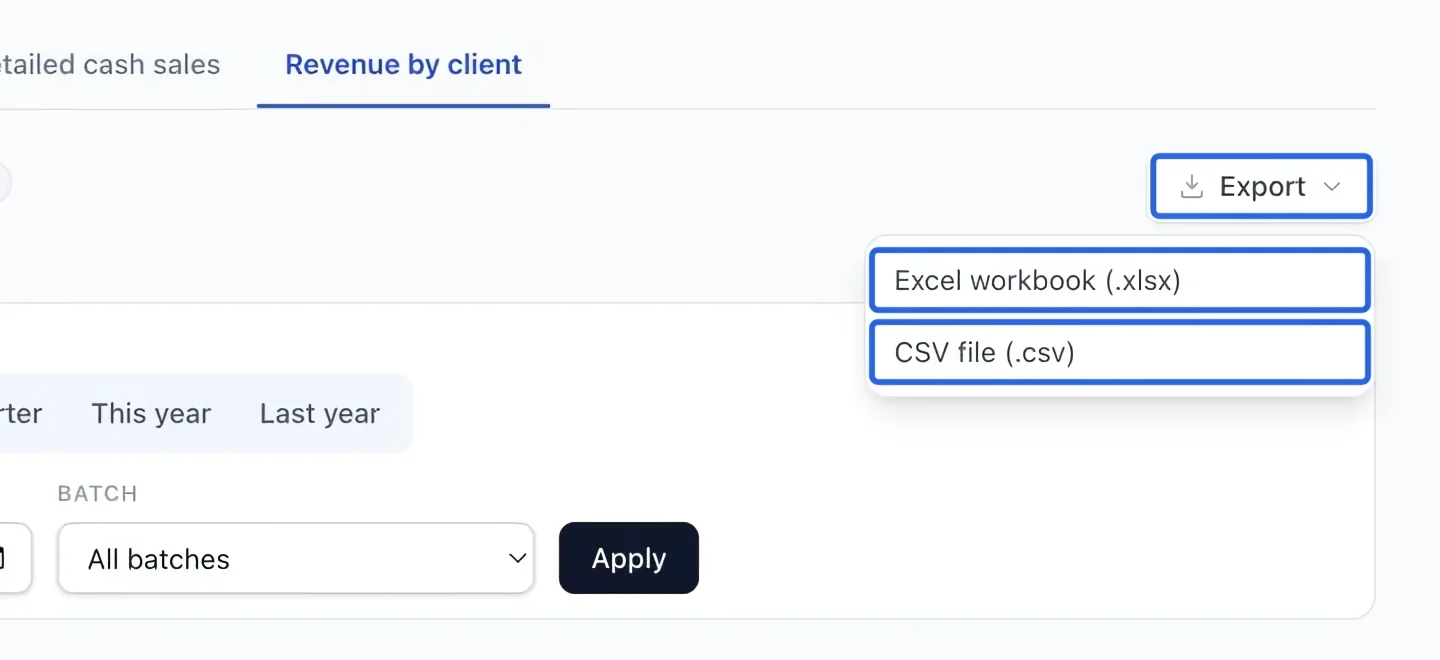
Open Export and choose Excel workbook (.xlsx) or CSV file (.csv). The file uses the active filters and current language. The screen shows at most 500 rows; exports include every matching row. If there are no results, check the date and clear restrictive filters. If a historical journal backfill warning appears, have the missing history completed before treating totals as complete.
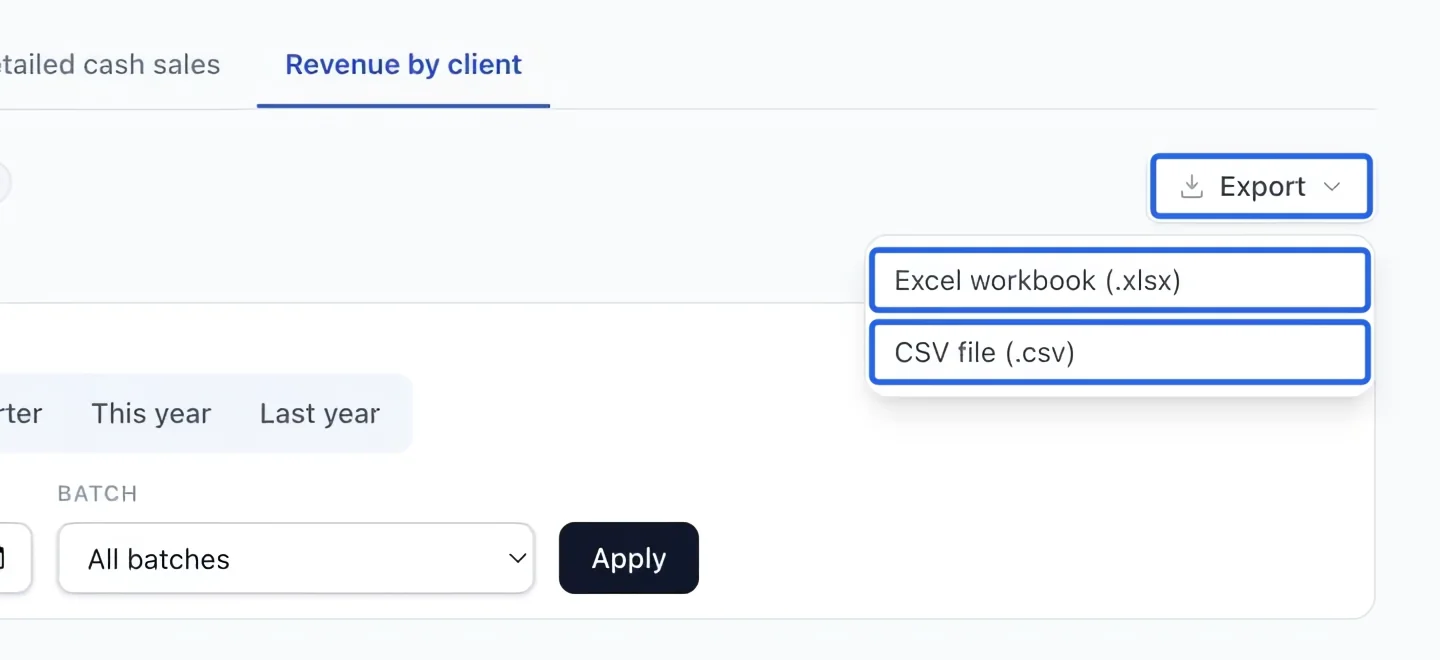
Select the screenshot to enlarge it. The blue outline marks the control to use.