
Read detailed sales and registration answers
Inspect invoice lines, credit notes, receipts, participants and form answers.
- 1
Choose the report period
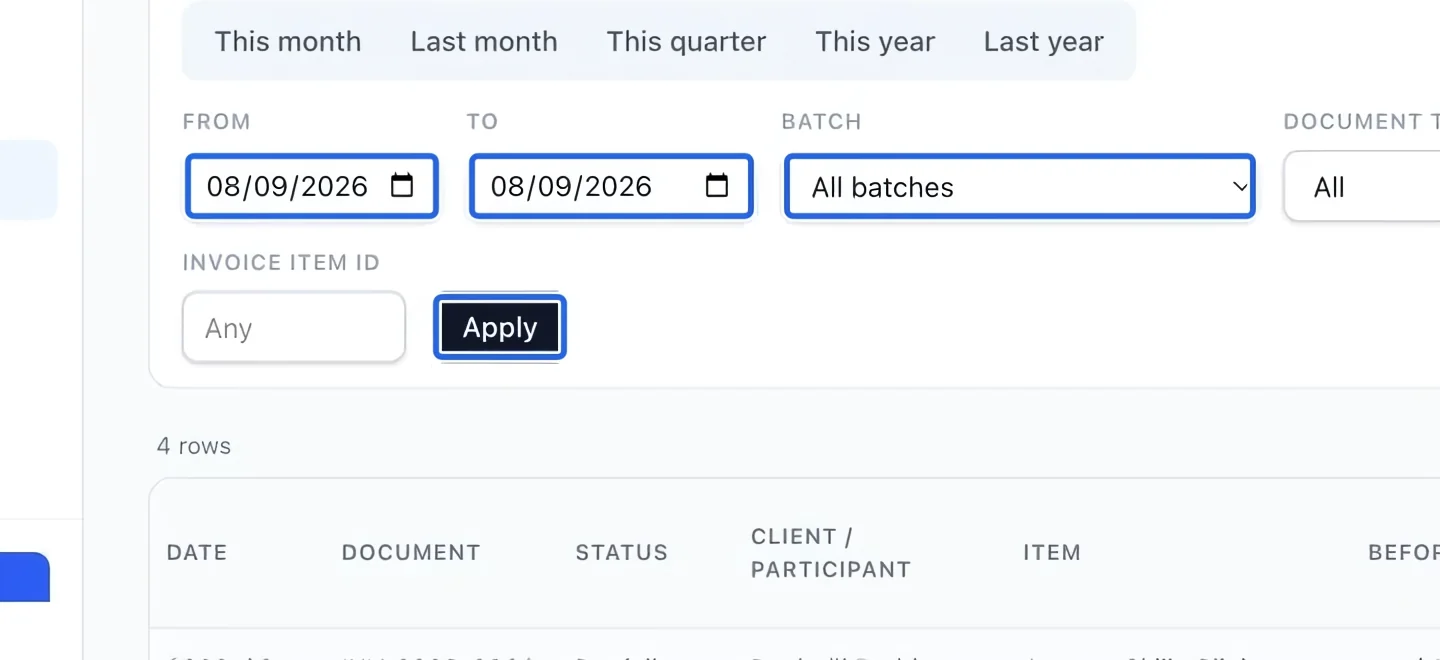
Open Read detailed sales and registration answers from Reports. Choose a period preset or enter From and To. Optionally select a Batch, then Apply. Dates and batch work together, so widen the period if a batch appears incomplete. Financial reports require owner, administrator or finance manager access.
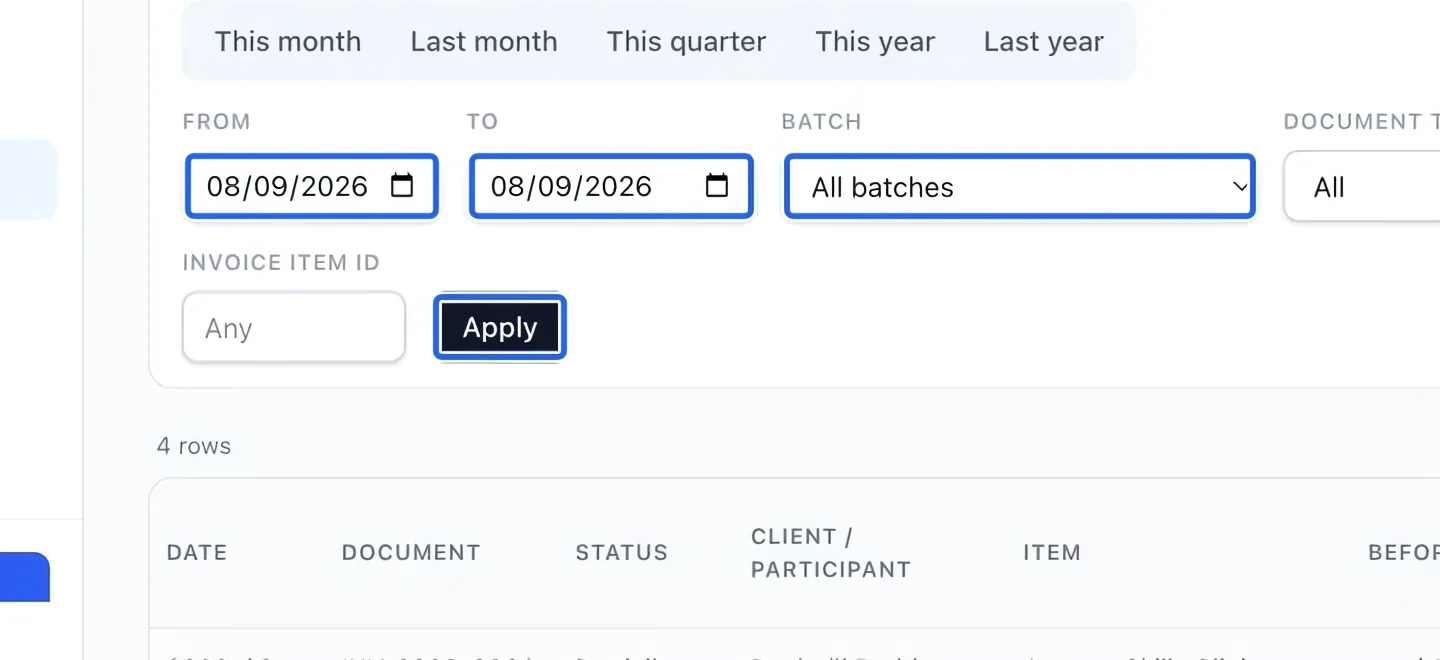
Select the screenshot to enlarge it. The blue outline marks the control to use.
- 2
Inspect the document and line amounts
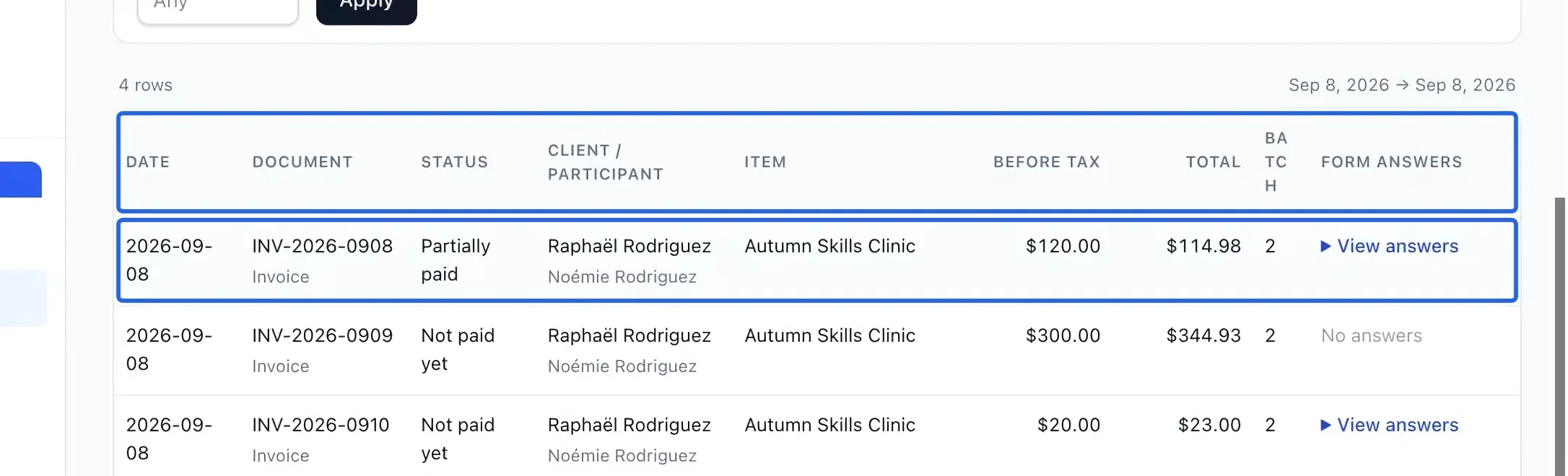
Read each document’s date, type, number, status, client/participant, item, Before tax and Total amounts. Credit notes appear as separate documents with their own amounts. Drafts and voids can also appear unless filtered out. The displayed total combines document amounts; use Sales summary for net revenue and Detailed cash sales for collections. Use the document number to find the invoice.
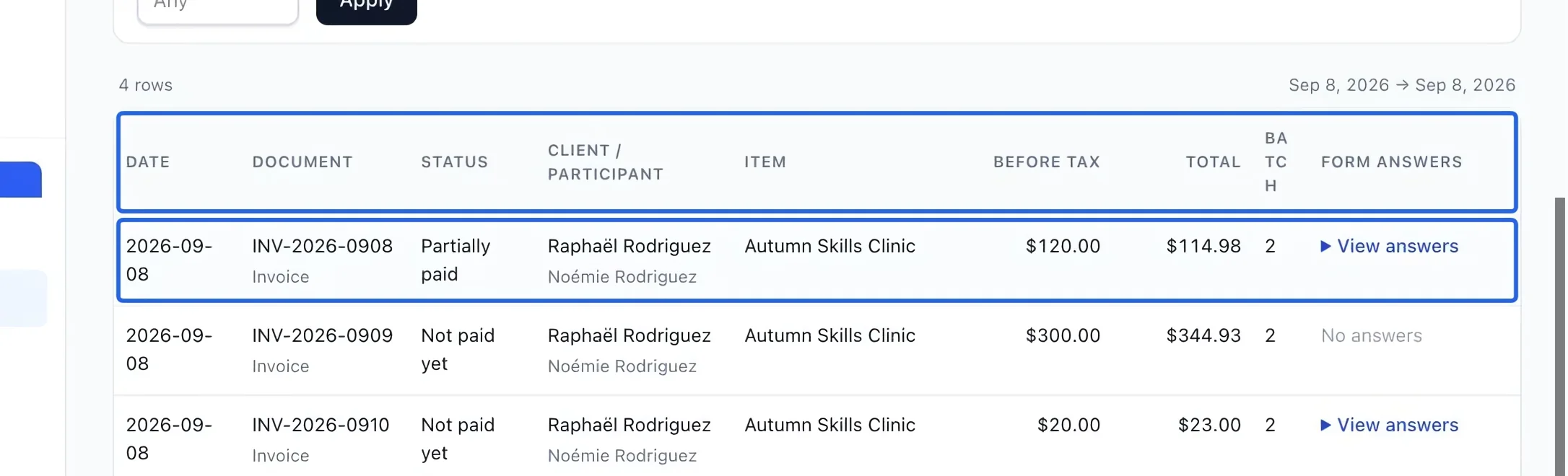
Select the screenshot to enlarge it. The blue outline marks the control to use.
- 3
Filter the document register
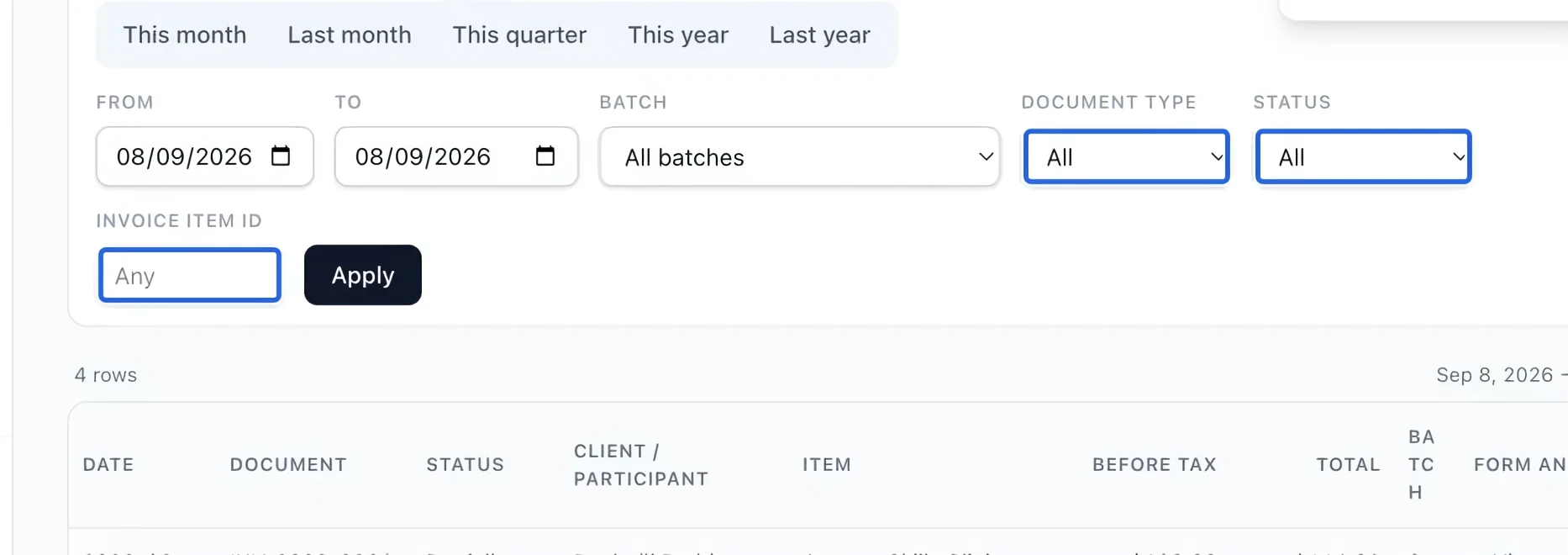
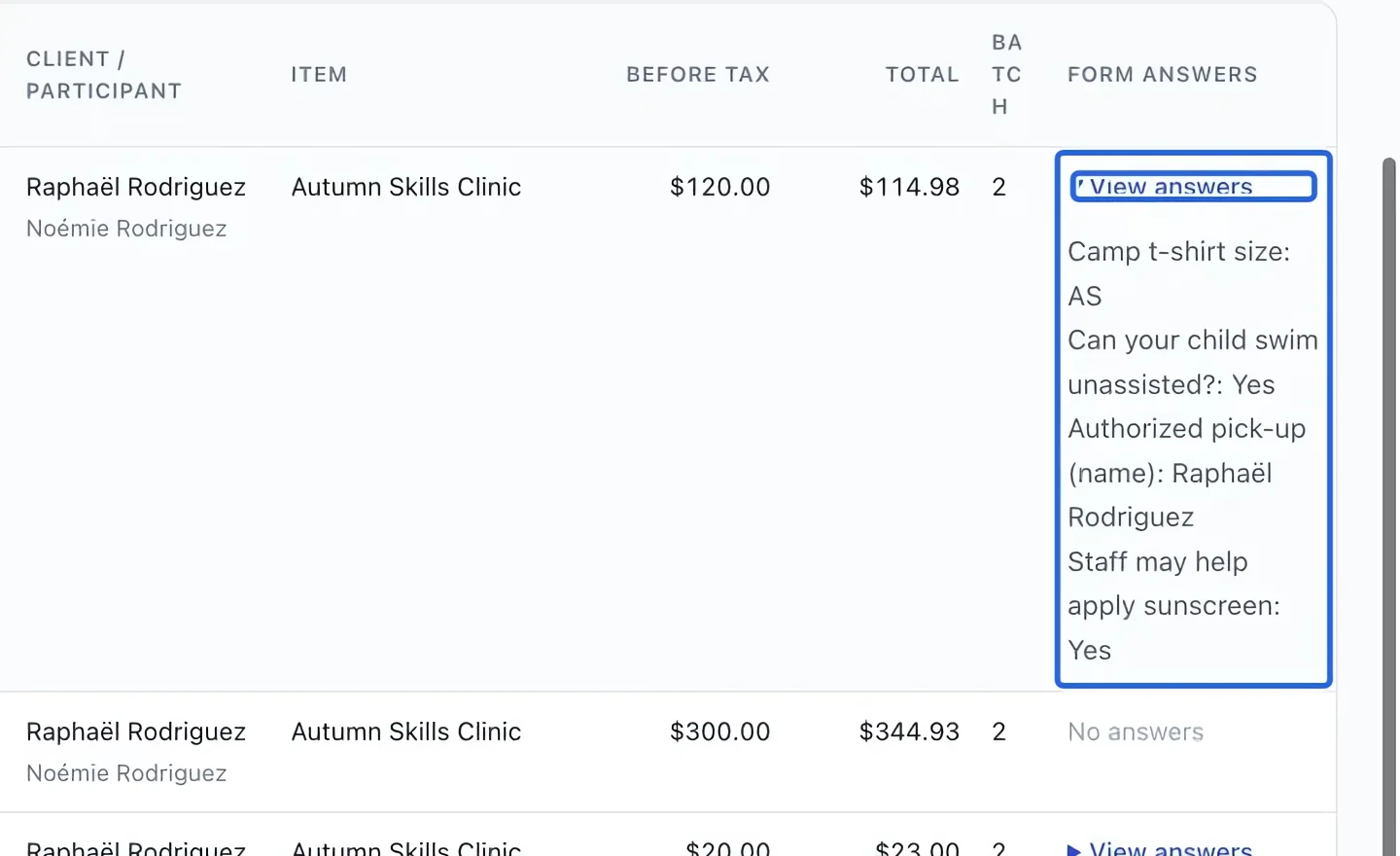
Choose Document type and Status, or enter an Invoice item ID to isolate a line, then Apply. This ID is an invoice-line identifier, not a program or product ID. Expand View answers on a row to read the purchase-time registration answers with readable labels. No answers means none are available for that row.
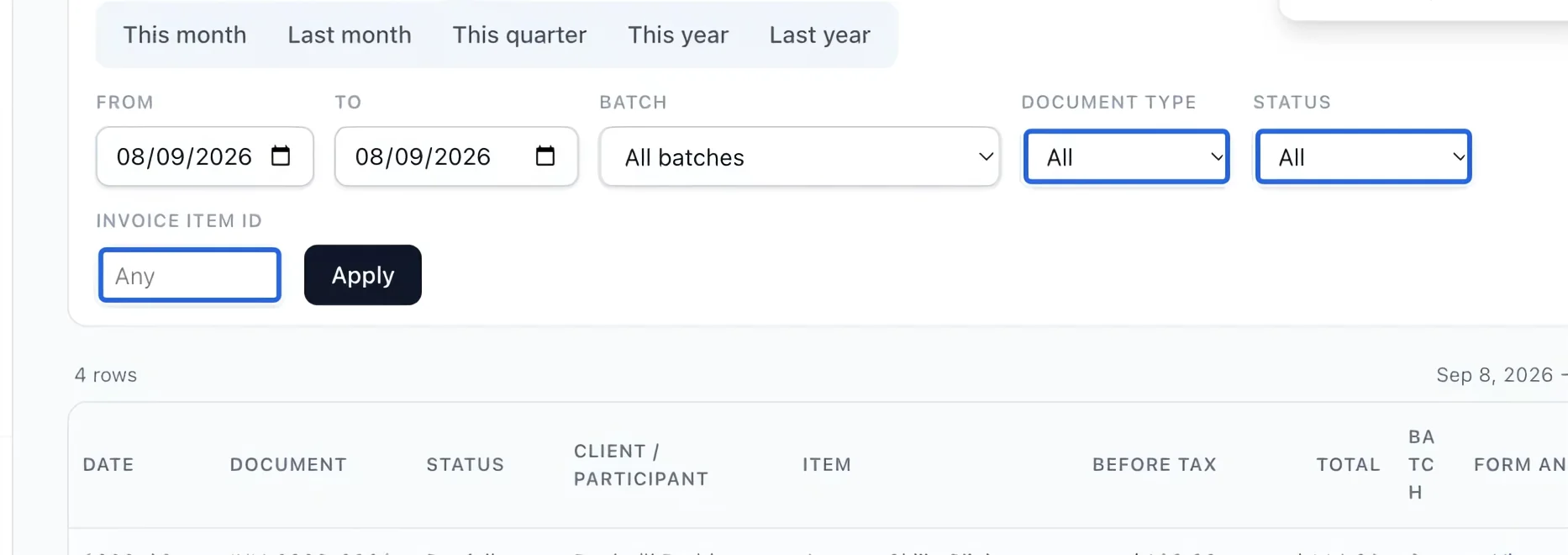
Select the screenshot to enlarge it. The blue outline marks the control to use.
- 4
Open the saved registration answers
Expand View answers in the Form answers column. Read the field labels and values captured with the sale, including explicit Yes/No answers. These answers help identify the purchase; they do not change the invoice amount. Close the disclosure when finished, or export the report to keep the readable answers with the document rows.
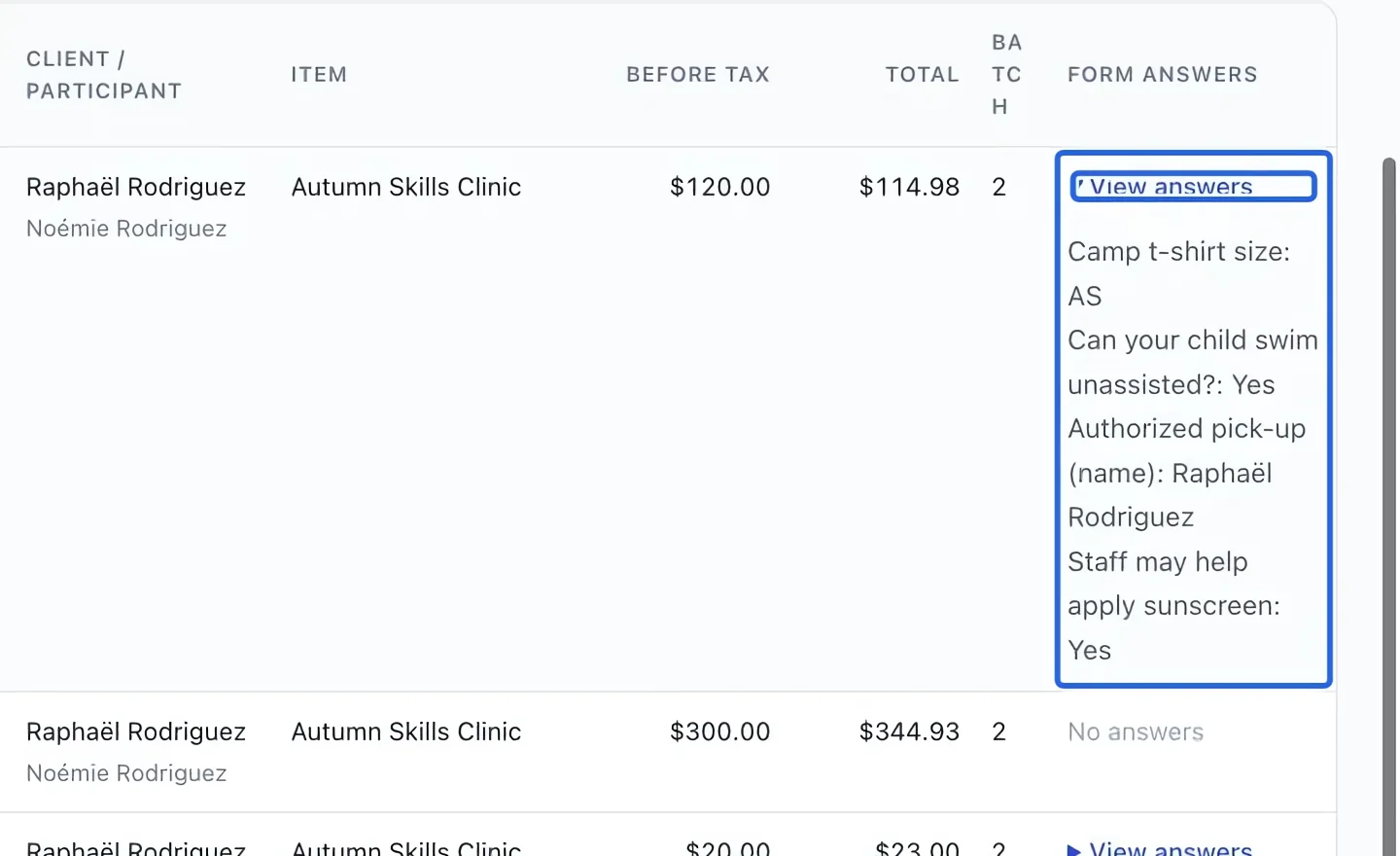
Select the screenshot to enlarge it. The blue outline marks the control to use.
- 5
Export the filtered report
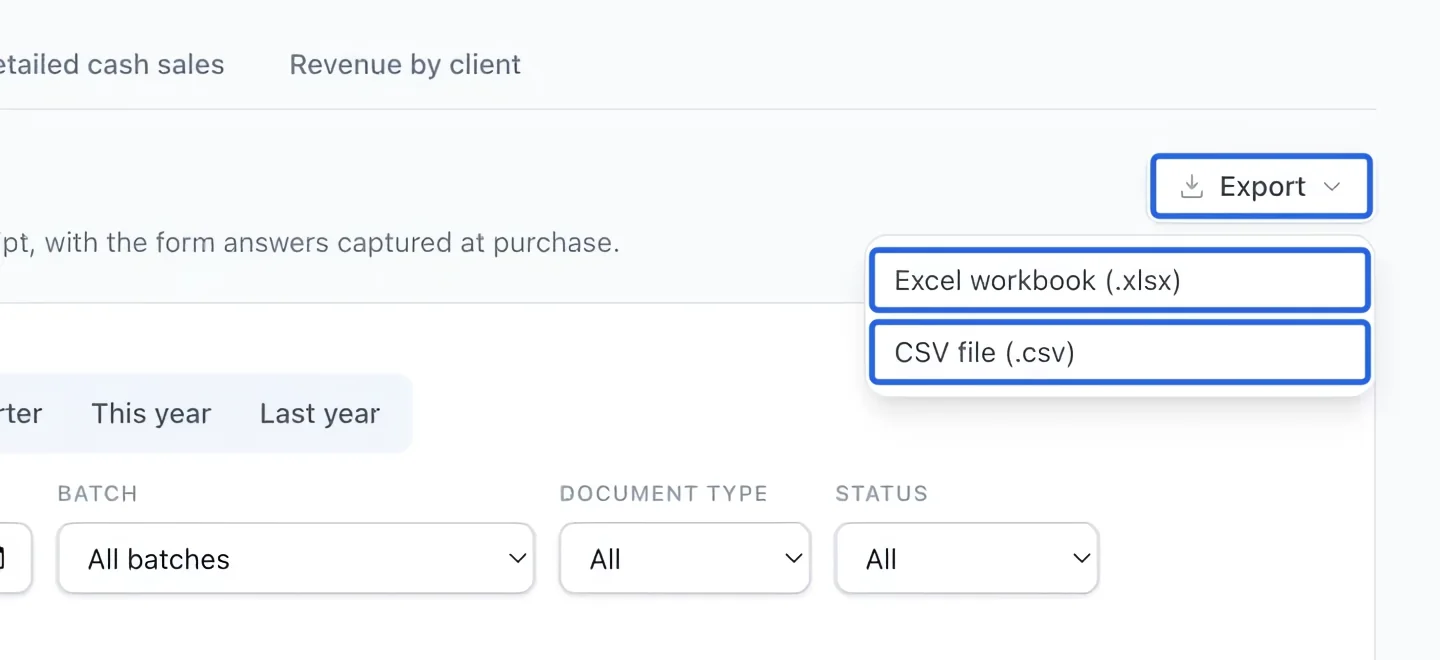
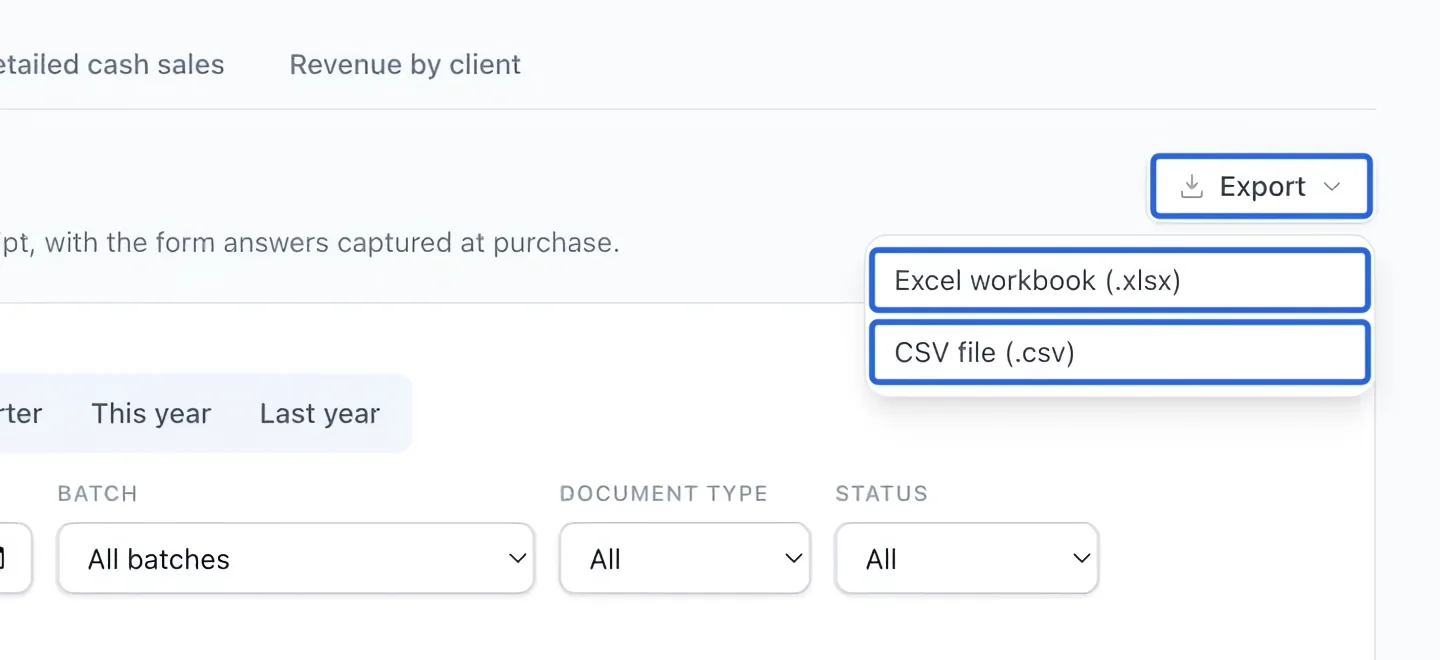
Open Export and choose Excel workbook (.xlsx) or CSV file (.csv). The file uses the active filters and current language. The screen shows at most 500 rows; exports include every matching row. If there are no results, check the date and clear restrictive filters. If a historical journal backfill warning appears, have the missing history completed before treating totals as complete.
Select the screenshot to enlarge it. The blue outline marks the control to use.
Keep going
Understand gross sales, discounts, credits, refunds and net sales by account.
Accounting & financial reportsTrace settled sales, allocated tax, refunds and processing fees by invoice line.
Money & invoicingSelect a client and catalog items, review the total, then save or send an invoice.