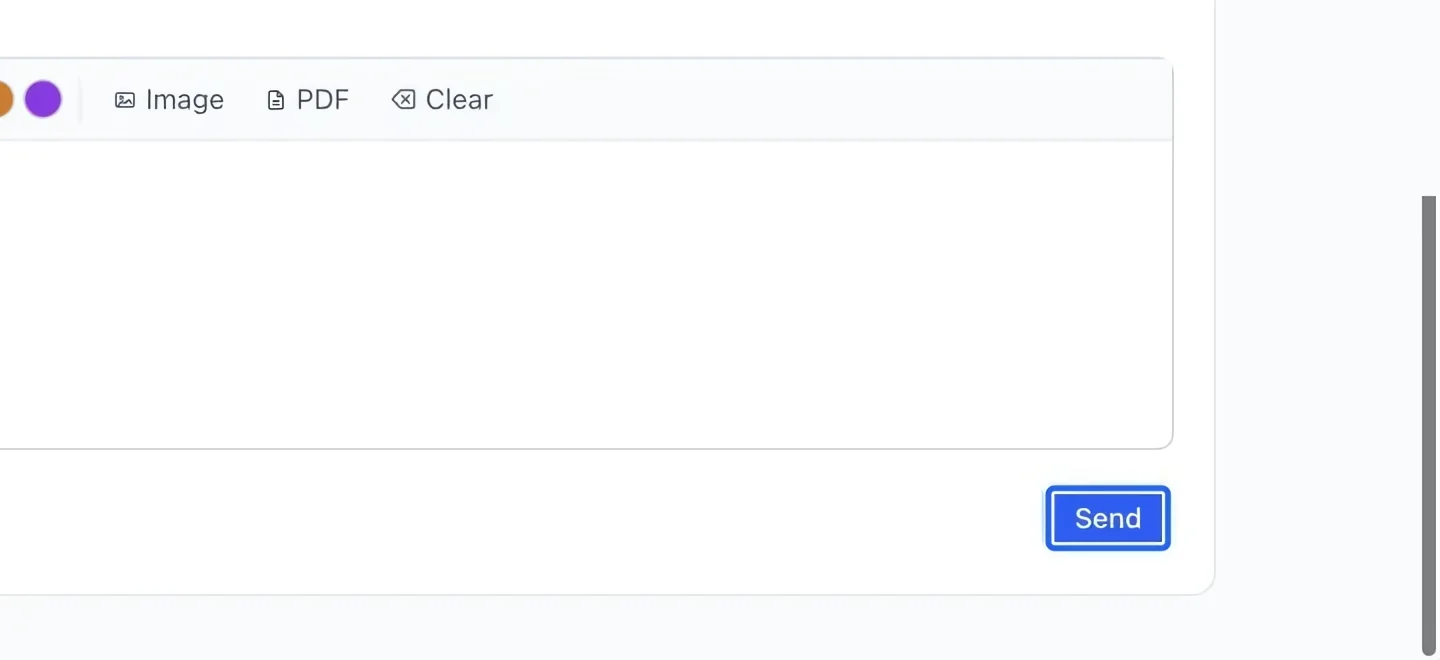
Message your families
Choose recipients and a channel, write an operational message, and send it to the right families.
- 1
Choose recipients first
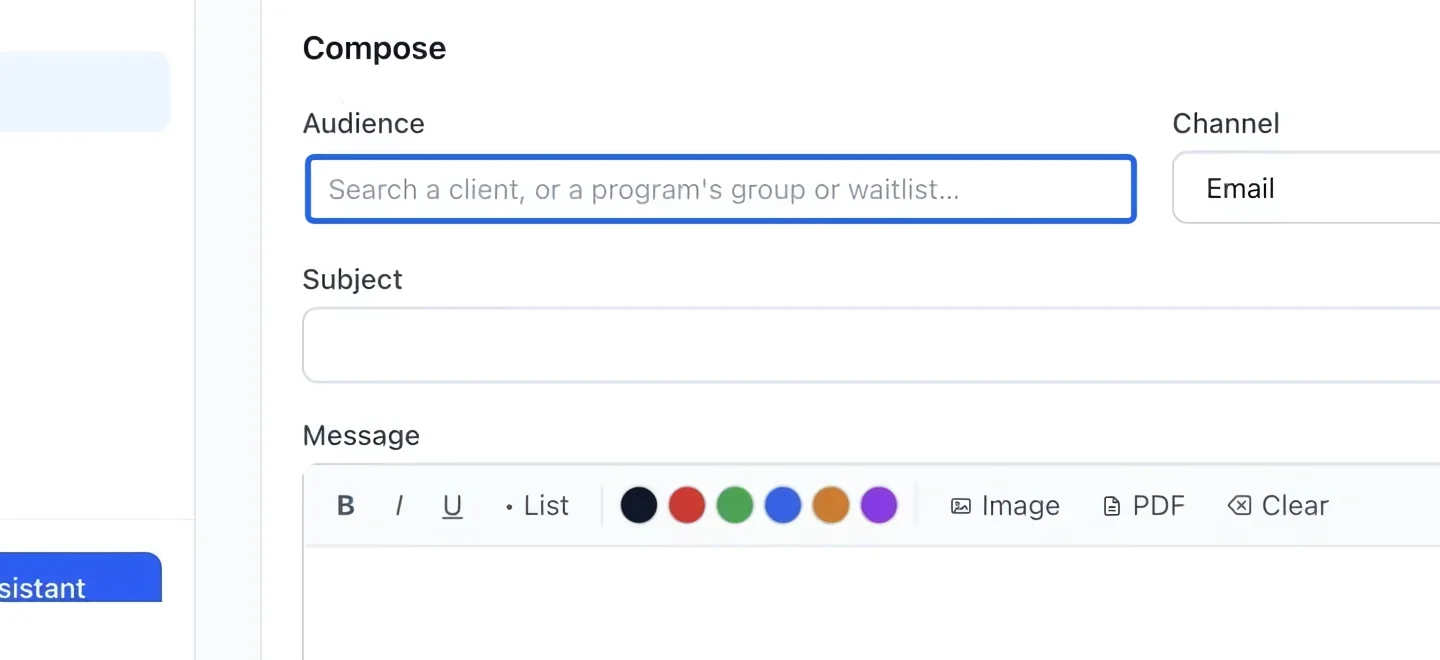
Open Messages. In Audience, search for a client or a program’s group or waitlist, then select the intended recipients. Check the chosen audience before writing.
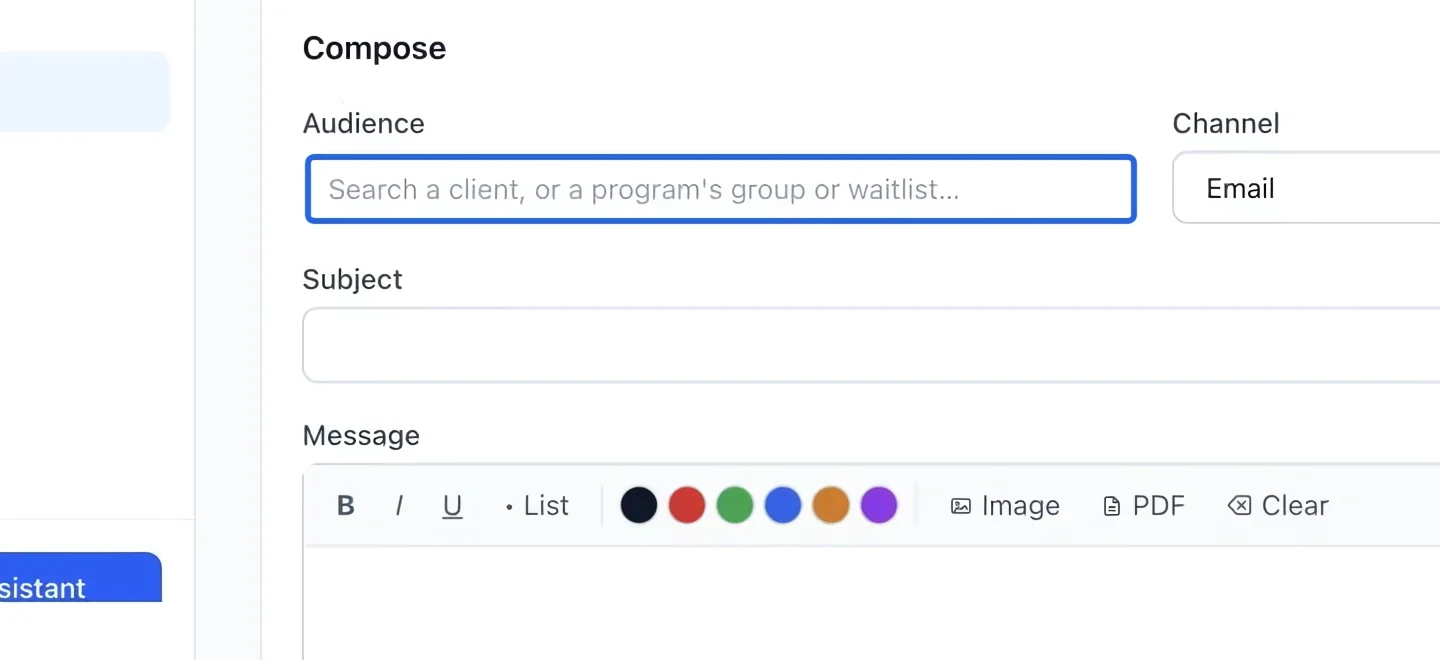
Select the screenshot to enlarge it. The blue outline marks the control to use.
- 2
Choose the delivery channel
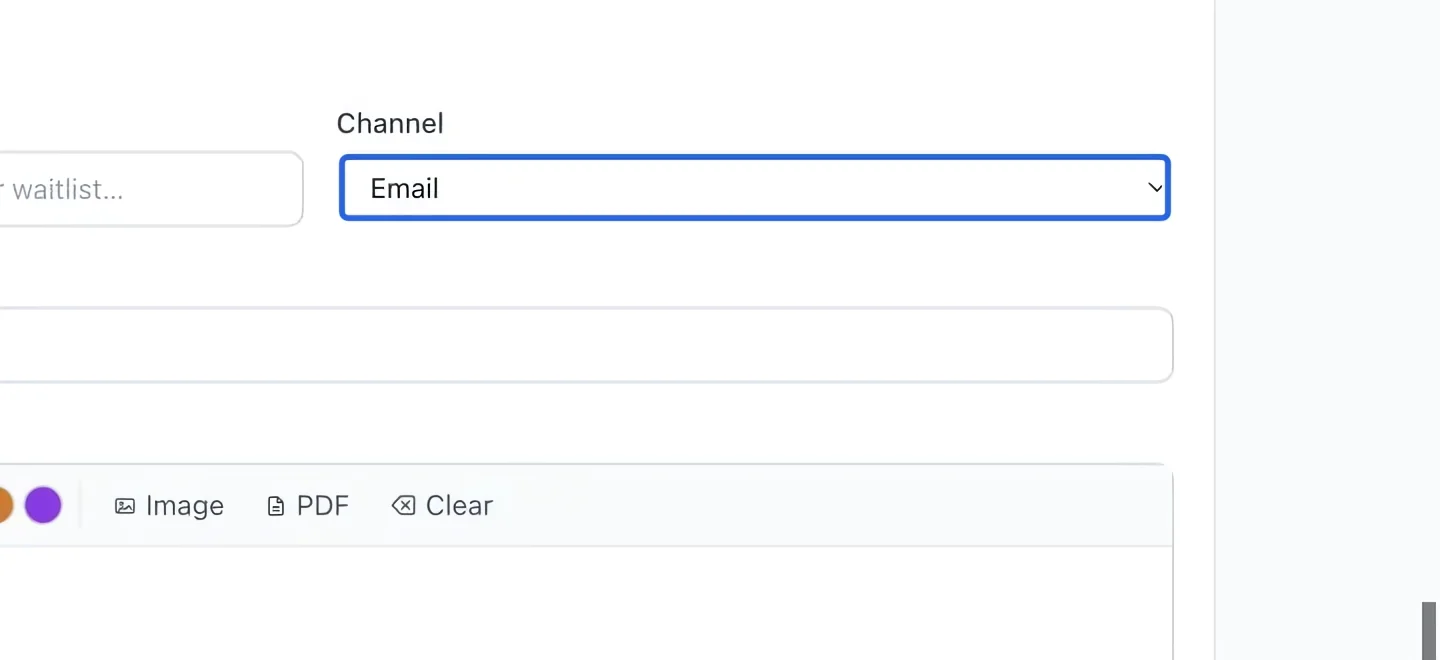
Select Channel: email, SMS when configured, or app notification. App notifications use the subject as their title; phone delivery depends on the recipient’s notification setup.
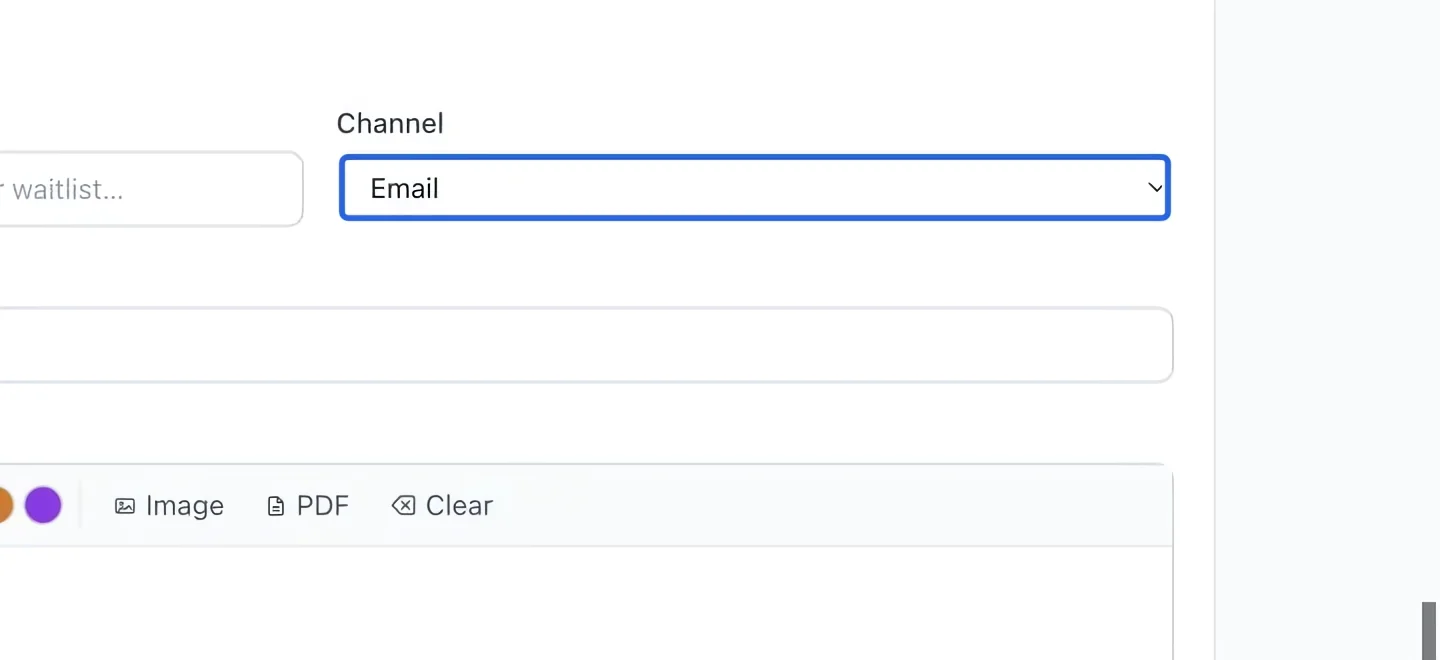
Select the screenshot to enlarge it. The blue outline marks the control to use.
- 3
Write the subject
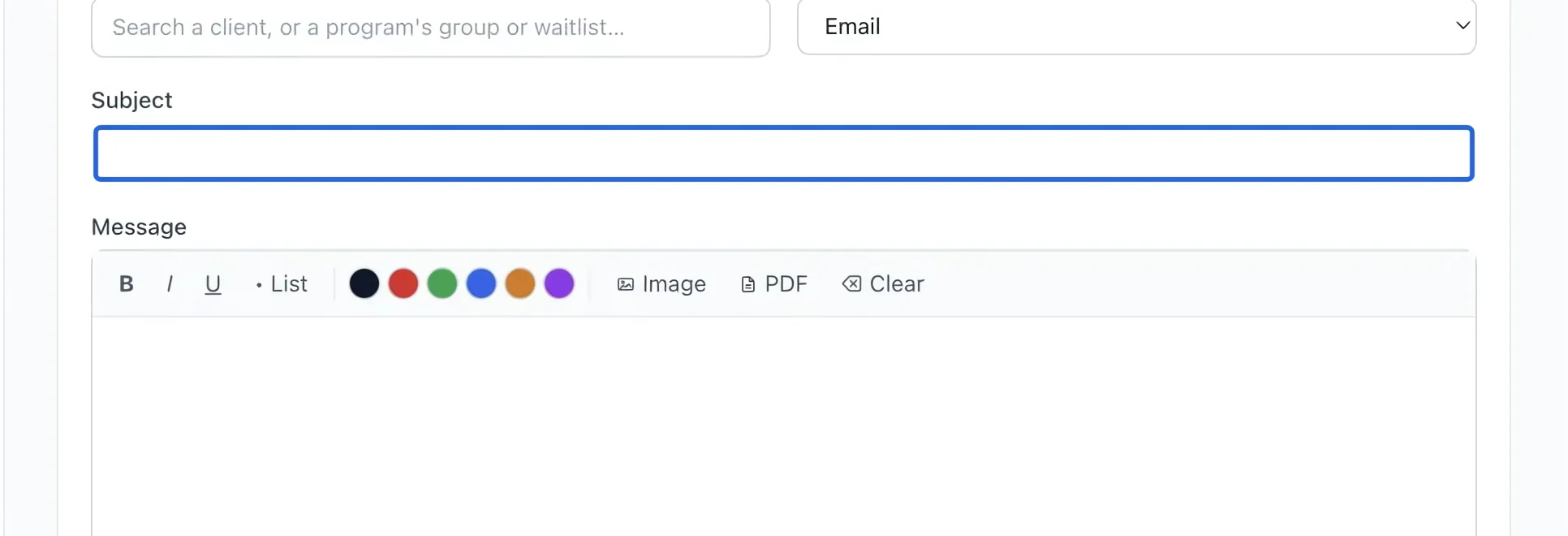
Enter a short, specific Subject, such as “Saturday practice moved to 10:00”. Include the activity or date so the family can recognize the message quickly.
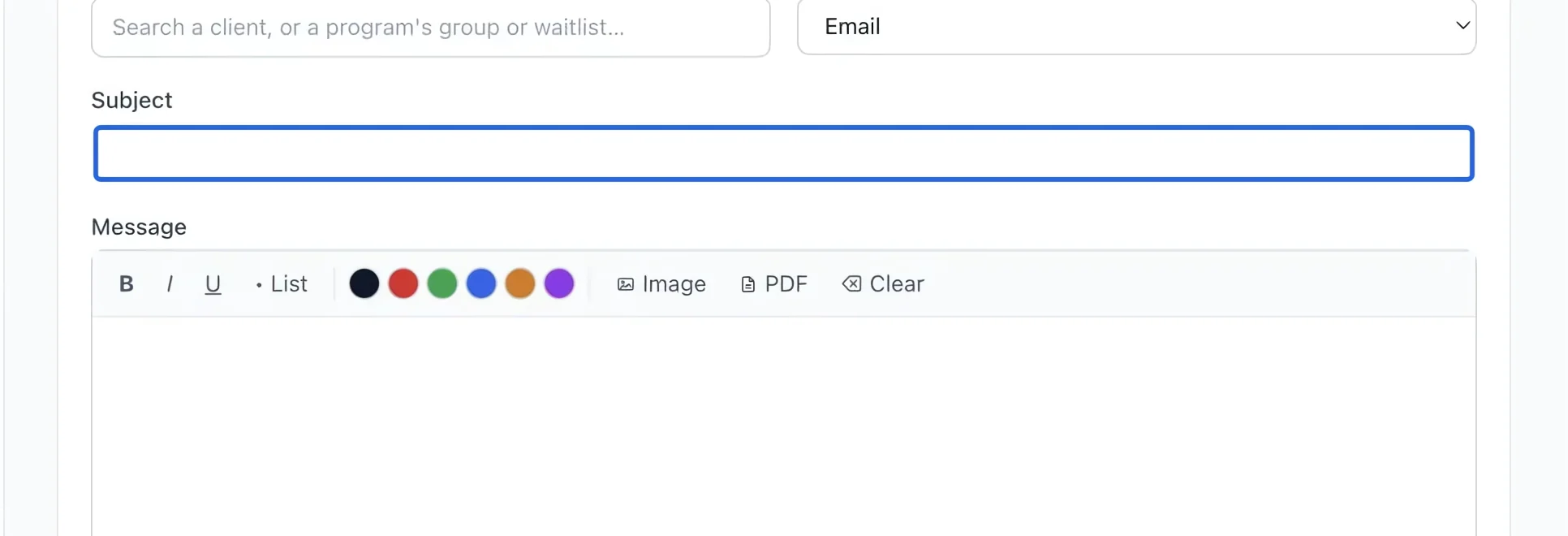
Select the screenshot to enlarge it. The blue outline marks the control to use.
- 4
Write the message
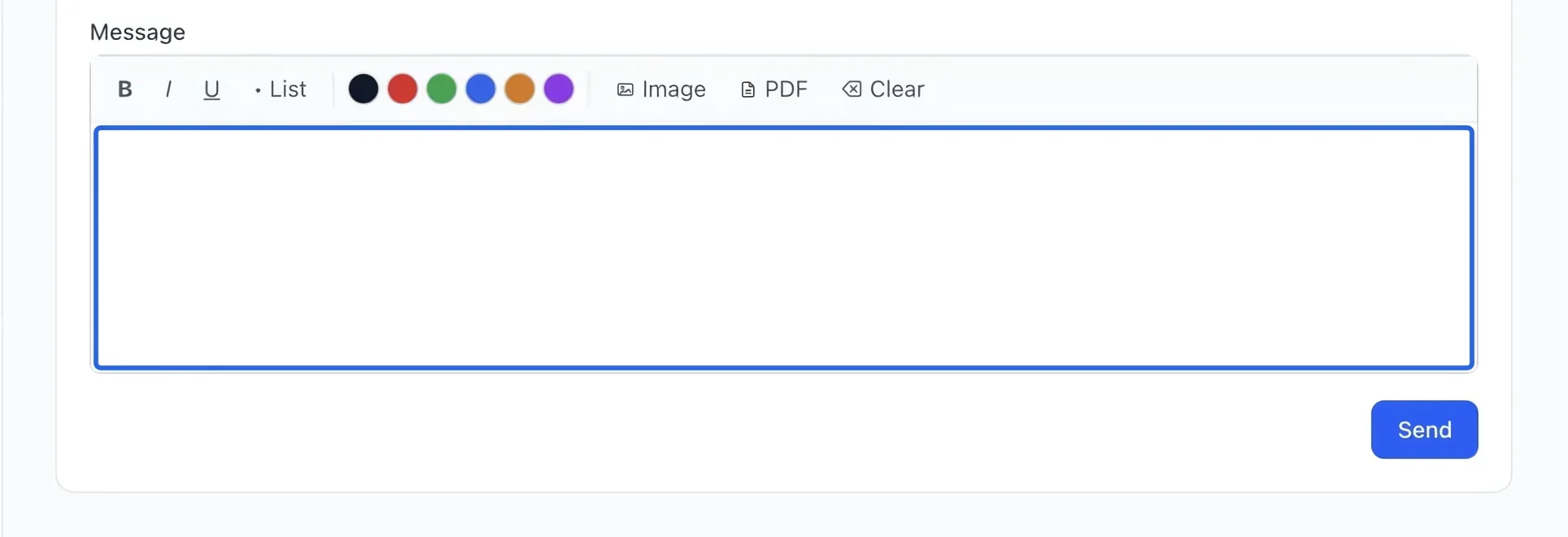
Type the details in the Message editor. Explain what changed, when it happens and what the family needs to do. Read it once from the recipient’s point of view.
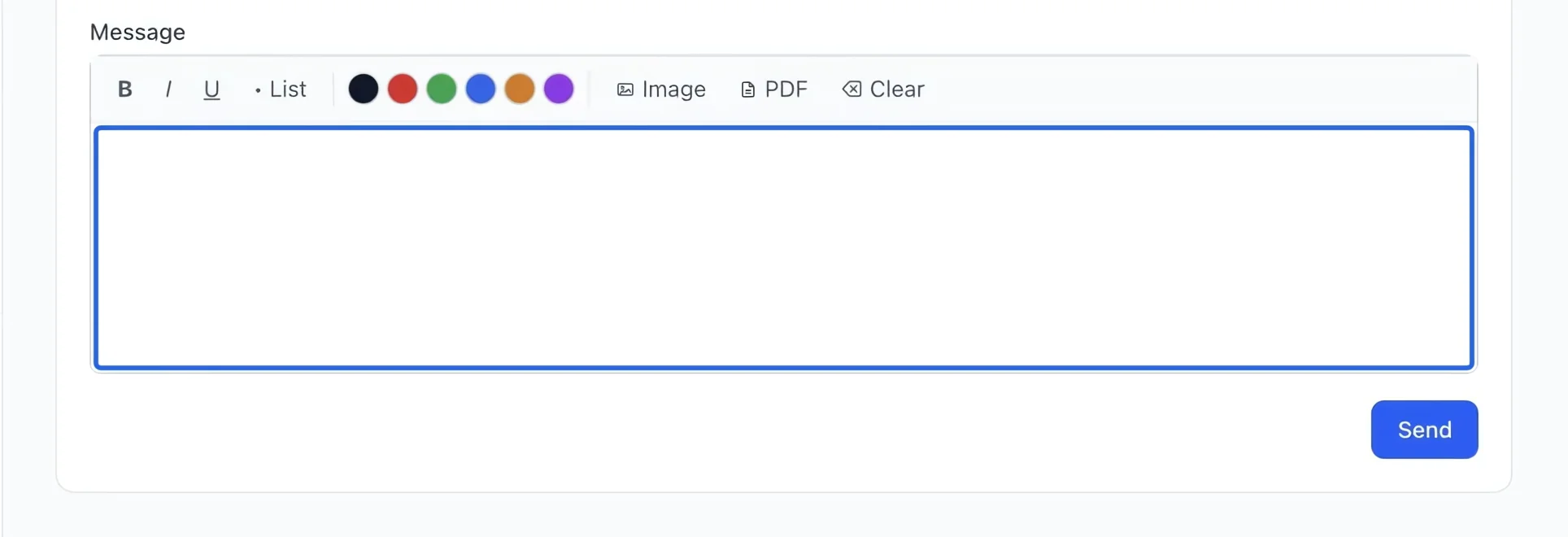
Select the screenshot to enlarge it. The blue outline marks the control to use.
- 5
Review and send
Recheck the audience, channel, subject and body, then click Send. Wait for confirmation before trying again. For newsletters and promotional campaigns, use Marketing so consent and unsubscribe handling apply.
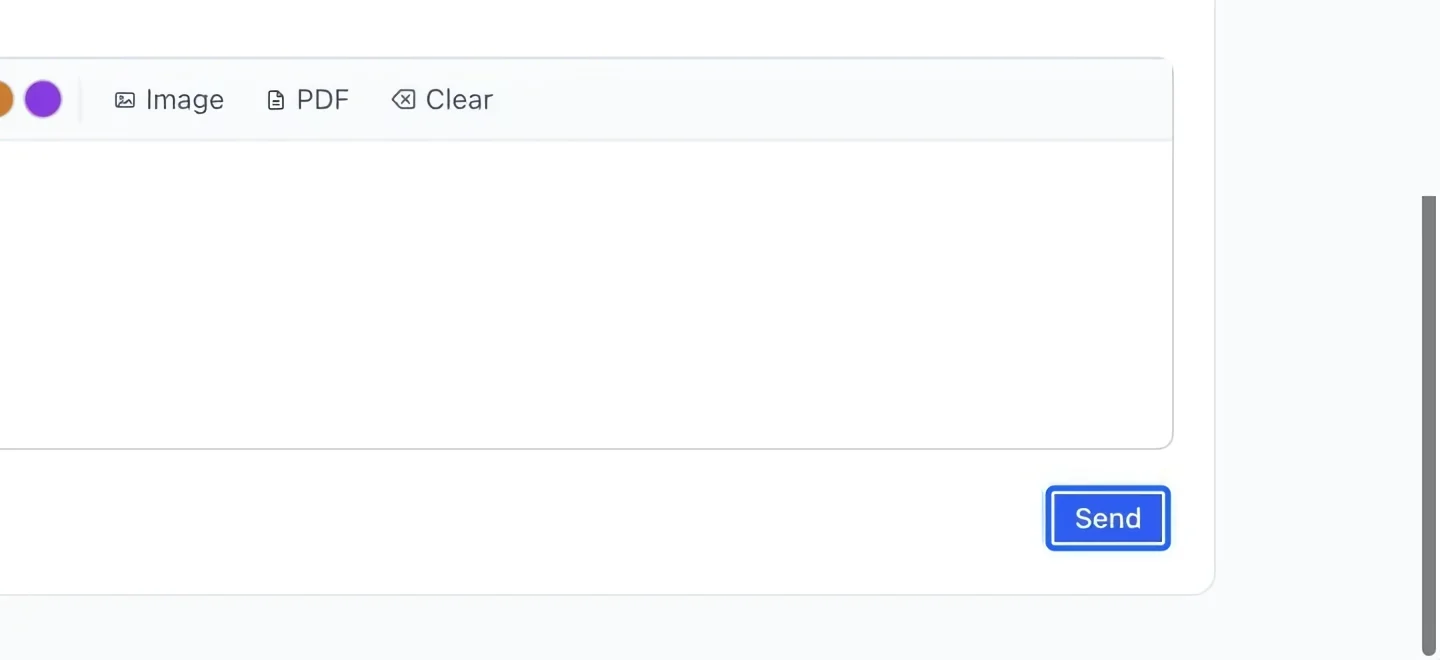
Select the screenshot to enlarge it. The blue outline marks the control to use.
- 6
Separate service messages from marketing
Use registration communications for information about an existing activity, such as a schedule change. These operational registration notices do not record open or click tracking. Use Marketing for promotional campaigns and respect each recipient’s communication preferences; a registration does not replace marketing consent.