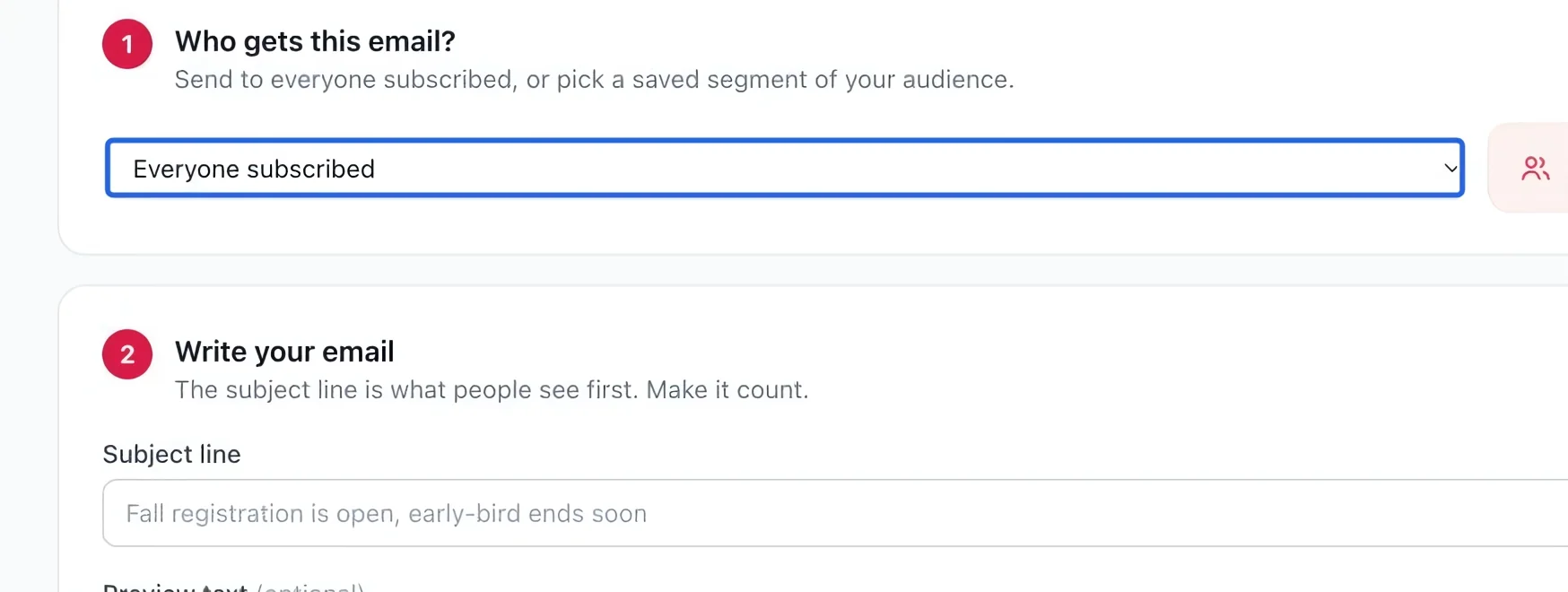
Target with segments
Saved audience rules (by tag, program history, engagement or location) that update themselves.
- 1
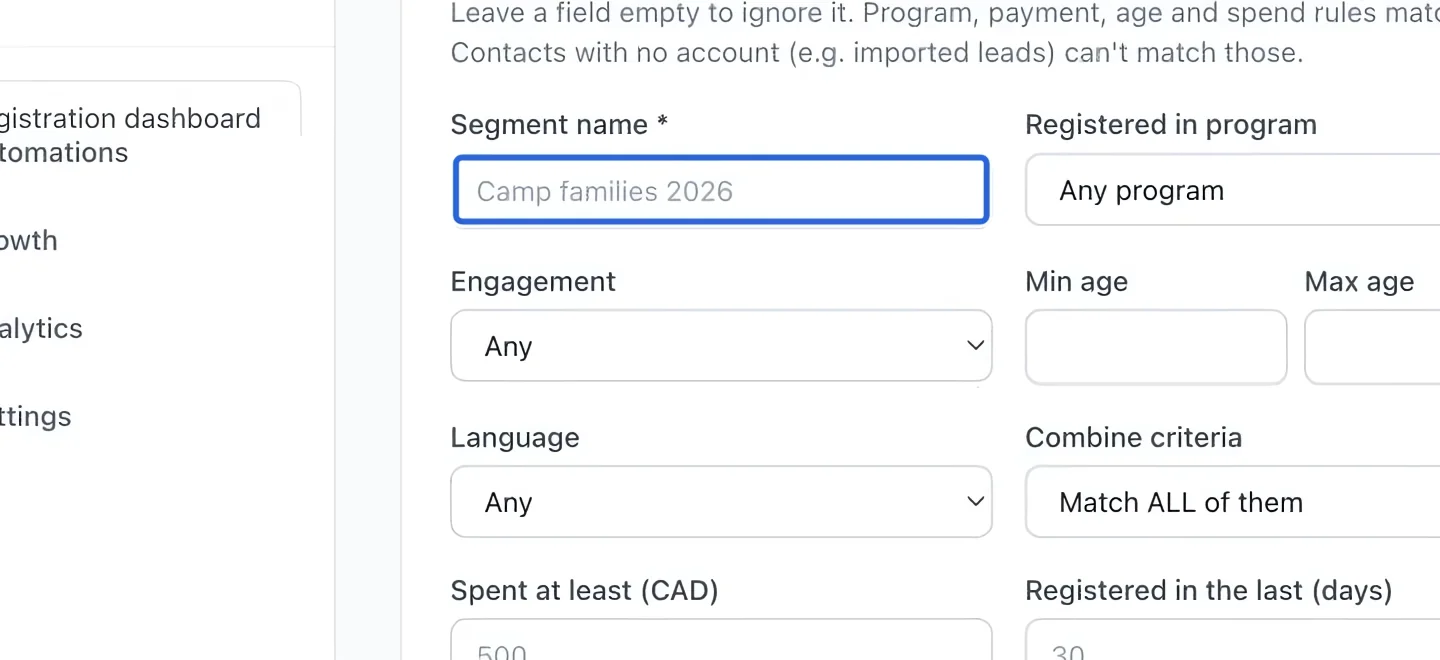
Name the audience
Open Marketing → Audience → Segments. Under Build a segment, enter a name that explains who belongs in it, such as “Camp families”.
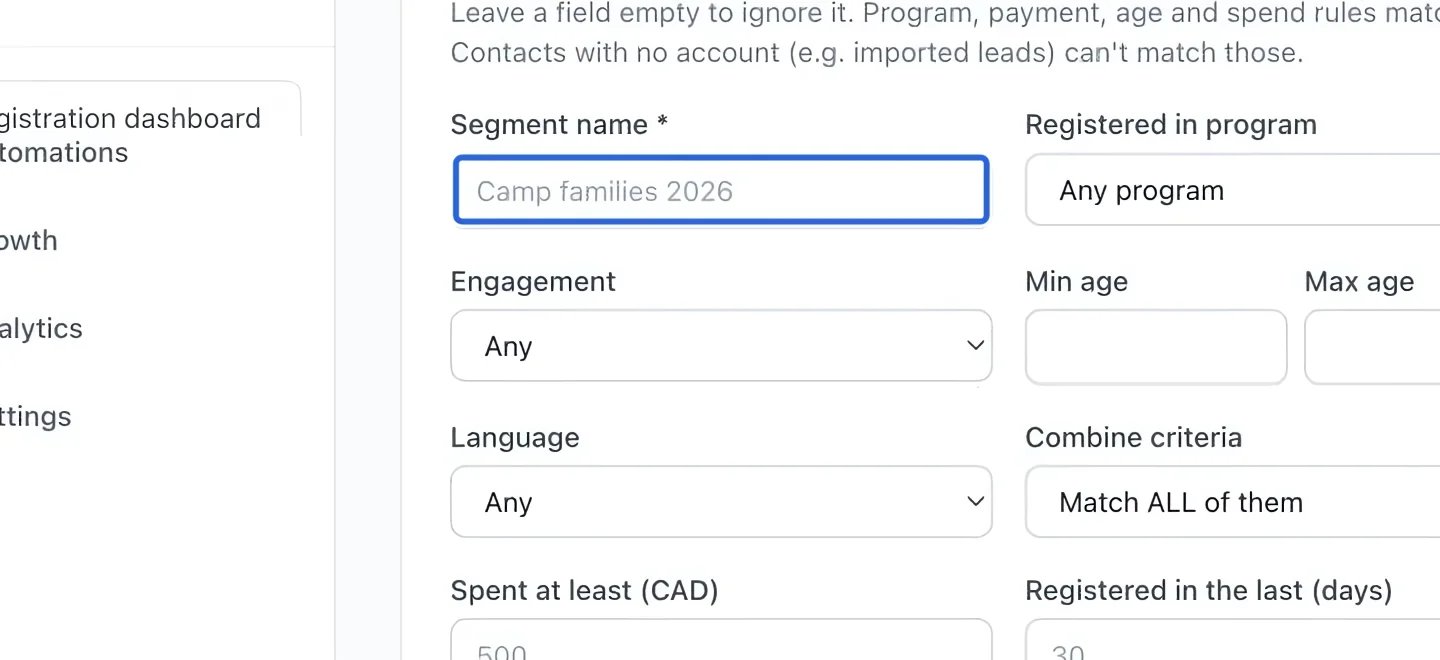
Select the screenshot to enlarge it. The blue outline marks the control to use.
- 2
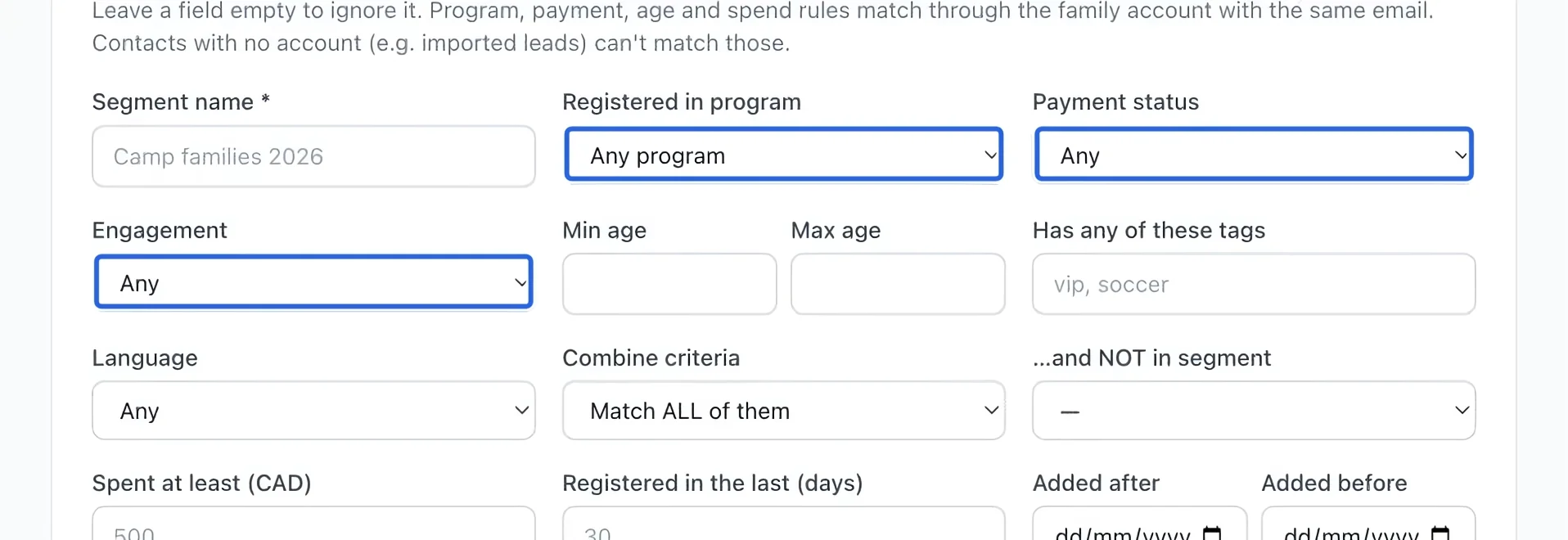
Choose selection rules
Choose the program, payment or engagement rules you need. Leave a filter at Any when it should not restrict the audience. Multiple rules can narrow the audience considerably.
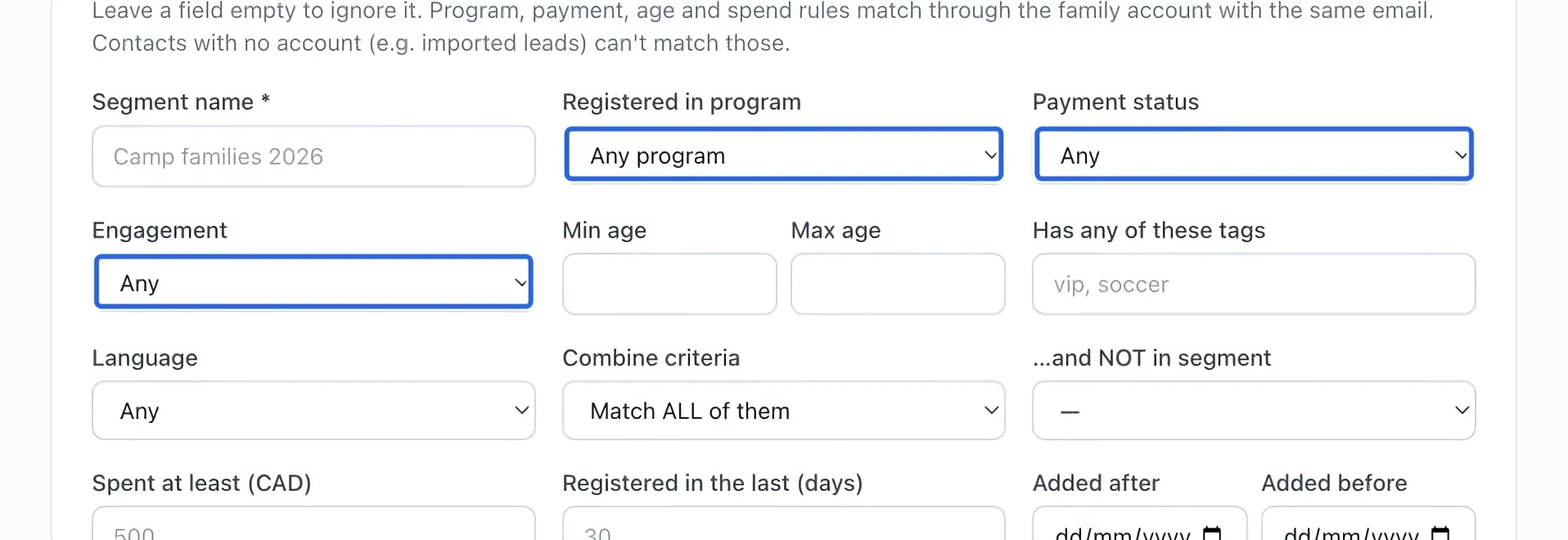
Select the screenshot to enlarge it. The blue outline marks the control to use.
- 3
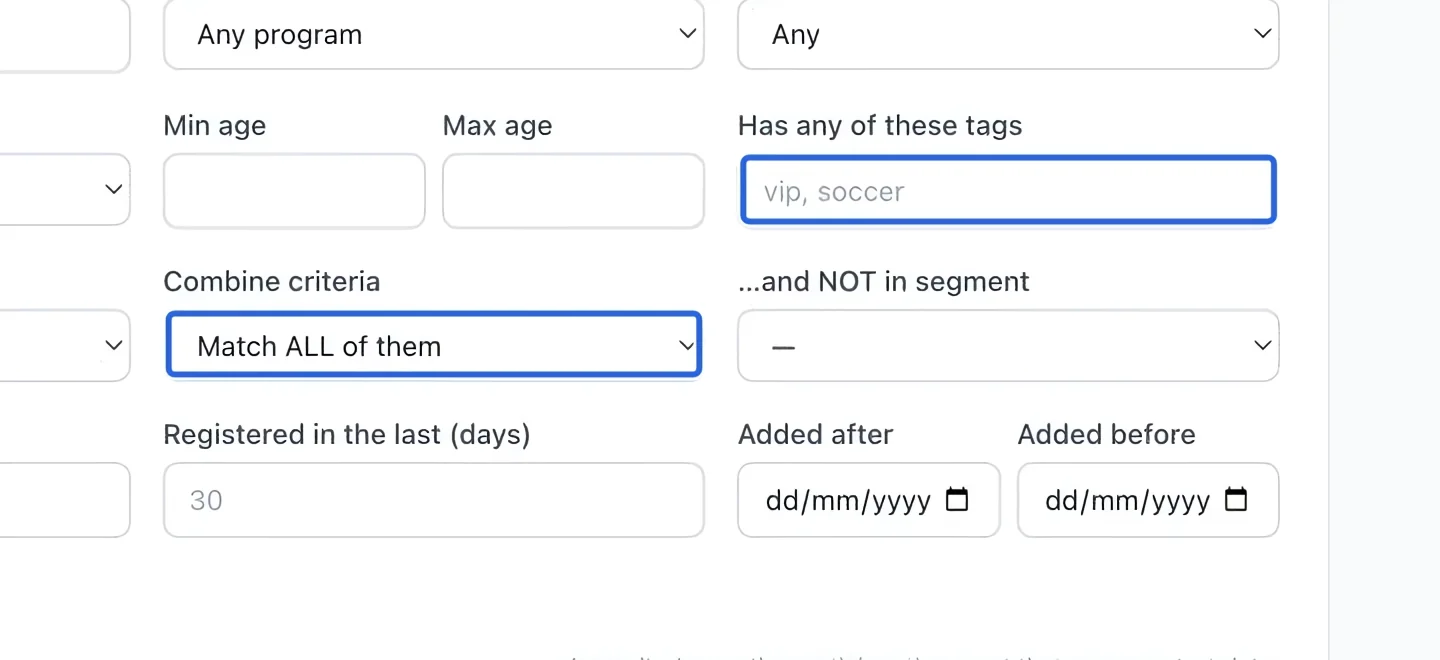
Decide how rules combine
Enter tags when needed and choose Match ALL or Match ANY. ALL requires every rule; ANY includes a contact matching at least one rule. Review this choice before saving.
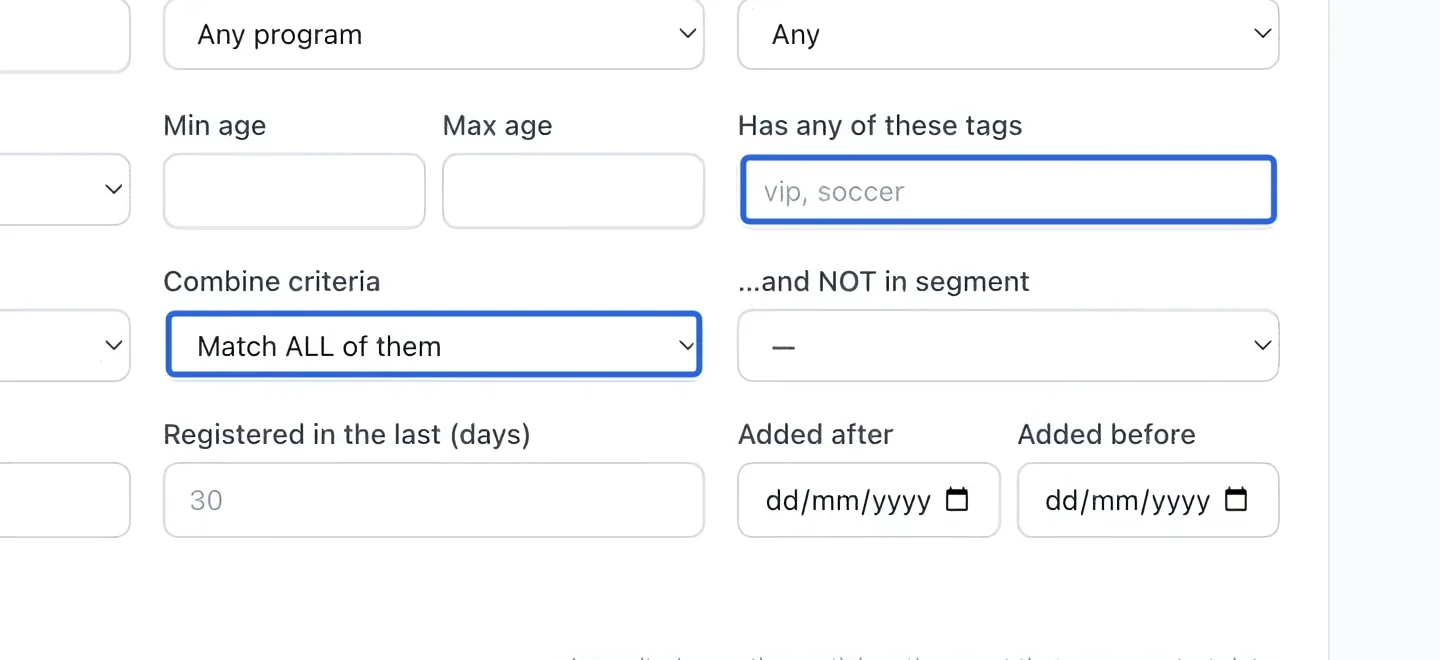
Select the screenshot to enlarge it. The blue outline marks the control to use.
- 4
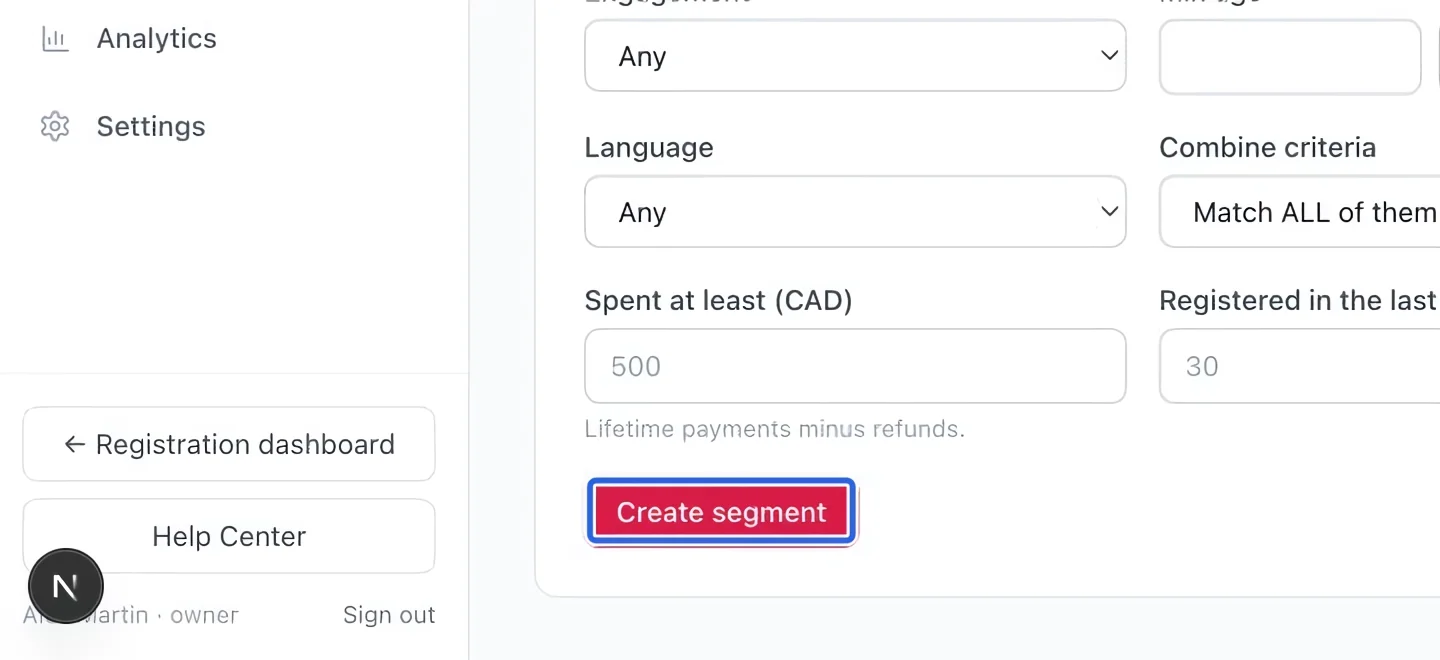
Save and review the segment
Click Create segment, then check the saved audience and contact count. A segment is based on rules, so its membership changes as contact data changes.
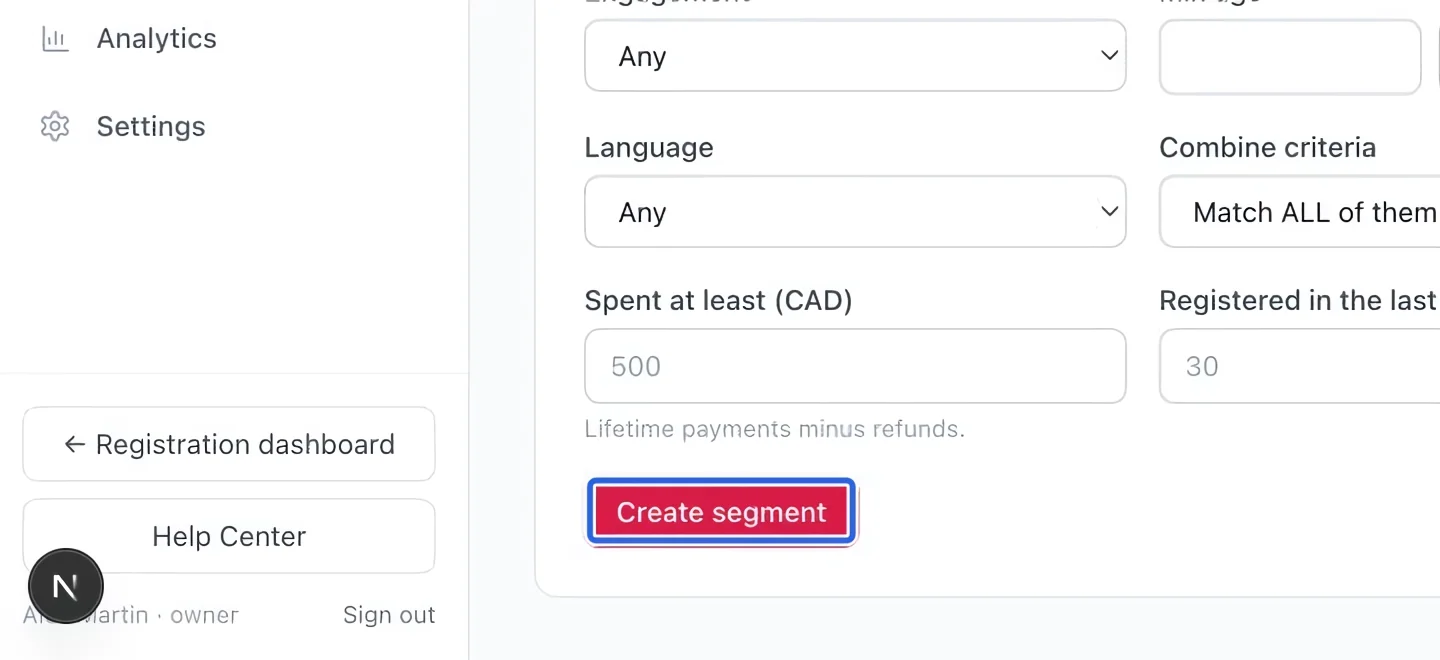
Select the screenshot to enlarge it. The blue outline marks the control to use.
- 5
Use it in a campaign
In a campaign, select the segment under Who gets this email?. Confirm the intended audience before sending; contacts must still be eligible to receive marketing email.
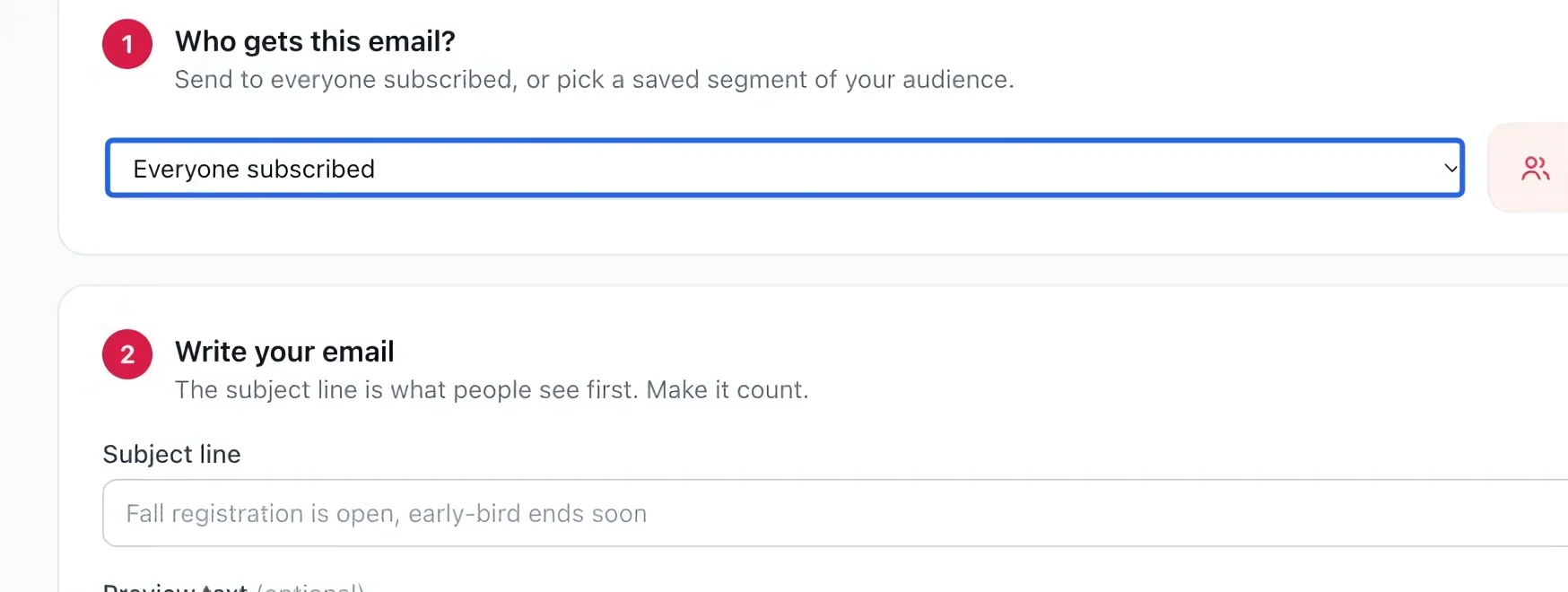
Select the screenshot to enlarge it. The blue outline marks the control to use.