Communicate with your staff team
Use private conversations, group chats and announcements, and interpret read status.
- 1
Open the right staff conversation
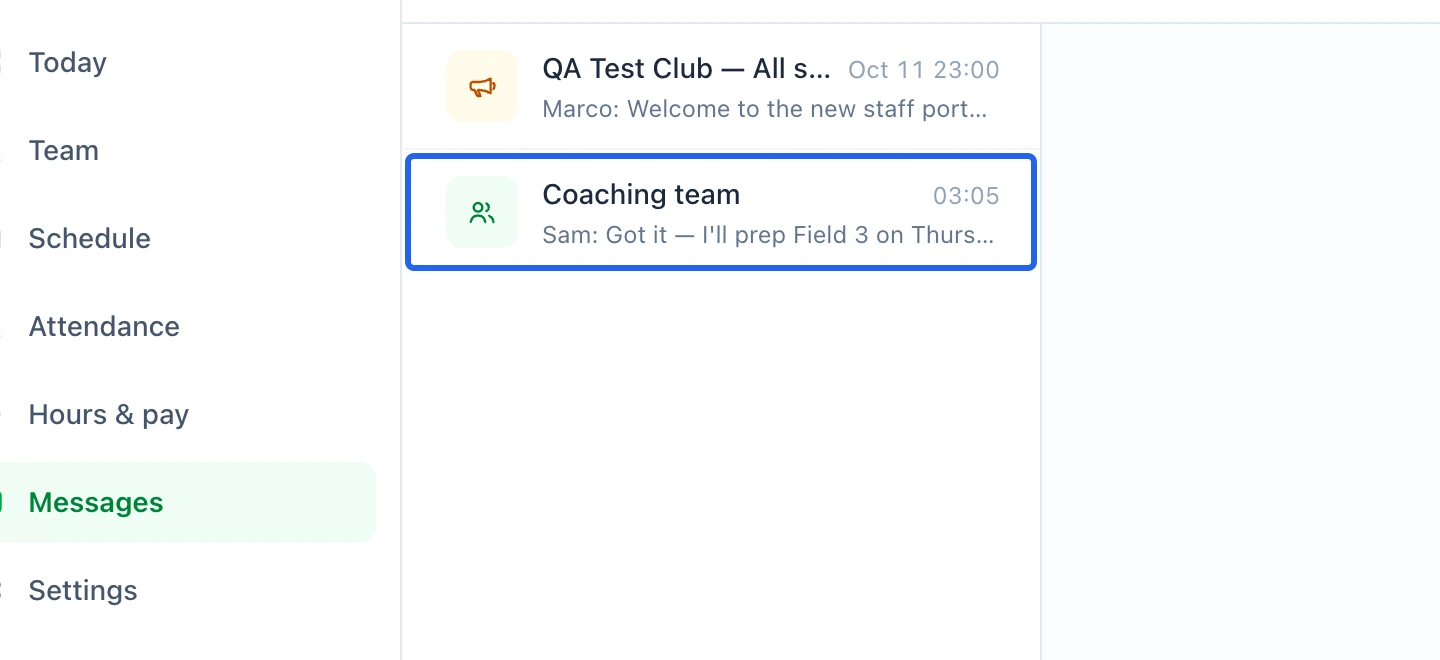
Open Workforce messages and select a conversation. Check its name and participants before writing. These internal conversations are separate from registration emails to families and Marketing campaigns.
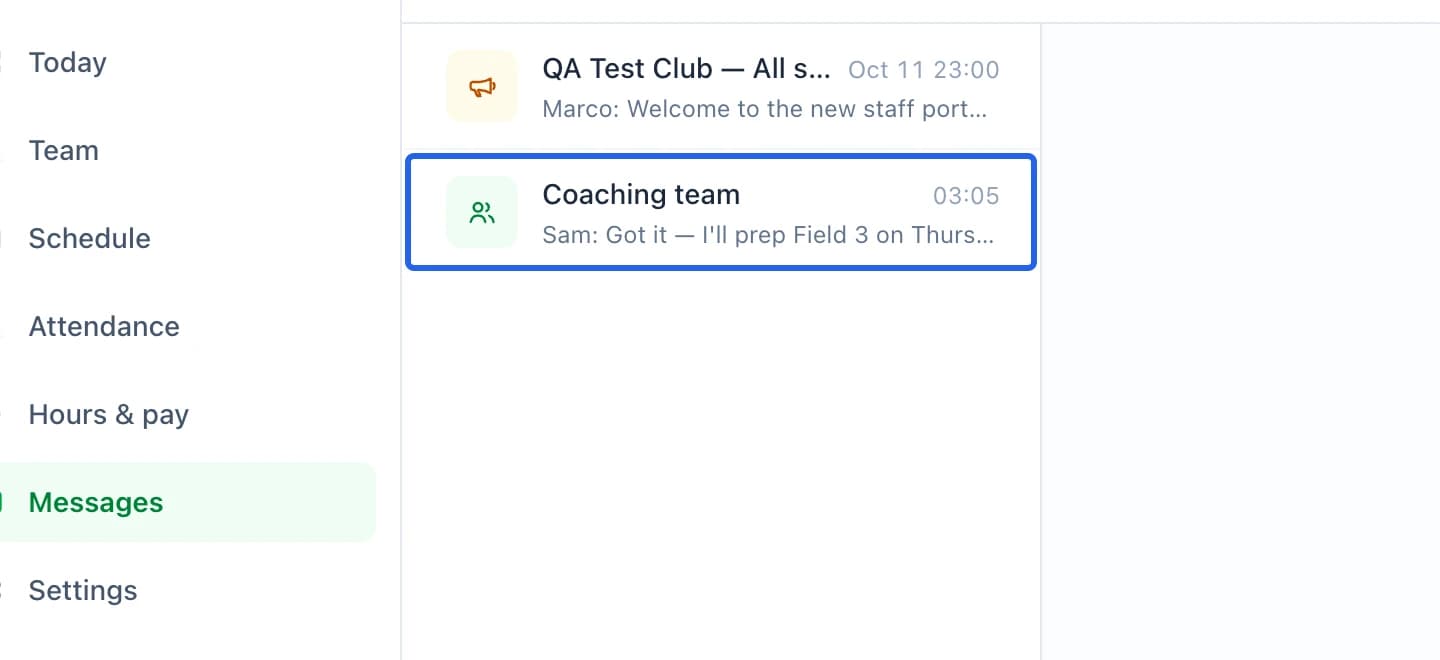
Select the screenshot to enlarge it. The blue outline marks the control to use.
- 2
Choose a private message, group or announcement
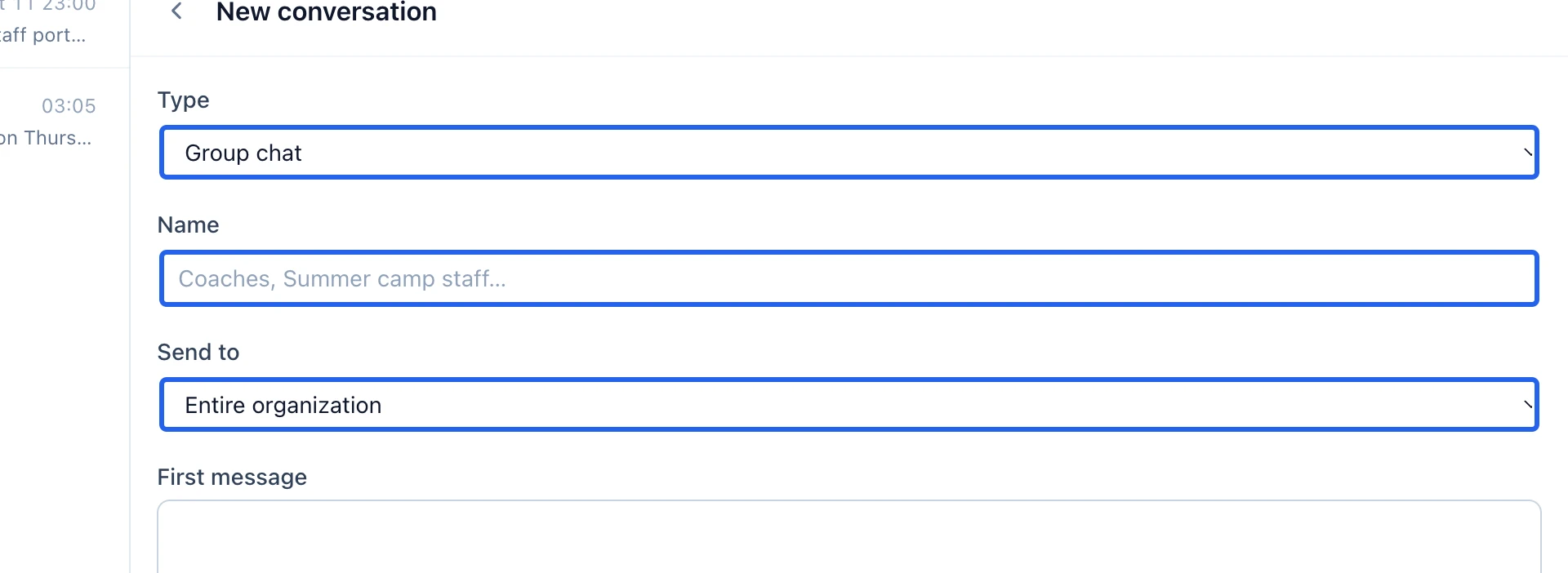
Create the conversation type permitted by your role. Managers with communication rights can select a group or announcement and an organization, department or custom audience. Review the first message and recipients before Create & send. Only managers can post in announcement channels.
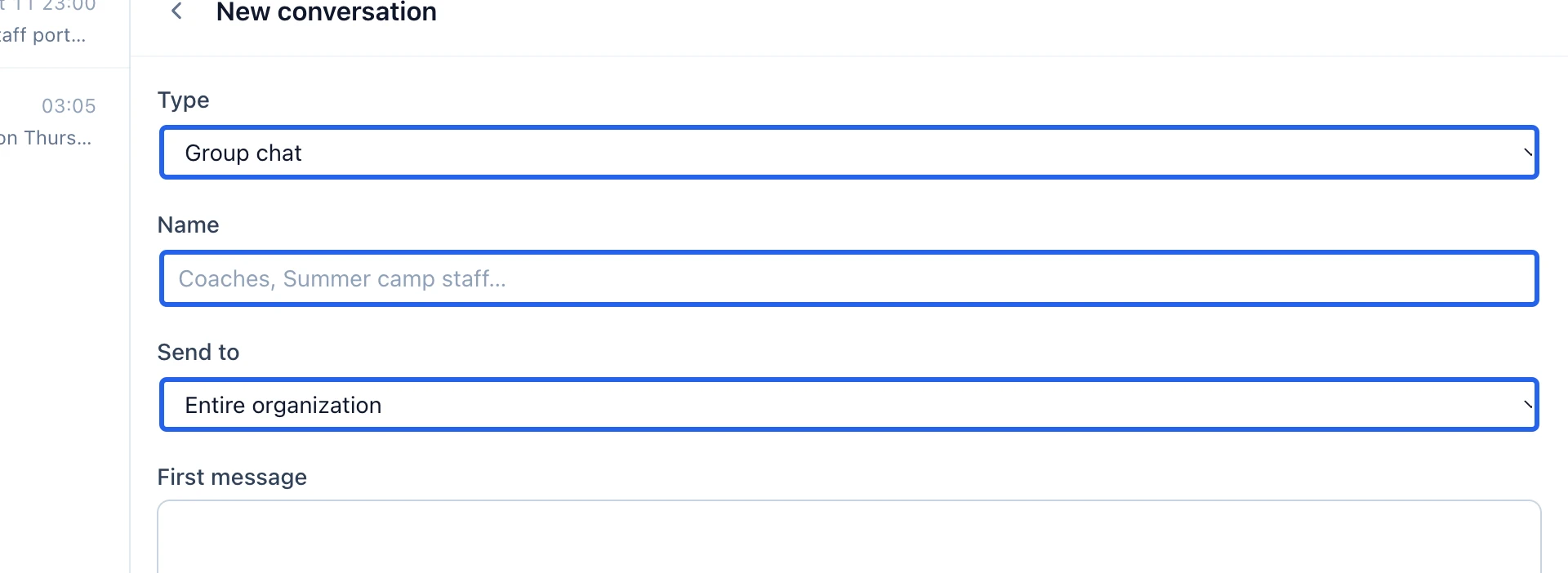
Select the screenshot to enlarge it. The blue outline marks the control to use.
- 3
Check sending and read status
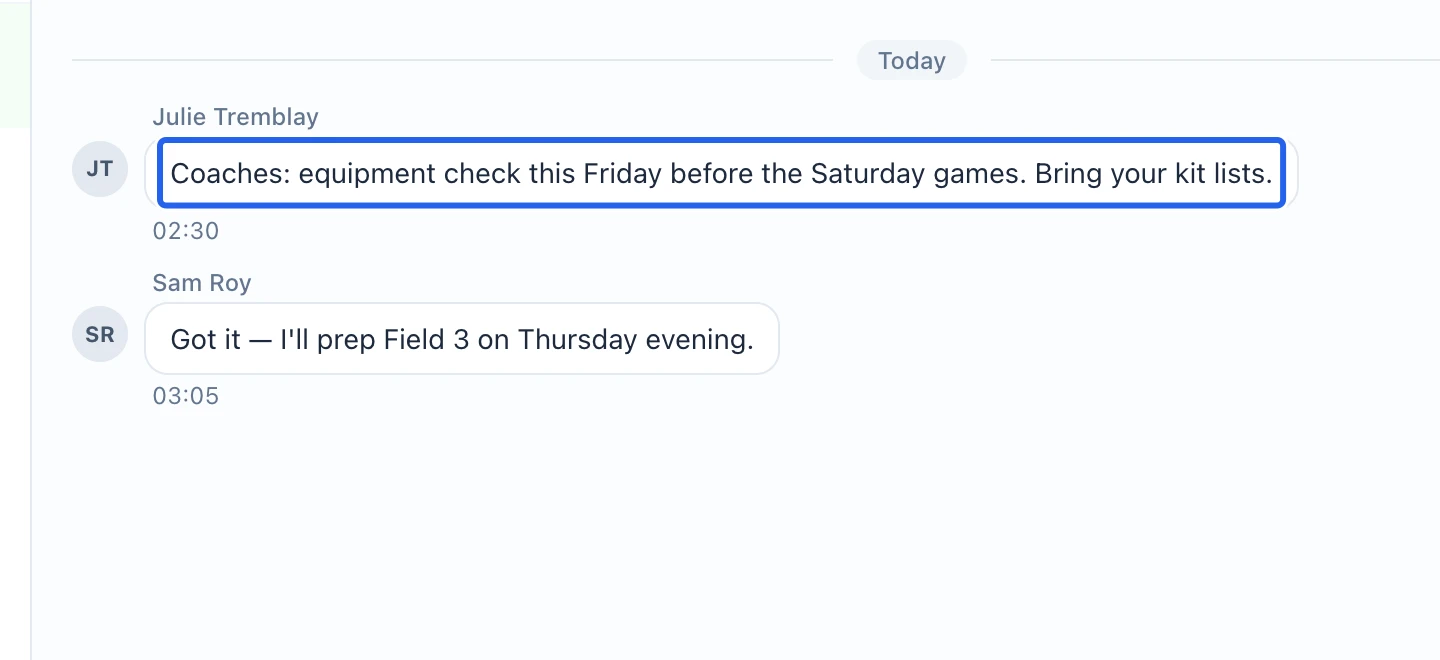
After sending, check for any error and confirm that the message appears in the intended conversation. Open the read-status control to see Seen and Not seen yet when available. Some older messages have no reliable read receipts; an unavailable status is not proof that nobody read them.
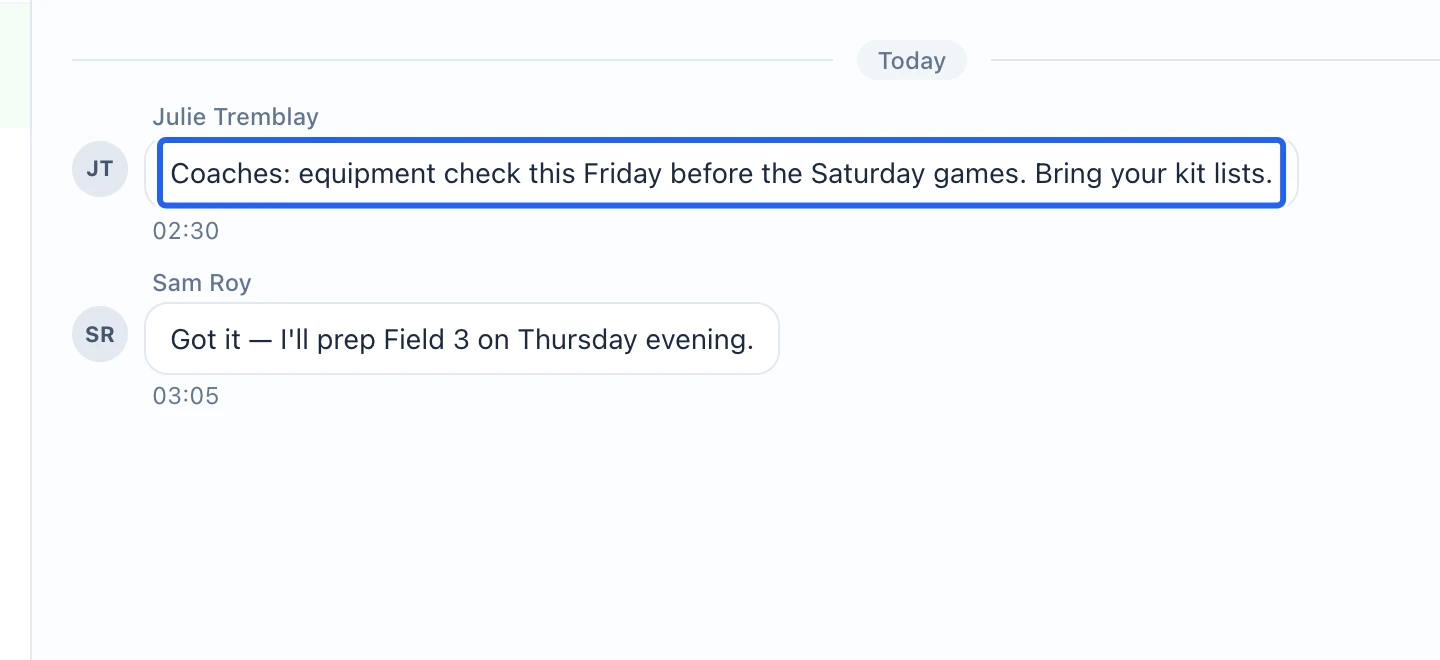
Select the screenshot to enlarge it. The blue outline marks the control to use.